1. Online Editing
更新: 2026/7/22 字数: 0 字 时长: 0 分钟
1.1 Title Bar
1.1.1 Current Step
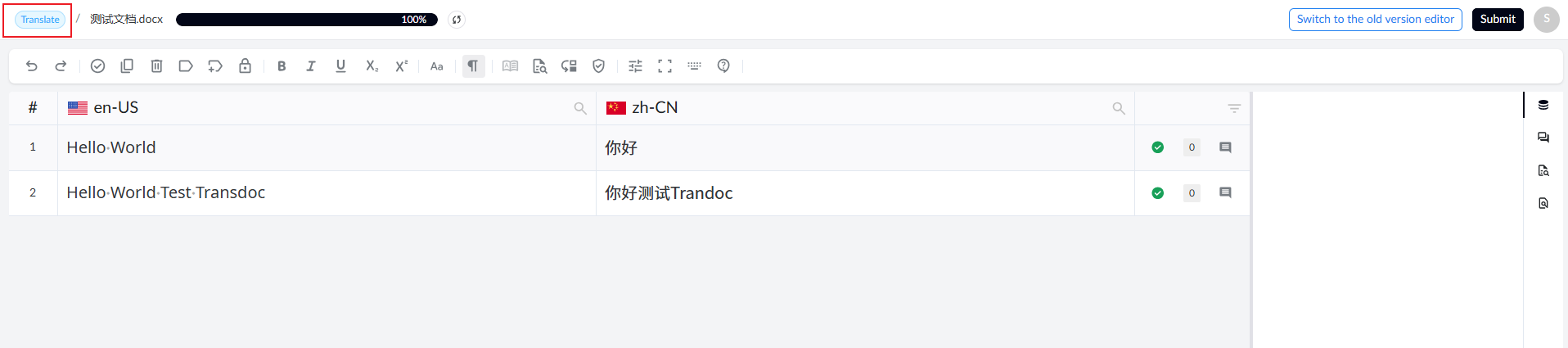
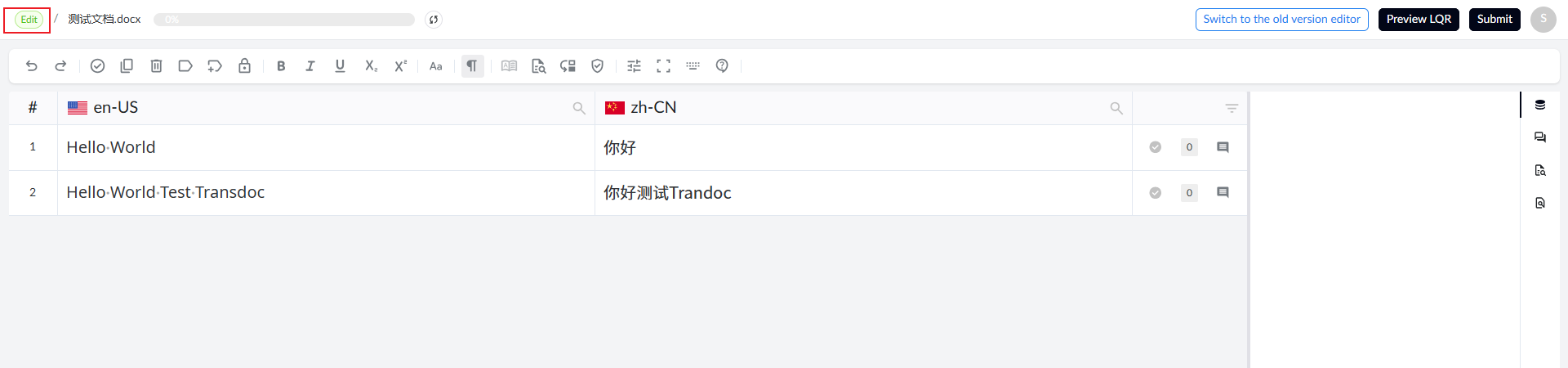
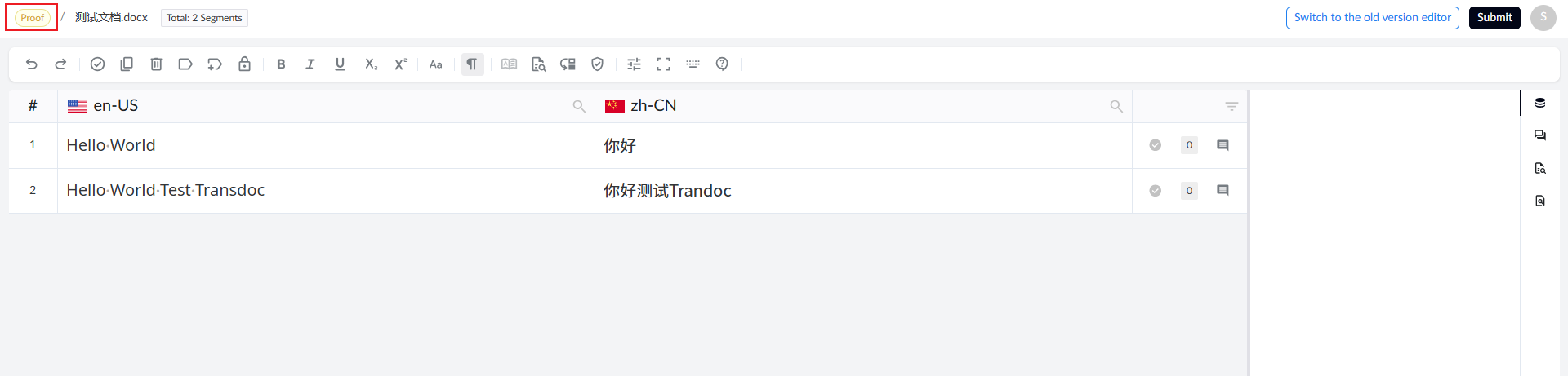
Display current step information: Step T, Step E, Step P
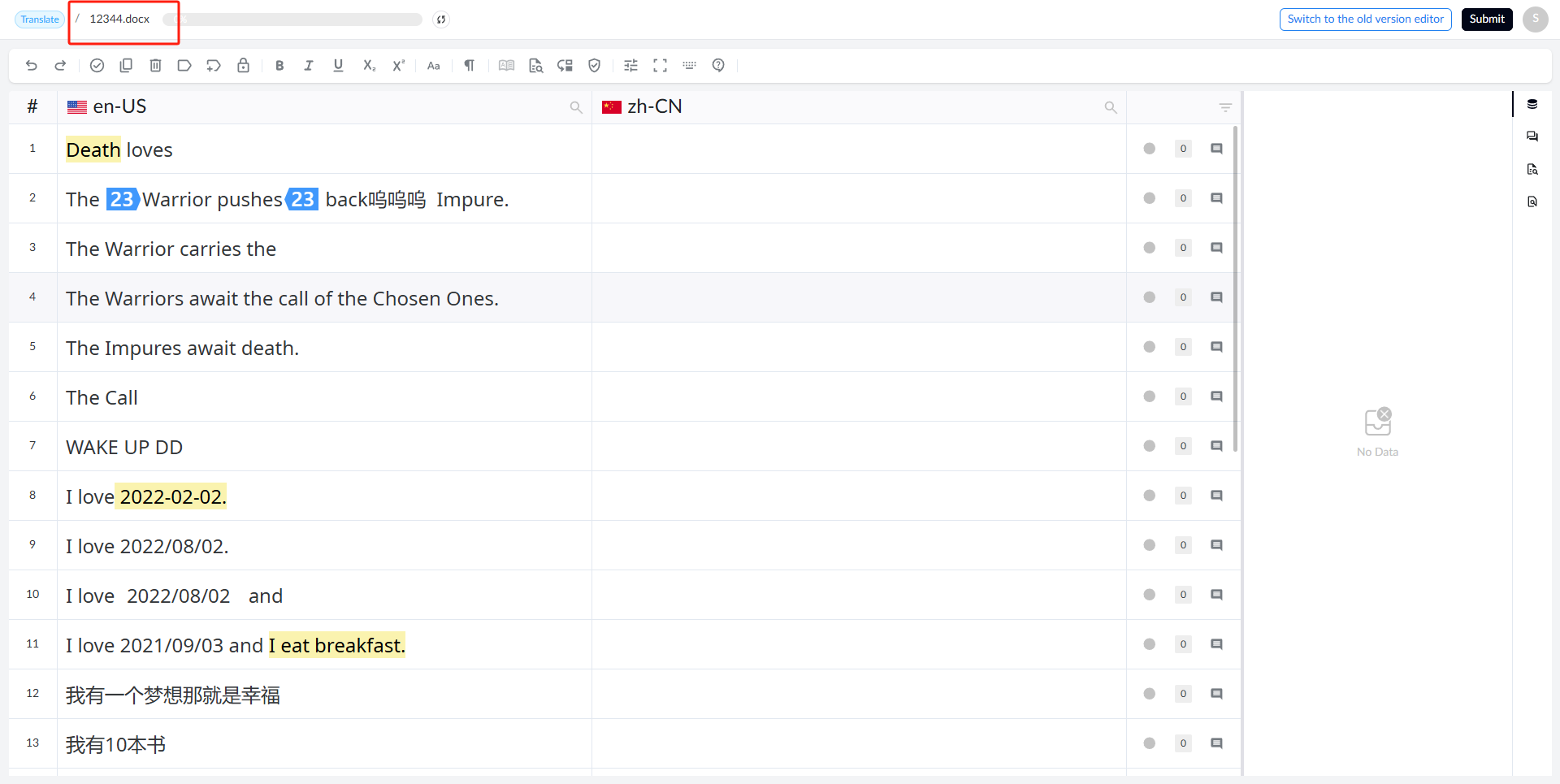
1.1.2 Task File Name
Display the current task file name
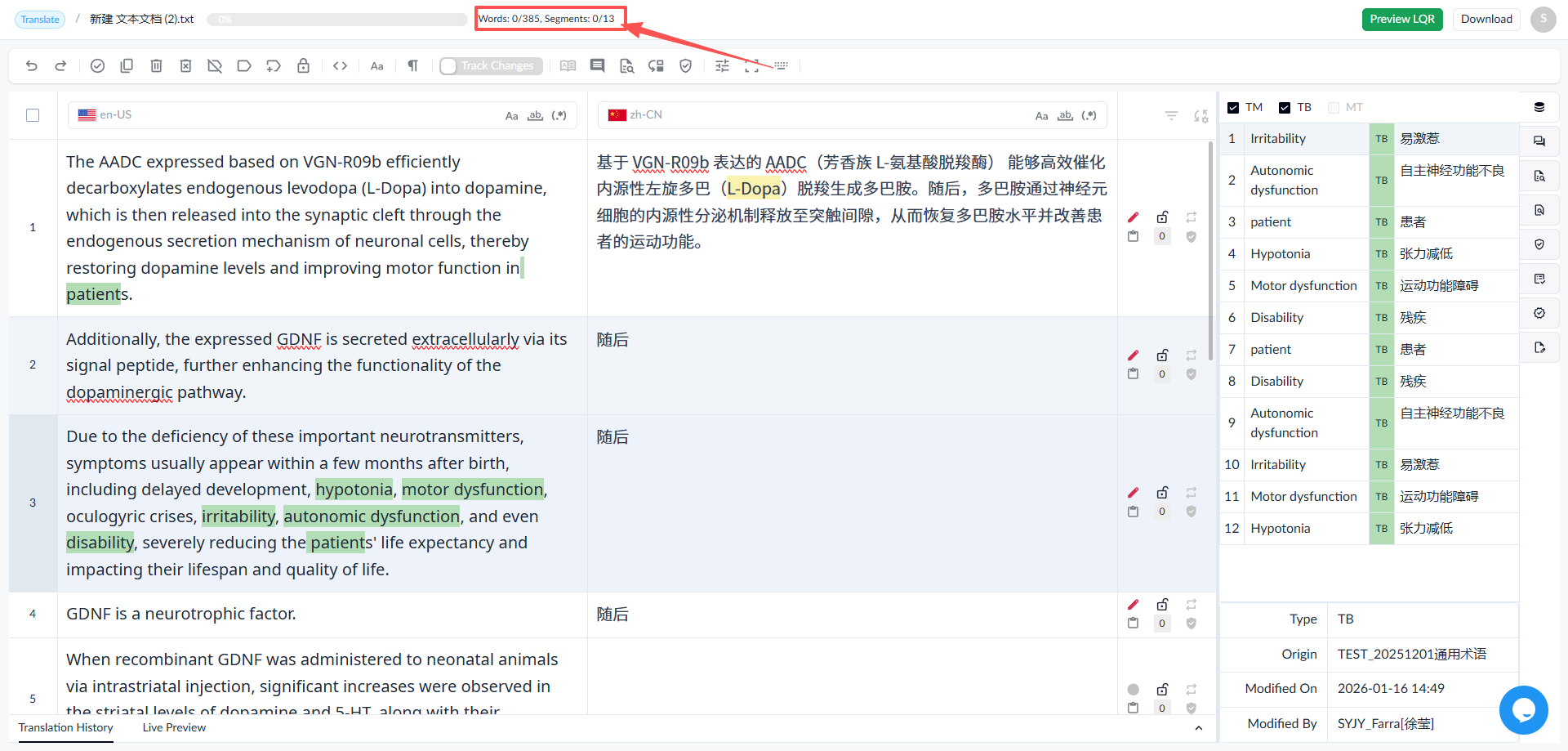
1.1.3 Total Word Count
Displays the total number of words and the number of segments to be translated.
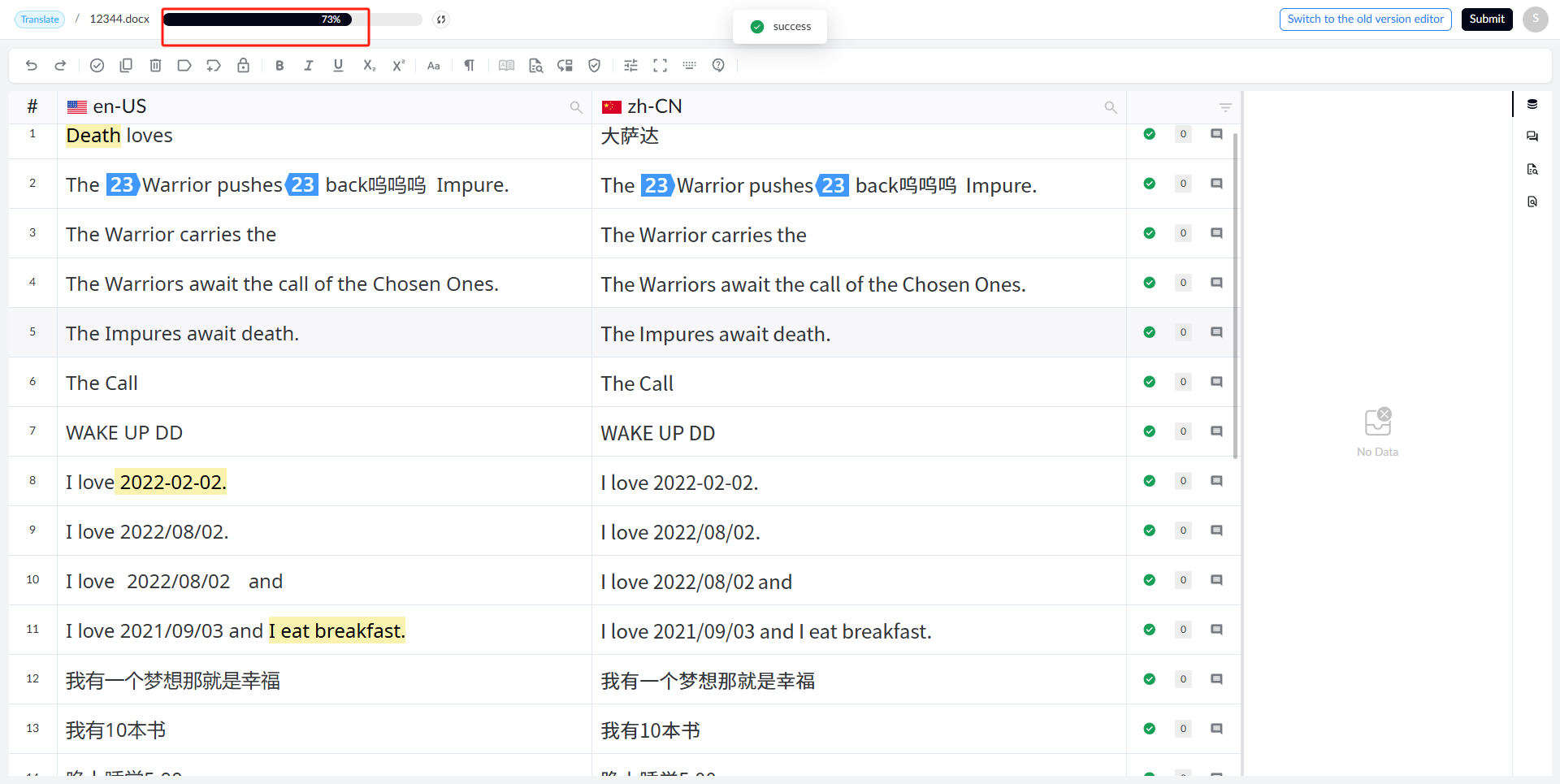
1.1.4 Translation Progress
Displays the percentage of translation completed.
1.2 Toolbar
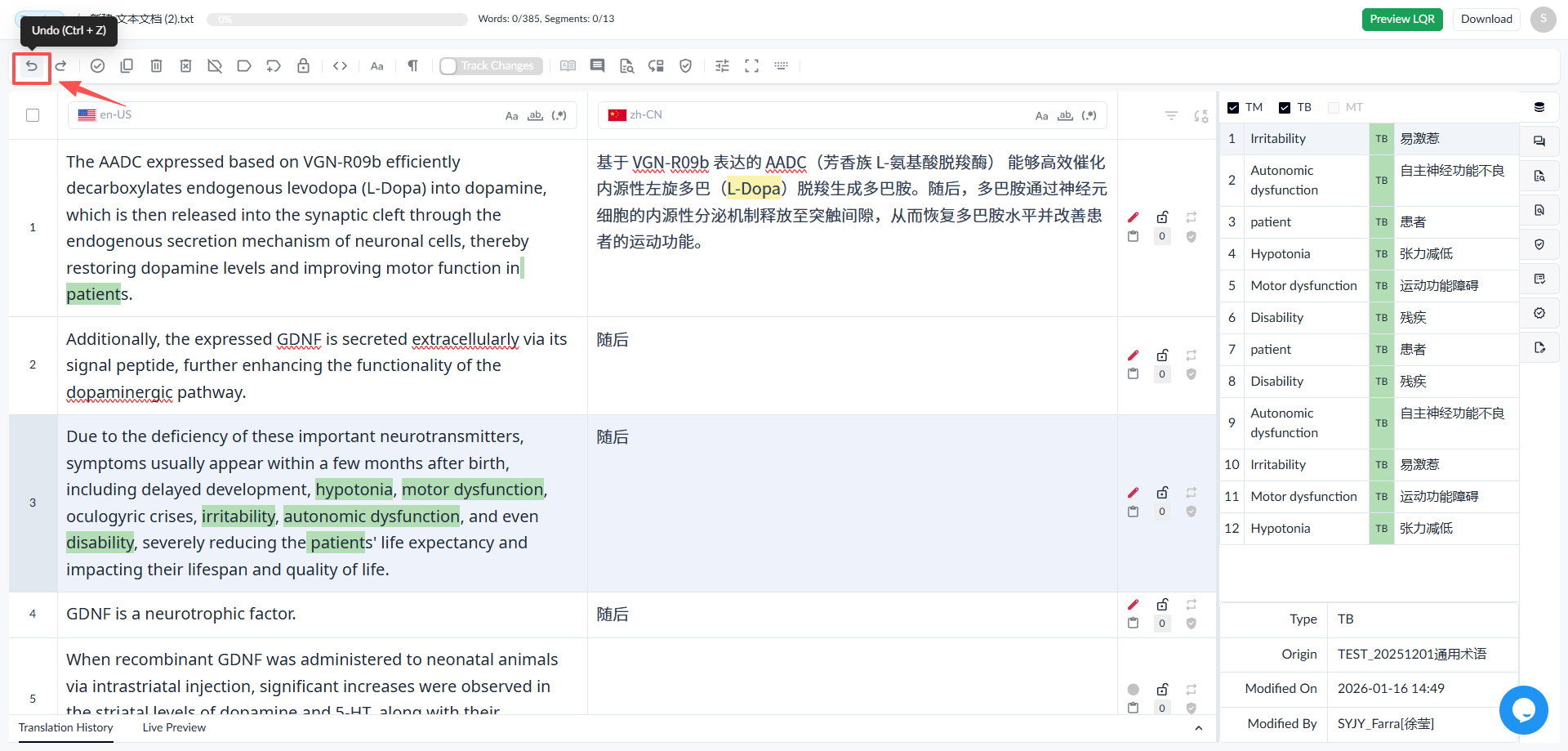
1.2.1 Undo
• Click the [Undo] button to perform the undo operation
• Shortcut: (Ctrl+Z)
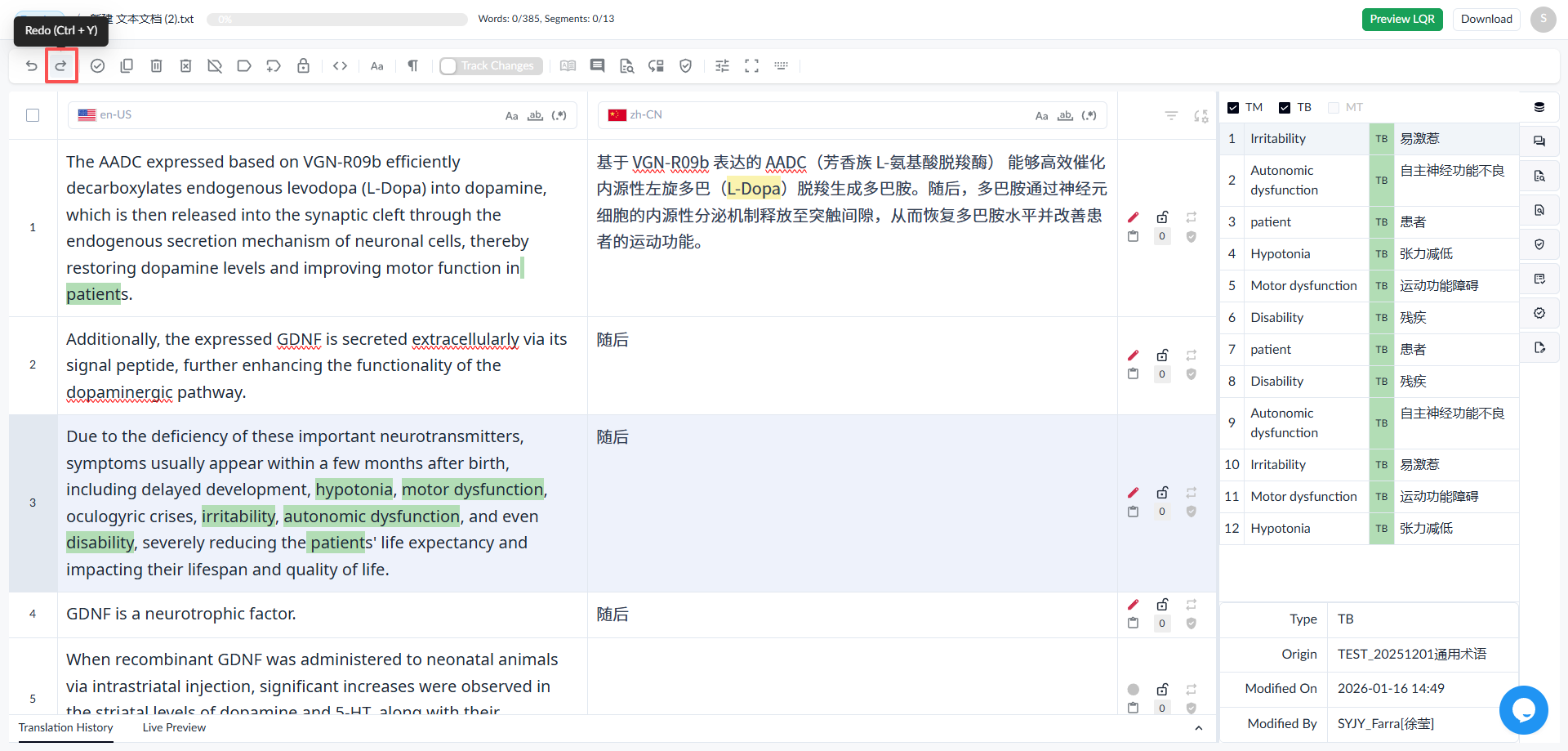
1.2.2 Redo
• Click the [Redo] button to redo an action.
• Shortcut: (Ctrl+Y)
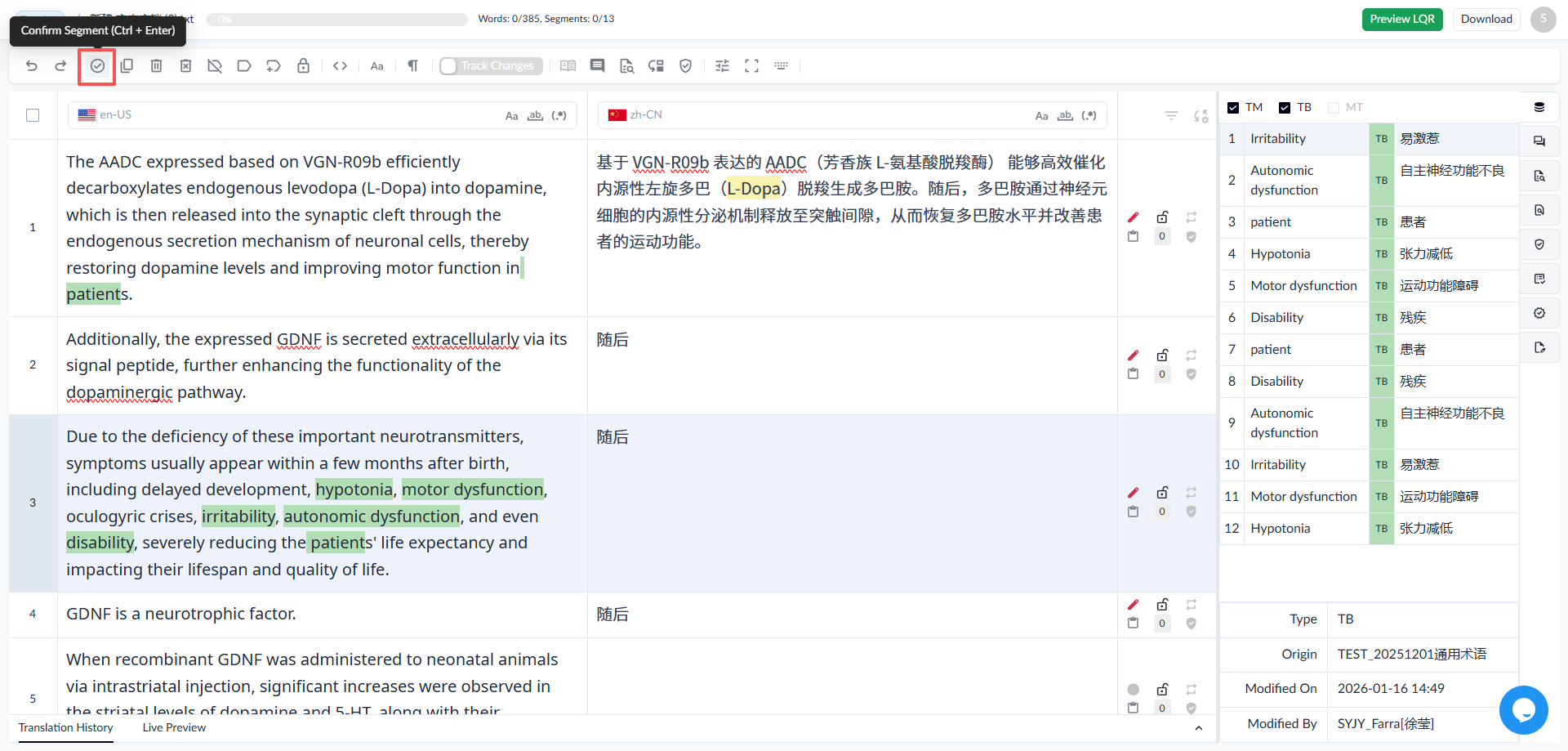
1.2.3 Confirm Segment
• Select a segment, then click the [Confirm Segment] button to confirm the segment.
• Shortcut: (Ctrl+Enter)
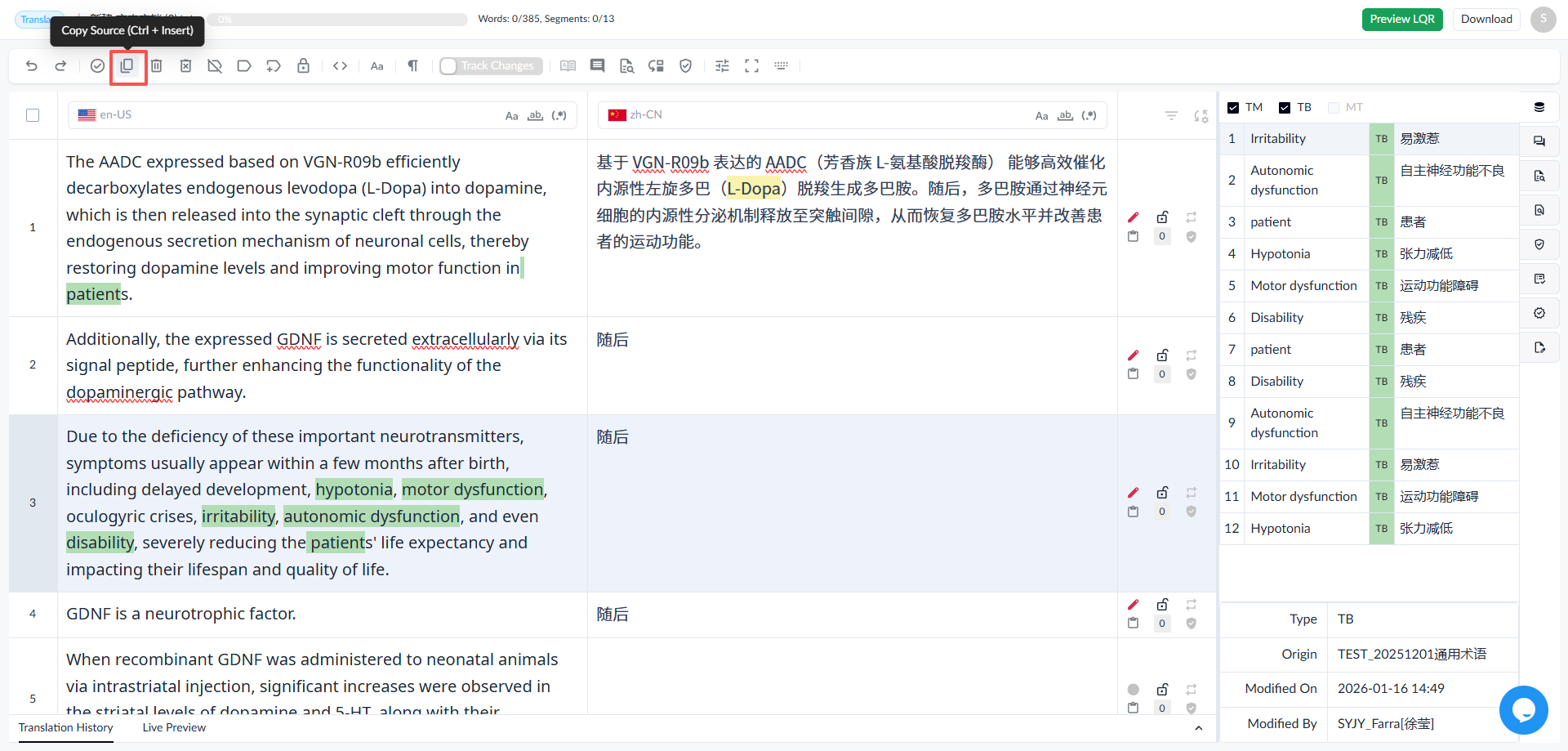
1.2.4 Copy Source to Target
• Select a segment, then click the [Copy Source] button to copy the source text to the target field.
• Shortcut: (Ctrl+Insert)
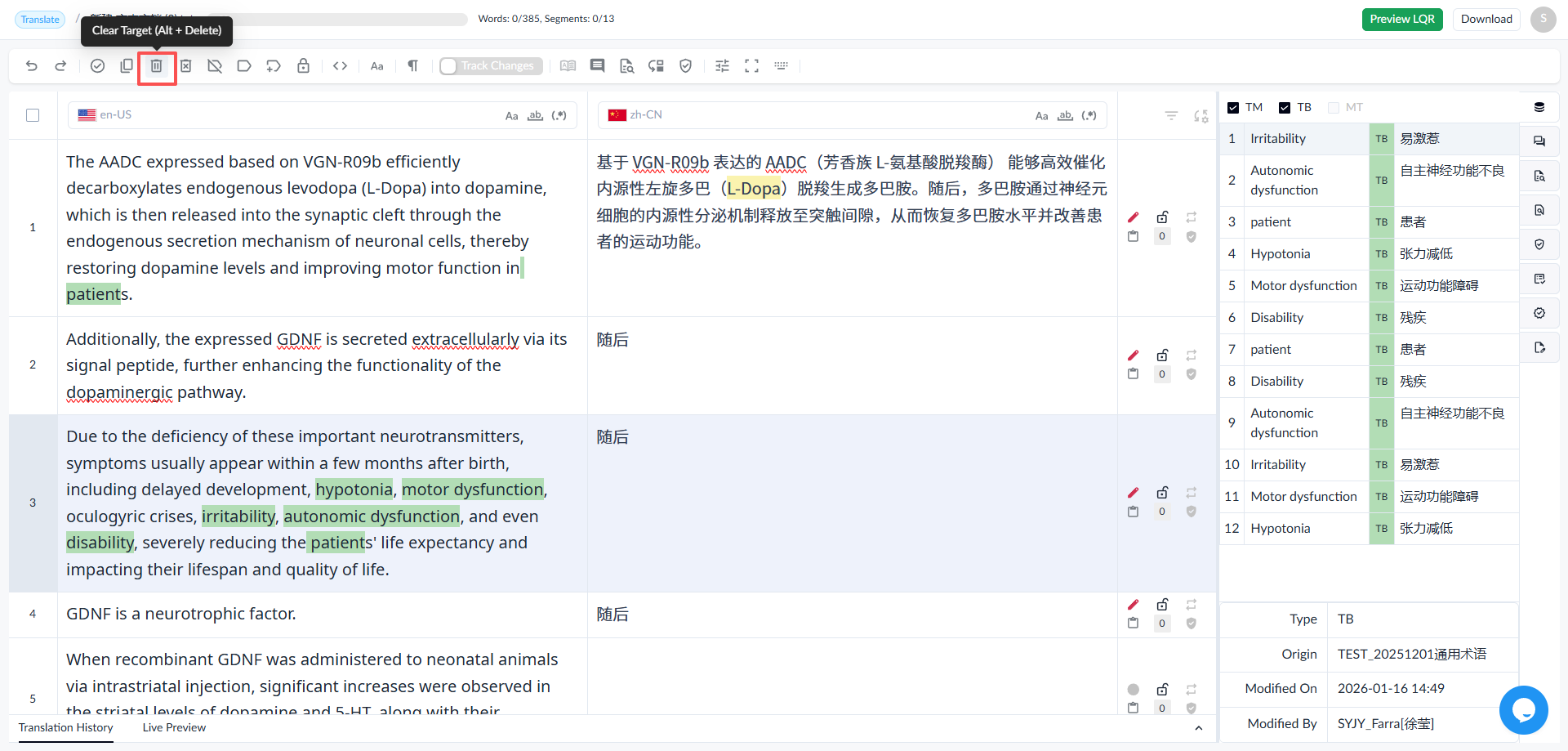
1.2.5 Delete Target Text
• Select a segment, then click the [Clear Target] button to delete the target text.
• Shortcut: (Alt+Delete)
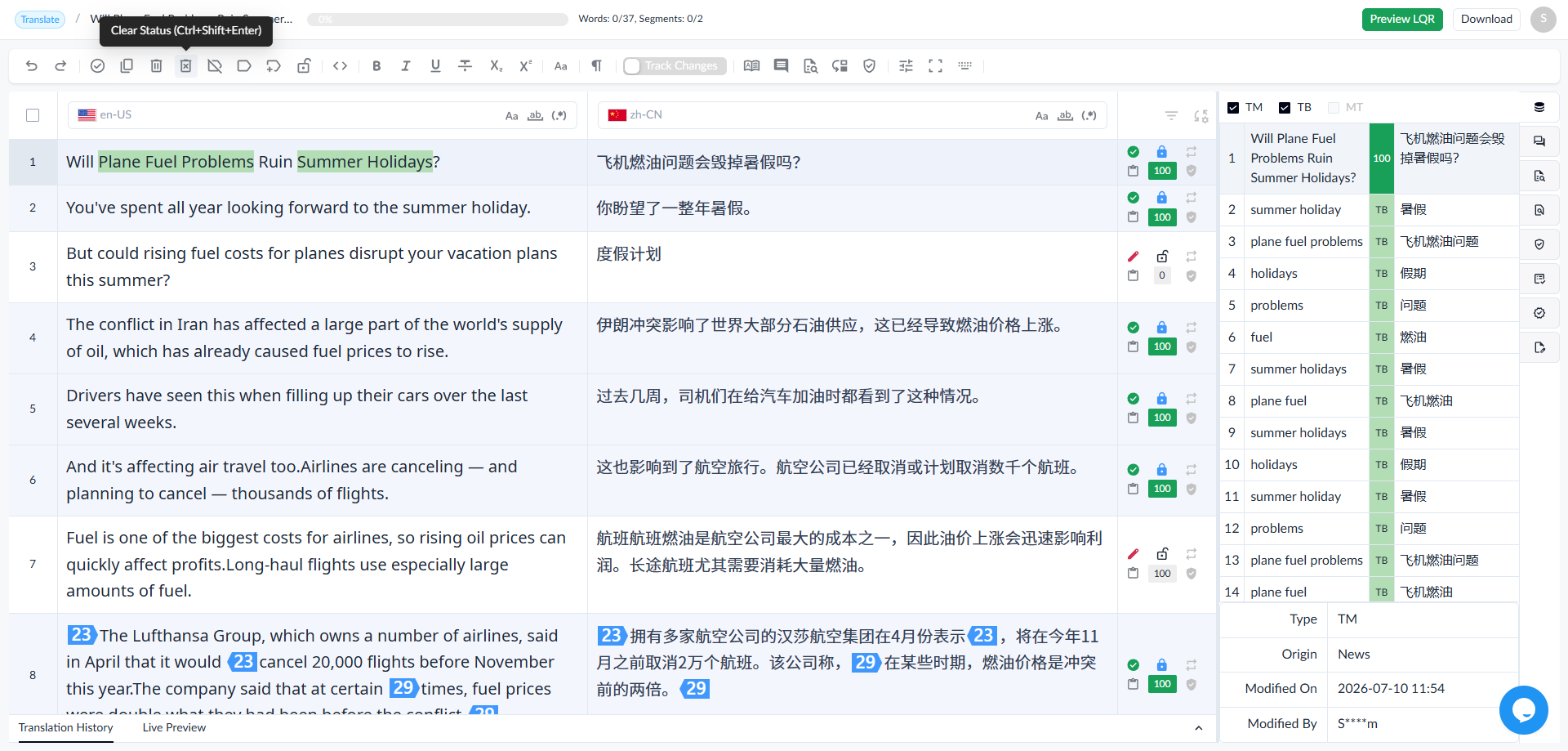
1.2.6 Clear Status
• Select a segment, then click the [Clear Status] button to clear the segment status.
• Shortcut: (Ctrl+Shift+Enter)
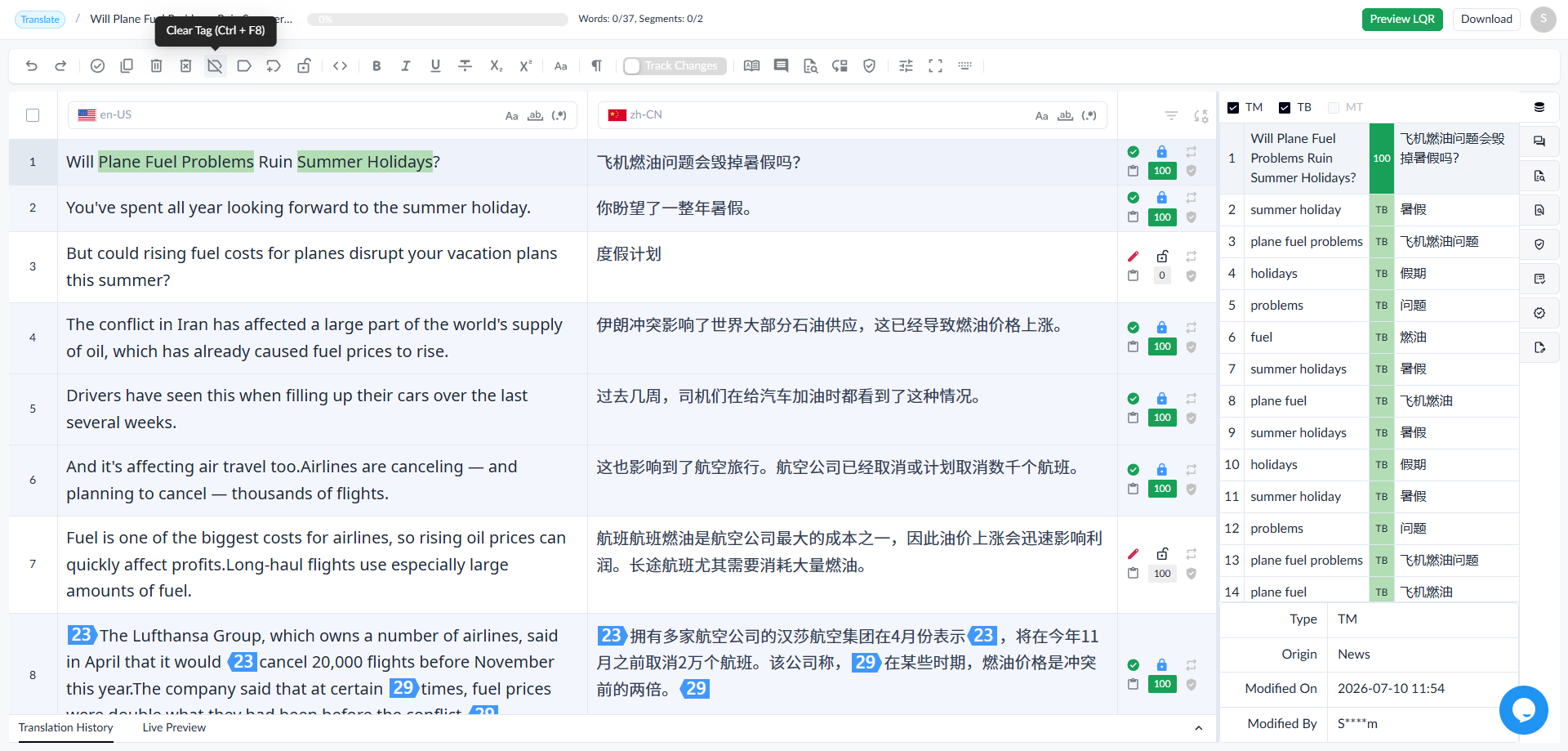
1.2.7 Delete Tags
• Select a segment, then click the [Clear Tag] button to remove all the tags from the target segment.
• Shortcut: (Ctrl+F8)
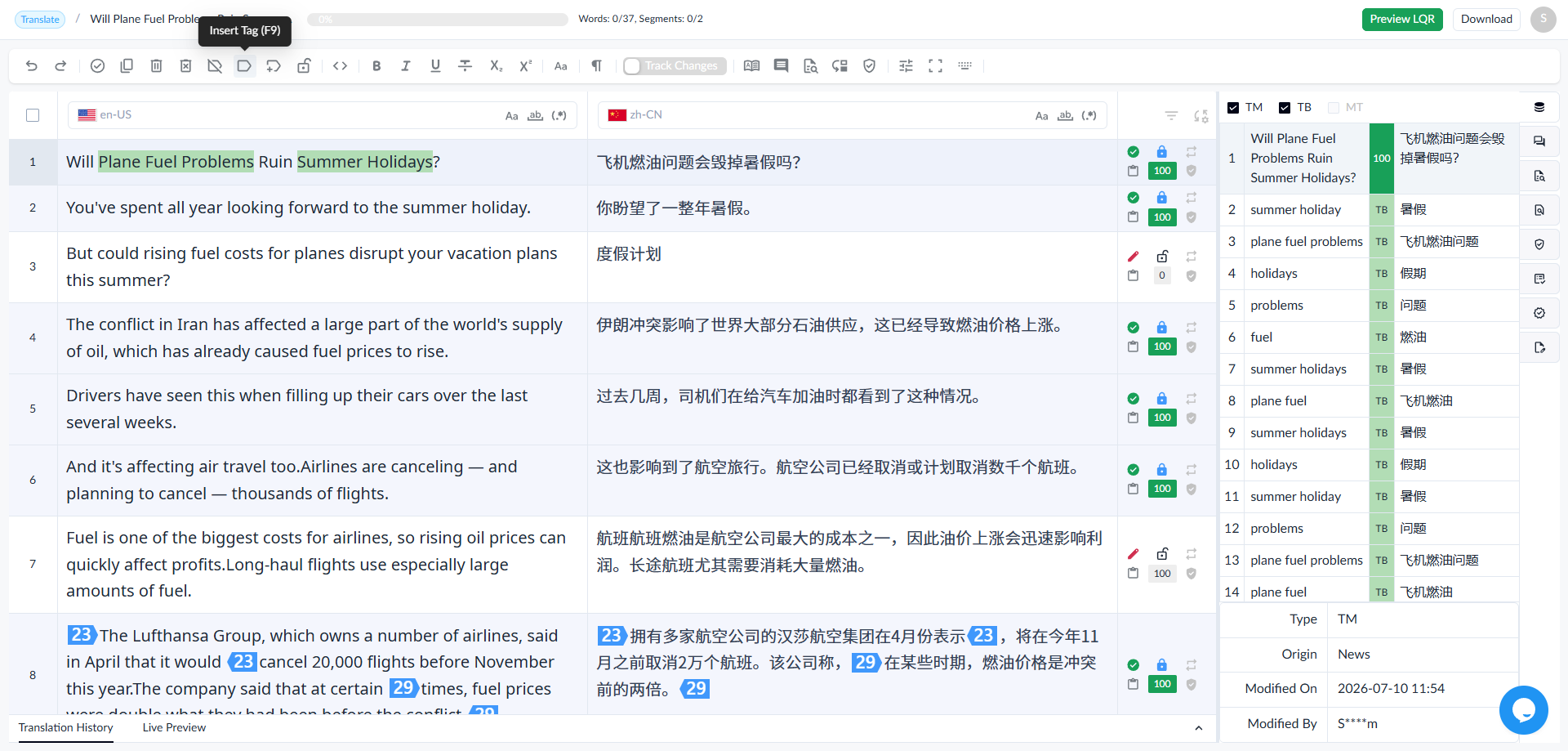
1.2.8 Insert Tags Sequentially
• Select a segment, then click the [Insert Tag] button to insert source tags into the target text one by one in order.
• Shortcut: (F9)
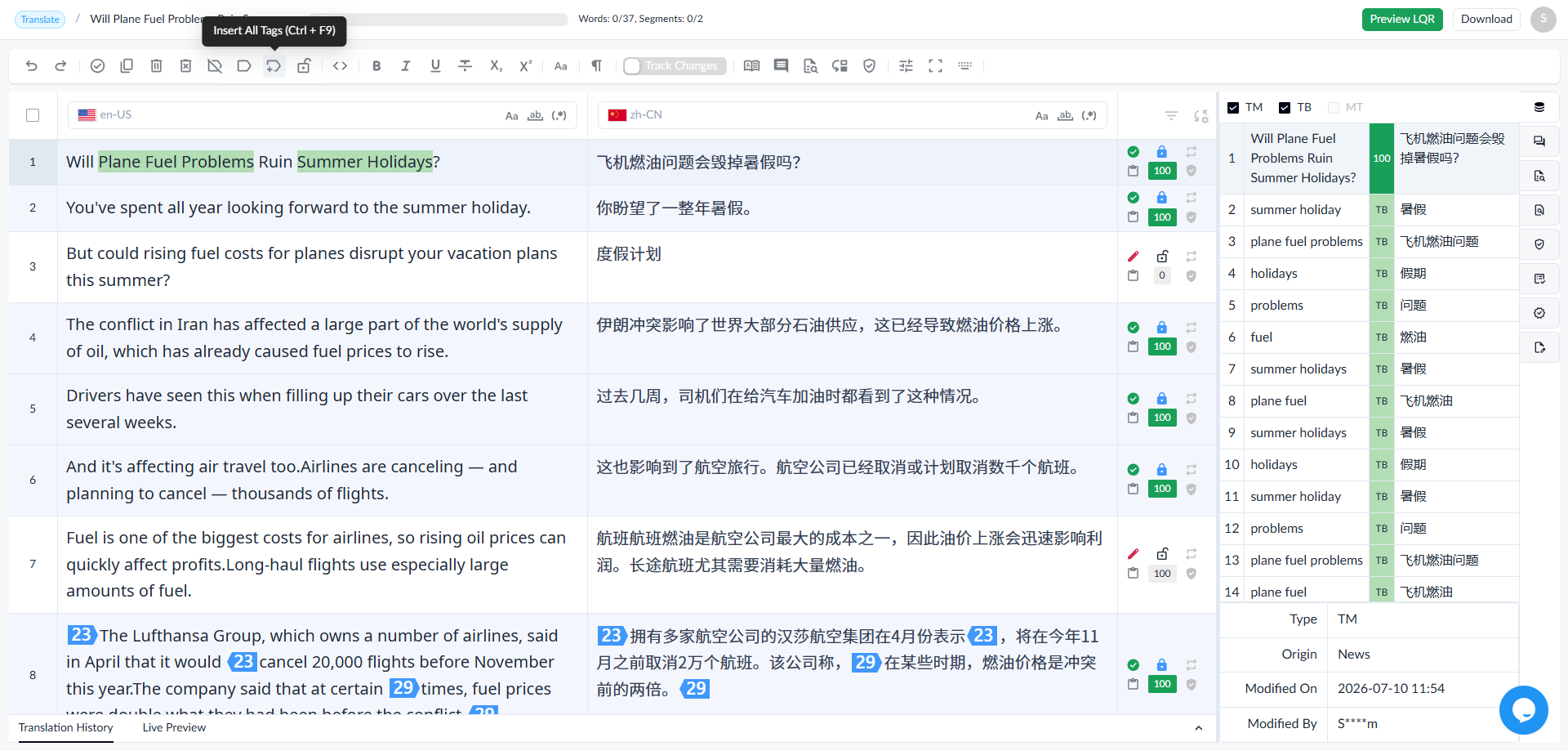
1.2.9 Insert All Tags at Once
• Select a segment, click the [Insert All Tags] button to insert all source tags into the target text at once.
• Shortcut: (Ctrl+F9)
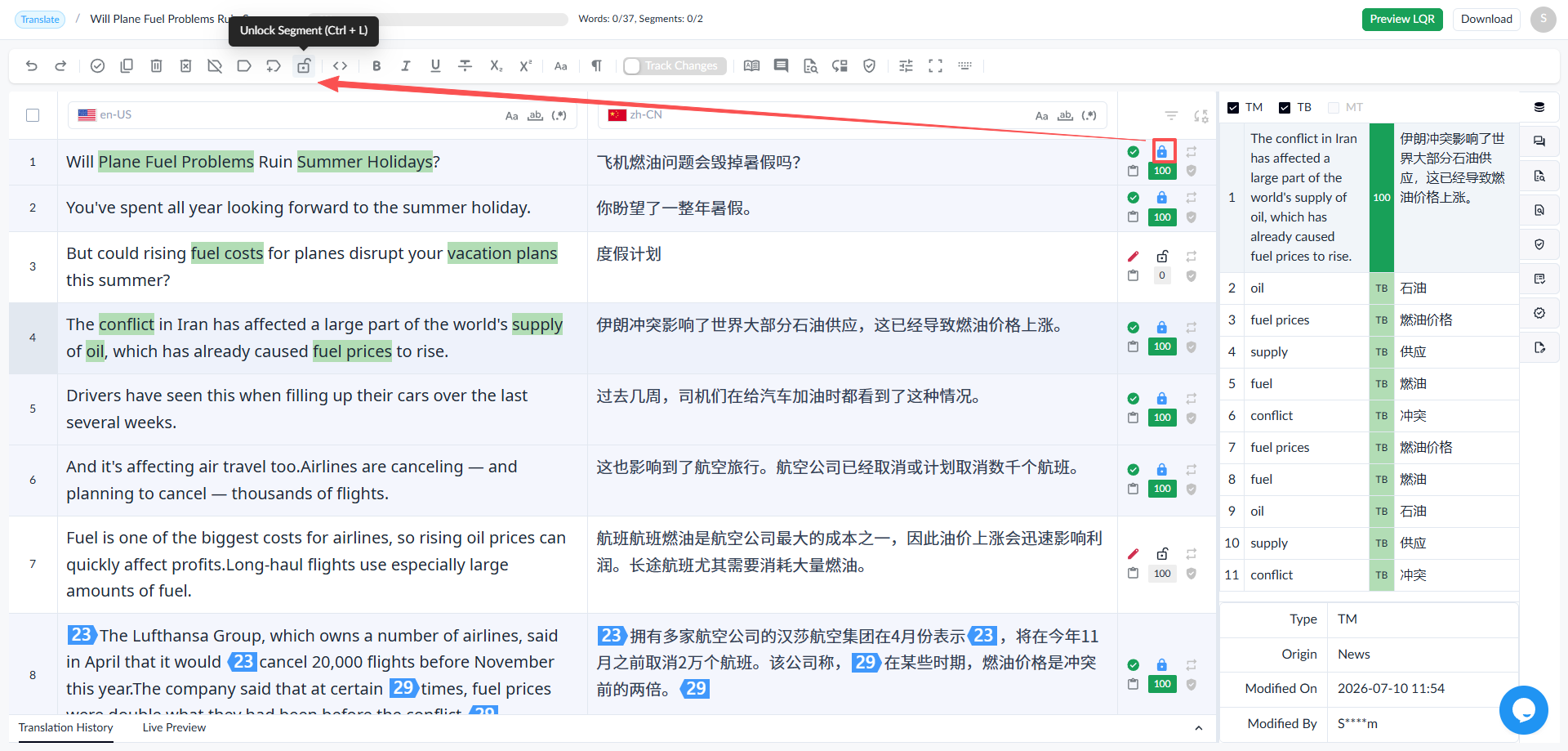
1.2.10 Unlock/Lock Segment
Segments can be locked. When locked, the target text cannot be edited until the segment is unlocked.
• For unlocked segments, click [Lock Segment] to lock them.
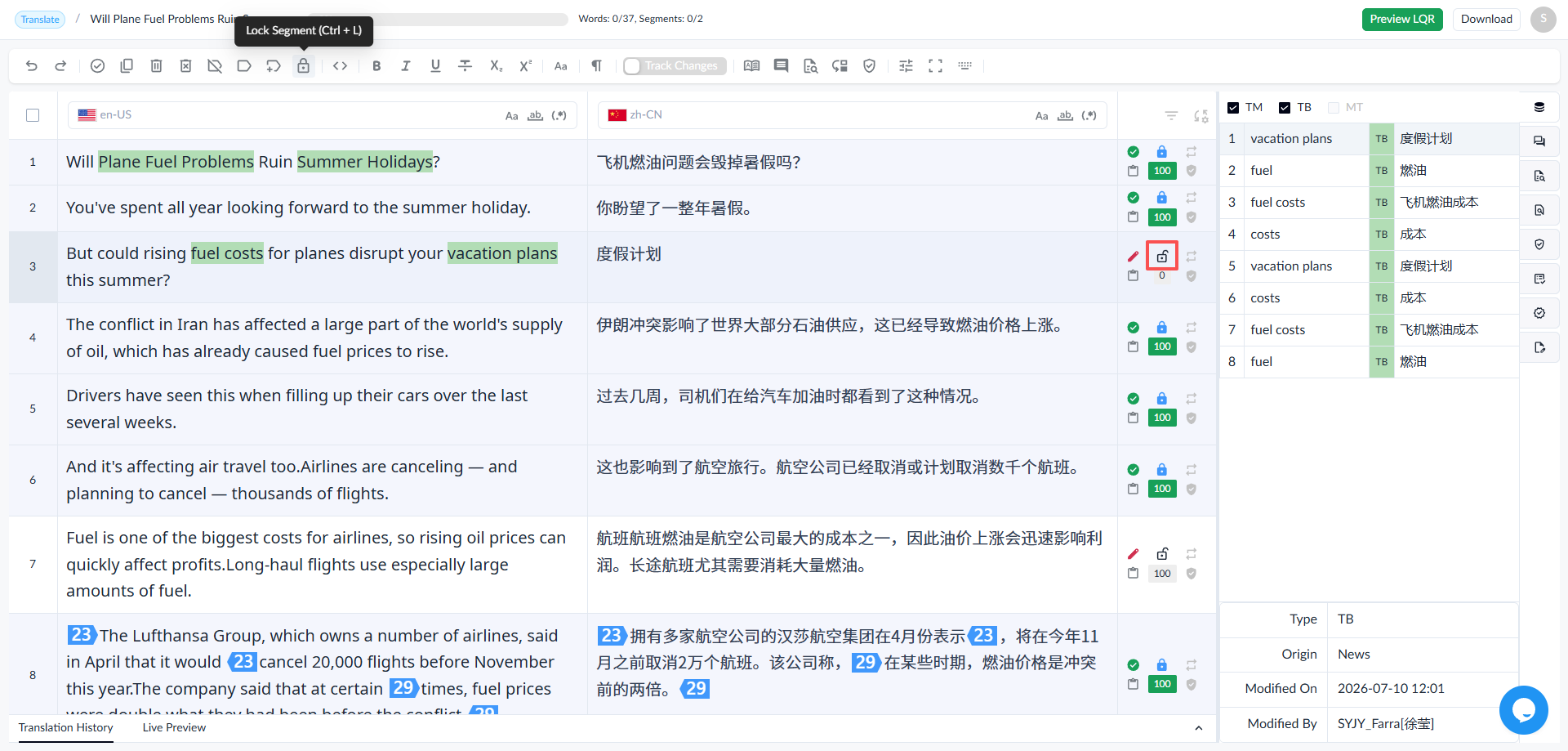
• For segments that can be unlocked, click the [Unlock Segment] button to unlock them.
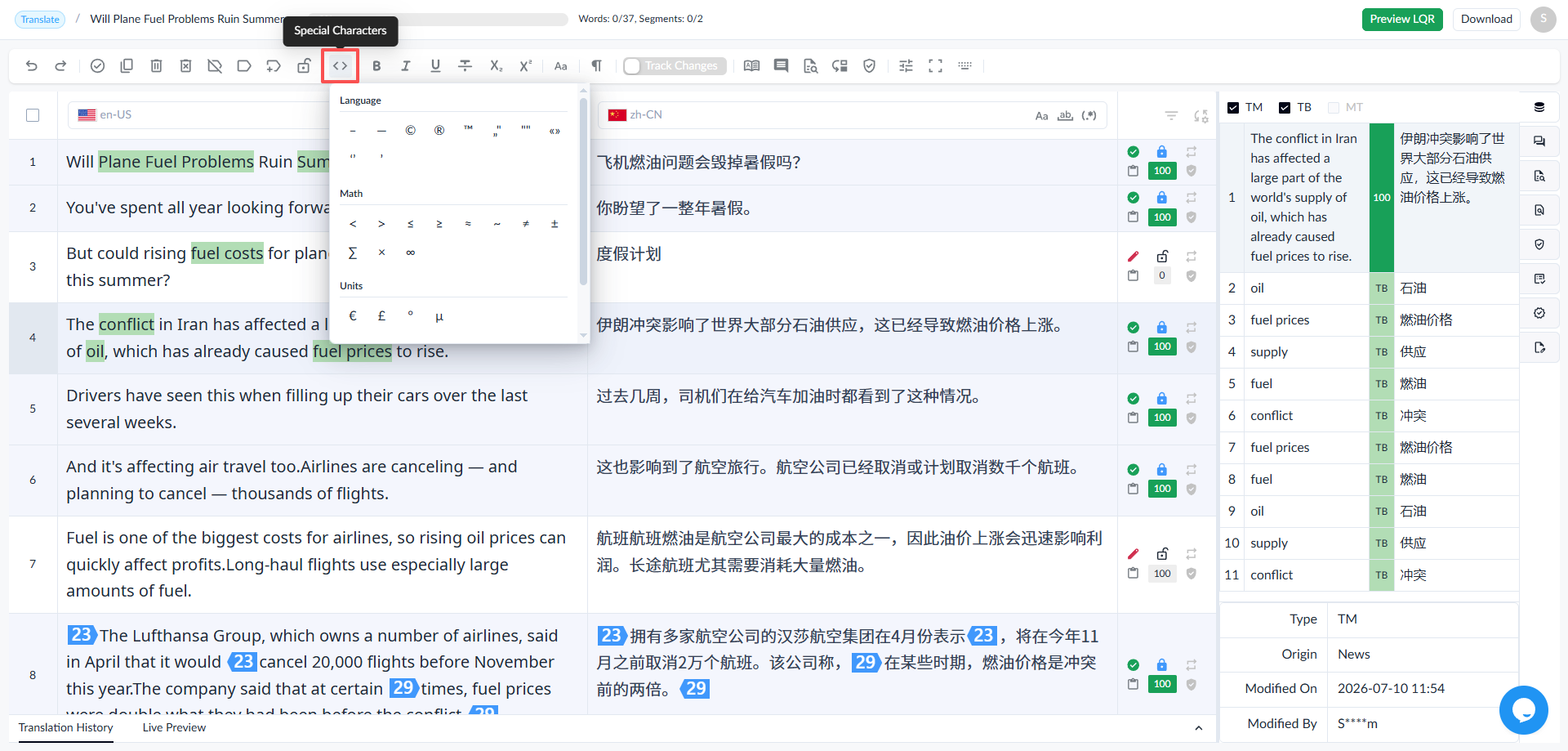
1.2.11 Special Characters
Click the [Special Characters] button to quickly insert special characters.
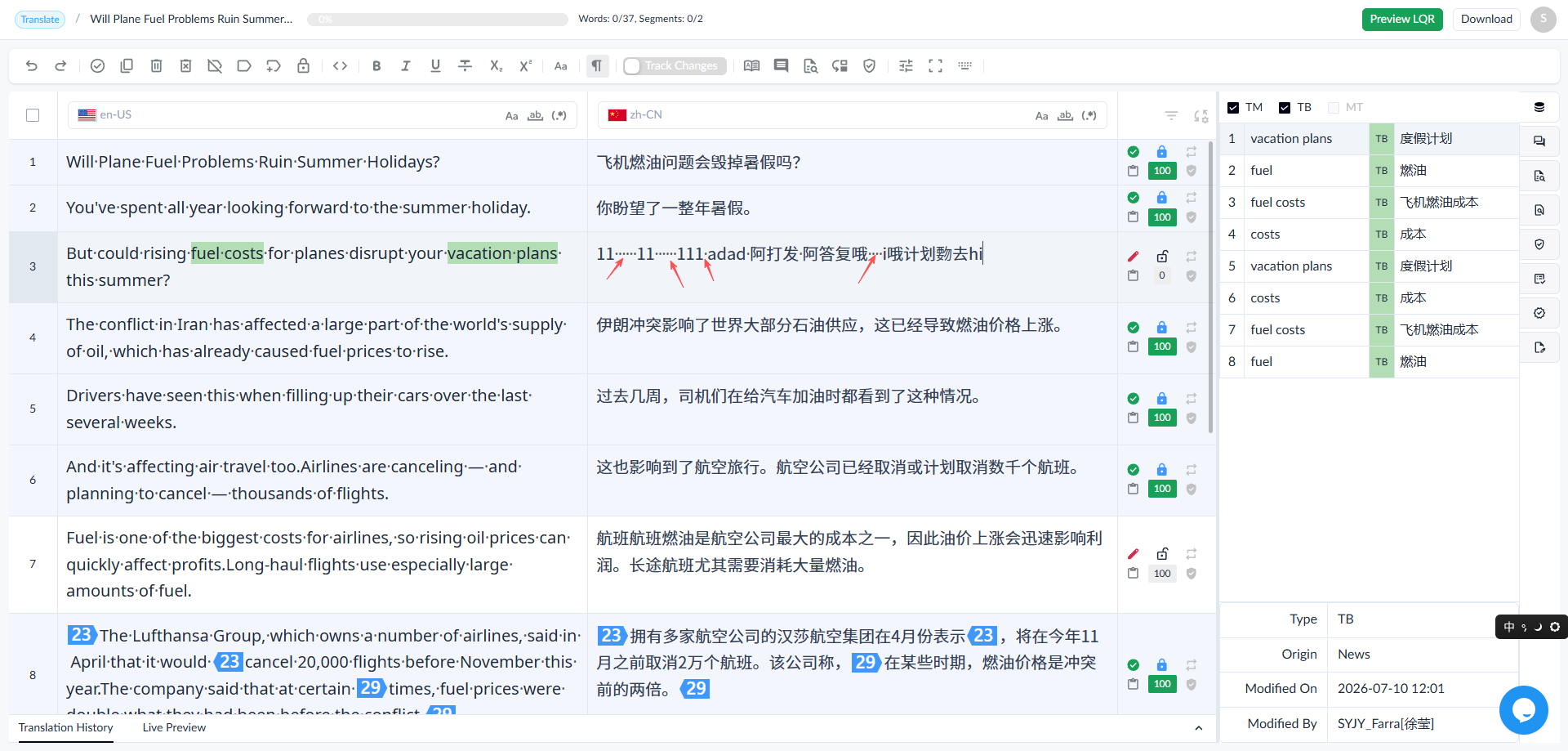
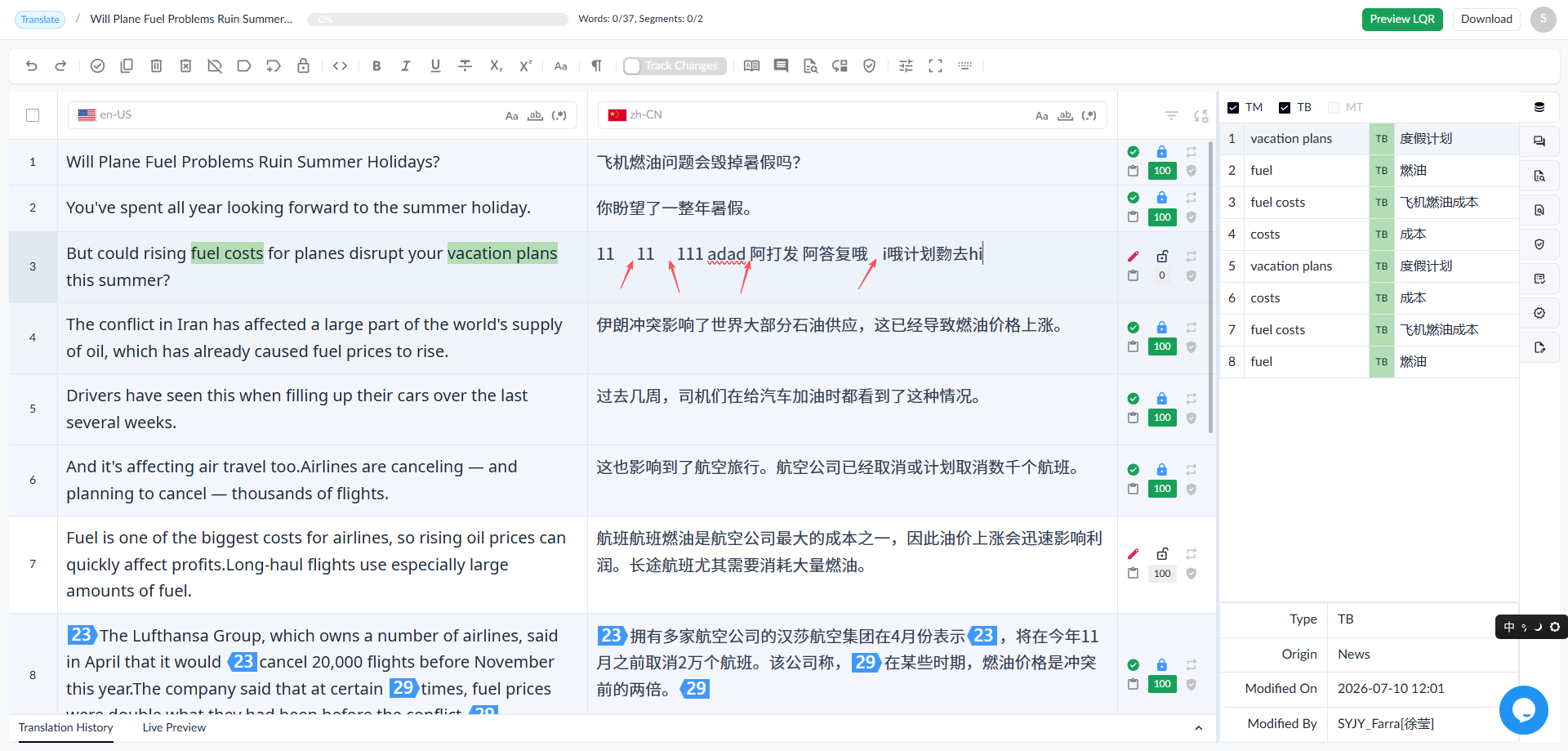
1.2.12 Display Invisible Characters
Click the [Display Invisible Characters] button to show or hide invisible characters.
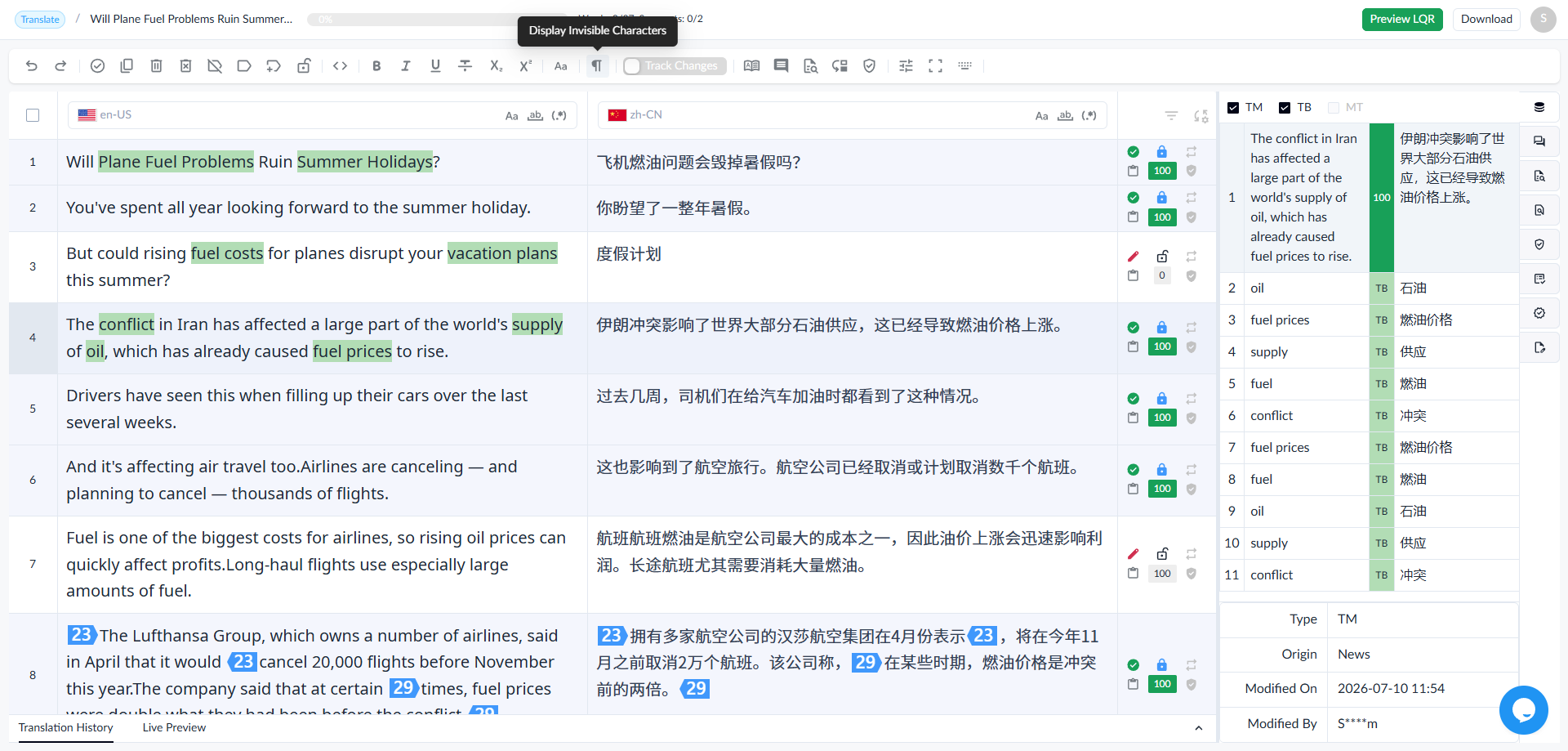
These characters include space, non-breaking space, tab, and newline.
• Invisible characters displayed
• Invisible characters hidden
1.2.13 Concordance search (F3)
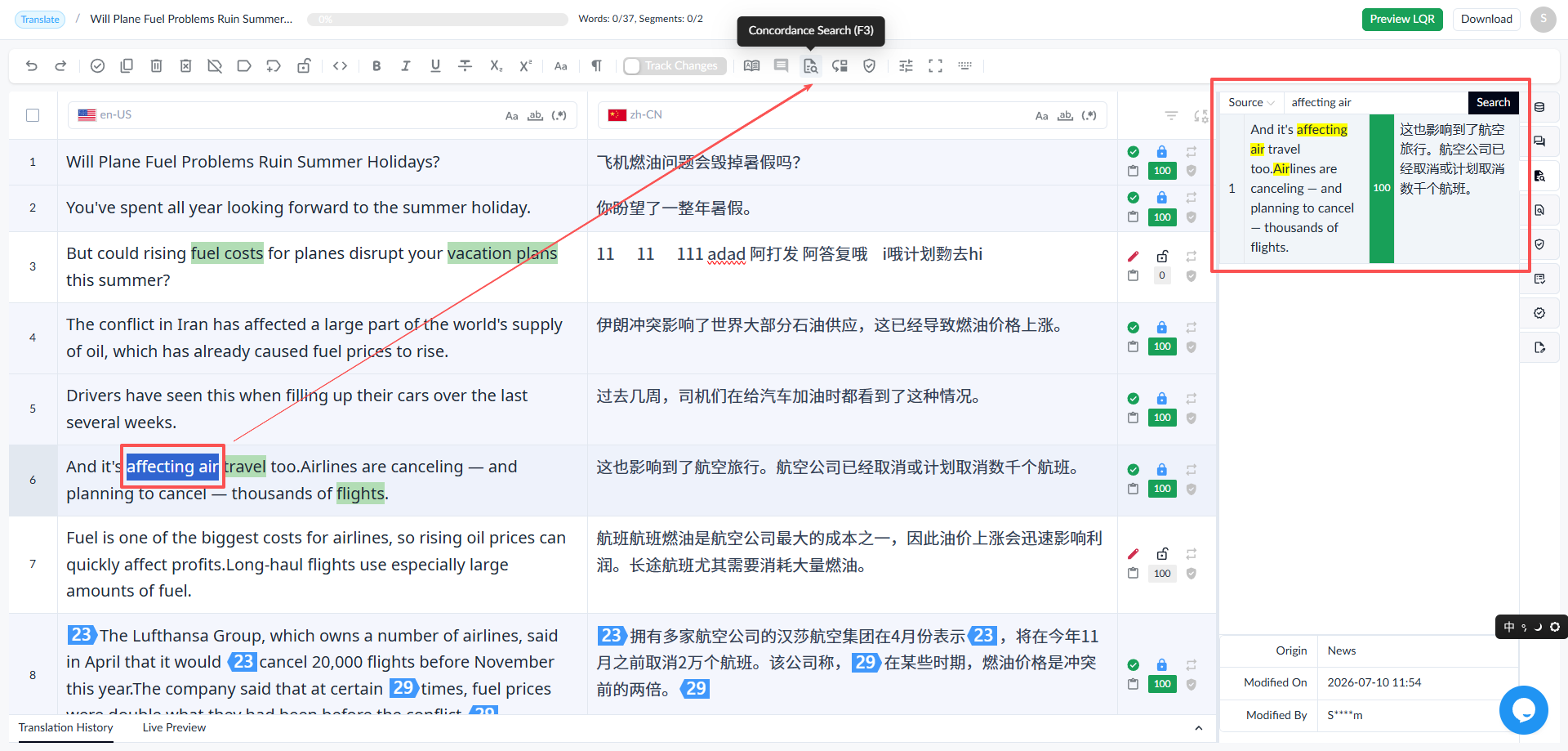
Select a portion of the source text, then click the [Concordance Search] button (or press F3).
The search module on the right will display matching results in the TM and TB, with matched content highlighted in yellow.
1.2.14 Quality Report
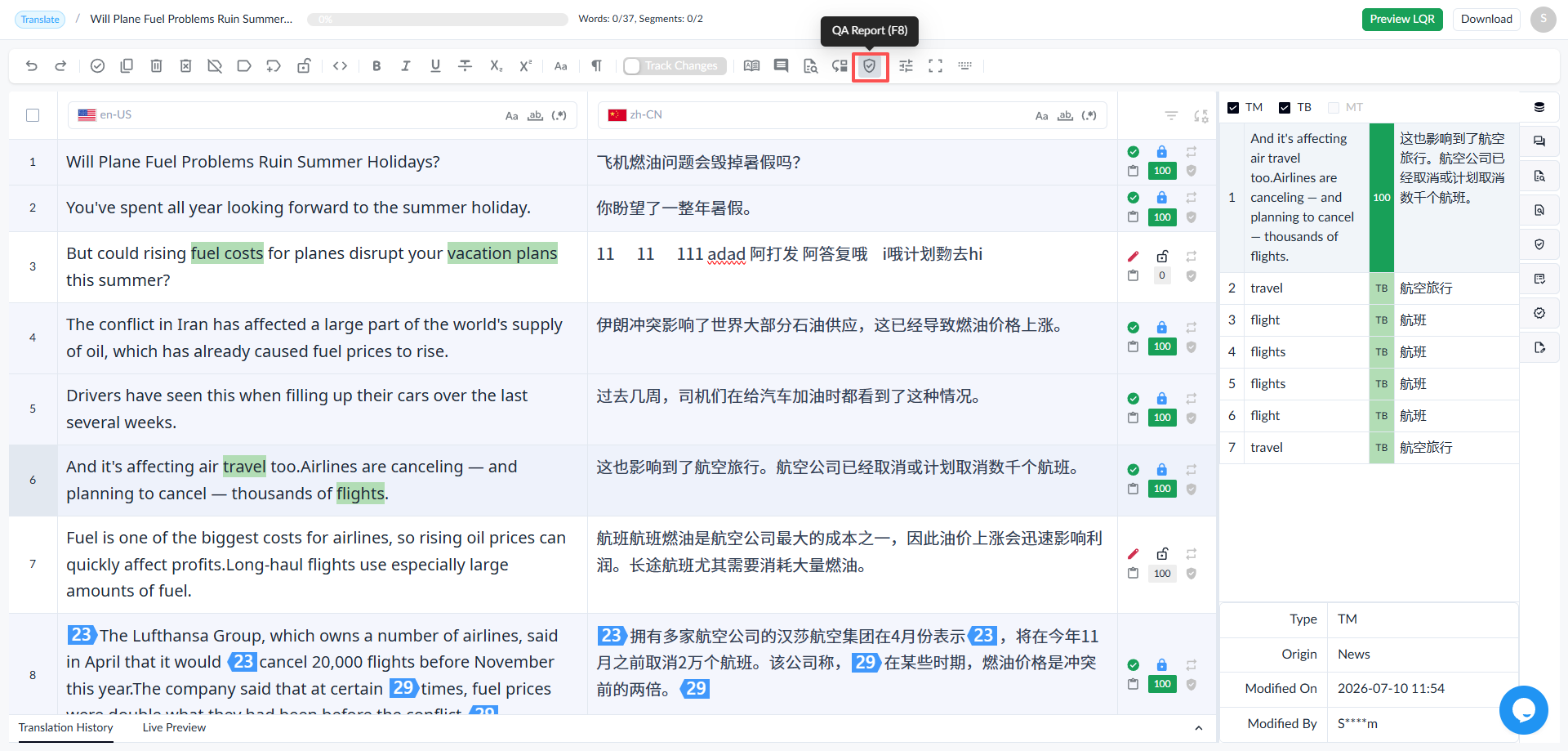
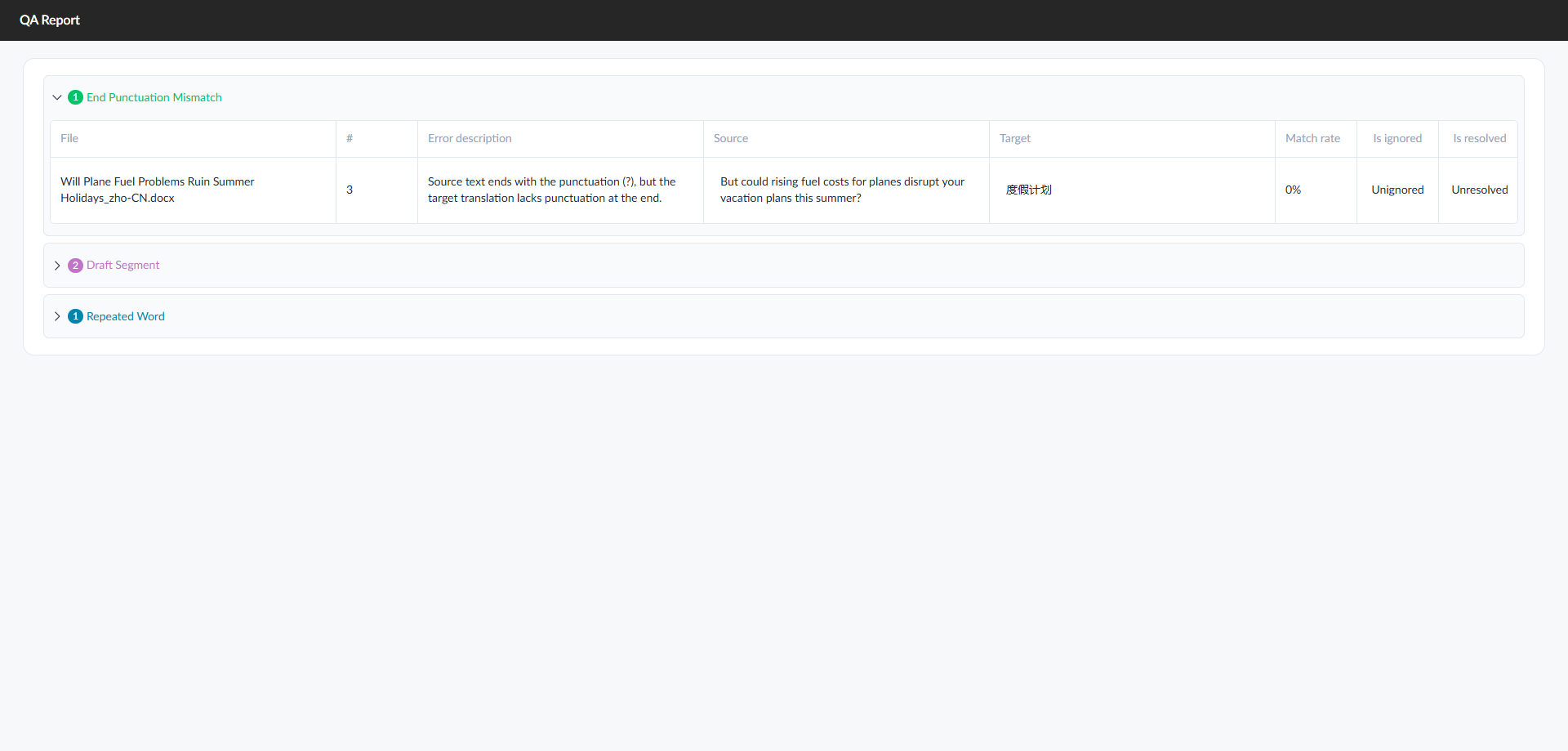
• The quality report displays information generated after quality checks are performed on the file (the page does not support running checks, only viewing errors). Errors are grouped by error type in the report.
• Click the [QA Report] button or use the shortcut F8 to navigate to the report page.
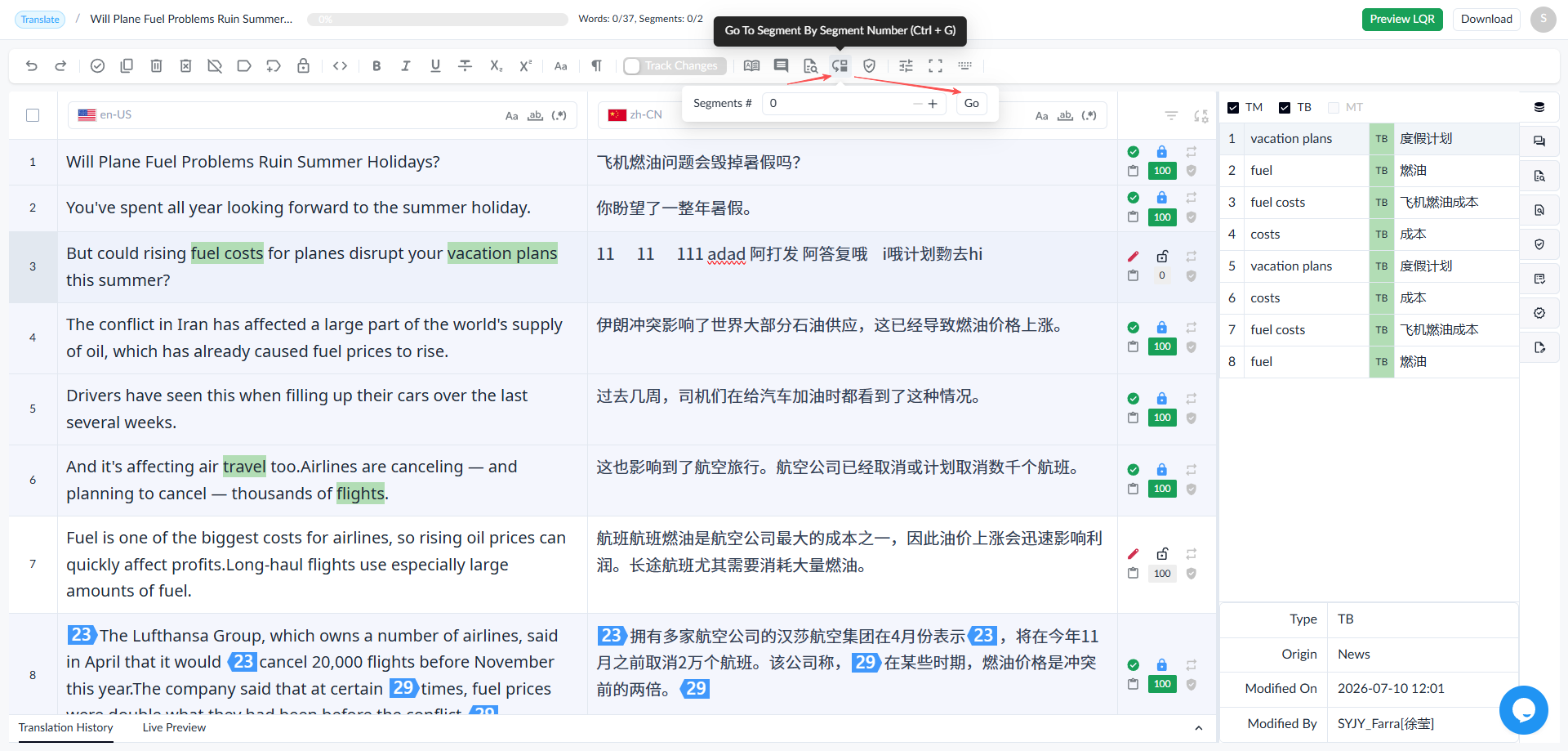
1.2.15 Go to Segment
• Click the [Go To Segment By Segment Number] button, enter the segment number, and click the [Go] button to go to the corresponding segment.
• Shortcut: (Ctrl+G). Enter the segment number, and click the [Go] button to go to the corresponding segment.
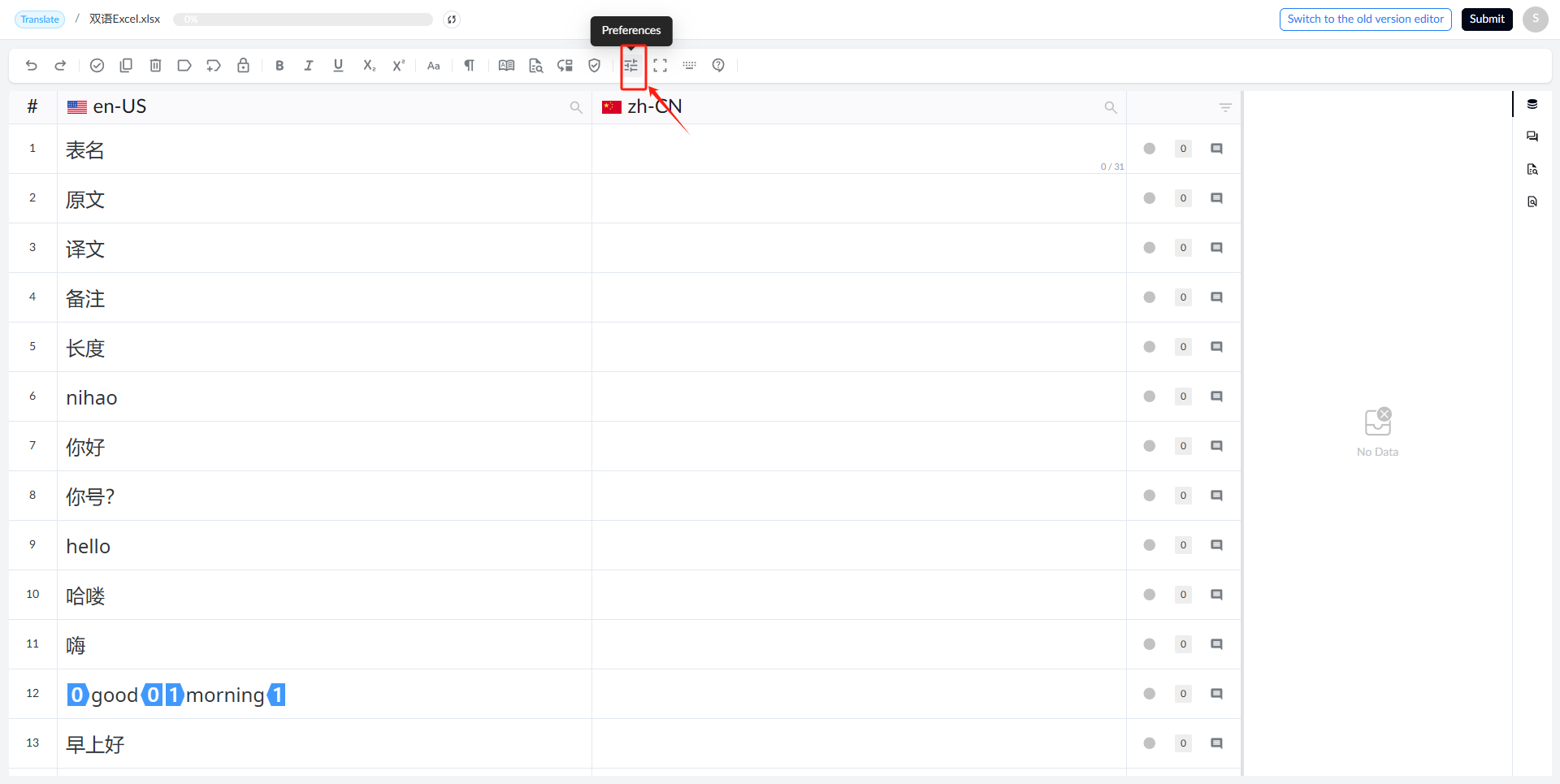
1.2.16 Preferences
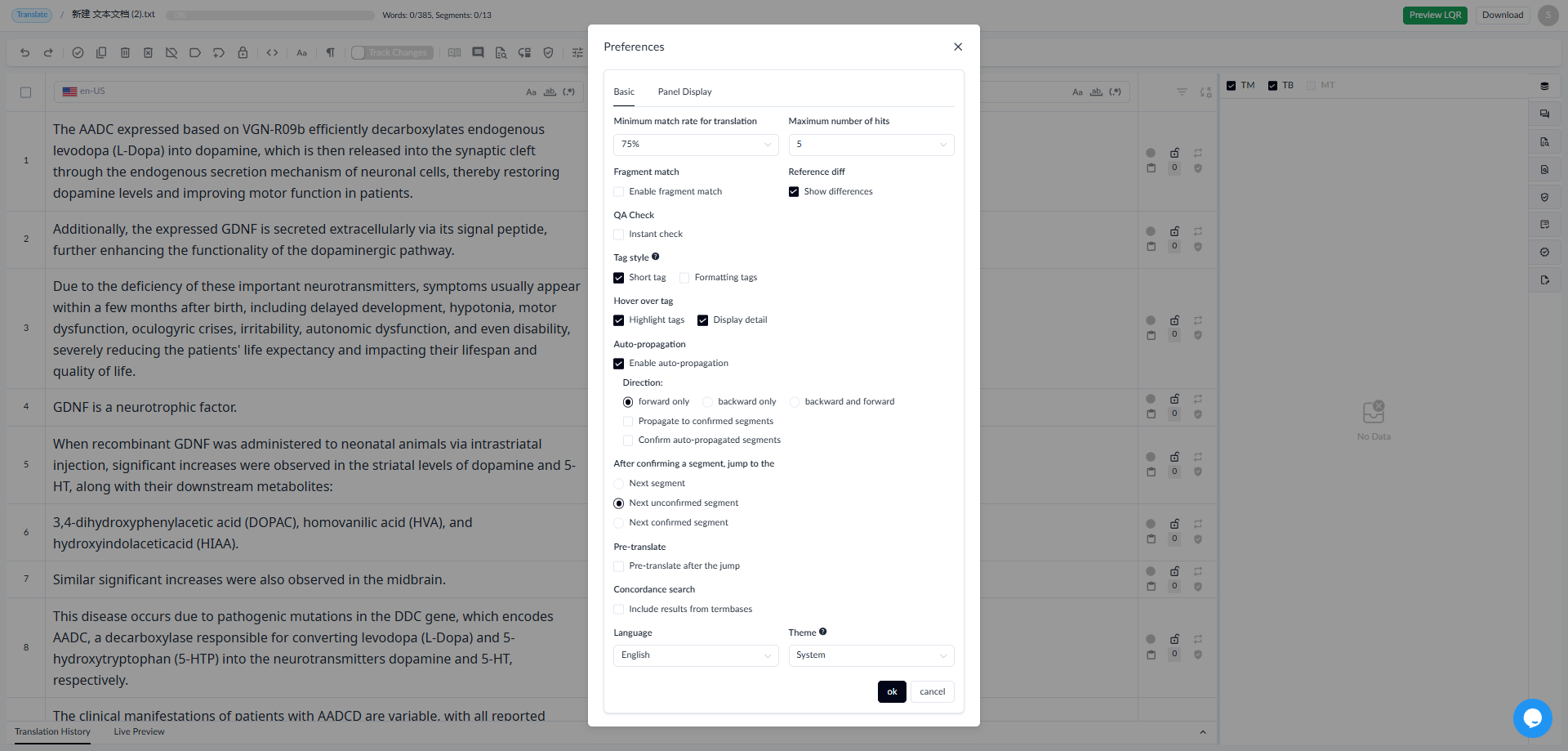
Click the [Preferences] button to open the editor preferences window. The image below shows an example configuration.
Basics
Minimum Match Rate for Translation: The lowest match rate for results displayed in the TM reference area. As shown in the screenshot, when the rate is set to 75%, TM results with a match rate below 75% will not appear in the TM reference area.
**Maximum Hits: **The maximum number of TM entries displayed after filtering based on the minimum match rate above. As shown in the screenshot, when there are 8 TM results with a match rate of 75% or higher, the top 5 will be displayed in descending order of match rate.
Fragment Matching: Fragment matching compares source text fragments with TM and provides match results. It can be enabled as needed.
Reference Diff: When enabled, you can view the differences between the source/target text and the current segment in the TM panel on the right.
QA Check: After translating and confirming each segment, a QA check is automatically performed based on the check items, with real-time error alerts to quickly identify and fix issues.
Tag Style
**Short Tag: **The default style for tags in a segment is short tag, which only use numbers to mark tags, as shown below.
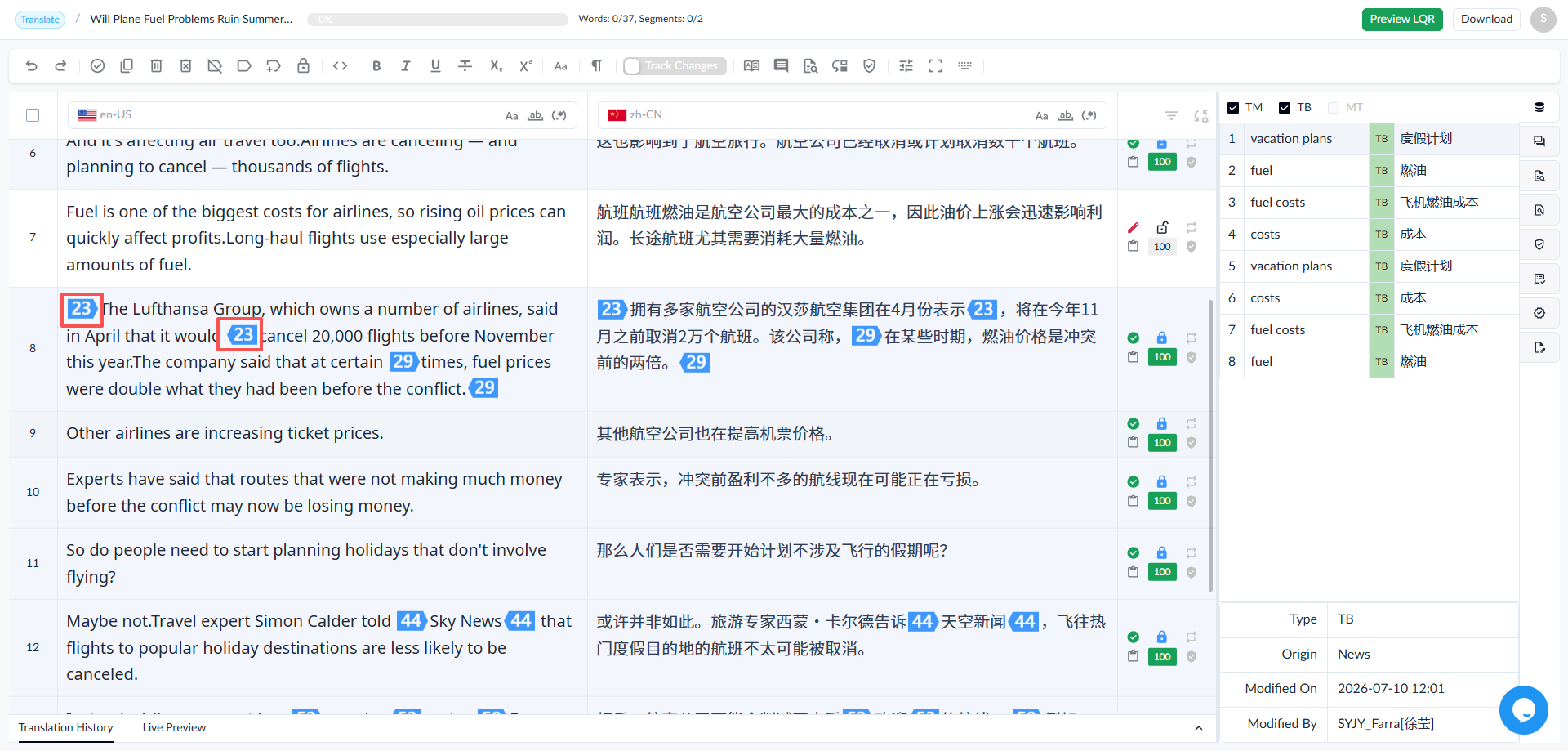
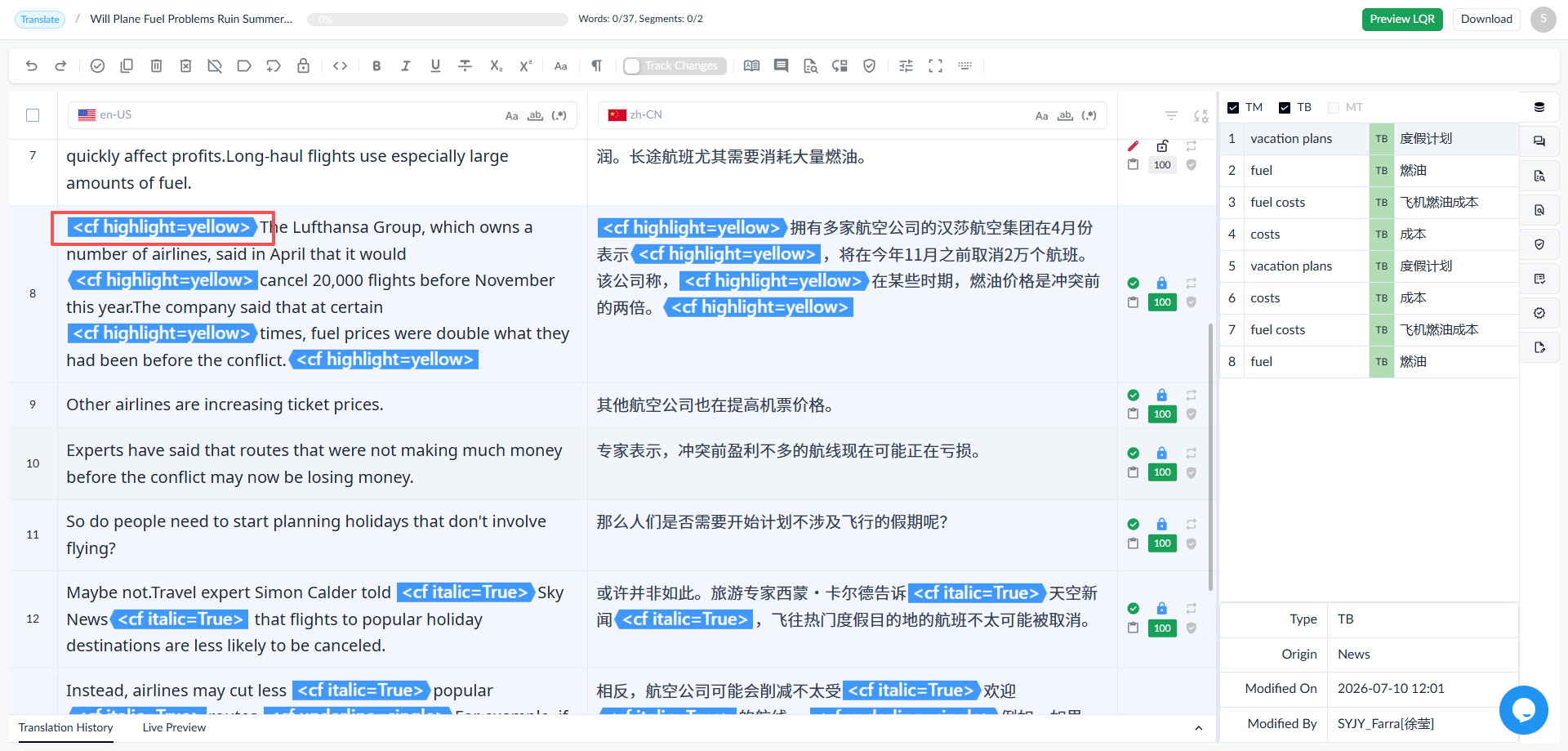
After unchecking the Short tag option, the content within the tag will be displayed in full, as shown below.
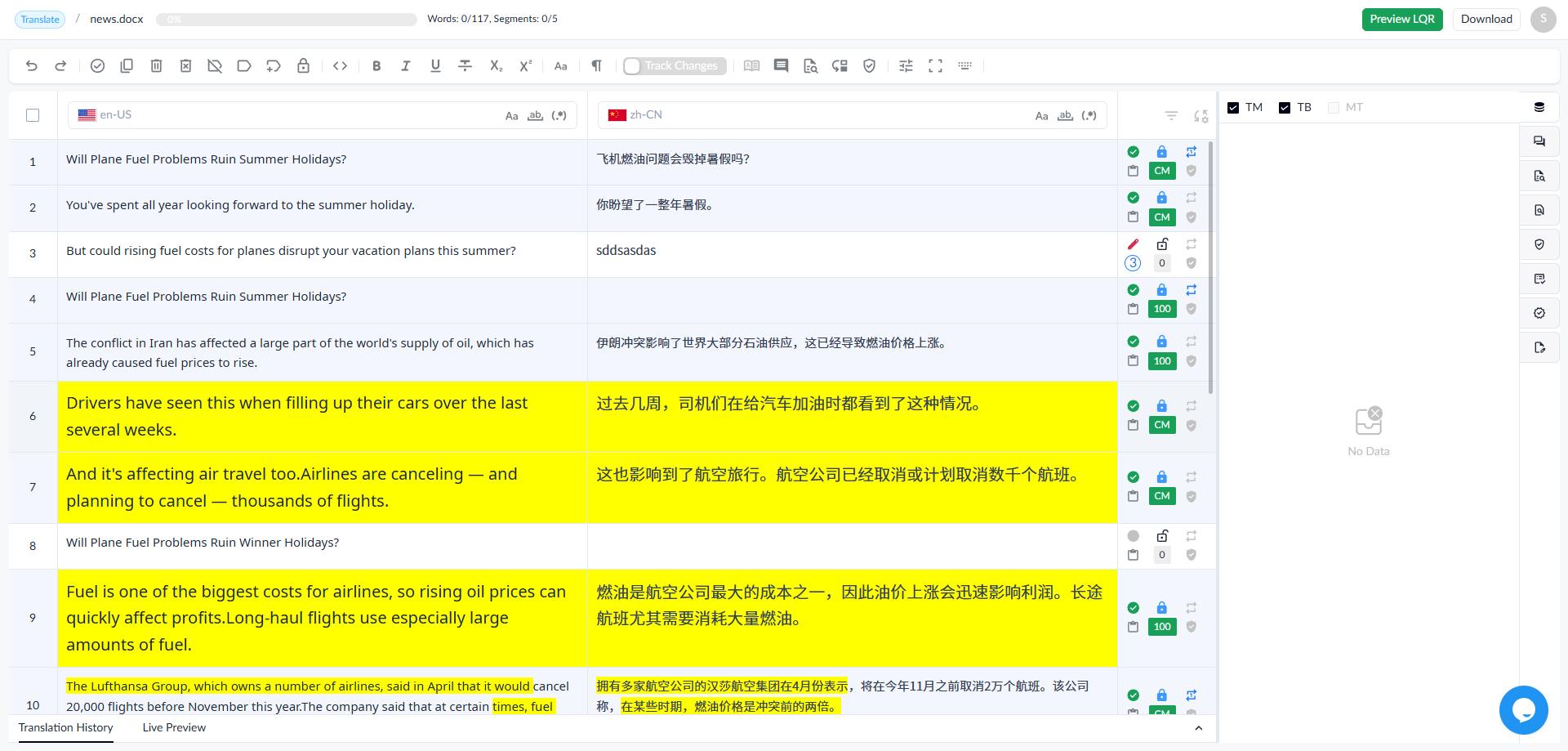
**Formatting Tags: **When enabled, some formatting tags will be displayed visually on the page.
Hover over Tag
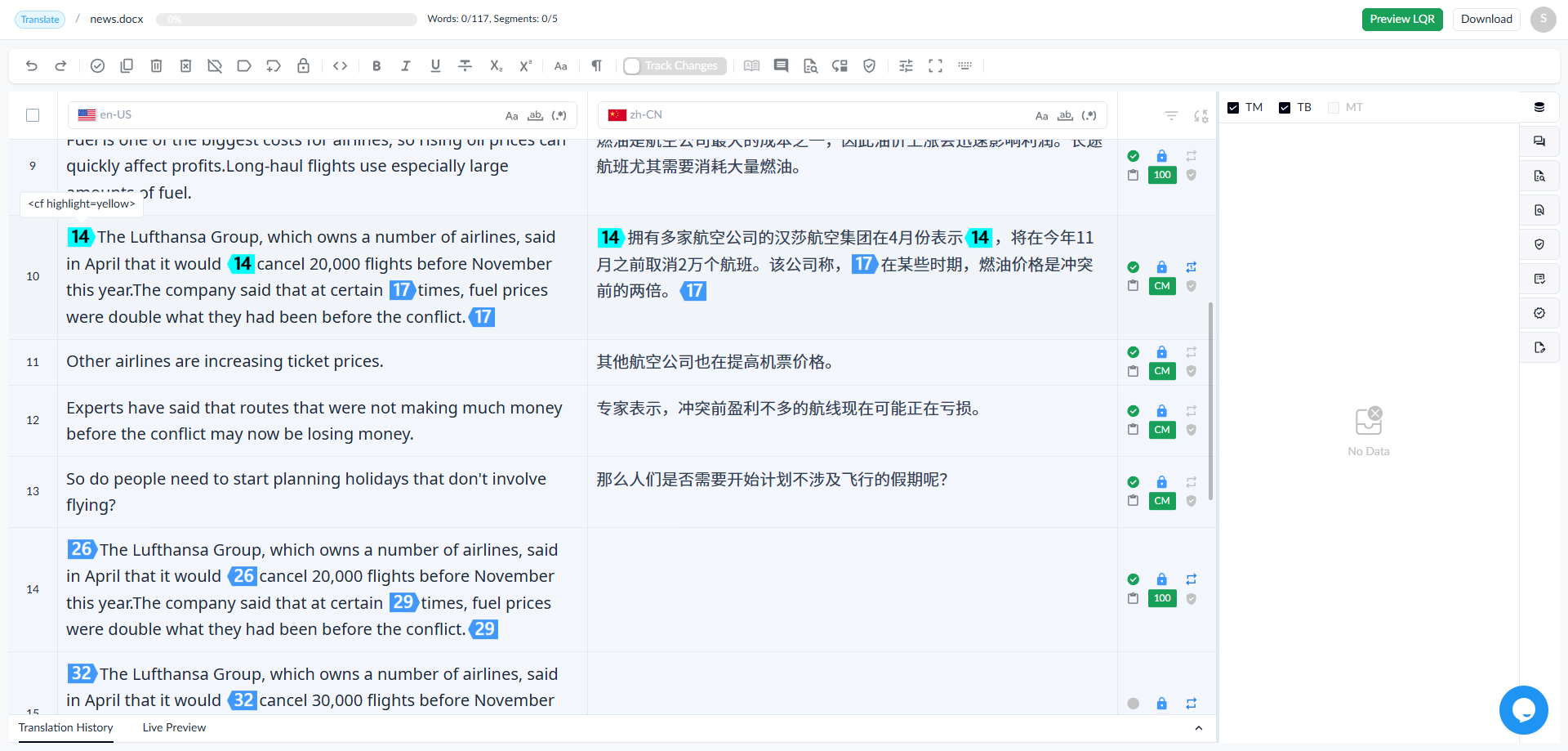
Highlight Tag: When the mouse hovers over a tag, two behaviors are available. One is that, the tag is highlighted on hover, and if it is a paired tag, the other tag will also highlight, as shown below.
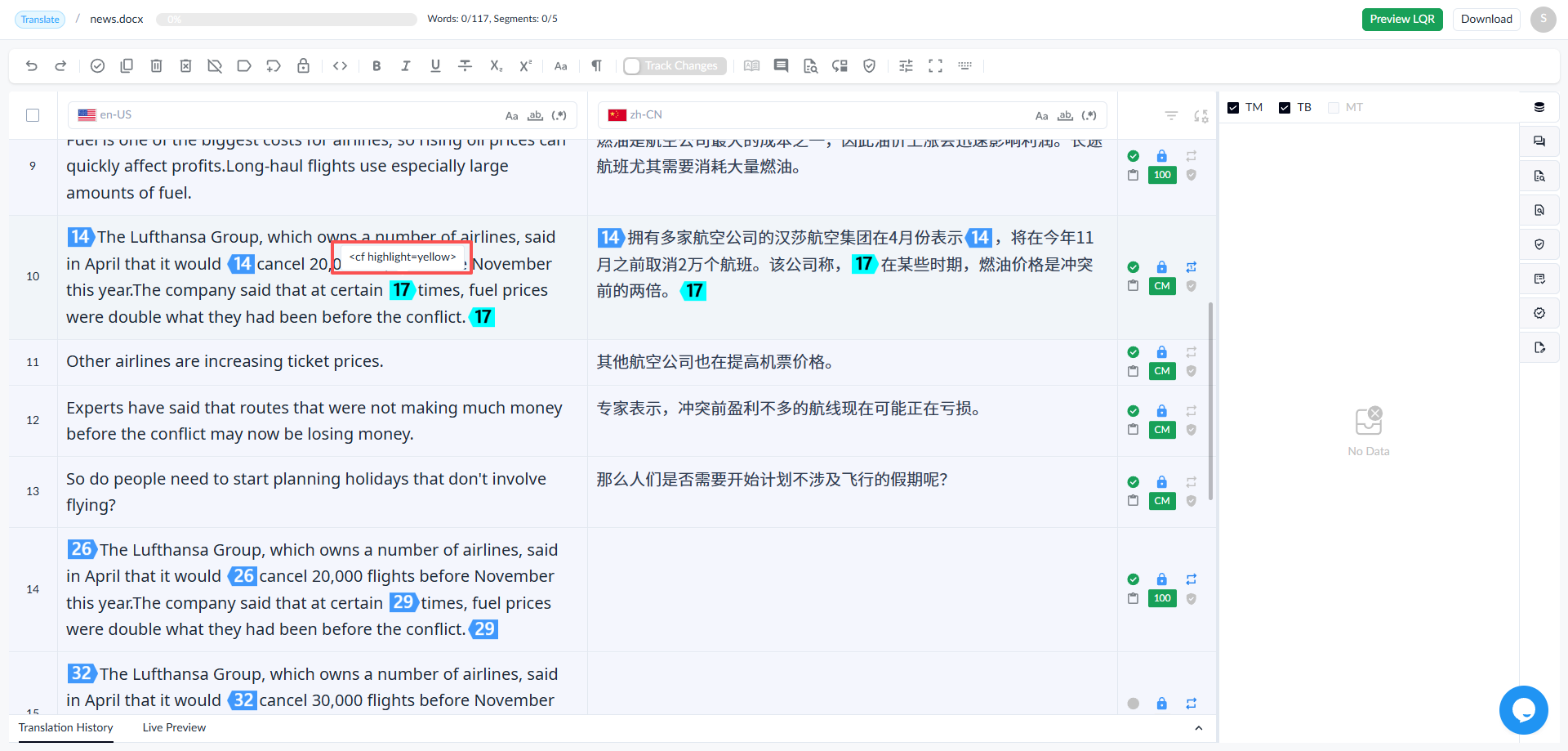
Show Details: Another behavior is that, when the tag is a short tag, the tag details are displayed on hover, as shown in the figure below.
- Auto Propagation:
Enable the auto-propagation related setting to automatically propagate translations for repeated segments in the document.
Direction: When the user confirms a repetition segment, the system will synchronize the translation of the current segment to other repetition segments based on the selected direction.
◦ Forward only
When using this option, after the current segment is confirmed, the translation will only be propagated to Repetition segments that appear after the current segment.
For example, when confirming Segment 50, the translation will only be propagated to repetition segments before Segment 50.
Applicable scenarios:
• When the user discovers translation errors in preceding repetition segments.
• When the user wants to use the current confirmed result to correct previous content.
◦ Backward only
This option works in the opposite way.
When using this option, after the current segment is confirmed, the translation will only be propagated to repetition segments that appear before the current segment.
For example, when confirming Segment 50, the translation will only be propagated to repetition segments before Segment 50.
Applicable scenarios:
• Documents are typically translated in sequential order.
• When the user wants to avoid modifying already confirmed content.
◦ Backward and Forward
This option combines the previous two options.
When using this option, after the current segment is confirmed, the translation will be propagated to all repetition segments associated with the current segment, regardless of whether they appear before or after the current segment.
For example, when confirming Segment 50, the translation will be propagated to all repetition segments in the same repetition group, regardless of their position in the document.
Applicable scenarios:
• When the user confirms the current target text as the final standard.
• When the user wants to unify all repetitive content at once.
【Propagate to confirmed segments】
Determines whether the current translation will be propagated to confirmed repetition segments. If disabled, confirmed segments will remain unchanged.
【Confirm auto-propagated segments】
Determines whether repetition segments that receive the propagated translation should be automatically confirmed.
When enabled, any segment updated through translation propagation will be automatically confirmed.
After confirming a segment, jump to the
- Next segment
- Next unconfirmed segment
- Next confirmed segment
Pre-translation
Pre-translation related settings, which defines the behavior when the mouse gains focus on the target text editor box while no source text exists in the segment to be translated.
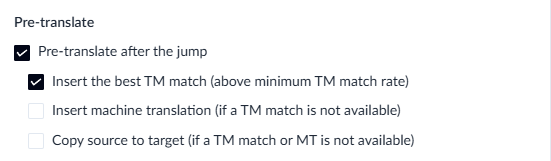
• Insert the best TM match (above the minimum TM match rate): If selected, the best matching TM result will be inserted automatically.
• Insert a machine translation (if no TM match is found): If selected, a machine translation result will be inserted automatically when no suitable TM match is available.
• Copy the source text to the target (if no TM match or machine translation is available): If selected, the source text will be copied to the target text when neither a TM match nor a machine translation is available.
Note: These three options are mutually exclusive at runtime and are executed according to their priority.
For example, if “Insert the best TM match” is enabled and a qualified TM match is found, the remaining two actions will not be executed. If all three options are enabled, “Copy the source text to the target” will be executed only when neither a qualified TM match nor a machine translation is available.
- Concordance Search
An additional option for concordance search: 【Include results from termbases】. When selected, termbase search results will be included in the concordance search.
Language: Supports switching between Simplified Chinese and English.
Theme
Allows users to switch the editor background theme color according to different preferences.
◦ Default: Follows the system theme. The editor uses the original white background.
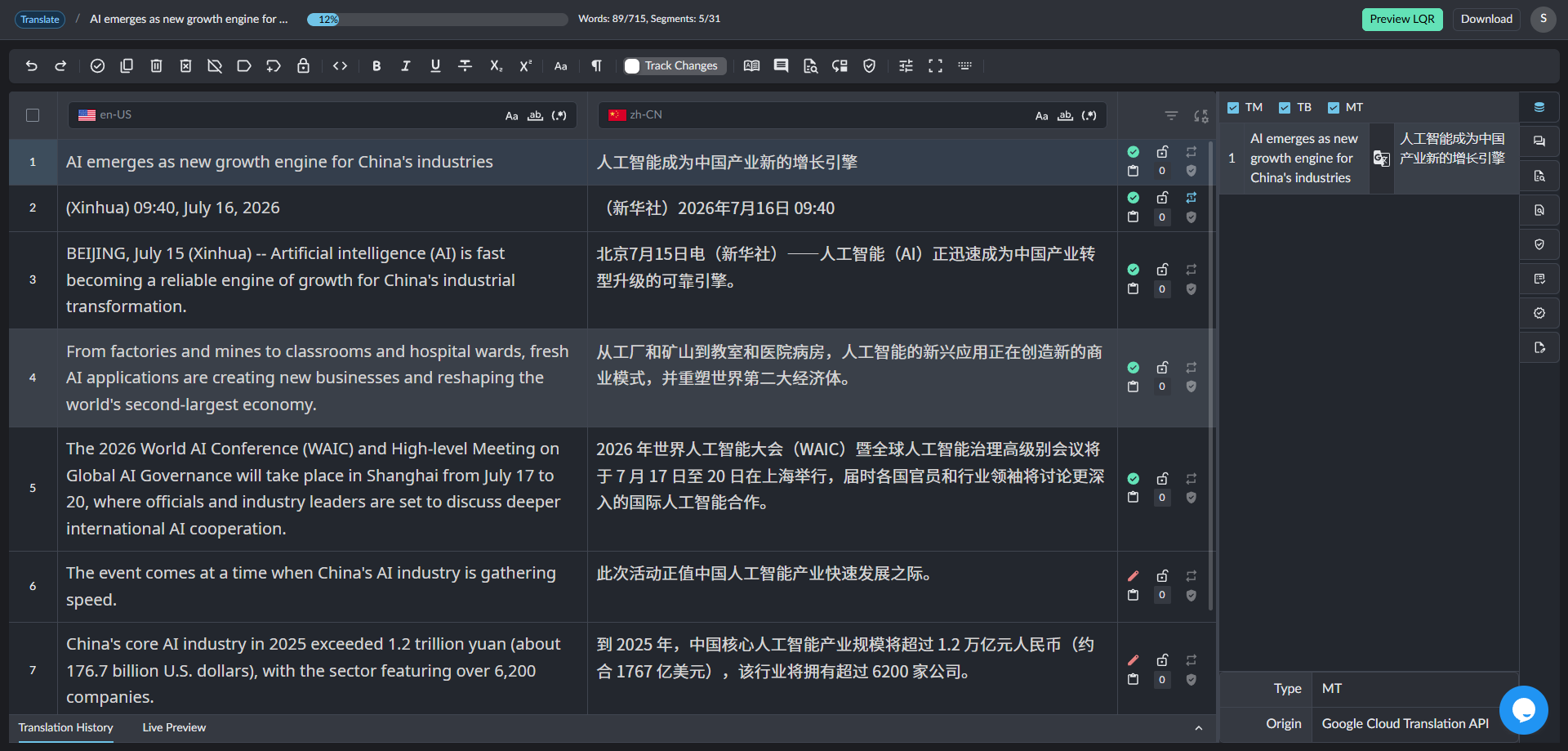
◦ Dark Mode: Uses a dark background theme for the editor.
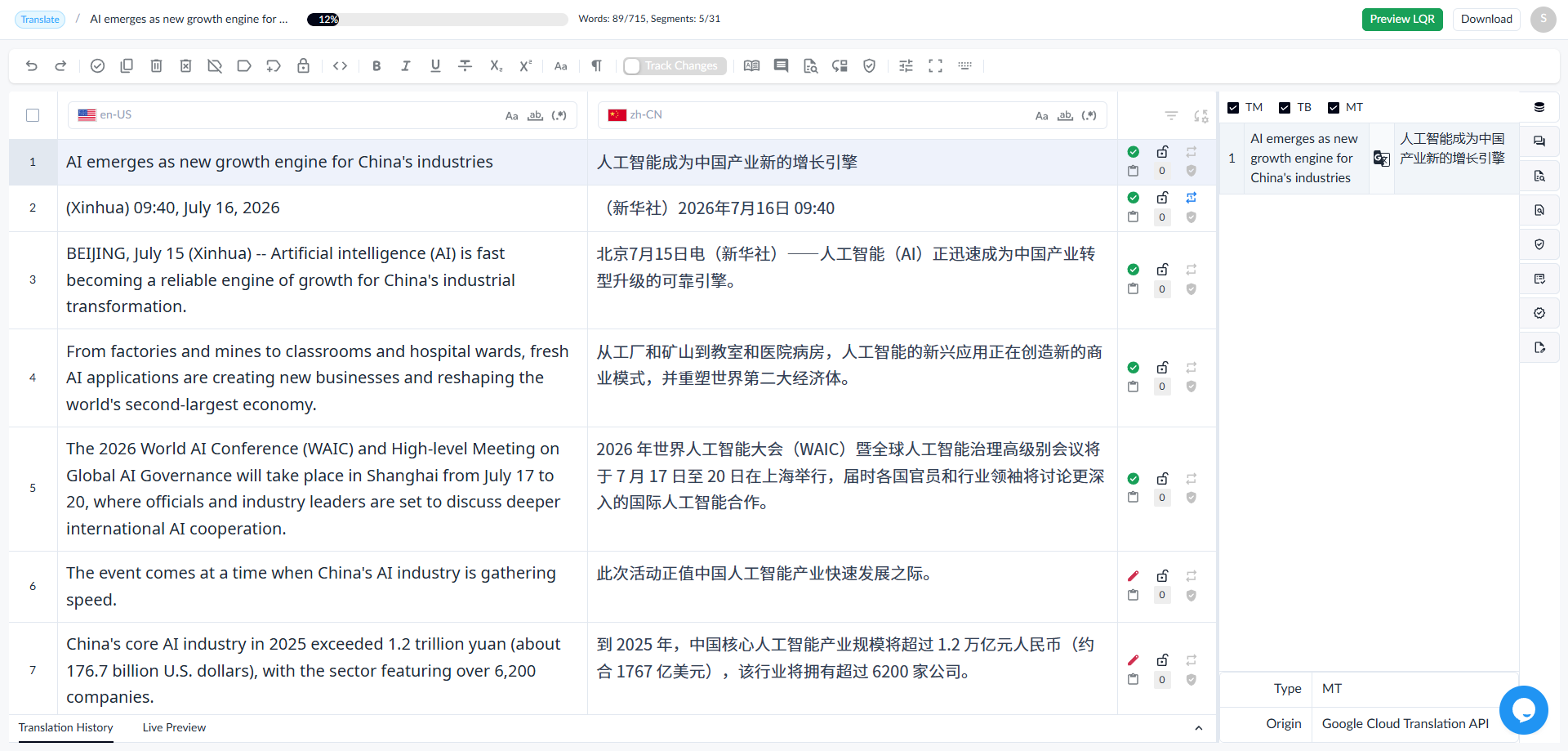
◦ Light Mode: Uses a slightly gray-tinted background theme compared with pure white.
Panel Display
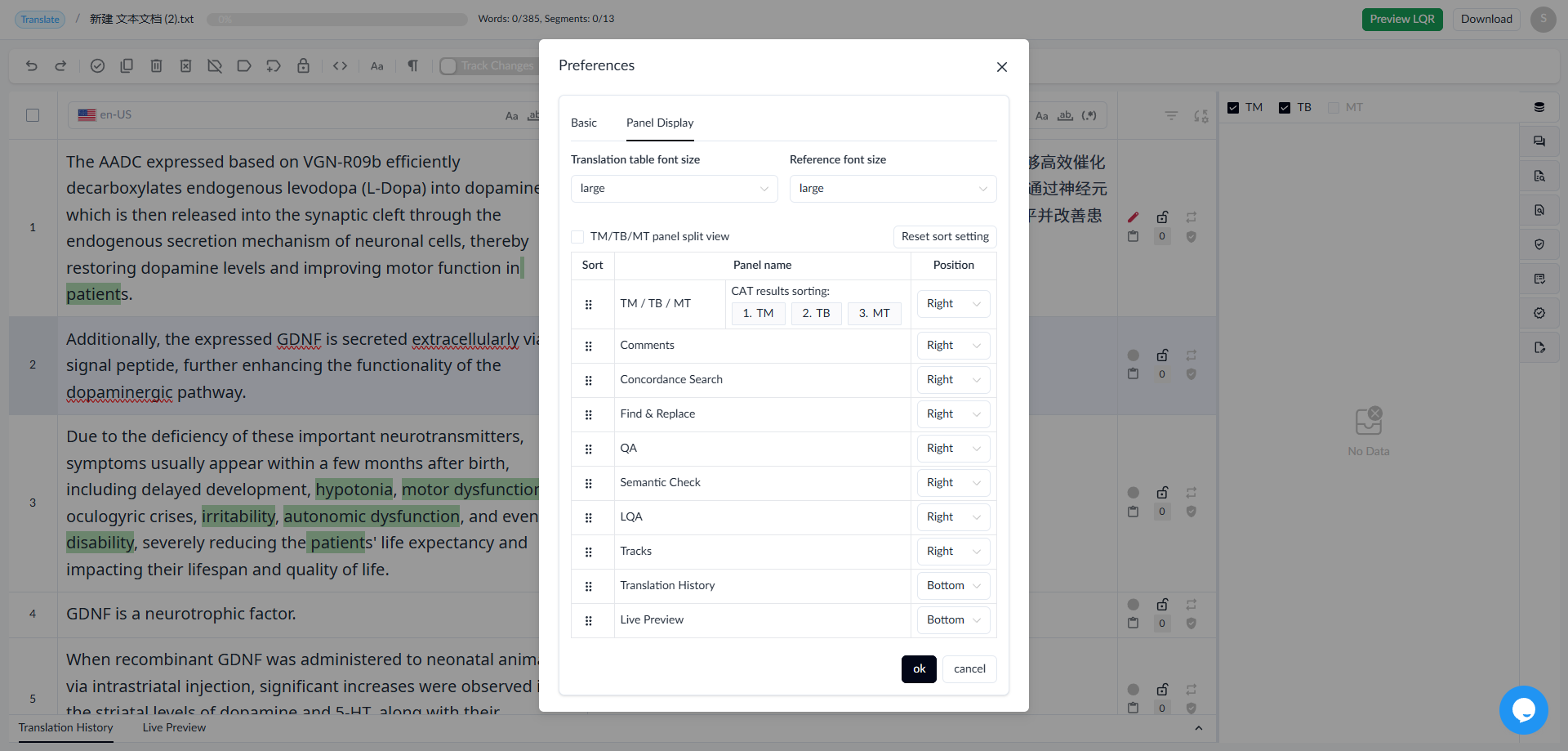
- Translation Table Font Size: Adjusts the font size of text within the segment table, with three options: [Normal], [Large (default)], and [Very Large].
- Reference Font Size: Adjusts the font size of text in the reference area on the right, with three options: [Normal], [Large (default)], and [Very Large].
- Split Display TM(MT)/TB: When enabled, splits TM(MT)/TB into two panels.
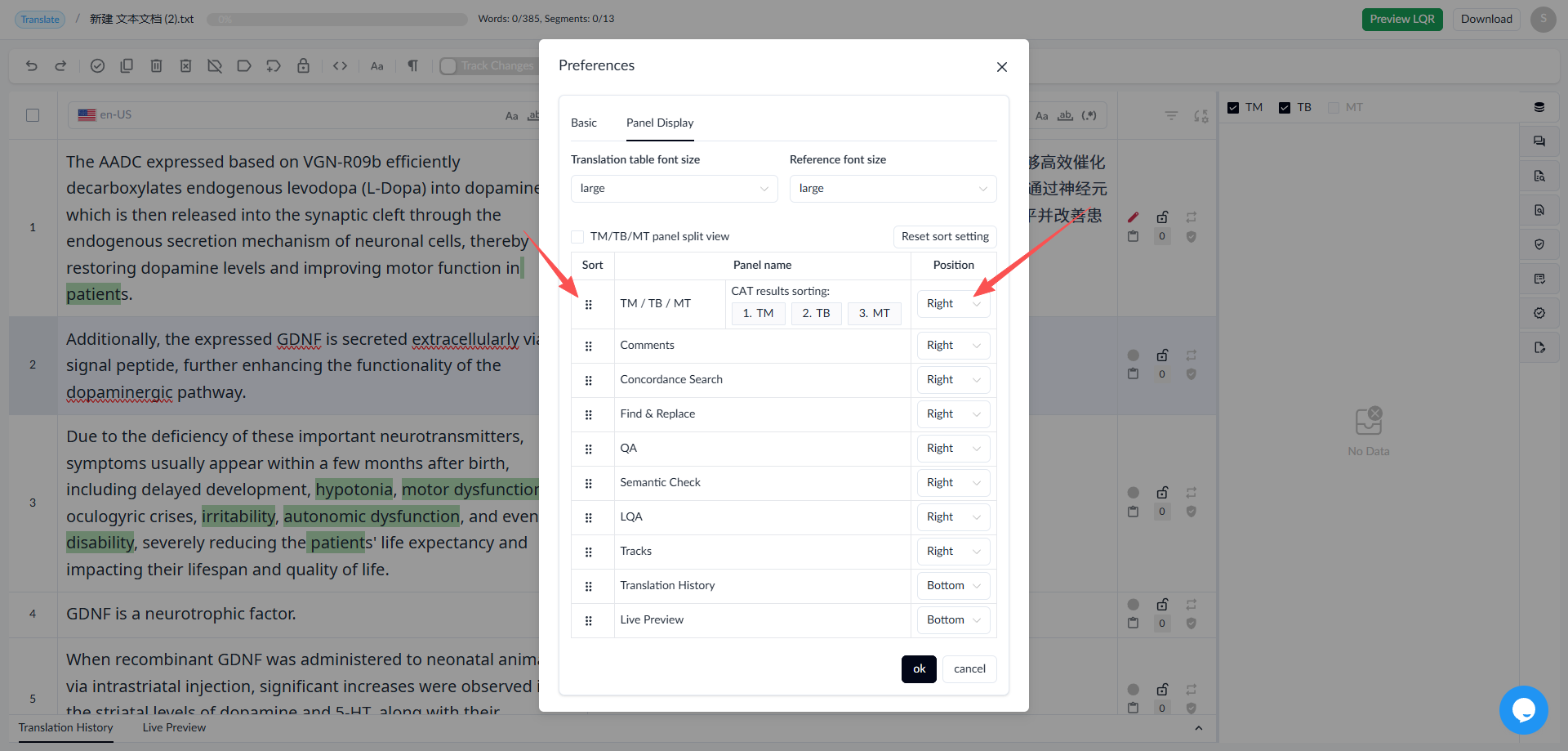
- Adjust Panel Order and Position:
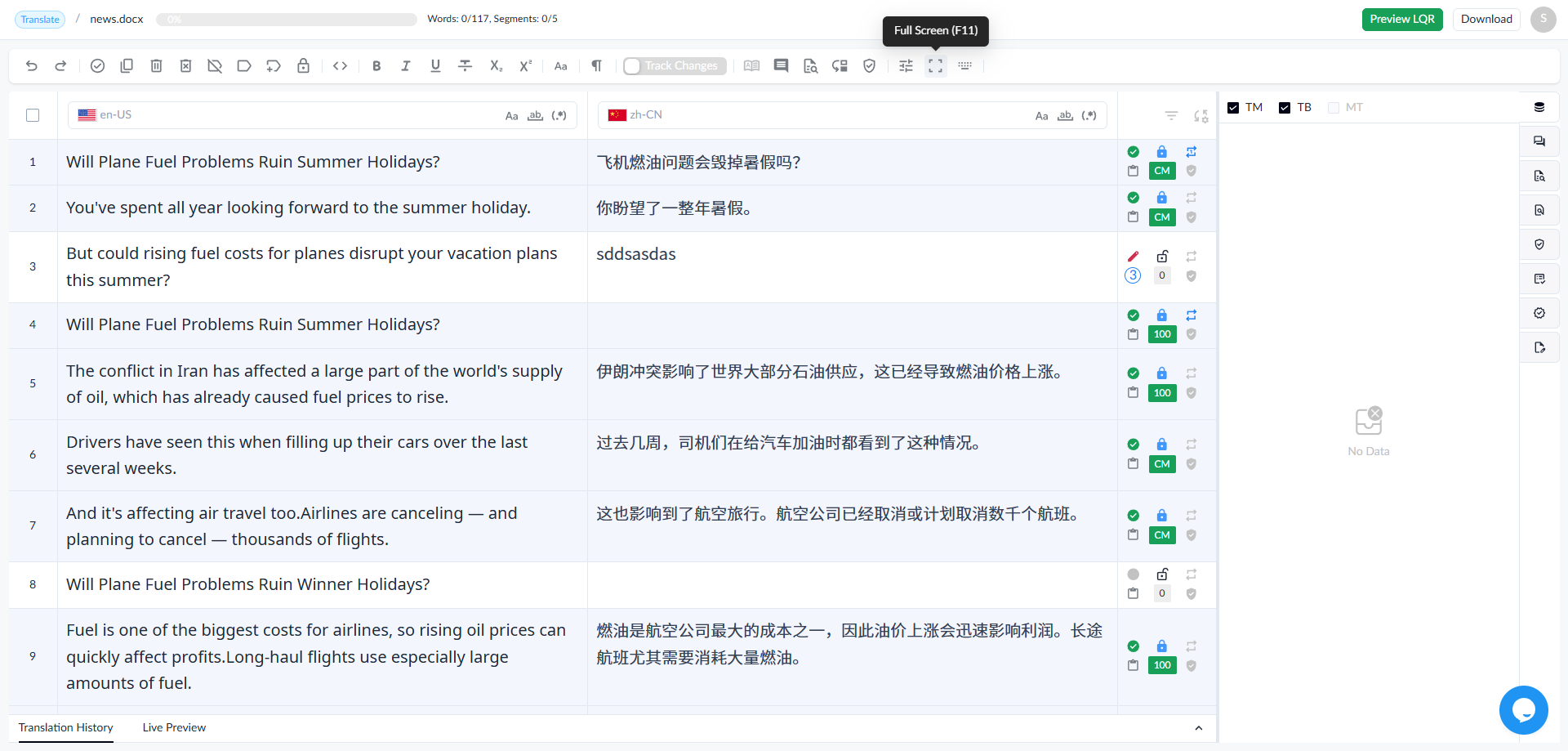
1.2.17 Full Screen
• Click the [Full Screen] button to enter the full screen mode; click the [Full Screen] button again to exit the full screen mode.
• Shortcut:(F11)
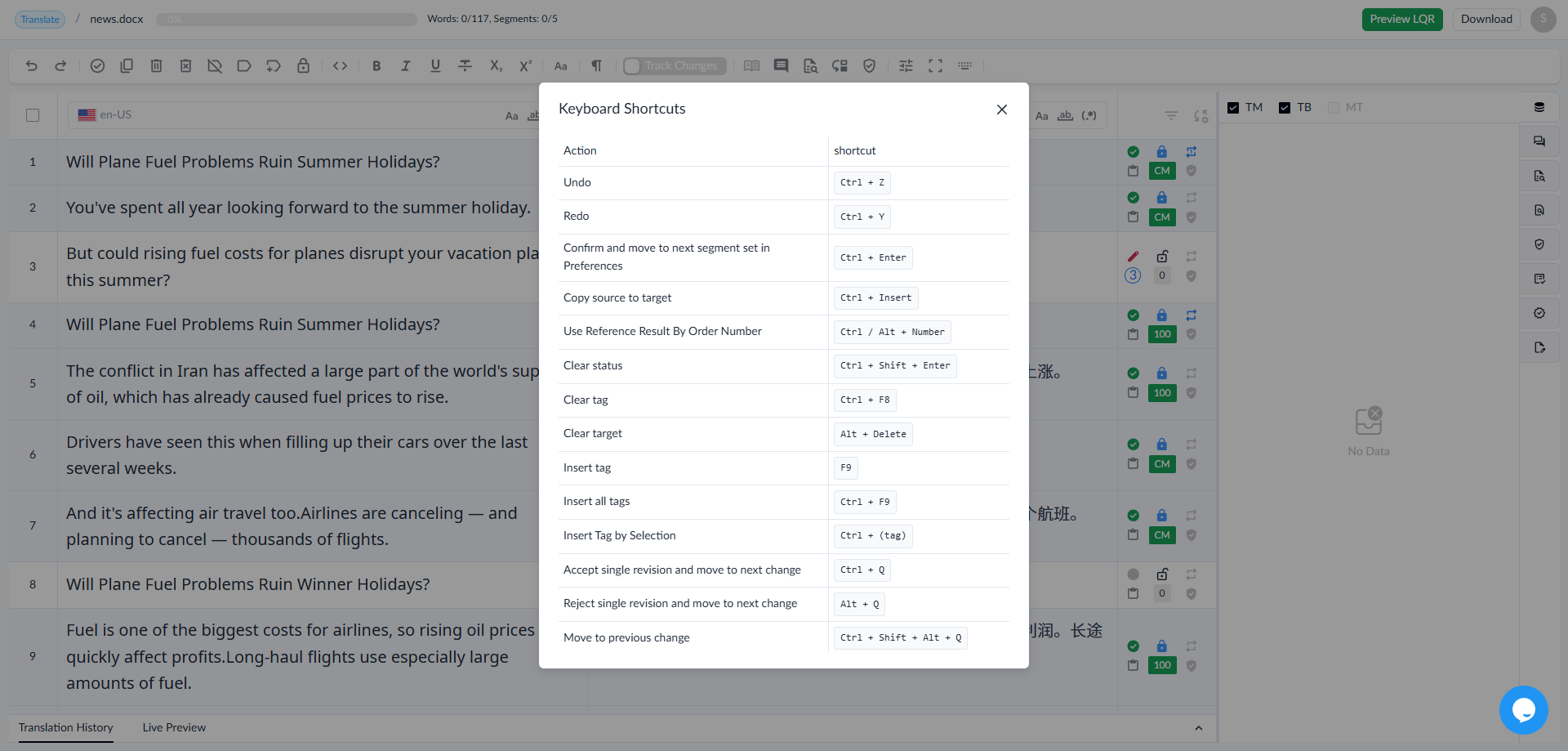
1.2.18 Keyboard Shortcuts
• Click the [Keyboard Shortcuts] button to display the list of shortcut functions.
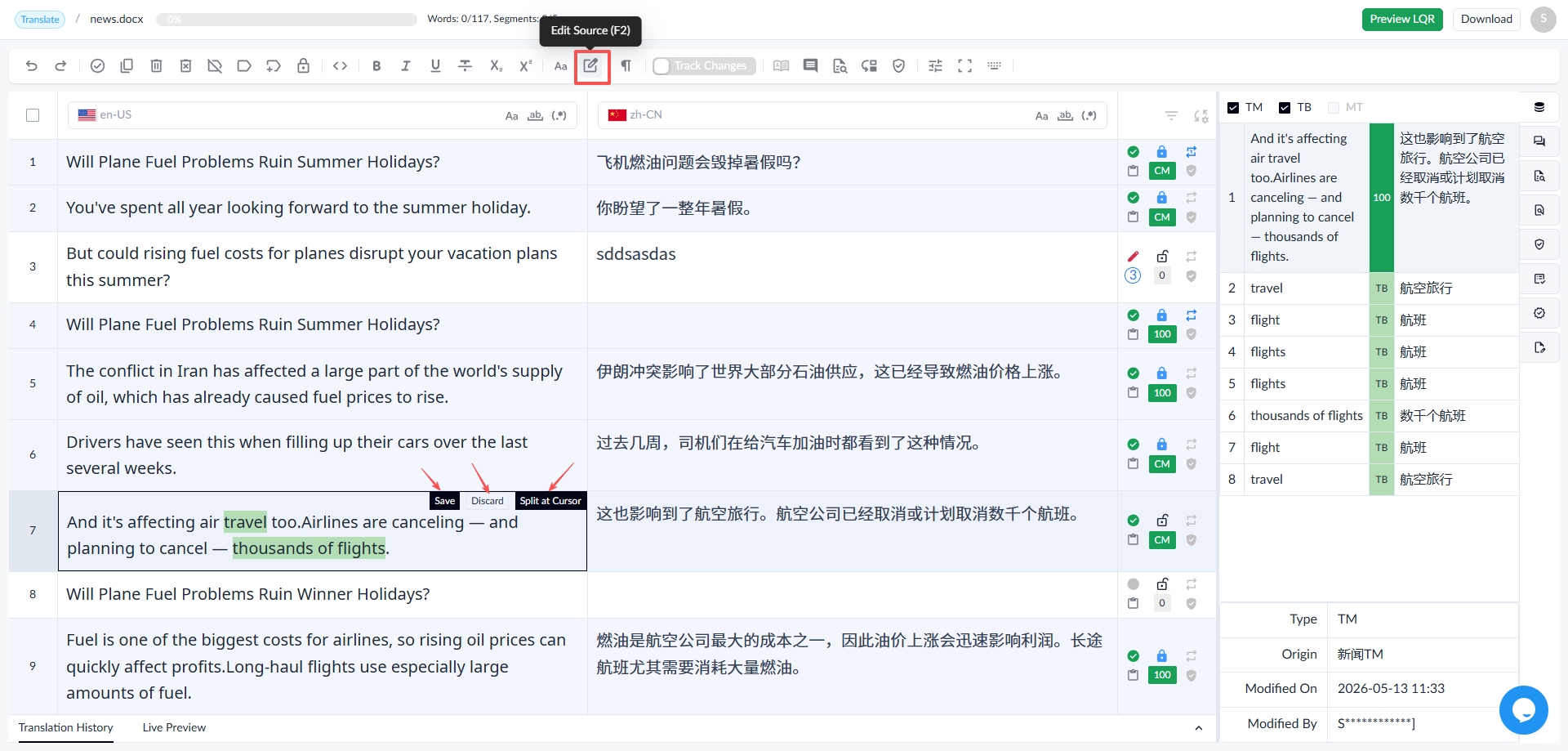
1.2.19 Edit Source
When you have permission, the [Edit Source] button is displayed.
Select a segment, click the [Edit Source] button, and modify the source text.
Click the [Save] button to save the changes.
Click the [Discard] button to discard the changes.
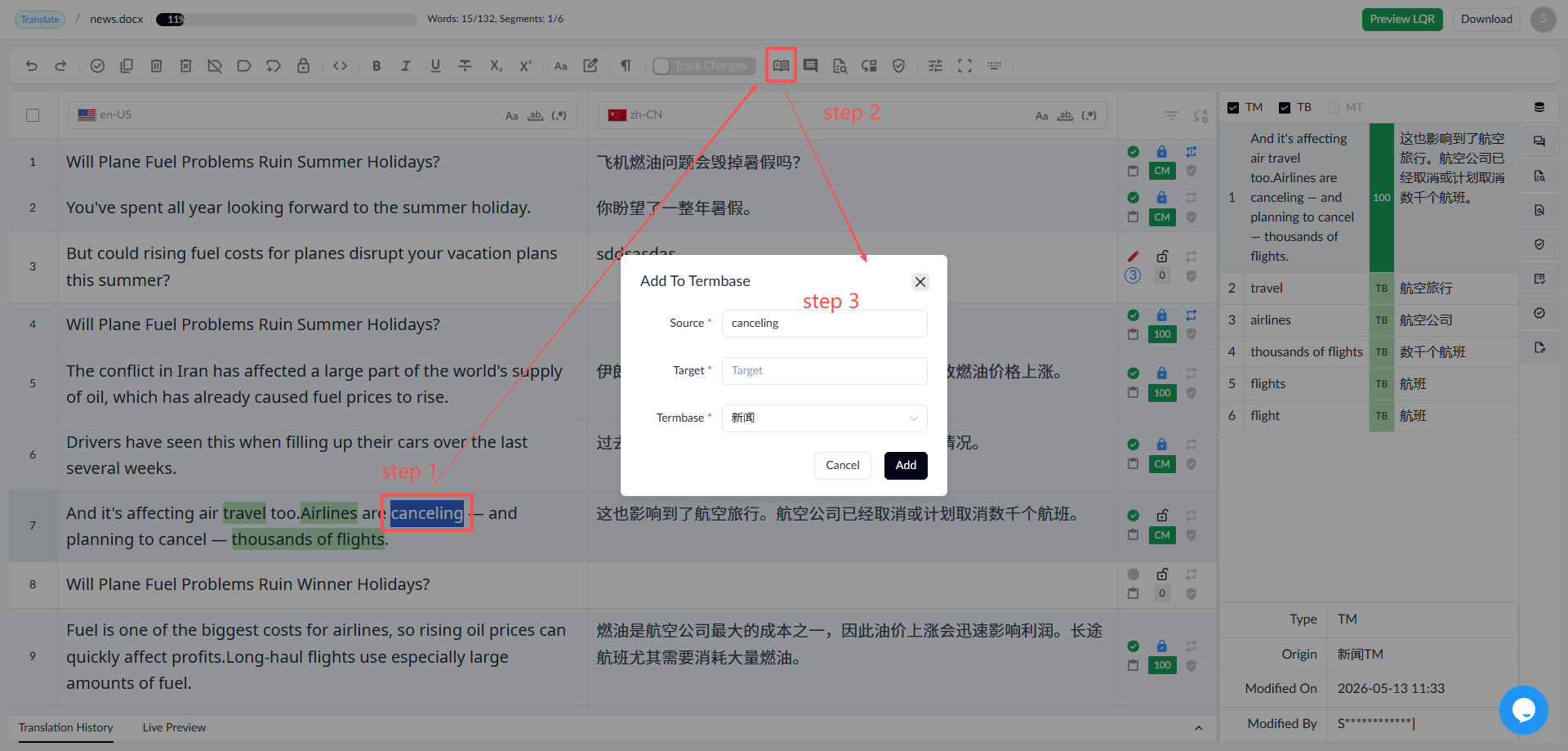
1.2.20 Add To Termbase
If a project contains a termbase, the user can add terms to the termbase at will.
Select the source or target term to be added.
Click the [Add to Termbase] button.
Edit the term to be added in the pop-up window, then click Add.
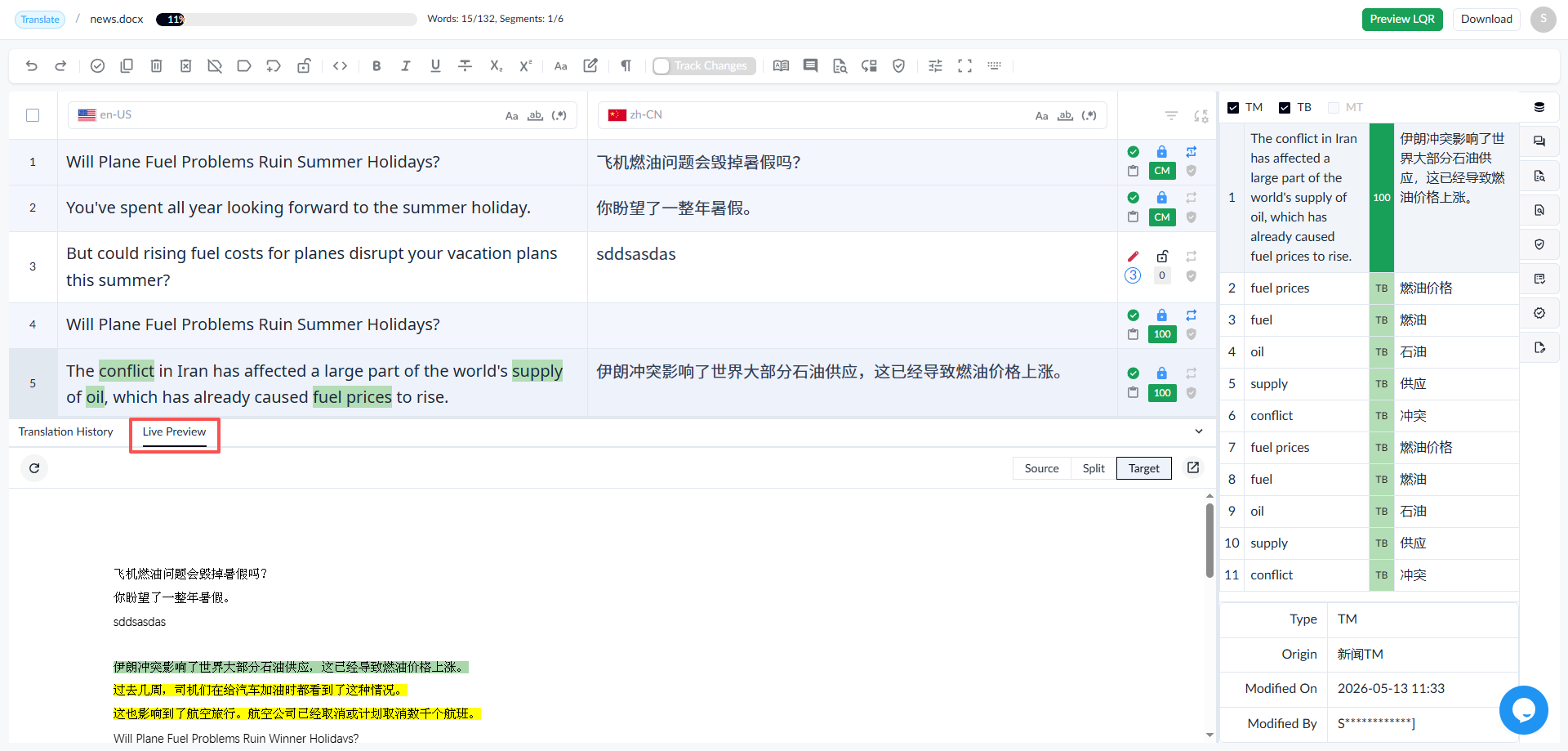
1.2.21 Live Preview
The live preview feature supports displaying the original style and translated style of files, and supports certain file types.
After clicking the [Live Preview] button, the system will pop up a Live Preview window.
Refresh: You can refresh the preview content.
Switch between Source and Target.
1.2.22 Track Changes
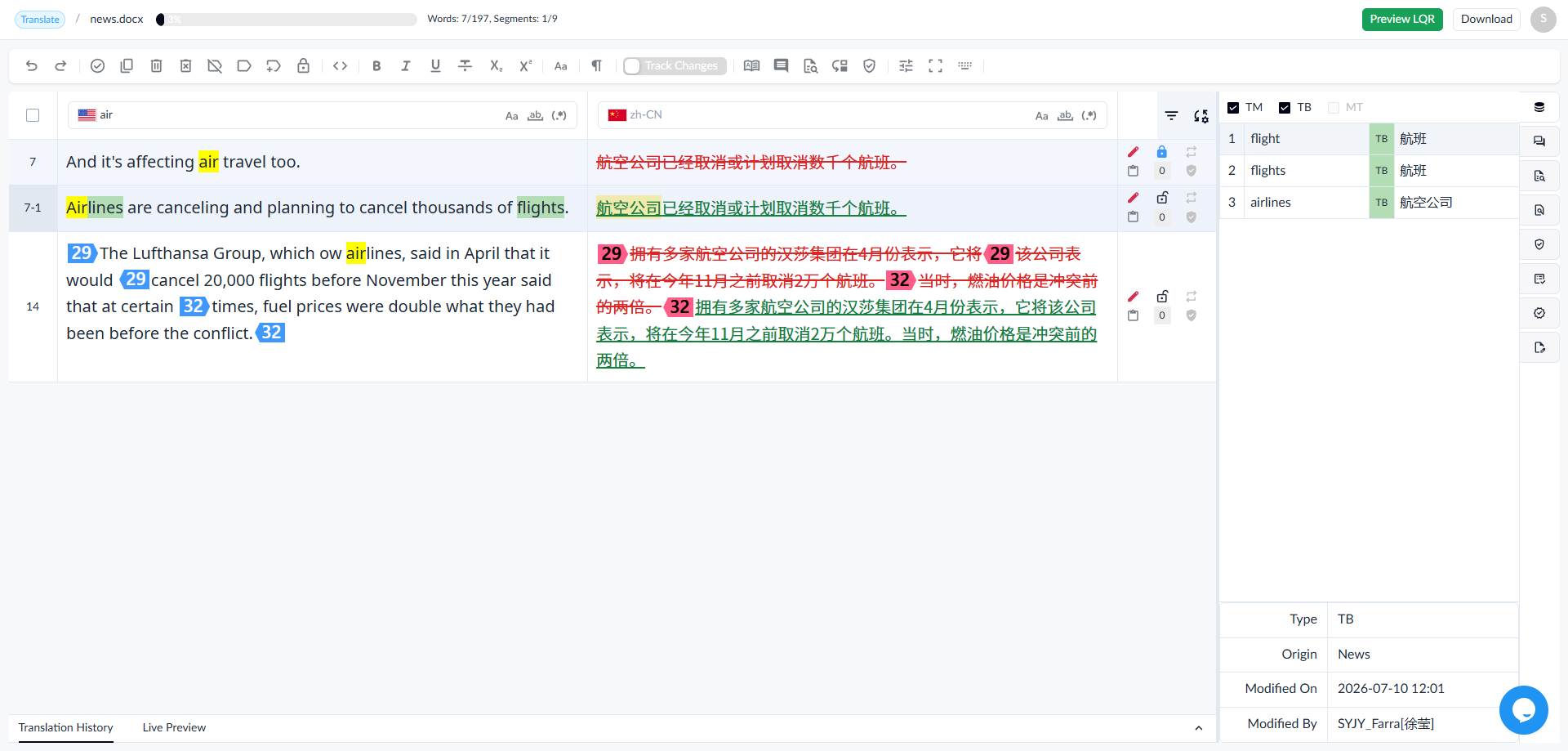
You can mark changes on the translator's translation in the editor.Click the [Track Changes] icon to enable the track changes mode when modifying the translation.
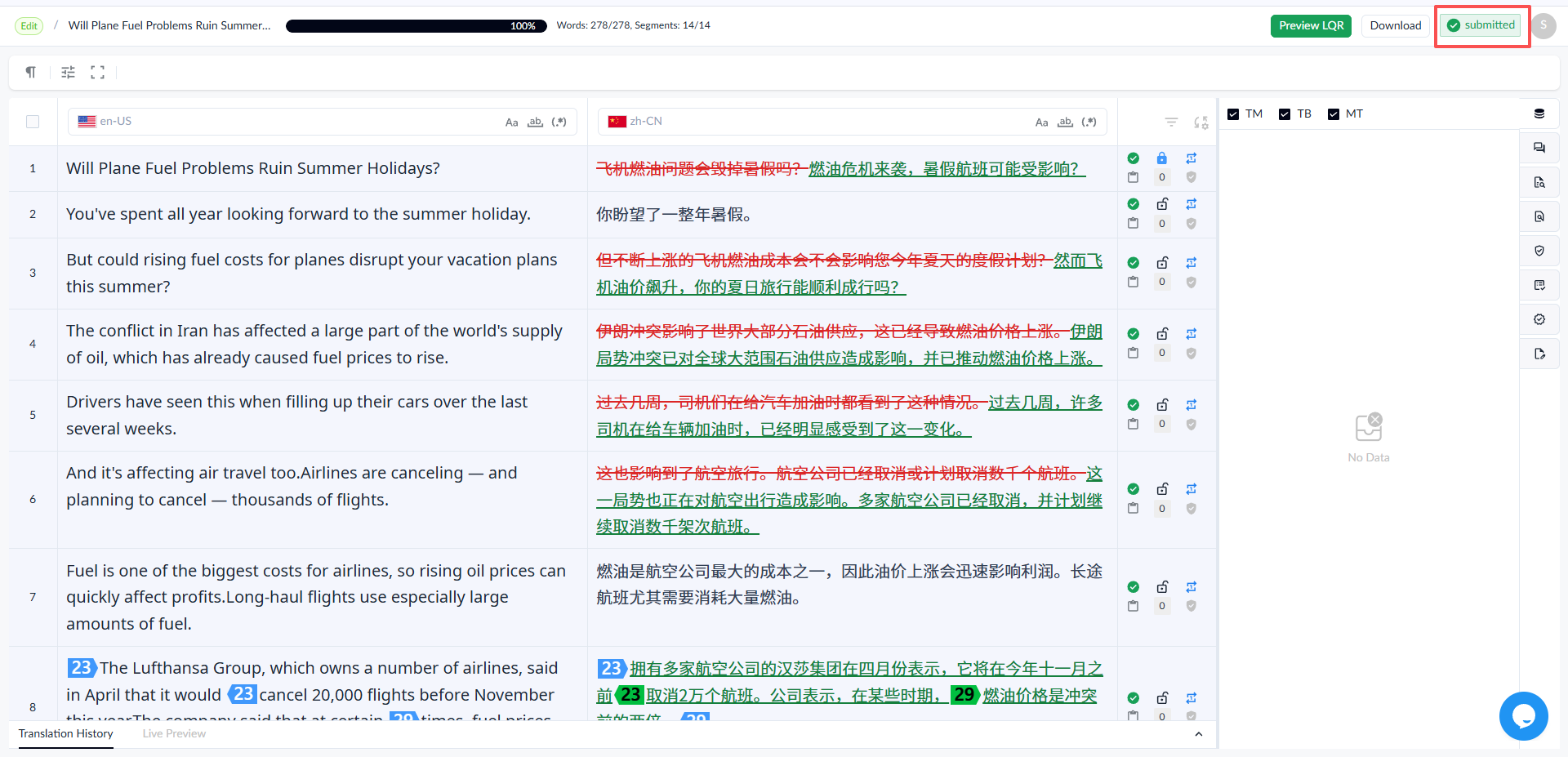
Once track changes are enabled, the system defaults to [All markup]; deleted content will be marked with a red strikethrough, and added content will be marked with a green underline.
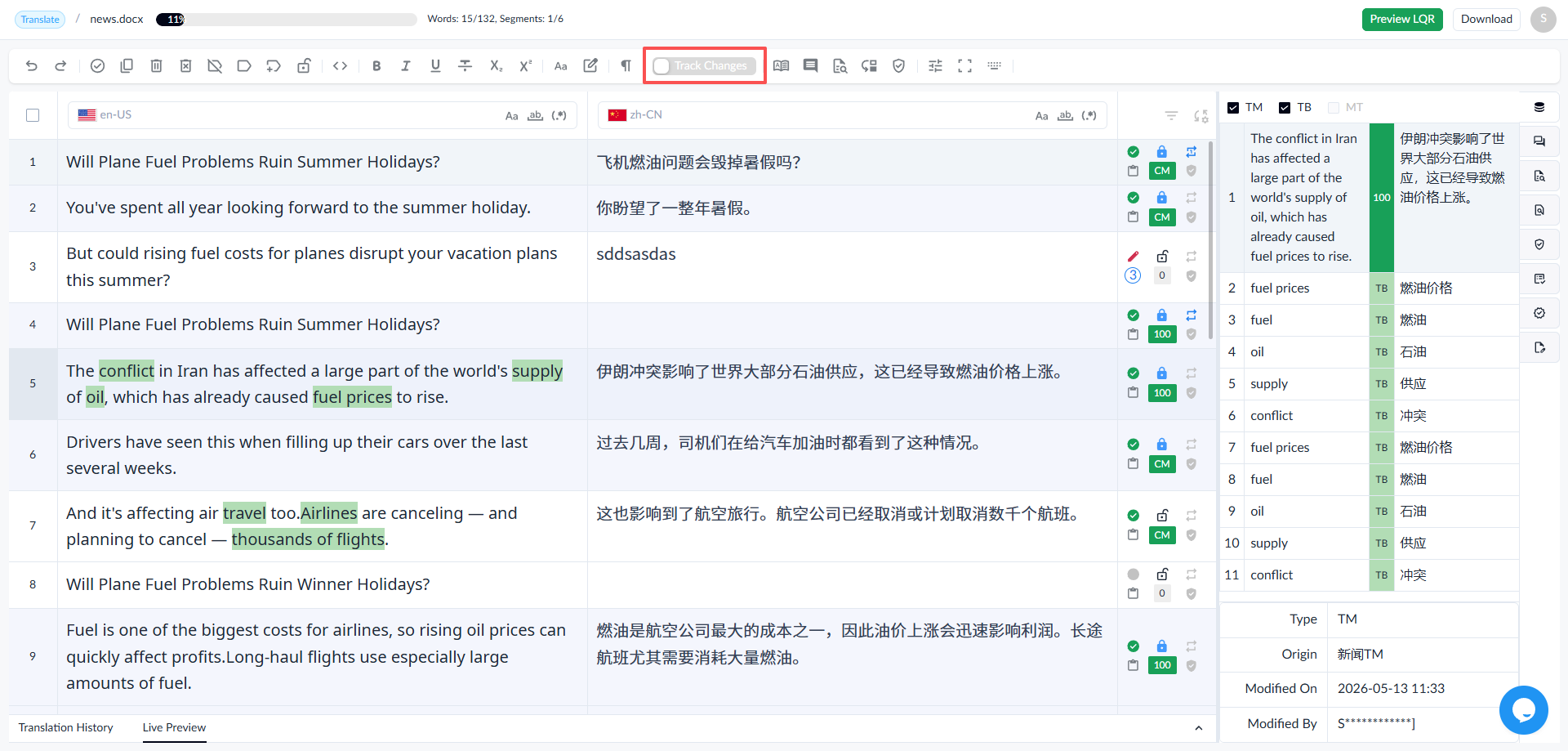
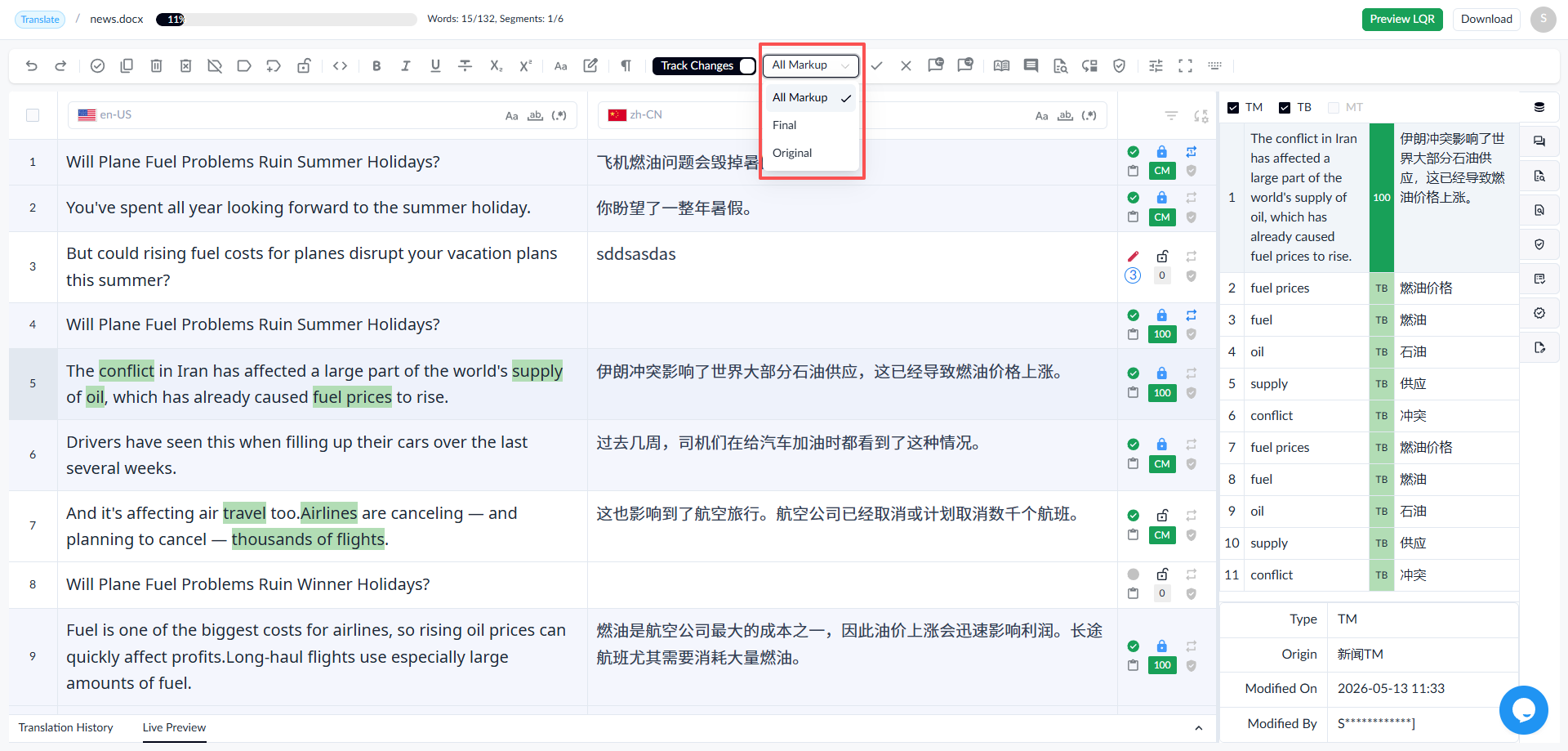
Once disabled, the editor will stop marking additions and deletions, but you can still see underlines and strikethroughs in the translation field.
How to Accept or Reject Changes
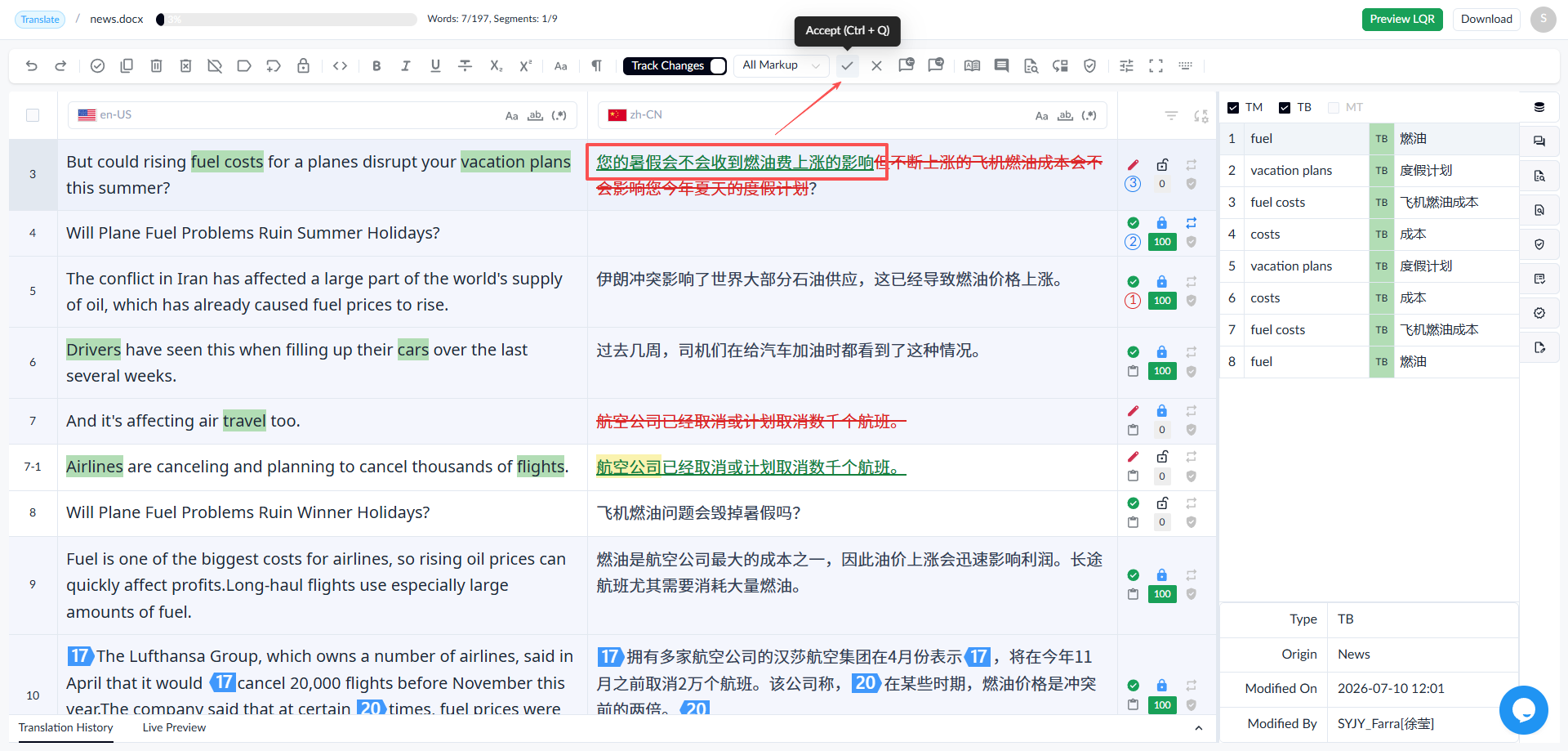
- In the editor, place the cursor on or select the changes you want to accept or reject, then use the shortcut key for Accept (Ctrl+Q) or Reject (Alt+Q) to edit the changes.
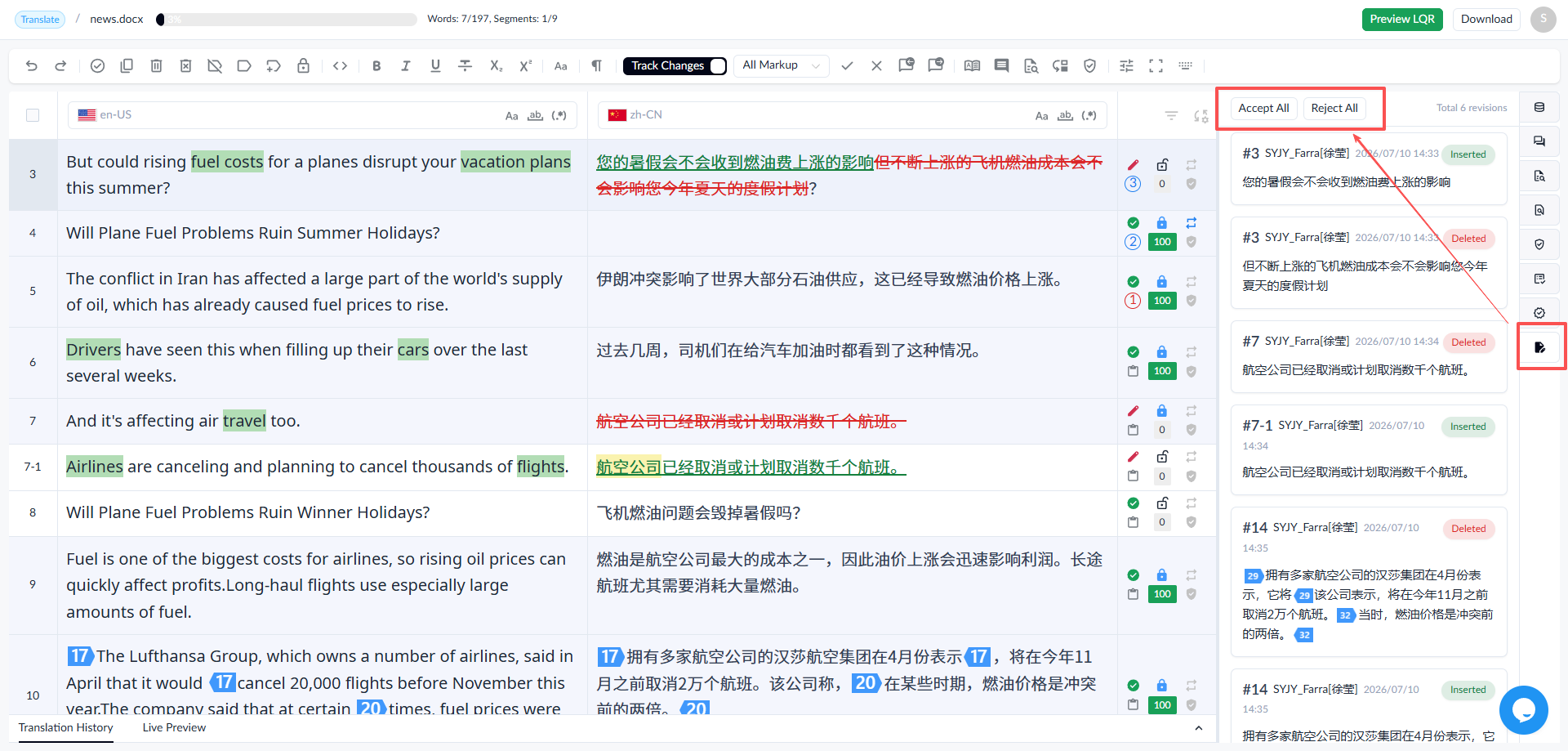
- If you need to accept or reject all revisions in segments, on the right panel of the main function area, select Accept All Revisions or Reject All Revisions to accept or reject all revisions in batch.
1.2.23 Translation History
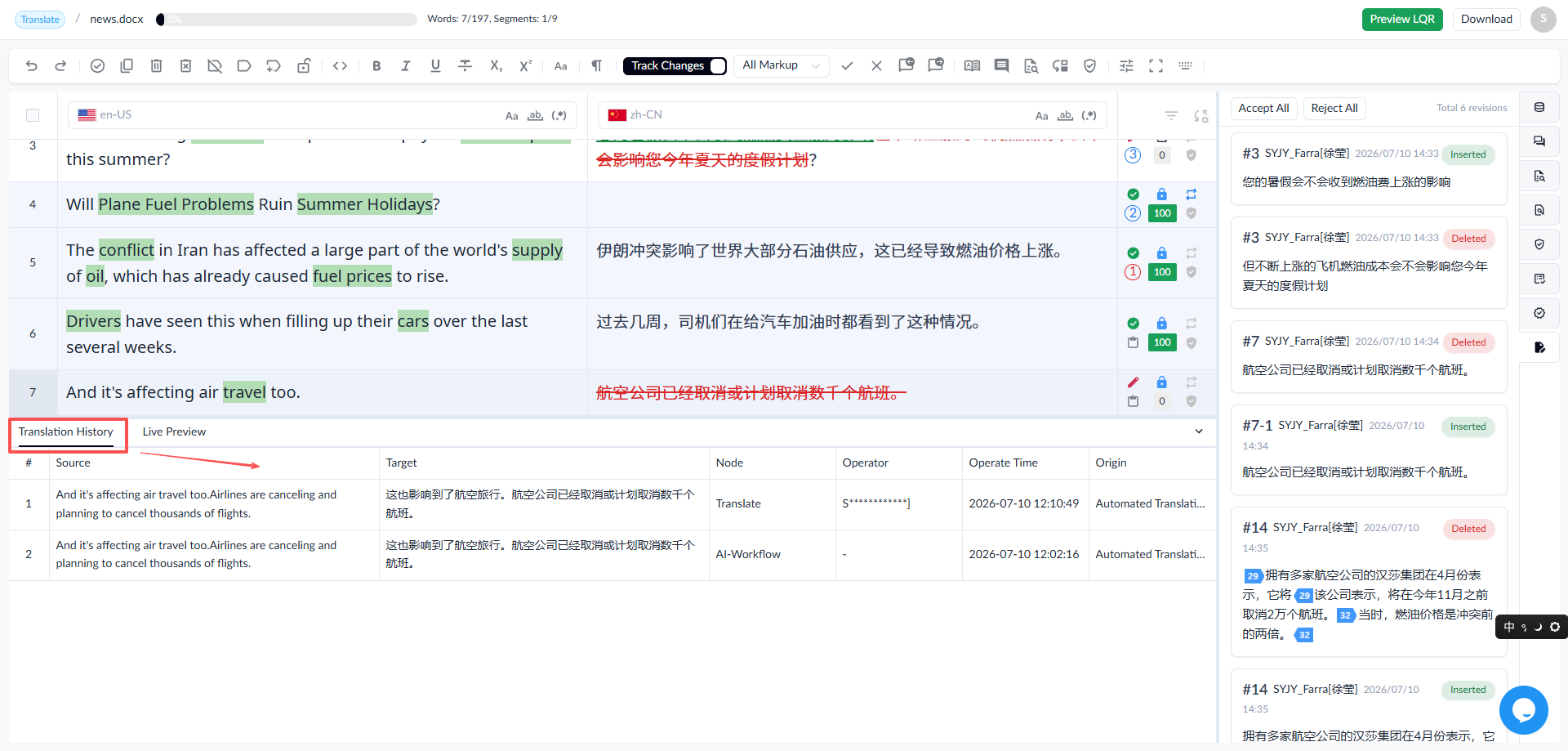
In the Editor interface, after selecting a segment, find and click the [Translation History] option in the bottom panel to view the translation or review records for each segment.The history fields include Source, Target, Node, Operator, Operate Time and Origin.
1.3 Segment Filter
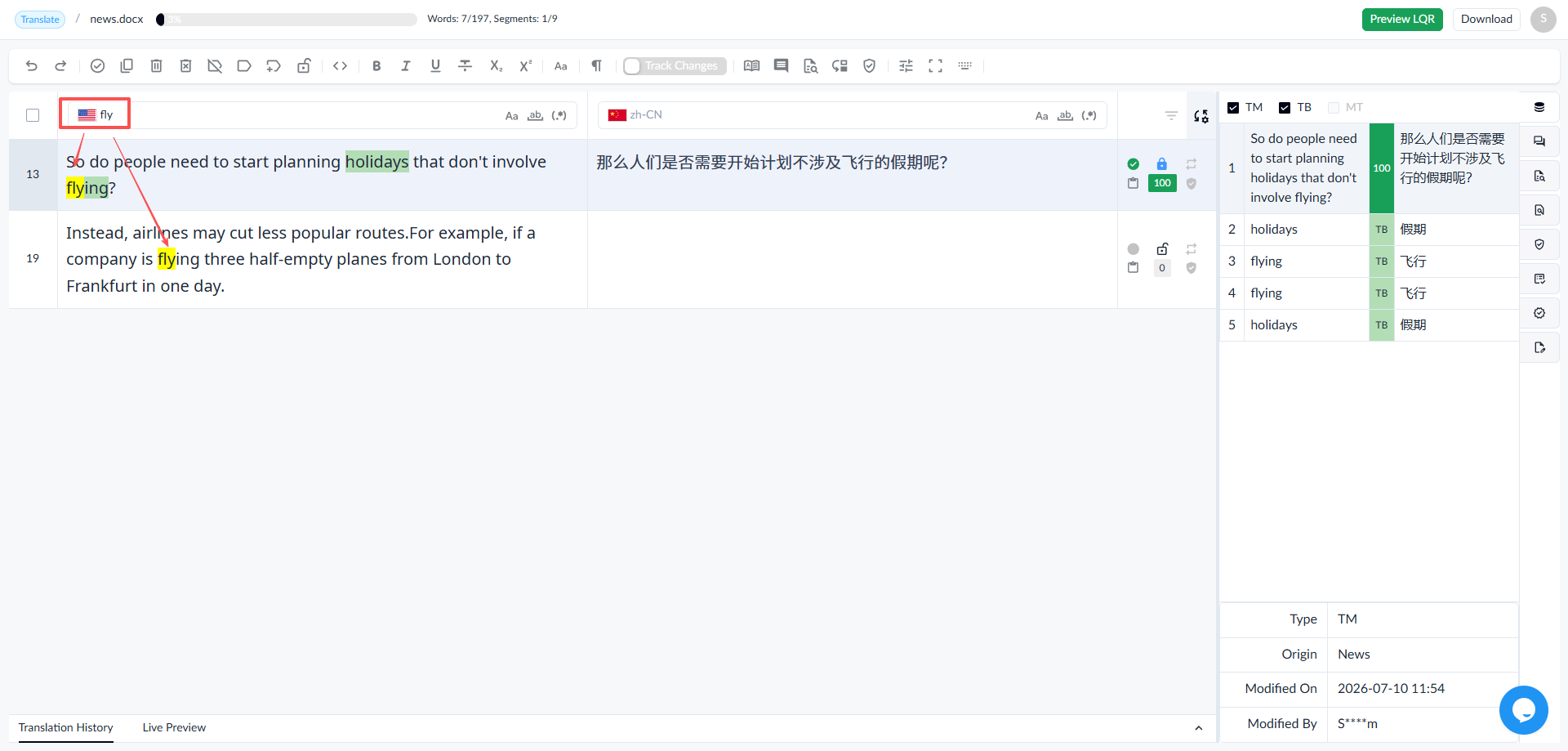
1.3.1 Source Search
- Enter a keyword in the source search box to automatically search and display results found in the source, with the keyword highlighted in yellow.
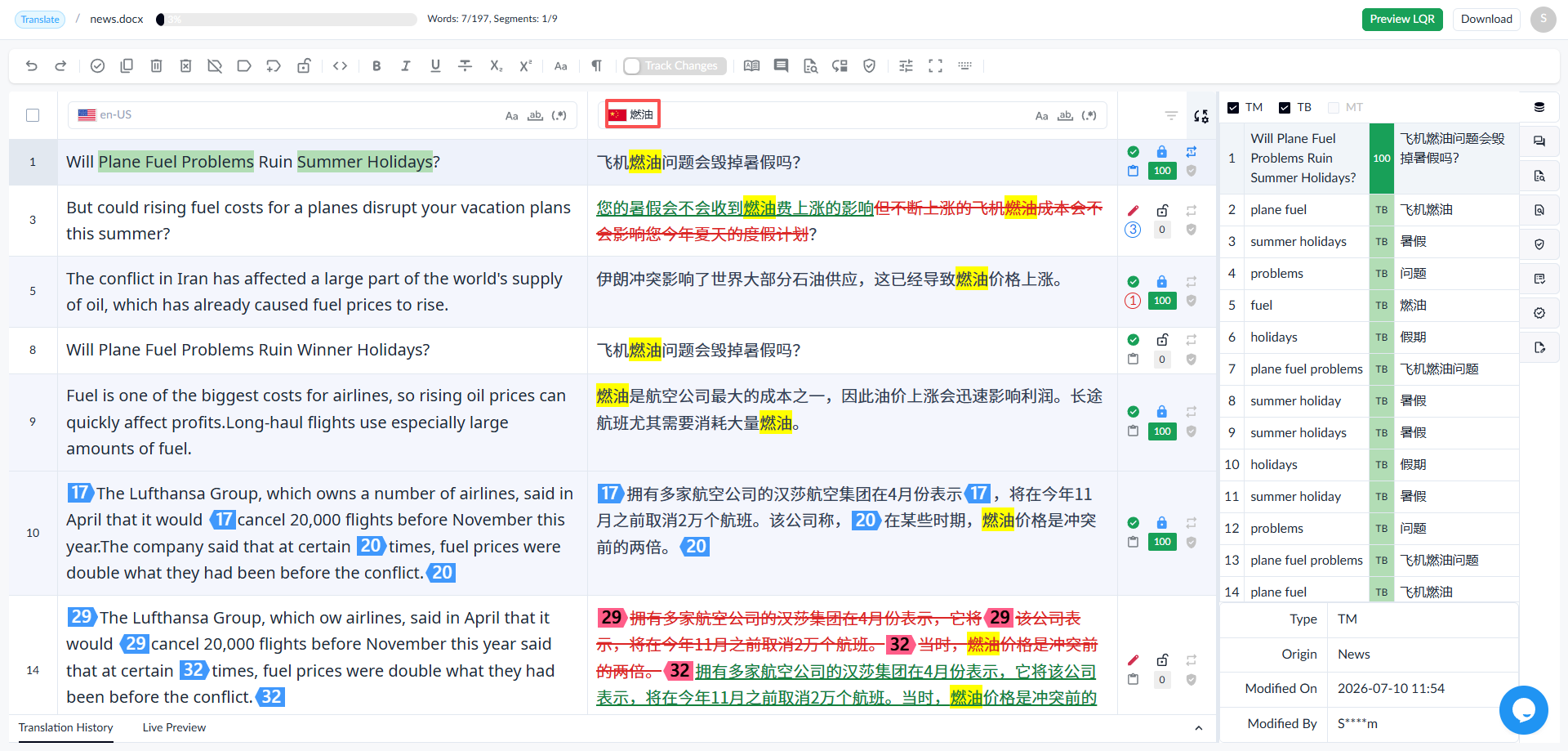
1.3.2 Translation Search
- Enter keywords in the translation search box to automatically search and display results found in the translation, with keywords highlighted in yellow.
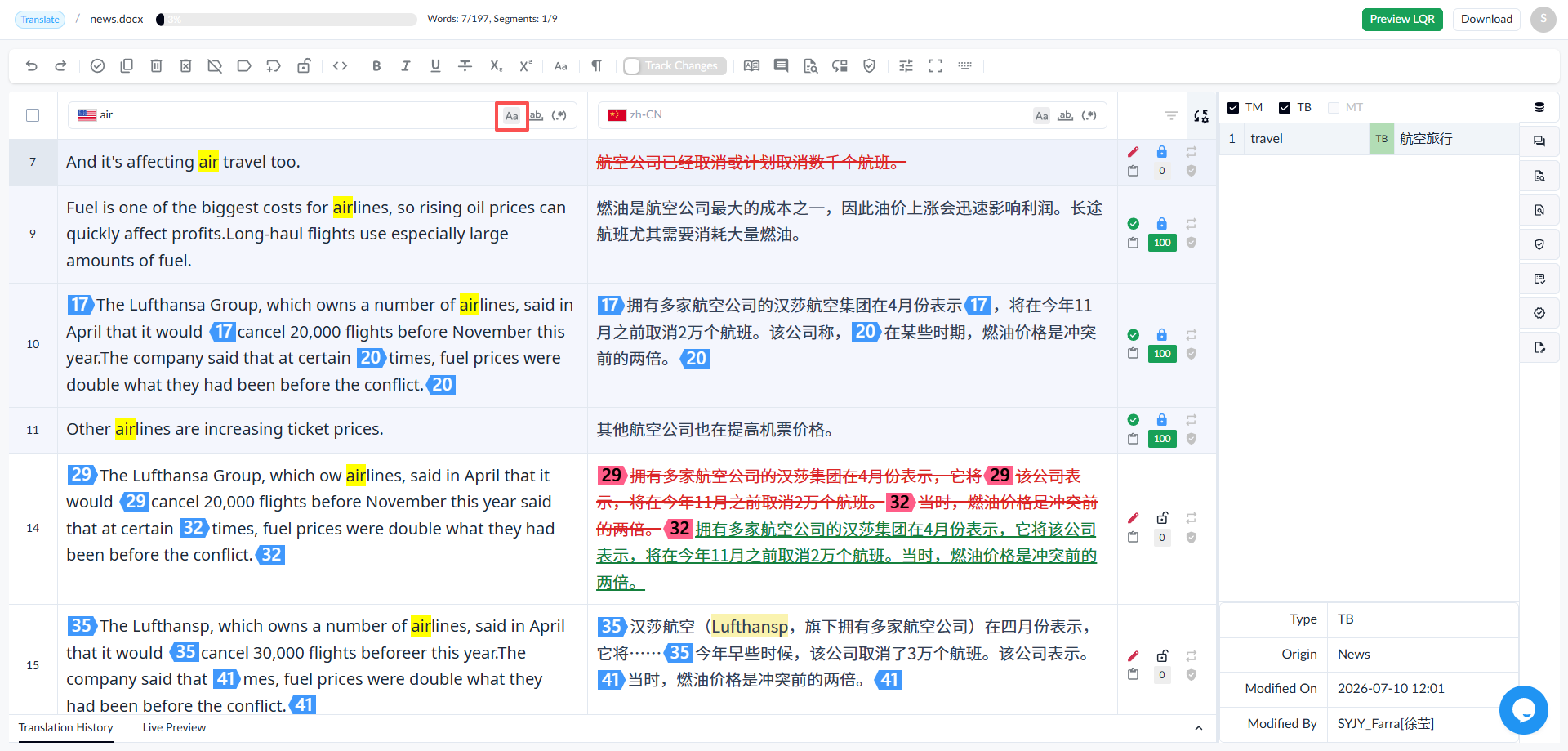
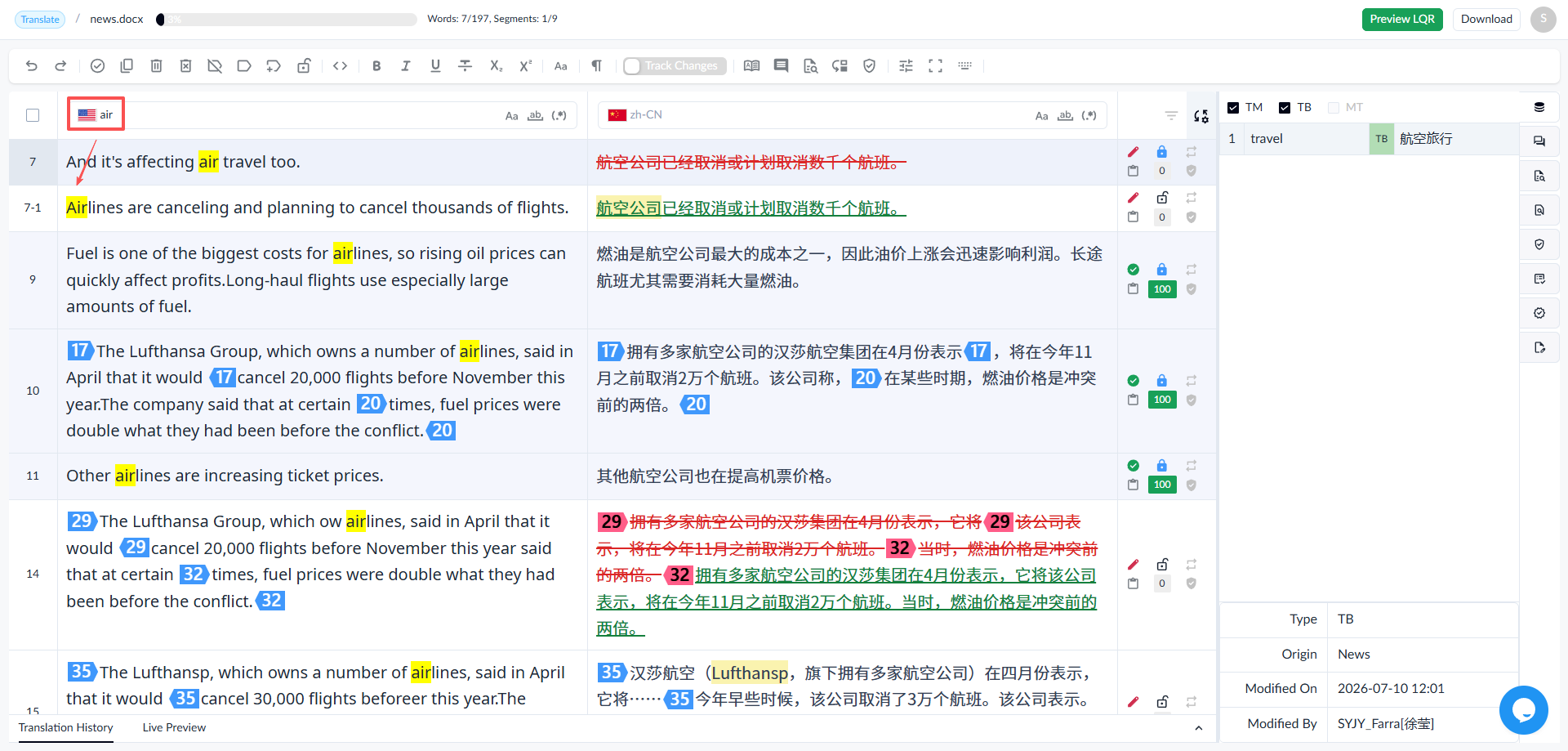
1.3.3 Case-Sensitive Matching Settings
Both source and translation search support case-sensitive matching.
• Case-sensitive matching enabled
• Case-sensitive matching disabled
1.3.4 Filter
The Filter allows the user to quickly locate specific segments in the editor by applying different filtering criteria, including segment status, locking status, repetitions, match rate, comments, and revisions.
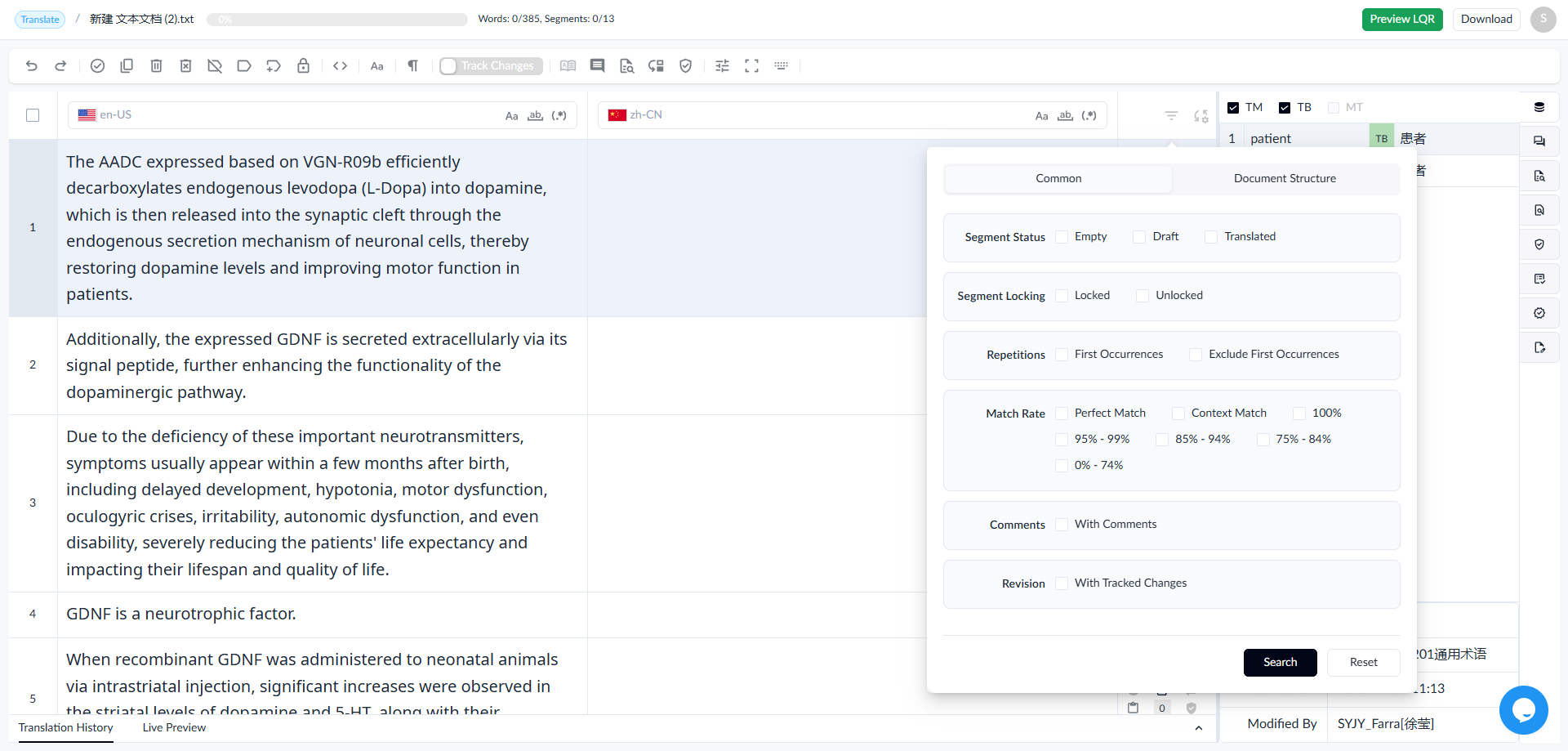
1.3.4.1 Segment Status
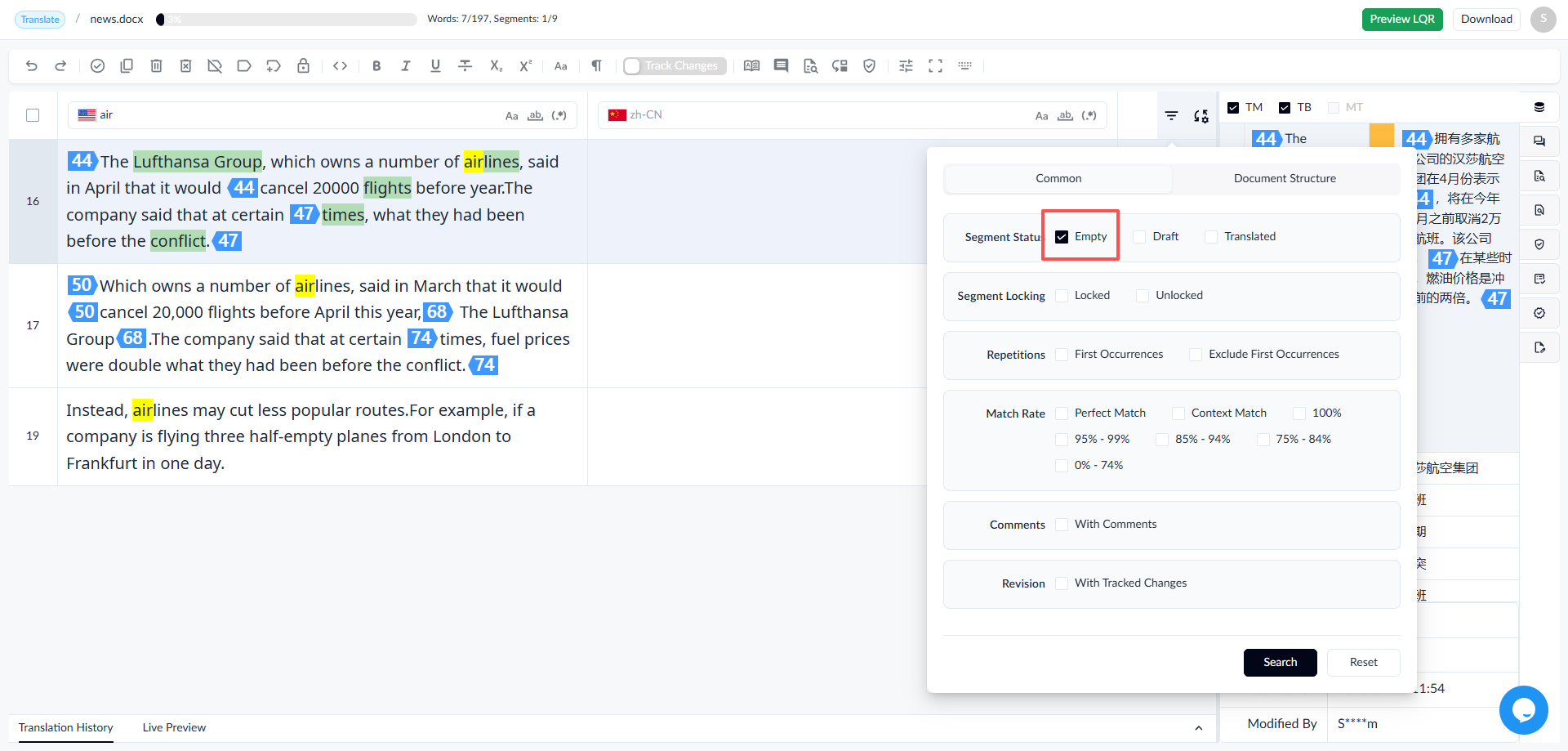
Filter segments based on their translation status:
- Empty: Segments without a translation.
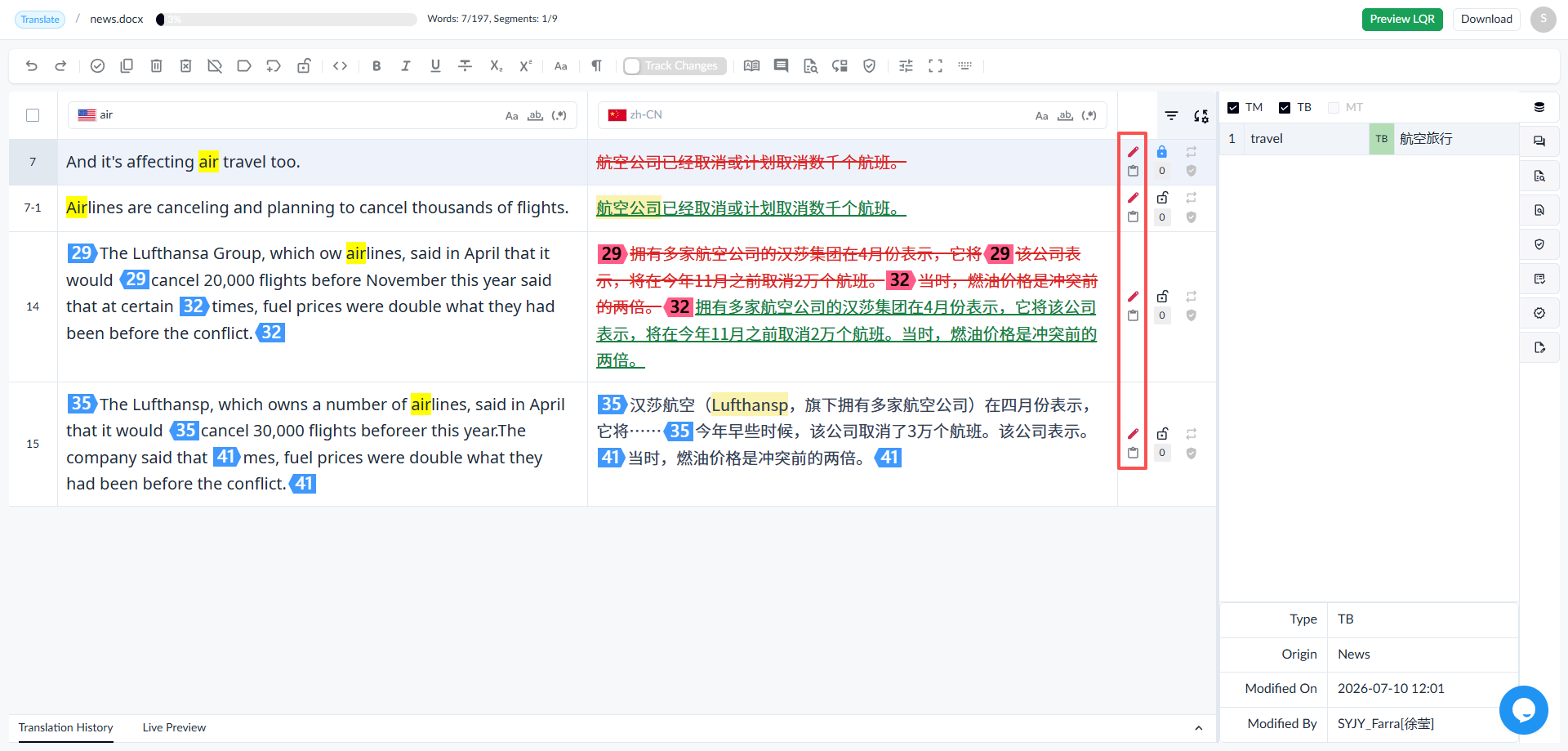
- Draft: Segments with a draft translation that has not been confirmed.
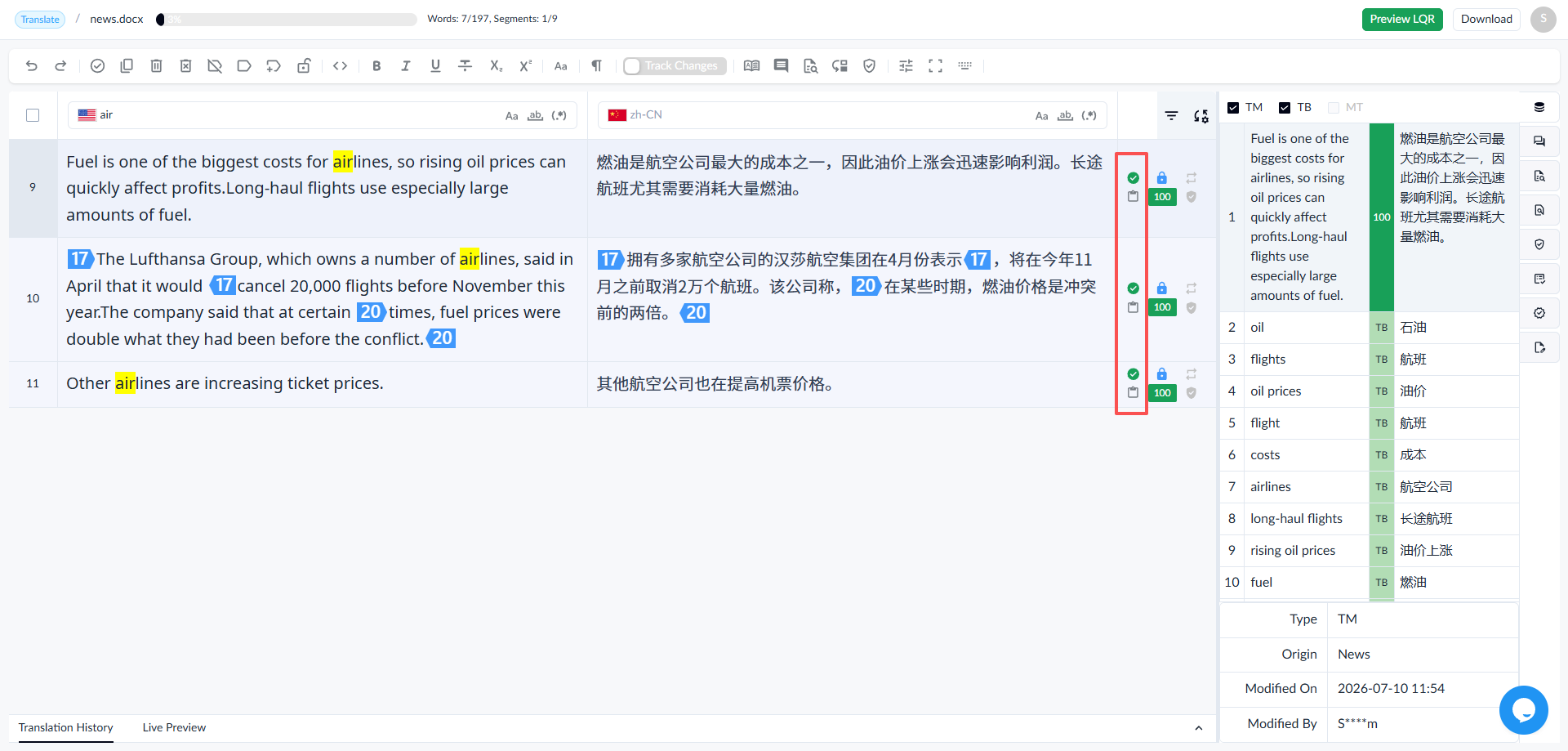
- Translated: Segments with confirmed translations.
1.3.4.2 Segment Locking
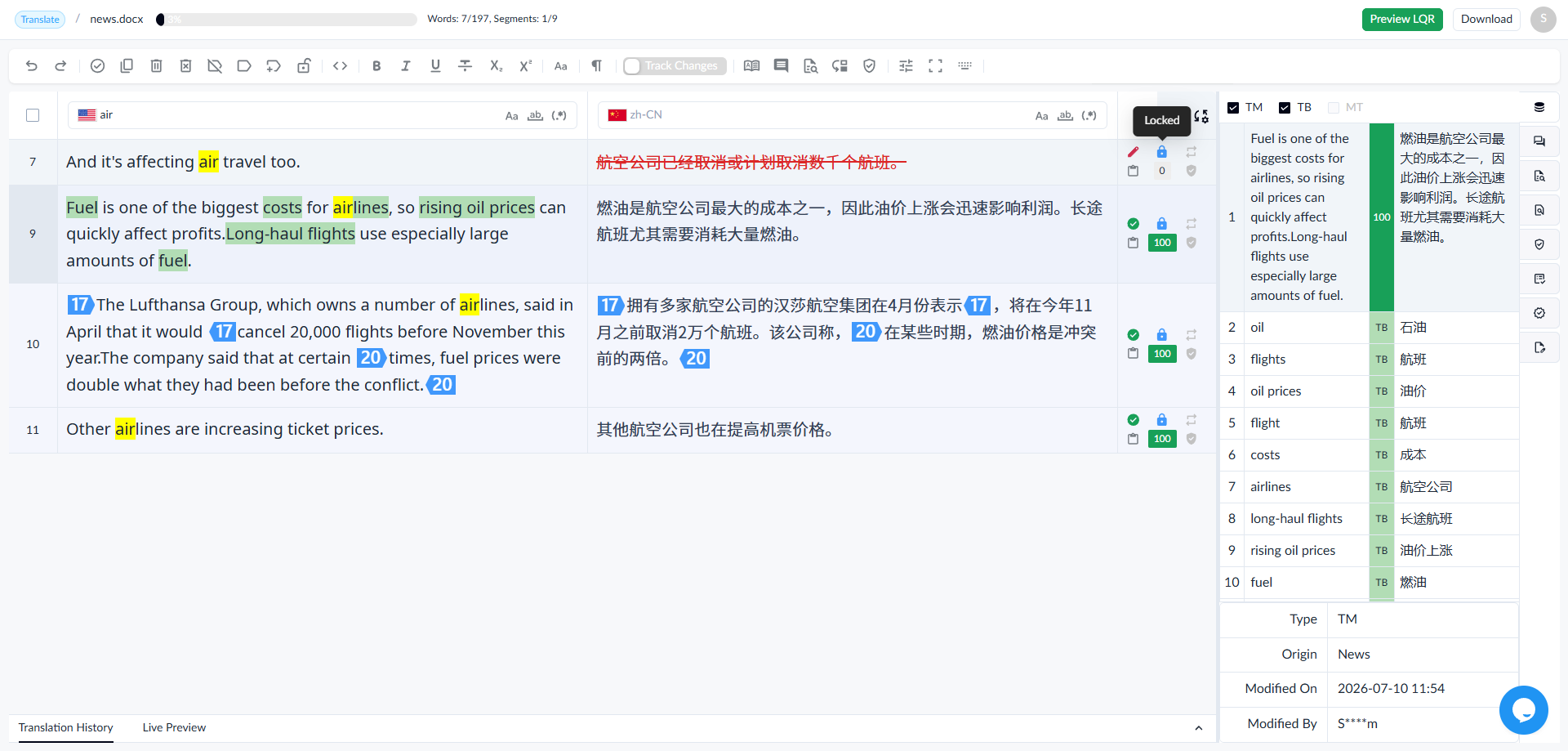
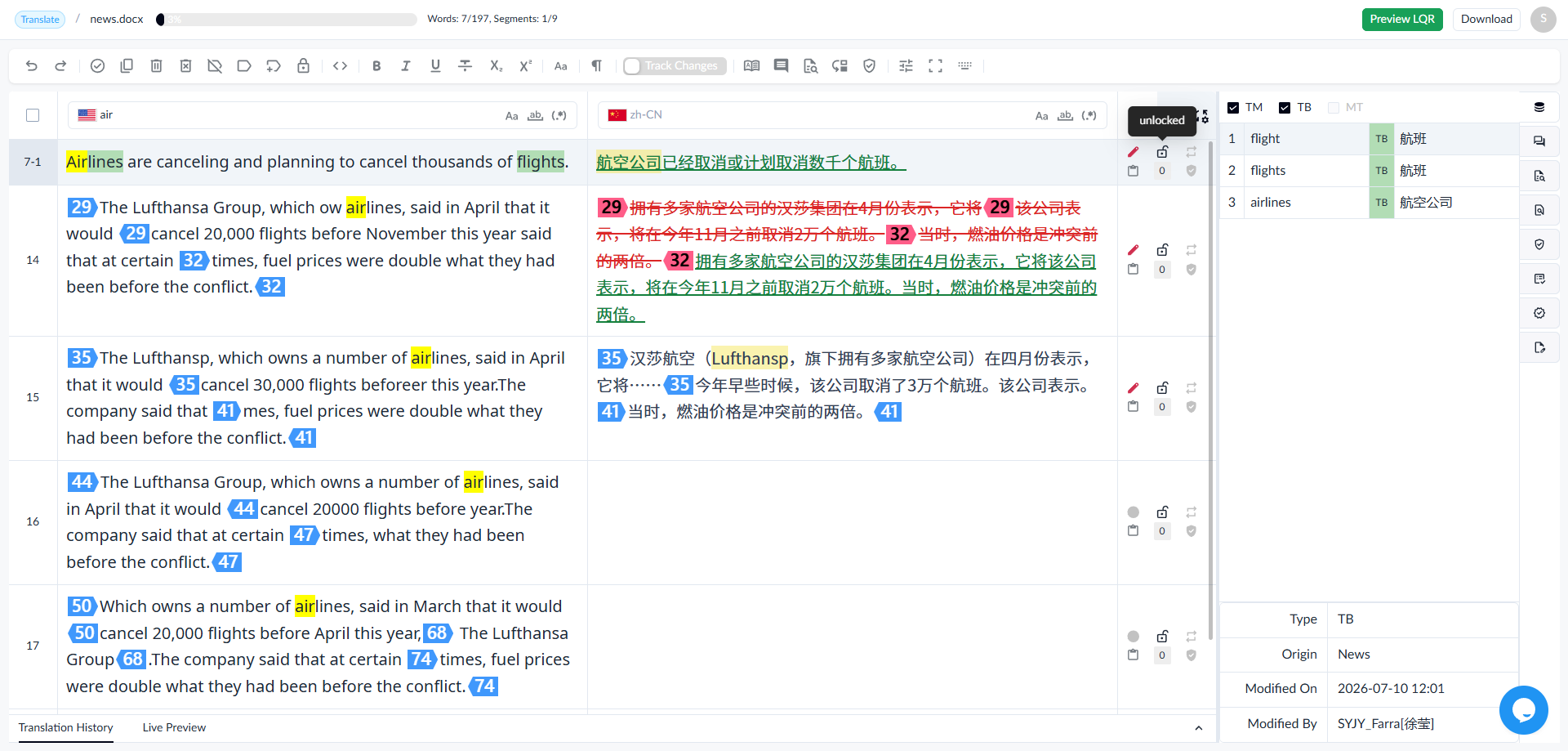
Filter segments according to their locking status:
- Locked: Segments that cannot be edited.
- Unlocked: Segments that are available for editing.
1.3.4.3 Repetitions
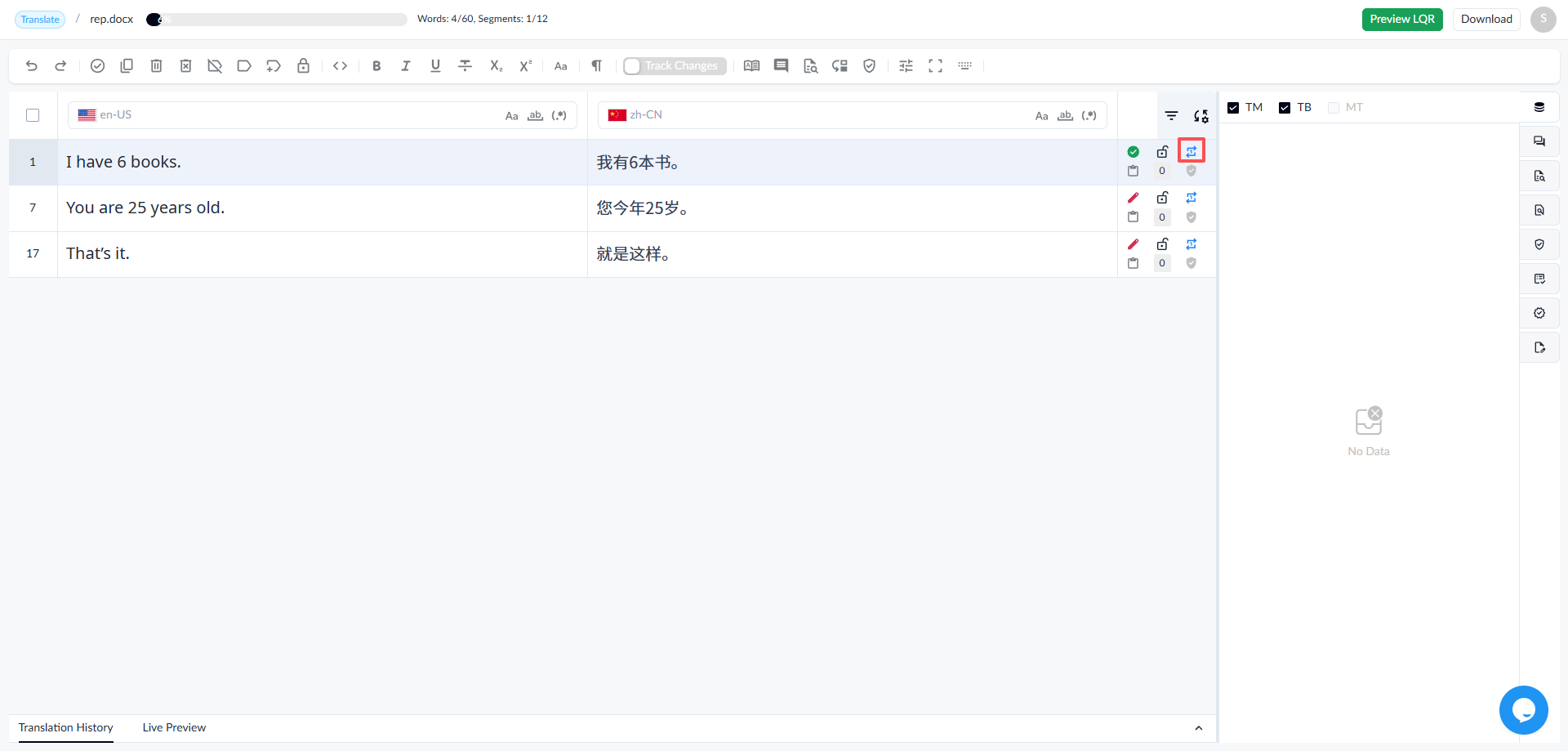
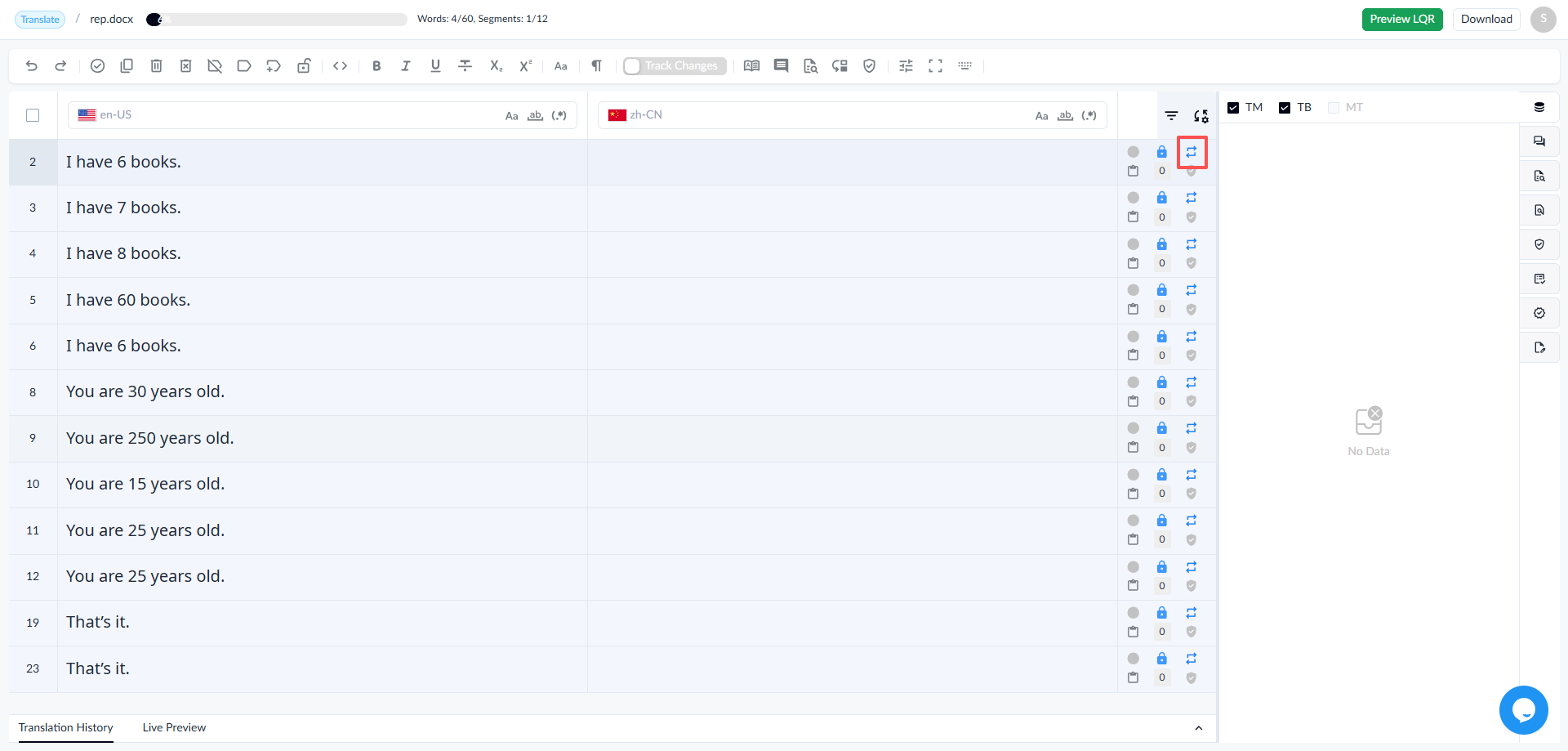
Filter repeated segments:
- First Occurrences: Display the first occurrence of repeated segments.
- Exclude First Occurrences: Display repeated segments except for the first occurrence.
1.3.4.4 Match Rate
Filter segments based on TM match results:
- Perfect Match (PM)
- Context Match (CM)
- 100% Match
- 95% - 99%
- 85% - 94%
- 75% - 84%
- 0% - 74%
1.3.4.5 Comments
Filter segments containing comments:
- With Comments: Display segments that have comments.
1.3.4.6 Revision
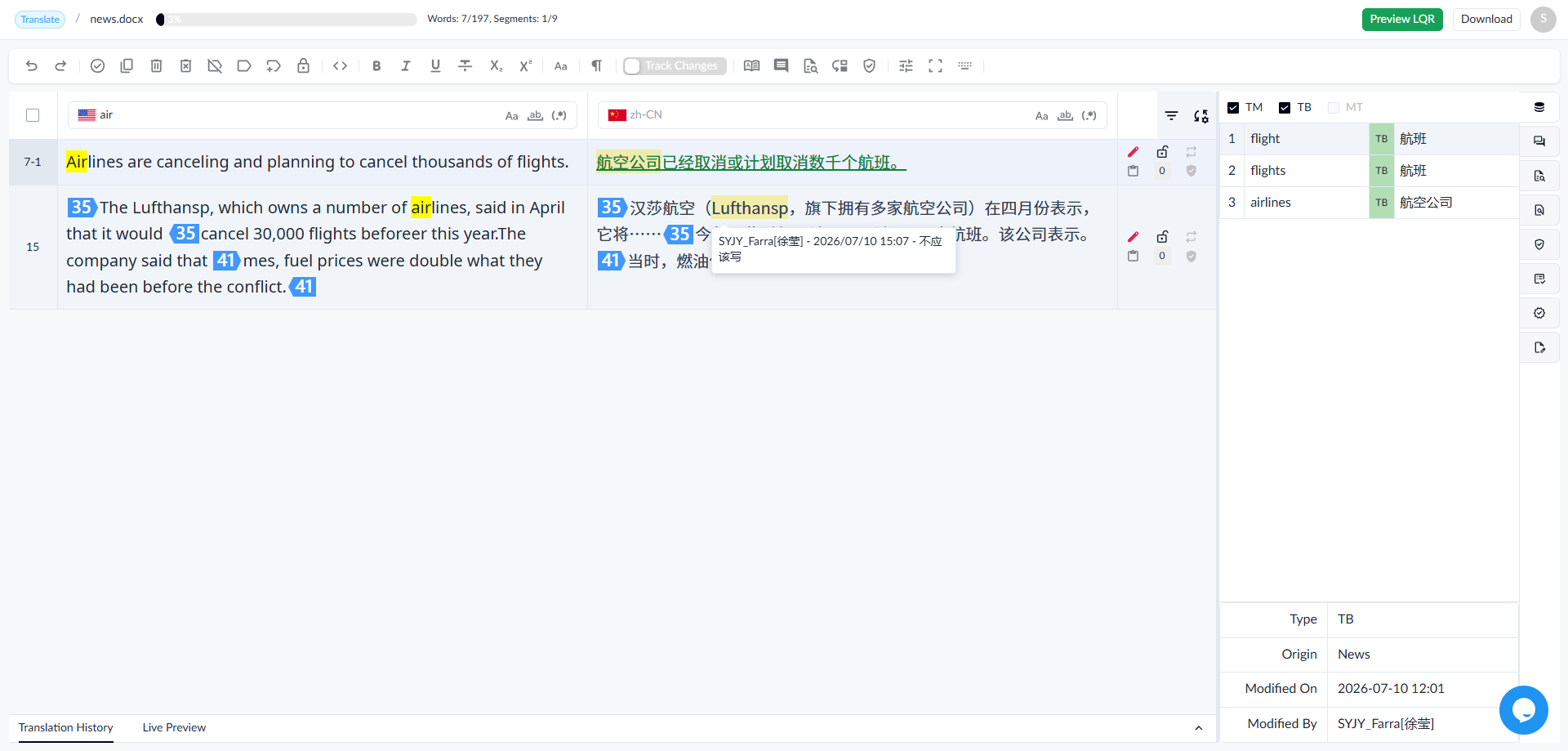
Filter segments with tracked changes:
- With Tracked Changes: Display segments that contain revision marks.
1.3.4.7 Document Structure
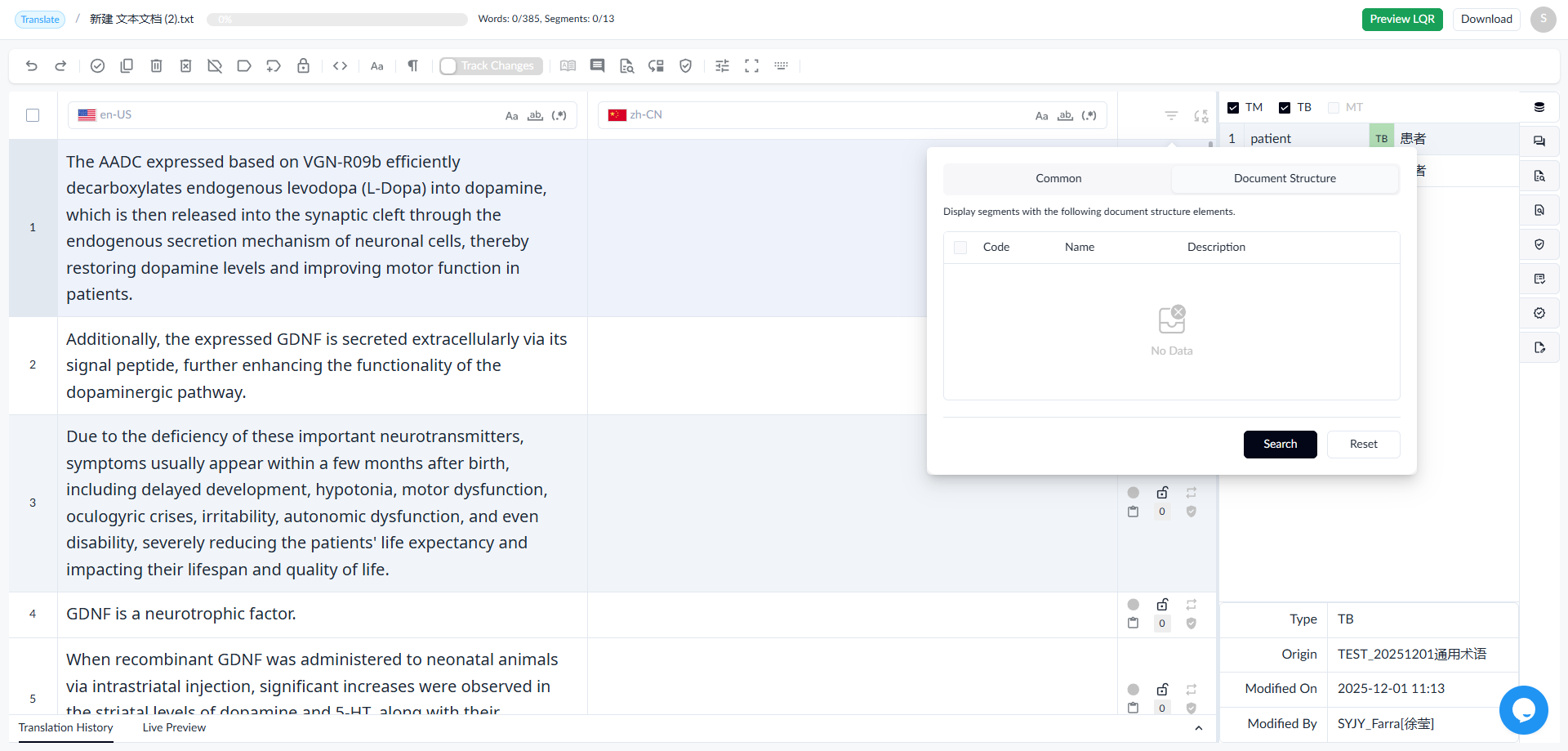
This tab allows the user to filter segments by document level or structural elements, helping the user quickly locate and review specific sections of the document.
1.3.4.8 Clear Filter
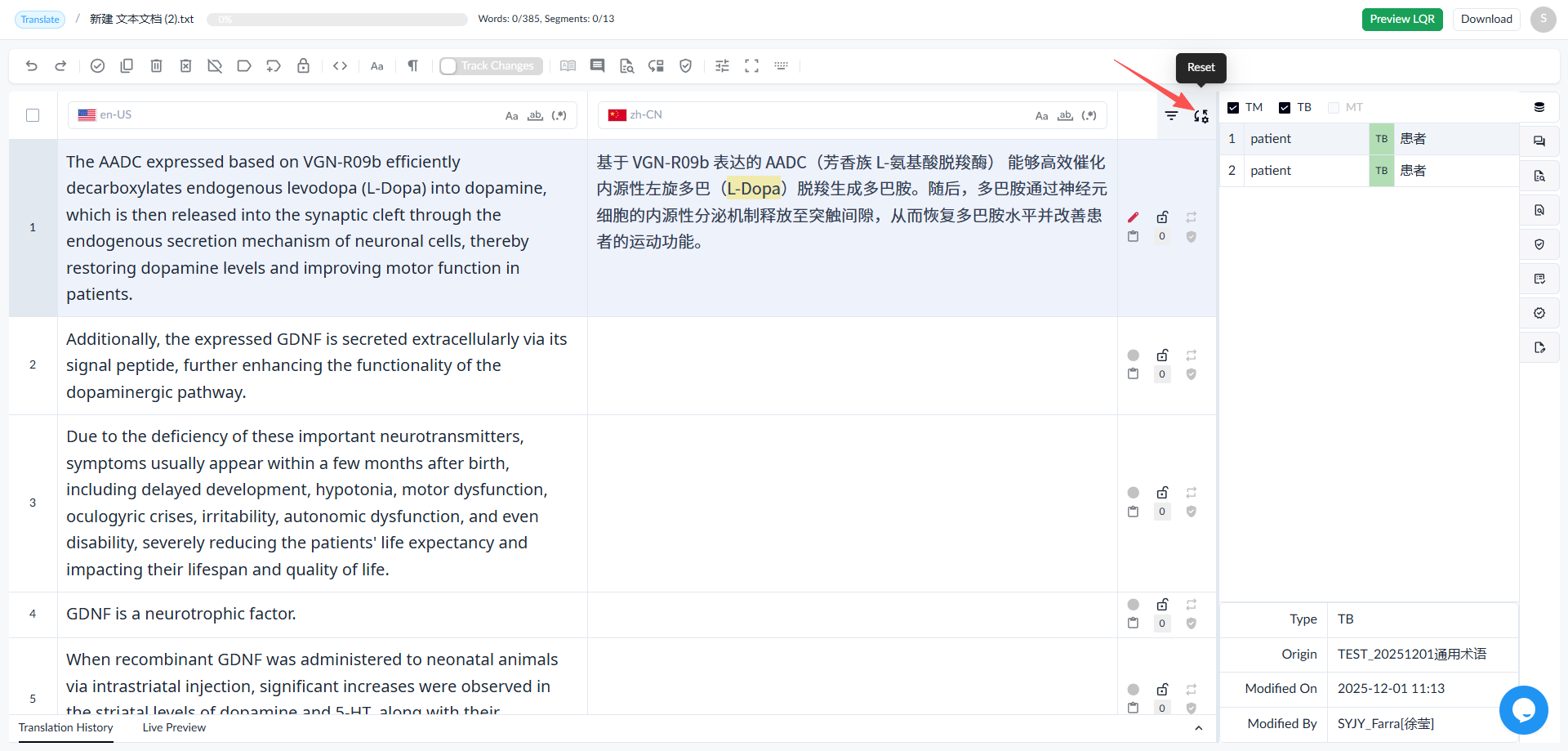
Click the [Reset] button to clear all filter criteria.
1.4 Workspace
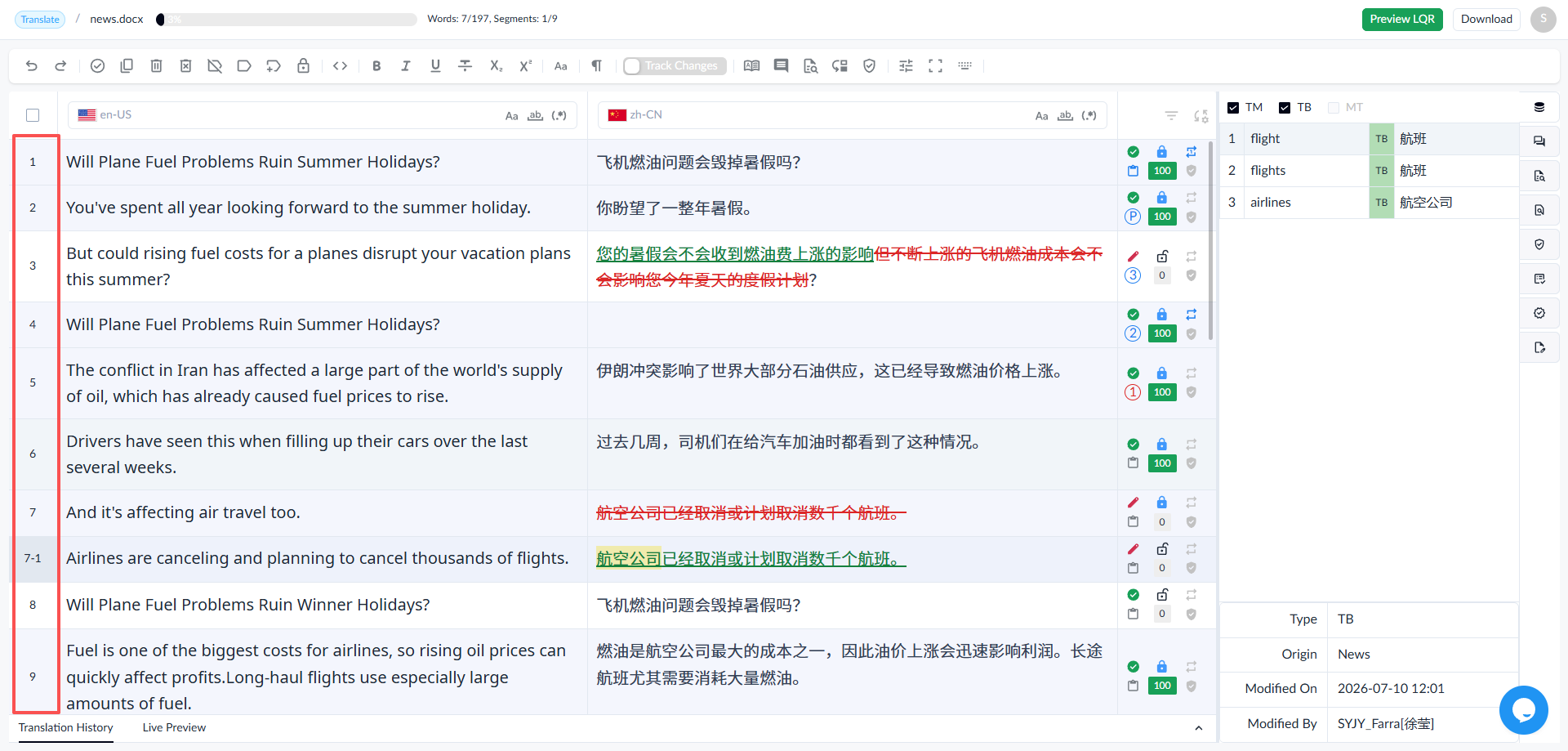
1.4.1 Sequence Number
Displays sequence numbers of segments.
1.4.2 Original Text
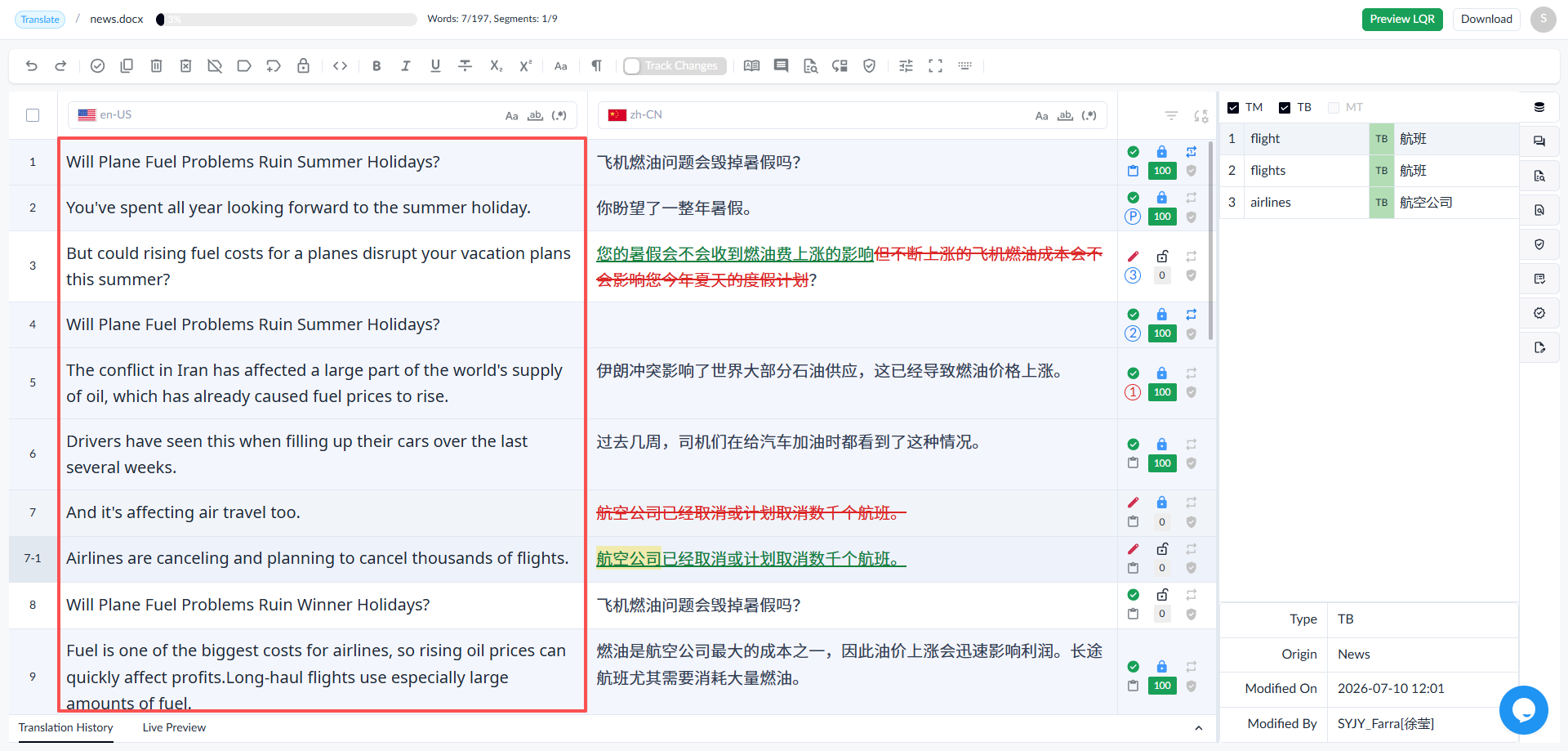
1.4.2.1 Display Source
1.4.2.2 Tags
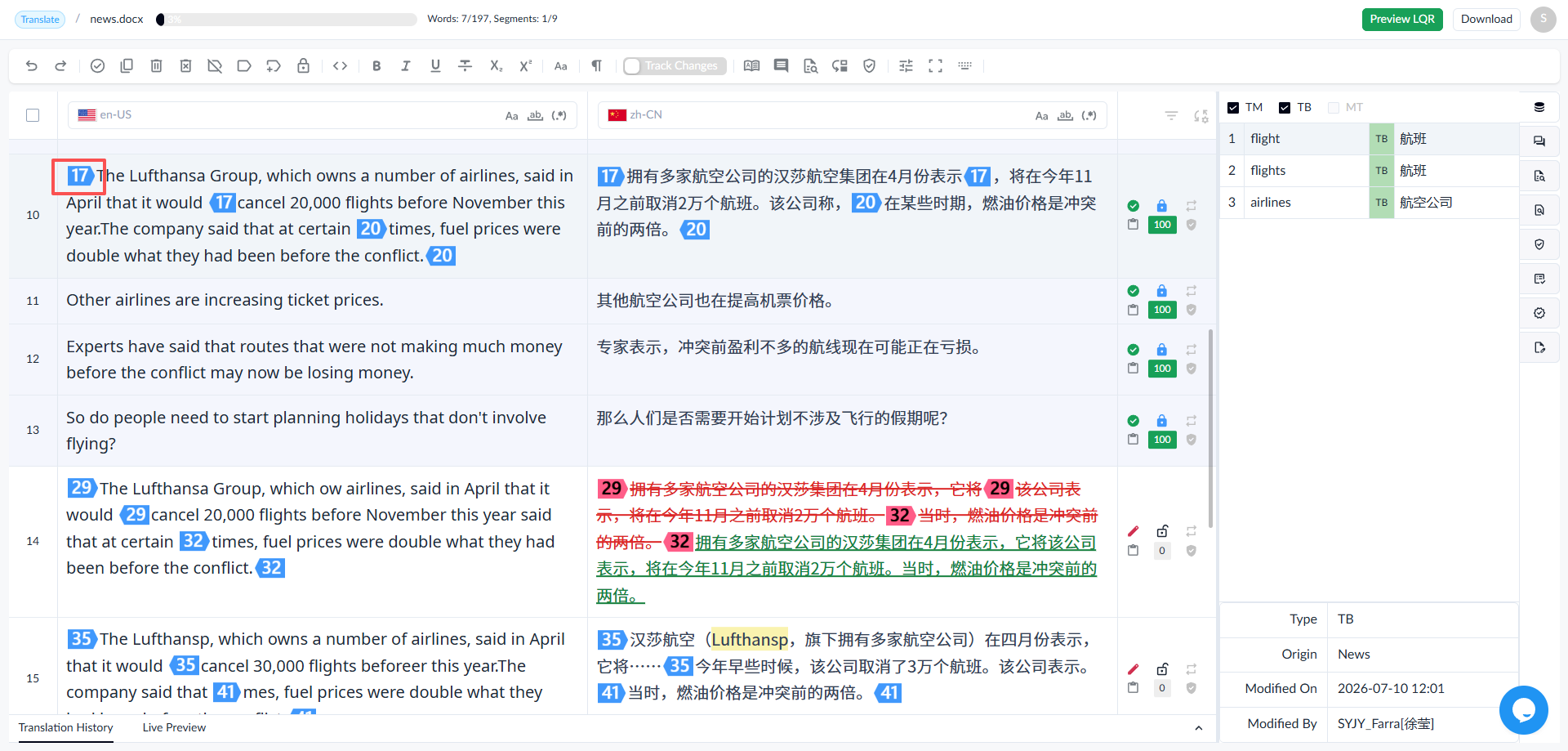
• Tags are identified by a blue box, and different tag forms are displayed according to the preference settings. For details, see Preference Settings.
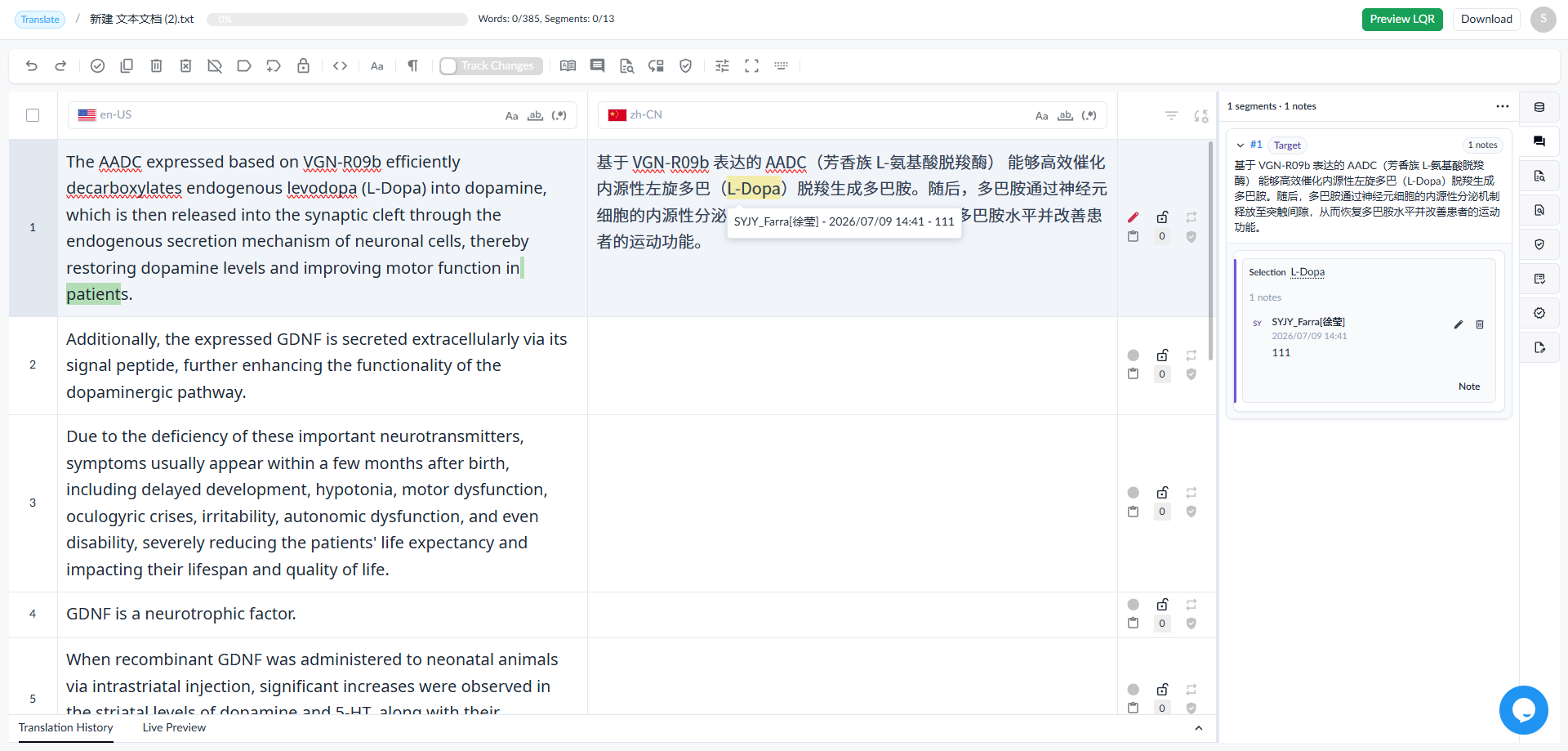
1.4.2.3 Comments
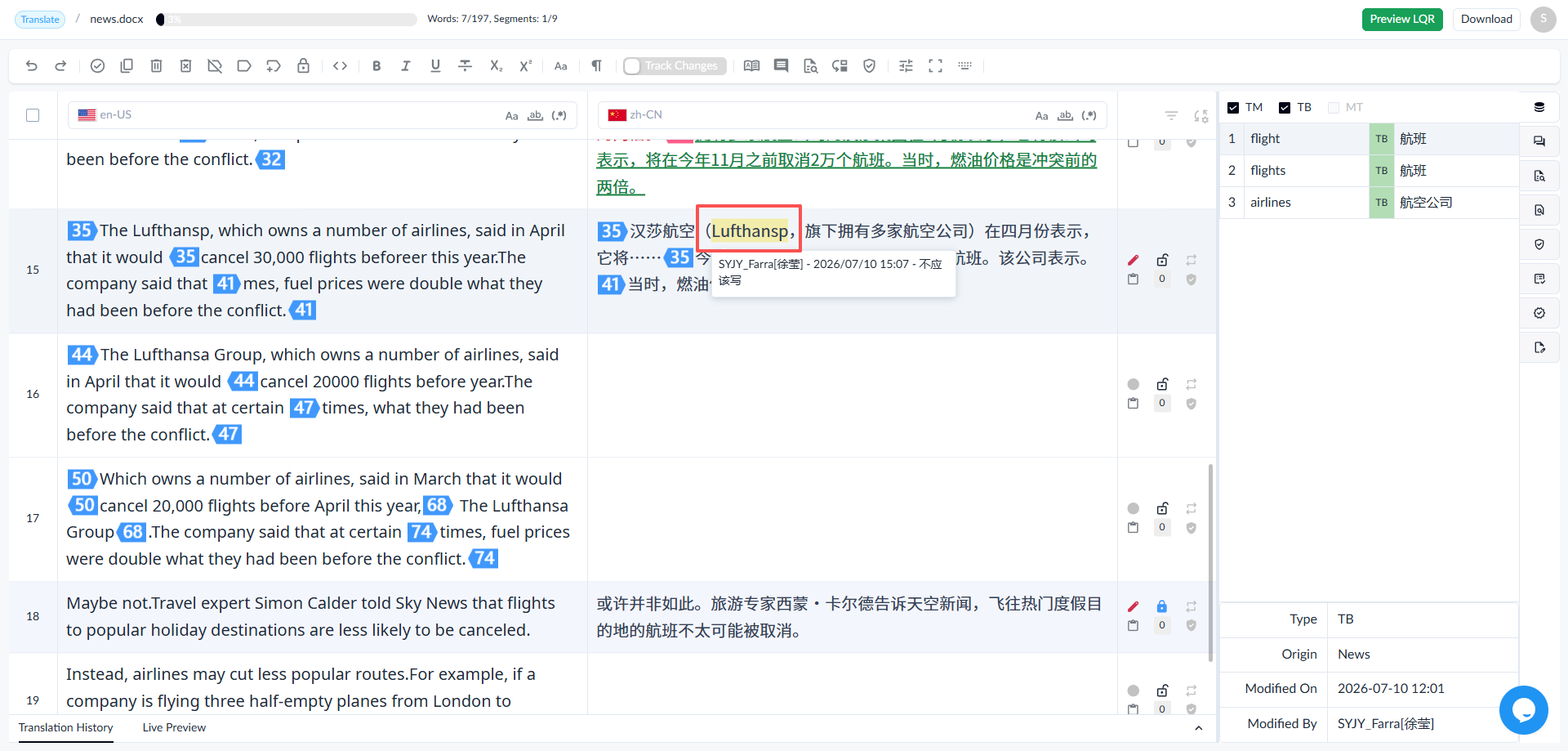
• Comments are highlighted in light yellow; hover over them to display details.
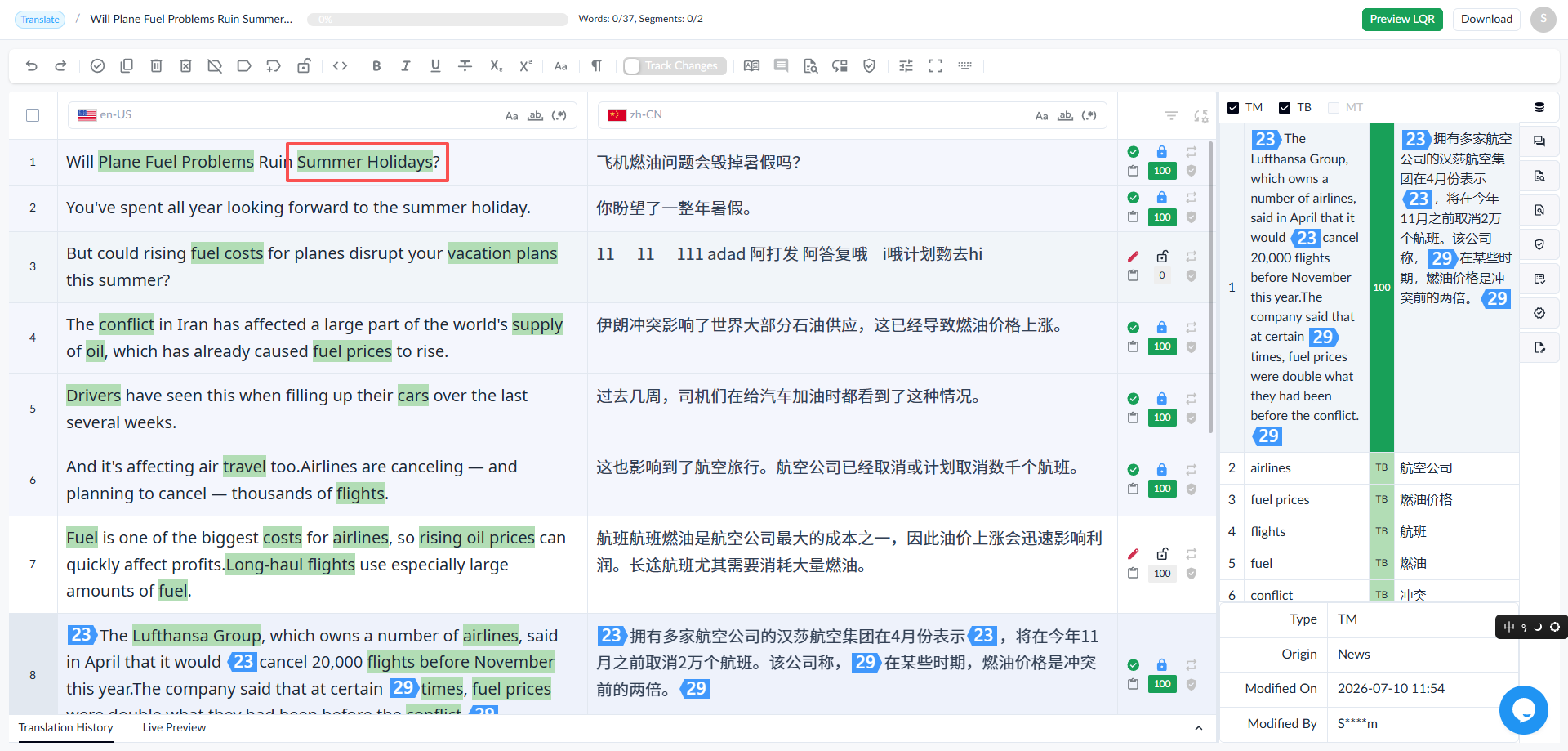
1.4.2.4 Term Highlighting
• Terms that match successfully are highlighted in green.
1.4.3 Target
1.4.3.1 Display Target Translations
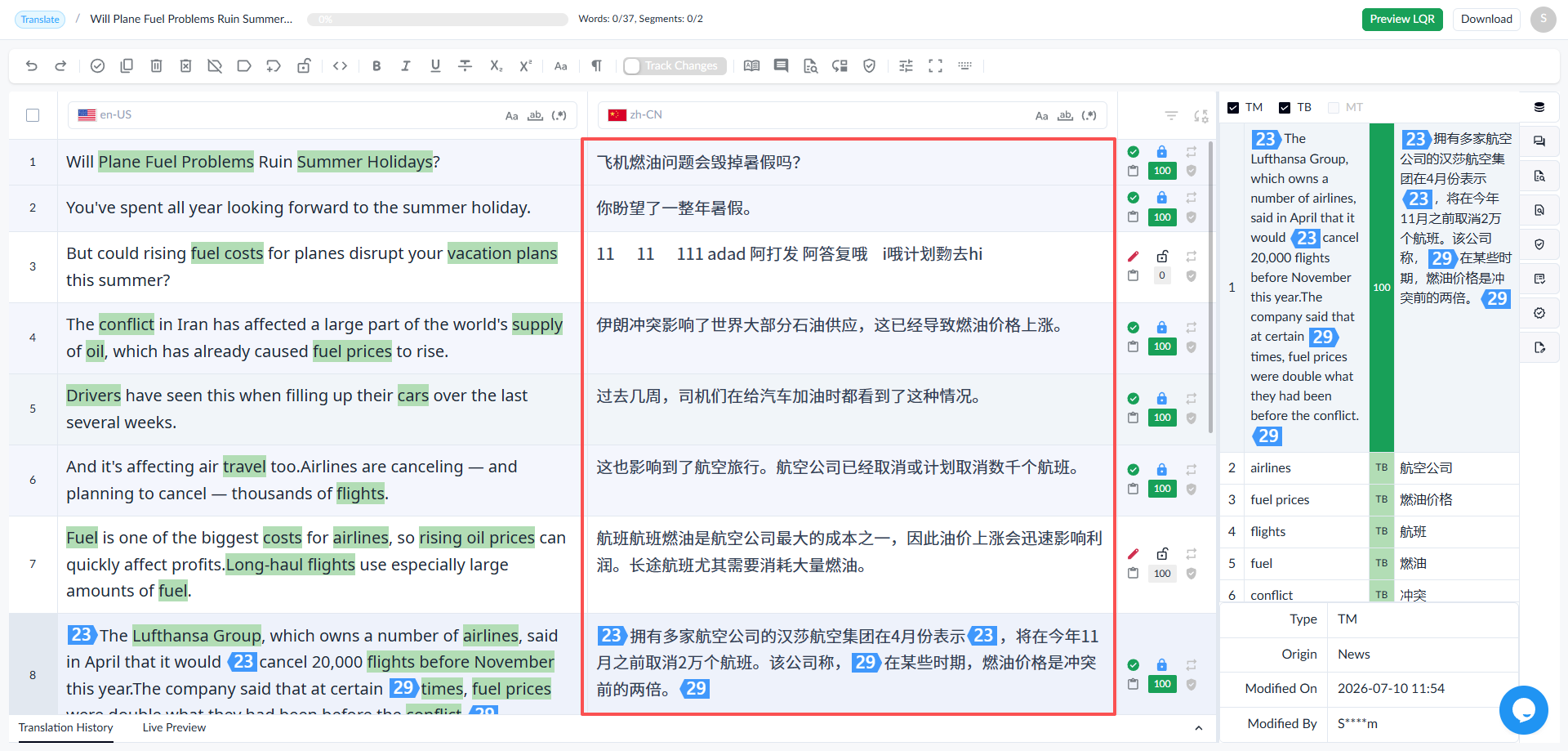
1.4.3.2 Editing Translations
• The translations can be edited and are automatically saved after entered.
• If there is a length limit for the translation, the limit will be displayed in gray numbers, and the translation will be highlighted in red when this limit is exceeded.
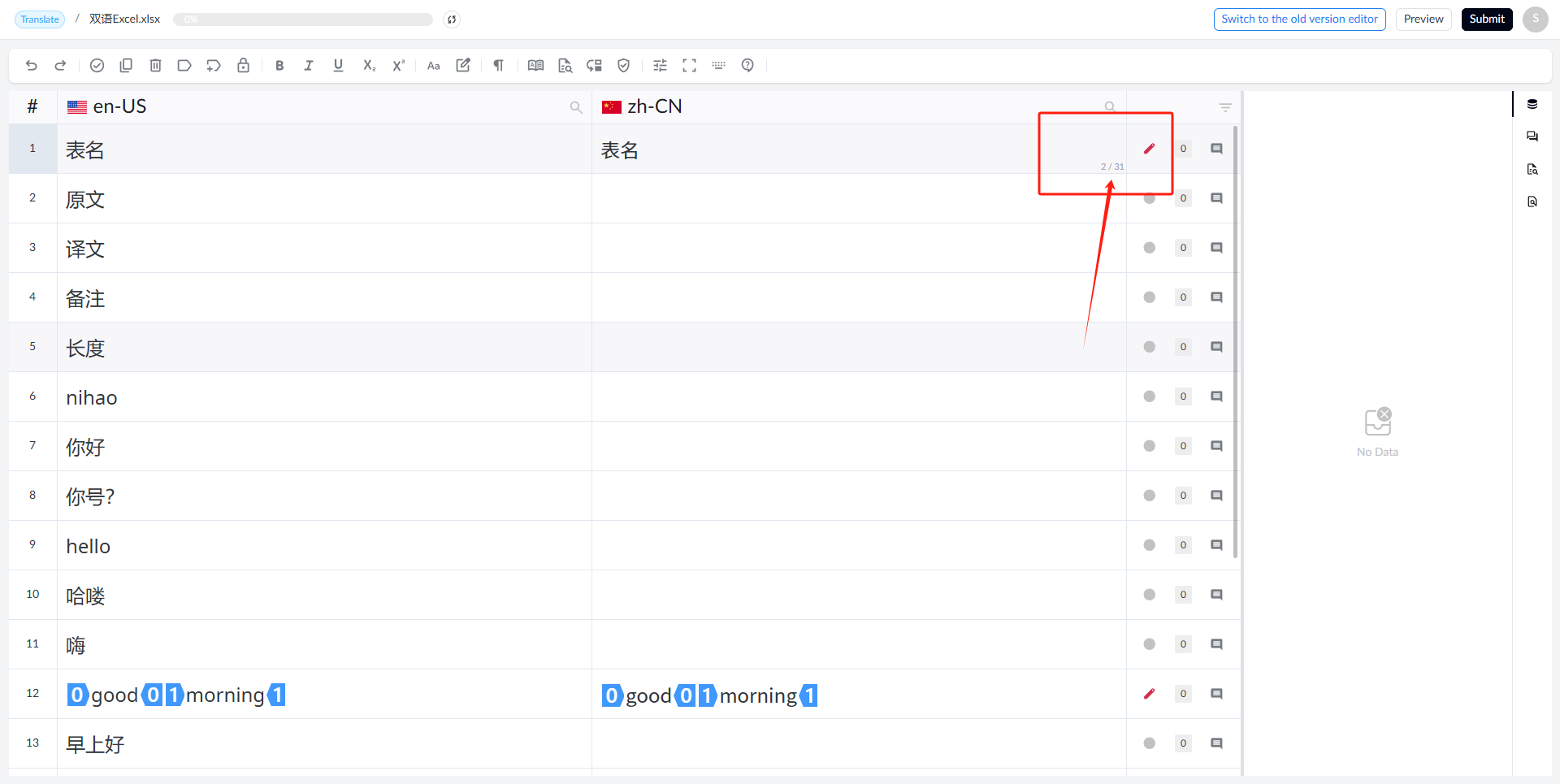
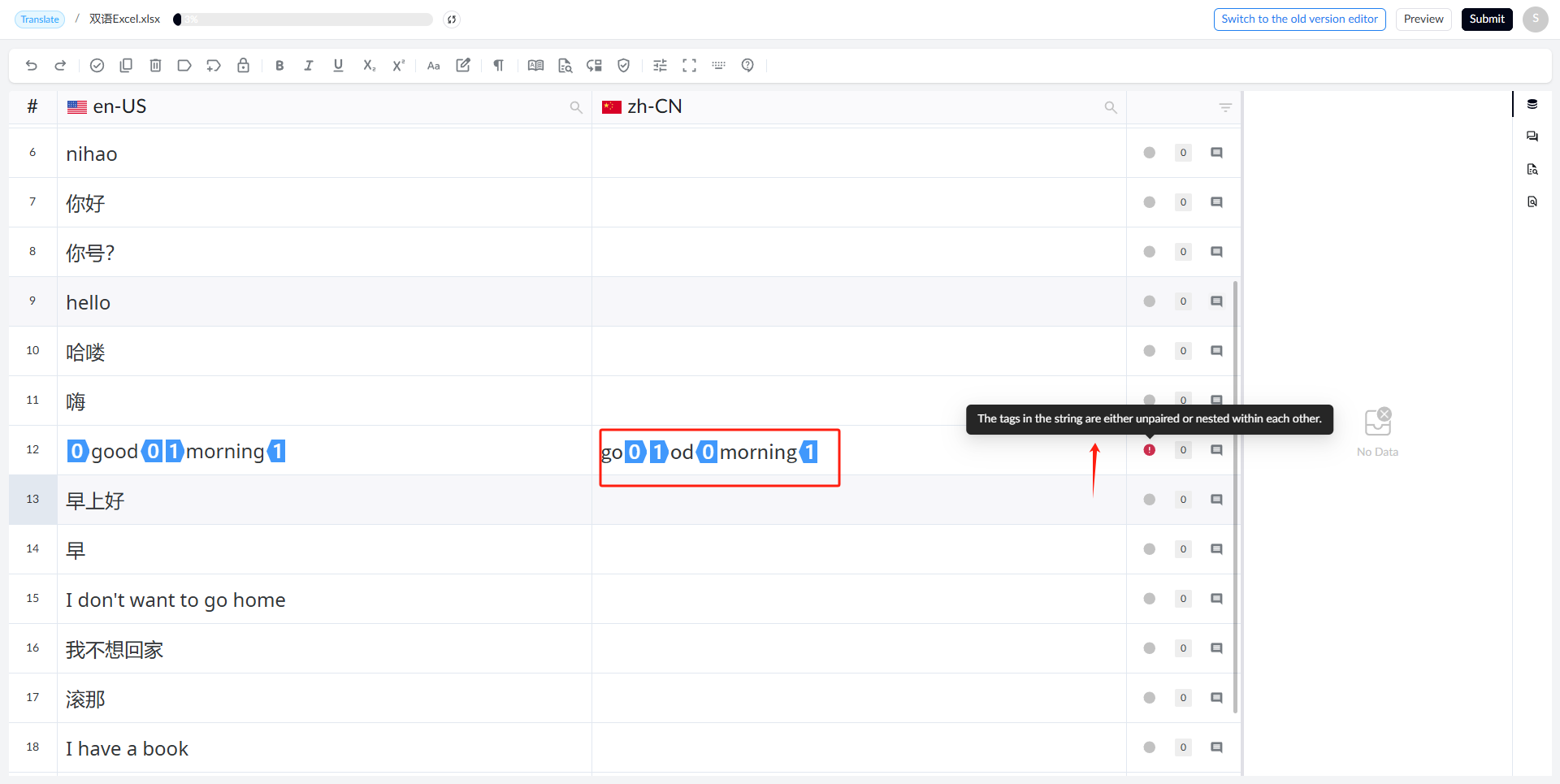
• Segment check: Segment check fails when there is an empty target, the target length exceeds the limit, or paired tags appear individually.
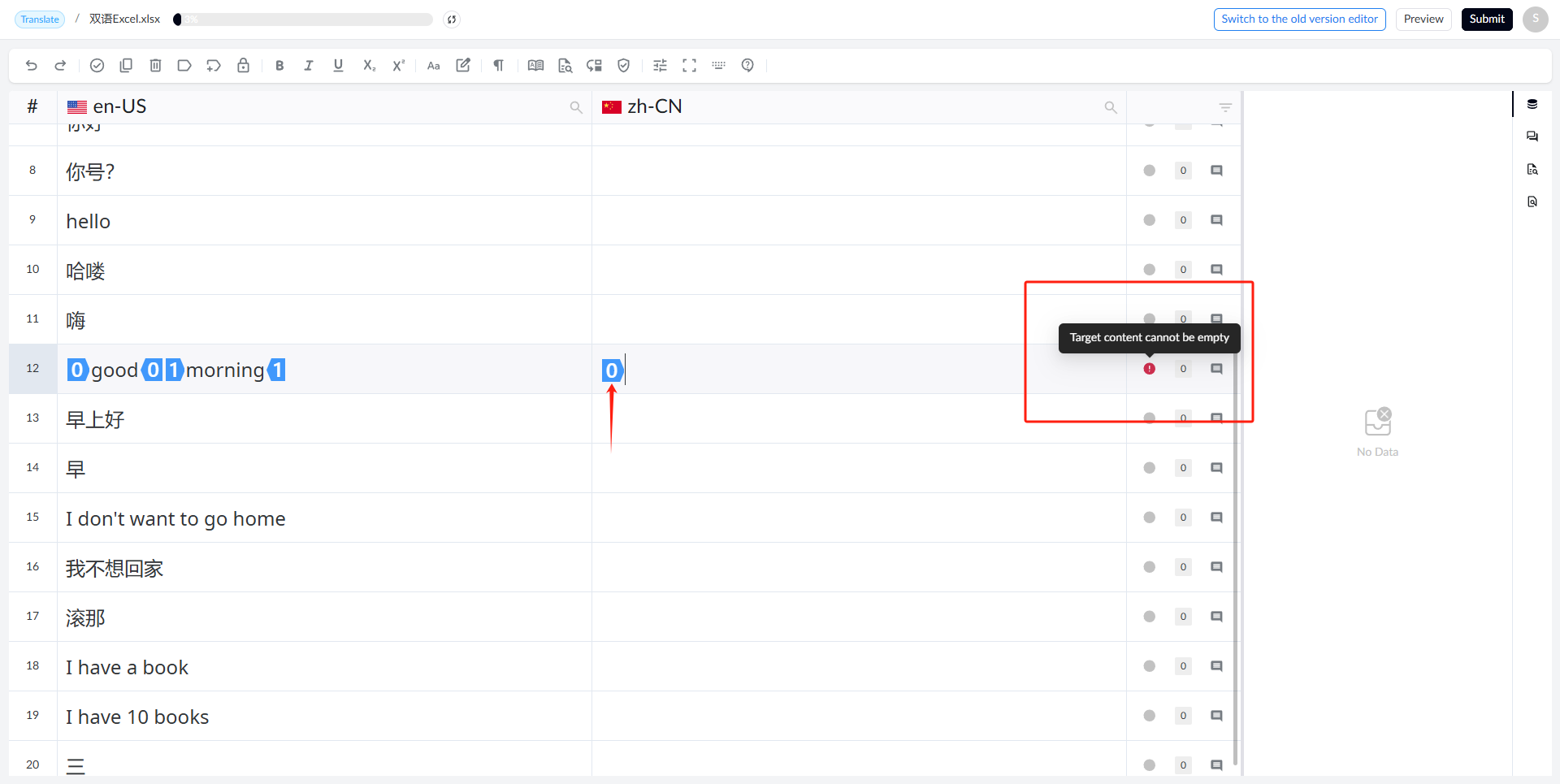
◦ Segment check fails when there are tags nested with each other.
1.4.3.3 Status
The status can be Empty, Draft, or Translated.
• Empty: Segments that require translation but are not translated yet.

• Draft: Segments that have been translated but have not been confirmed.

• Translated: Segments that have been translated and confirmed.

1.4.4 Translation Detail
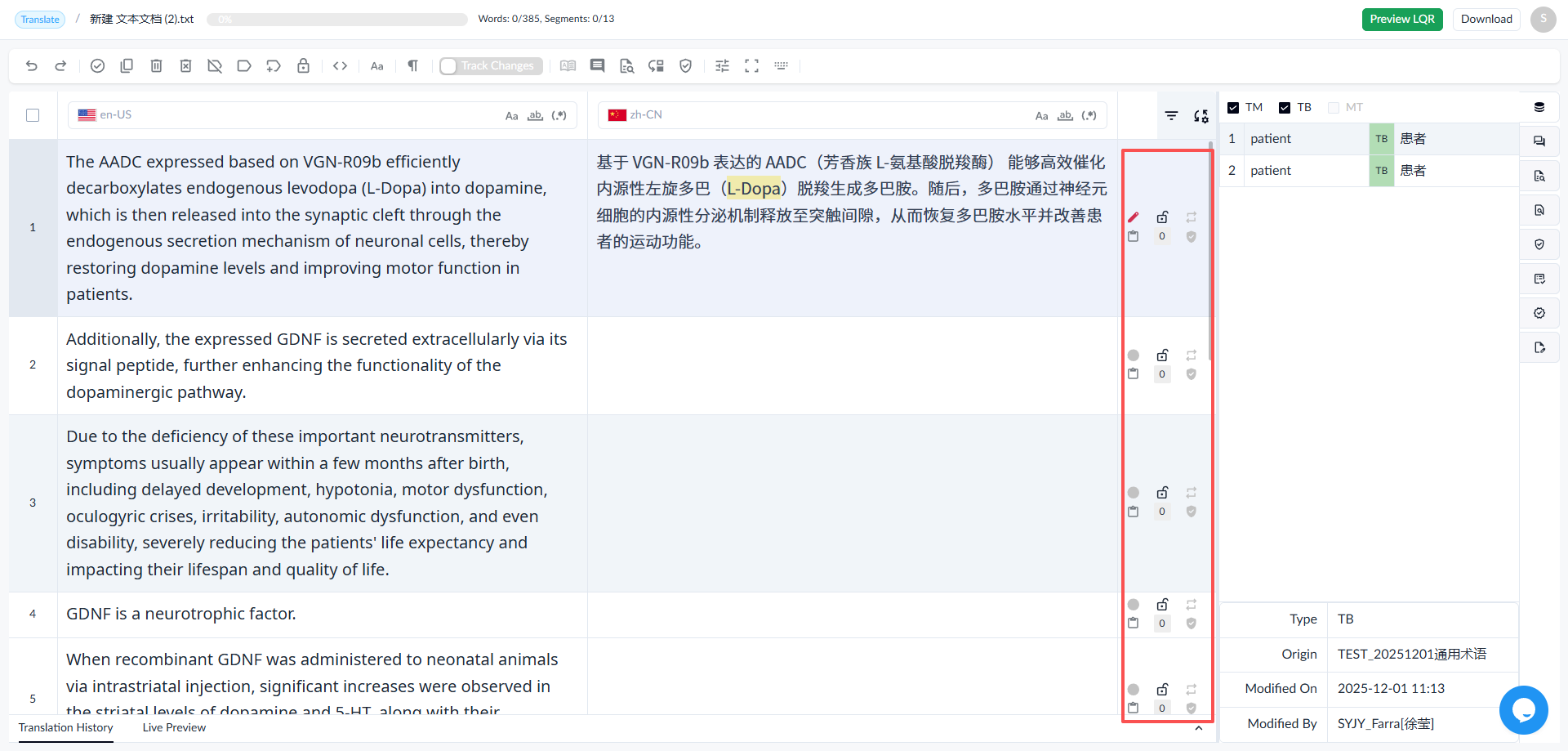
Segment Status:
- Empty: Not translated yet
- Draft: Translated but not confirmed
- Translated: Confirmed
**Lock Status:**This icon indicates whether the segment is locked.
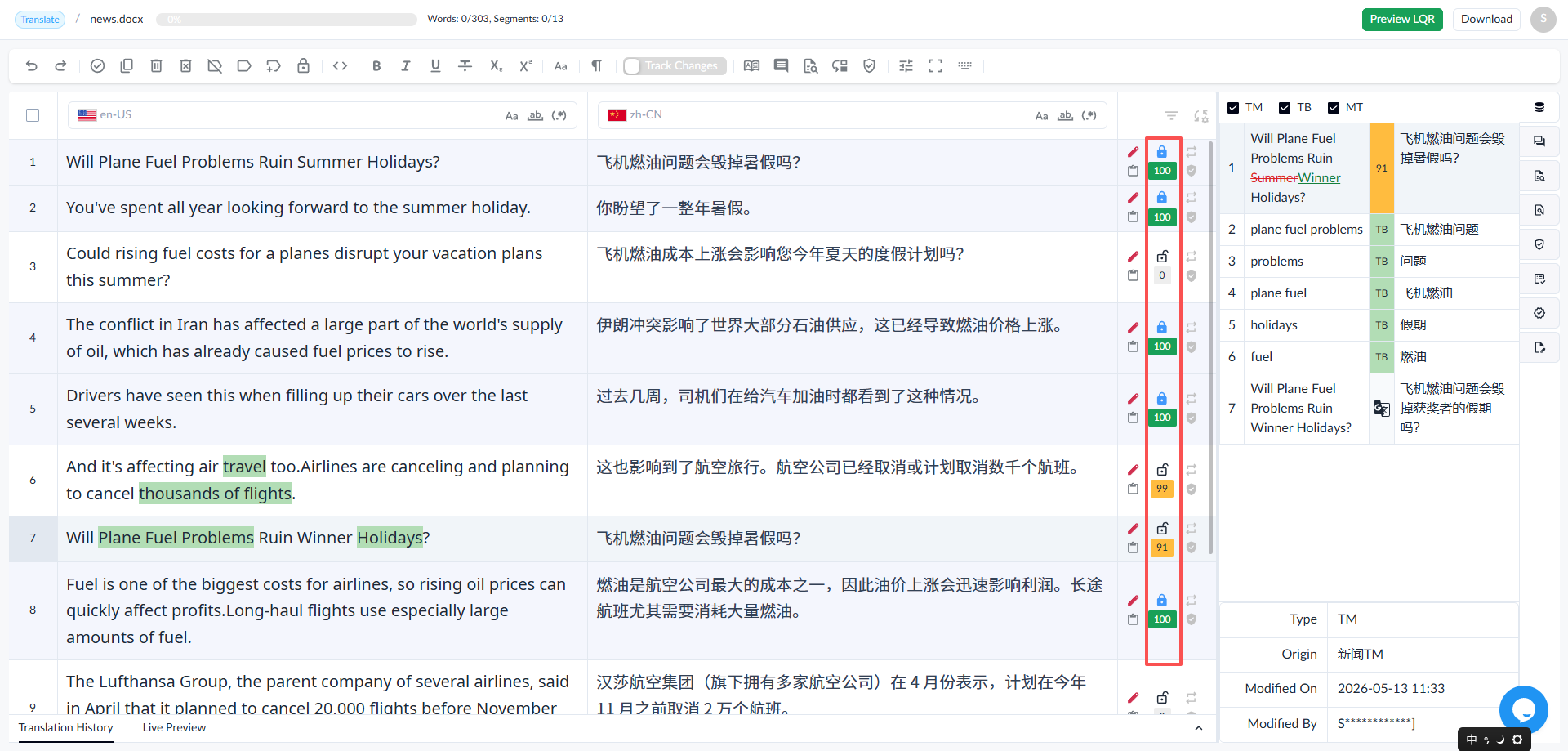
TM Match Details:
Default display of match values:
◦ PM
◦ CM
◦ 100%
◦ 75%-99%
PM/CM/100% matches are highlighted in green in the editor,while matches between 99% and 70% are highlighted in orange, and matches below 70% are displayed in gray. After a matched segment is edited, the color block changes to gray, but the match percentage remains visible.
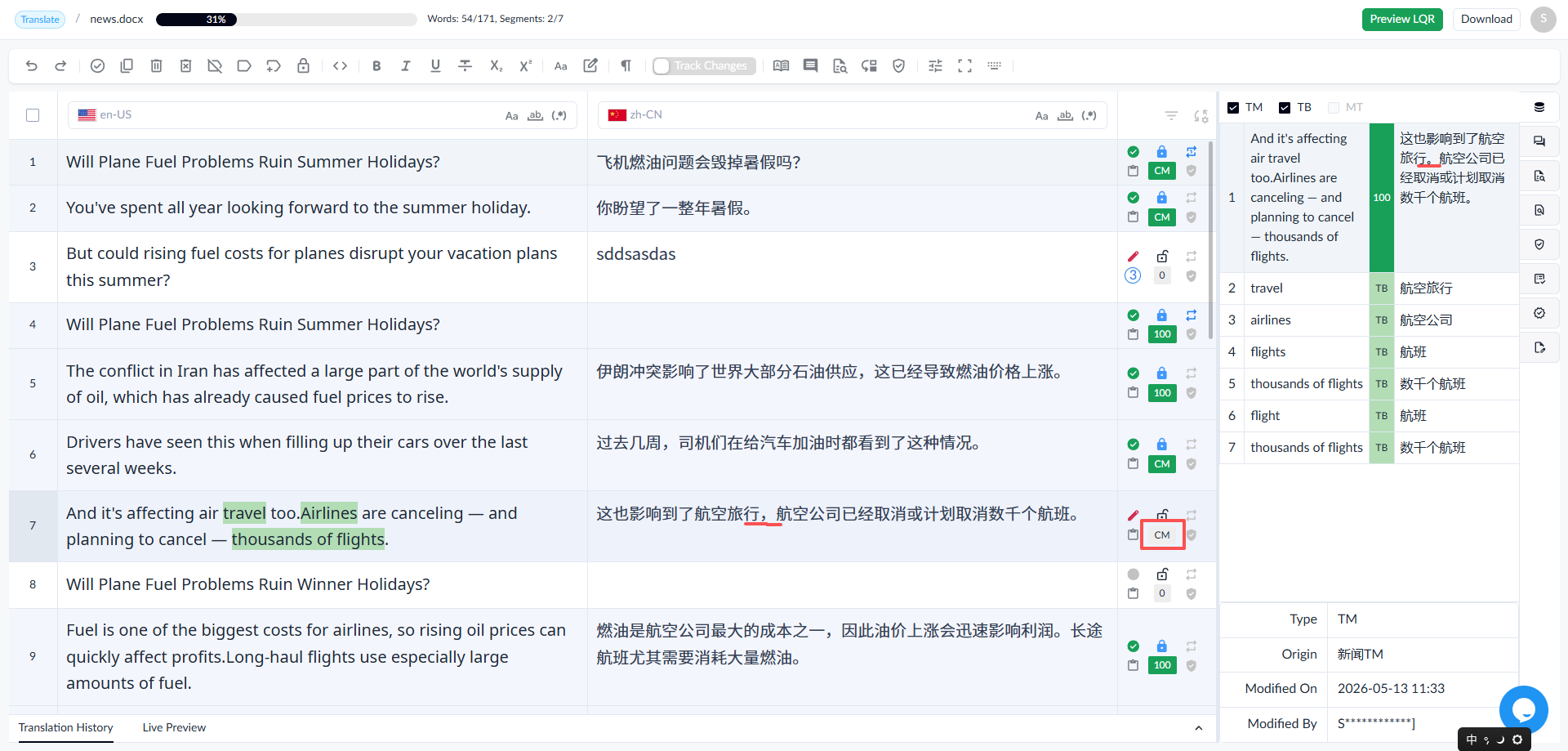
Hover over the match score to display Translate Detail ◦ Status:
◦ Score:
◦ Origin:
◦ System:
◦ Structure:
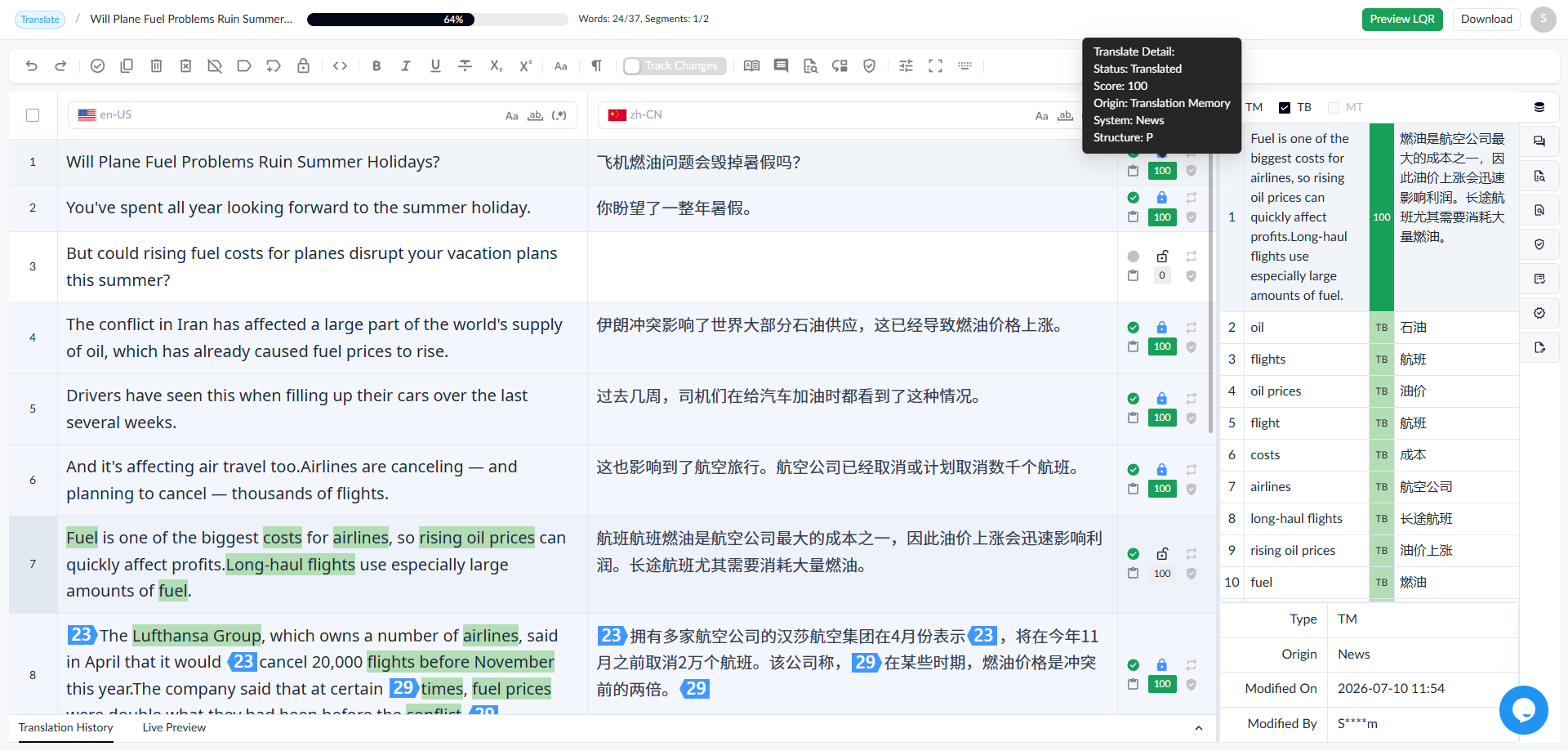
Duplicate Indicator: Displays whether a segment is the first occurrence of a repeated segment.
Comments: Distinguishes between segments with or without comments added.
Quality Check Indicator: Displays if there are quality check errors in a segment.
Quality Evaluation: Click the button to evaluate the quality of a segment.
1.4.5 Comments
1.4.5.1 Adding a Comment
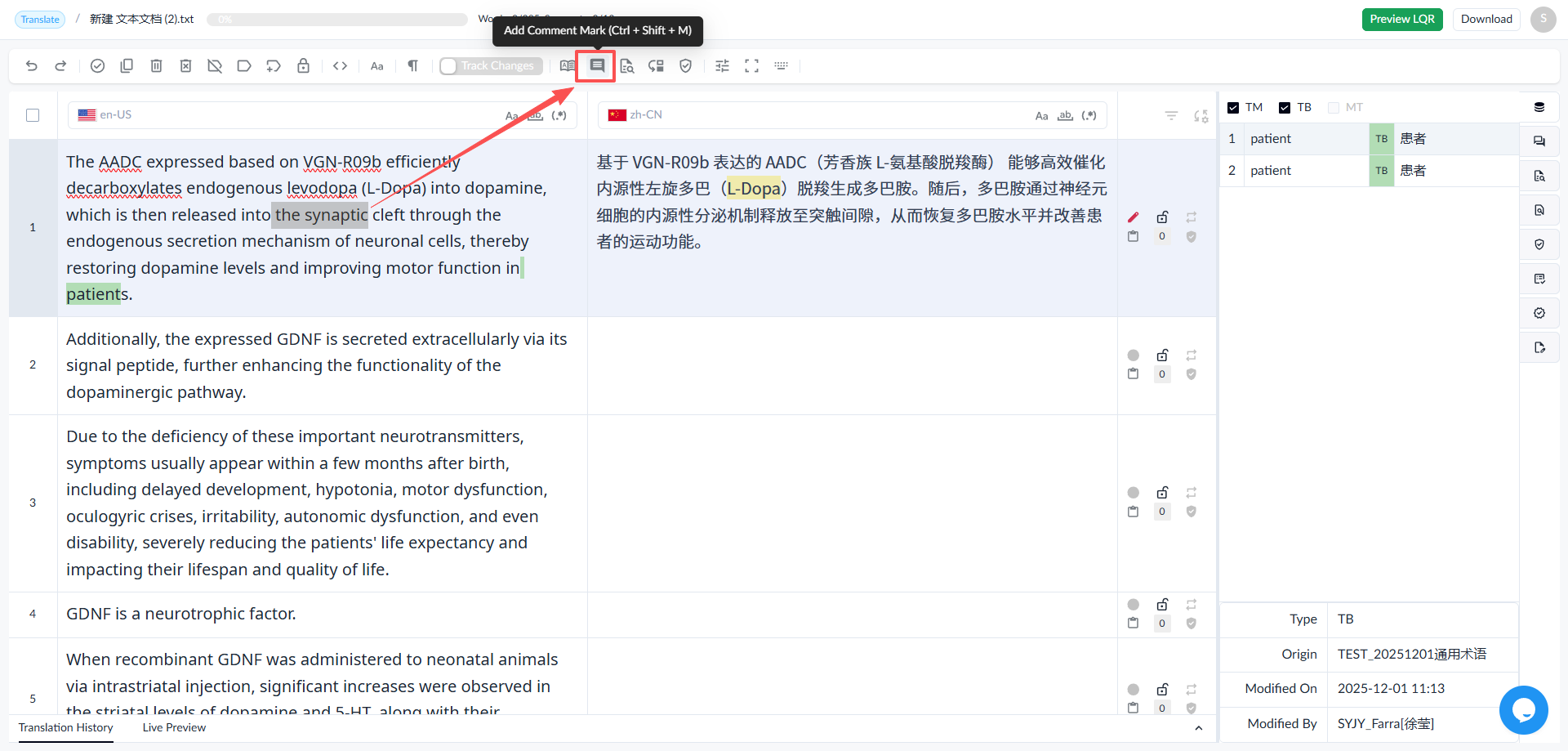
◦ Select the segment or word to be commented, and click the [Add Comment Mark] icon (Ctrl+Shift+M).
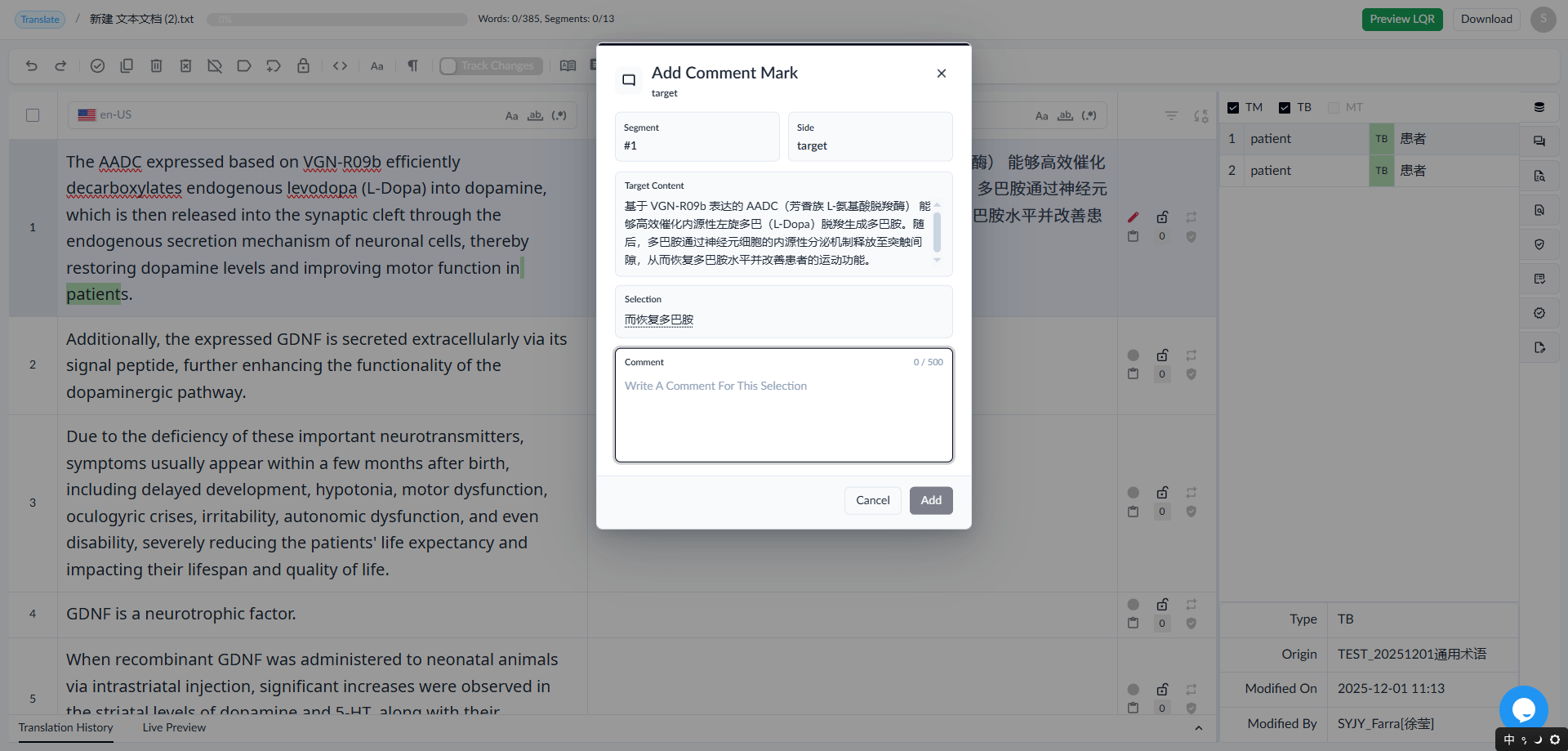
◦ Enter the comment
◦ Click the [Add] button
1.4.5.2 Comment Display
• Hover over the yellow comment marker to display the commentor and the comment content.
• You can also view detailed information in the side panel.
1.4.6 Quality Check Icon
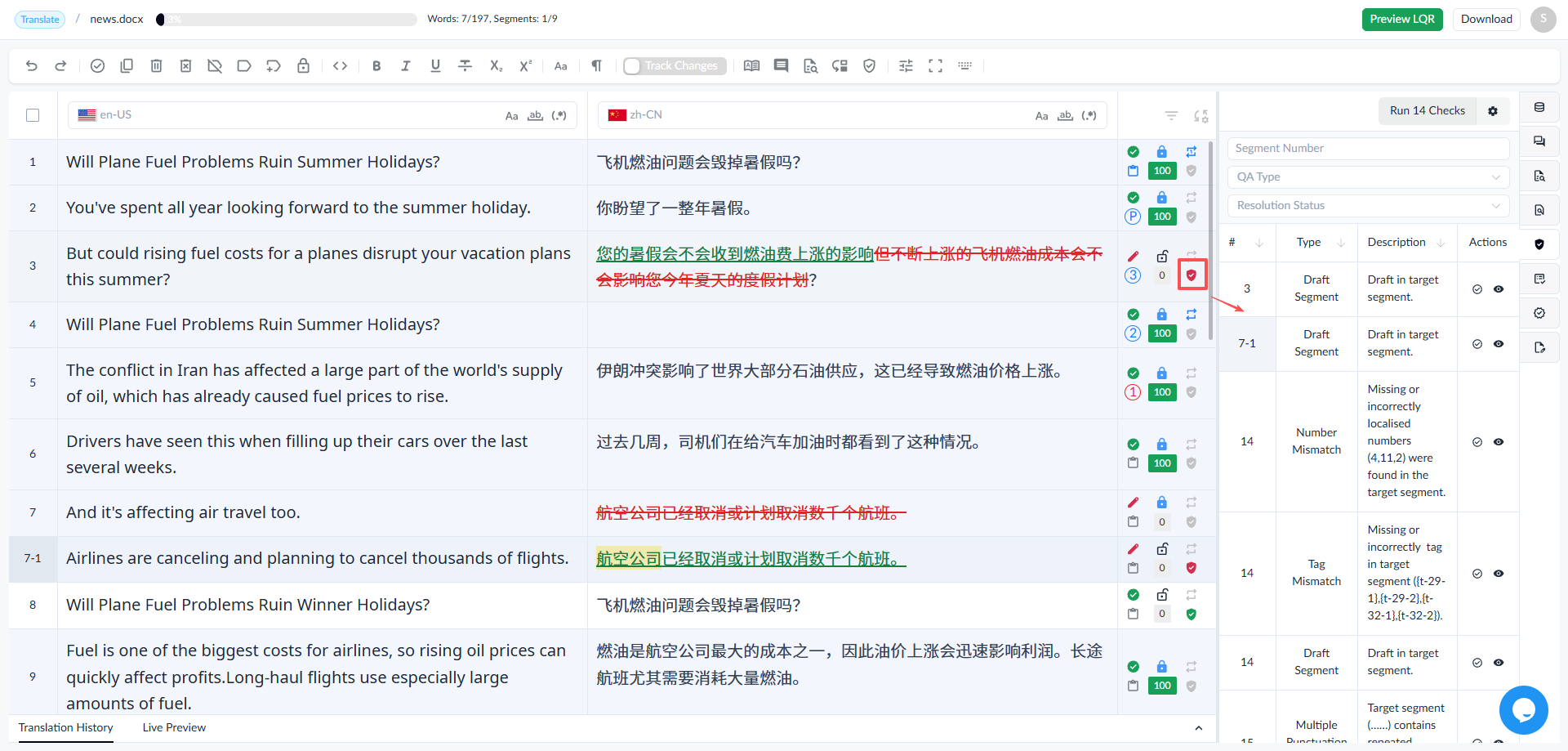
When a segment is saved, the system automatically runs a check, called an instant check. After the instant check, if there are errors in the segment, a red icon is displayed; if there are no errors, a green icon is displayed.


Click the red icon, and the quality check panel will automatically appear on the right. The panel displays the segment number, check item type, description, and actions. Additionally, for some check items, the errors can be marked in the source and target.
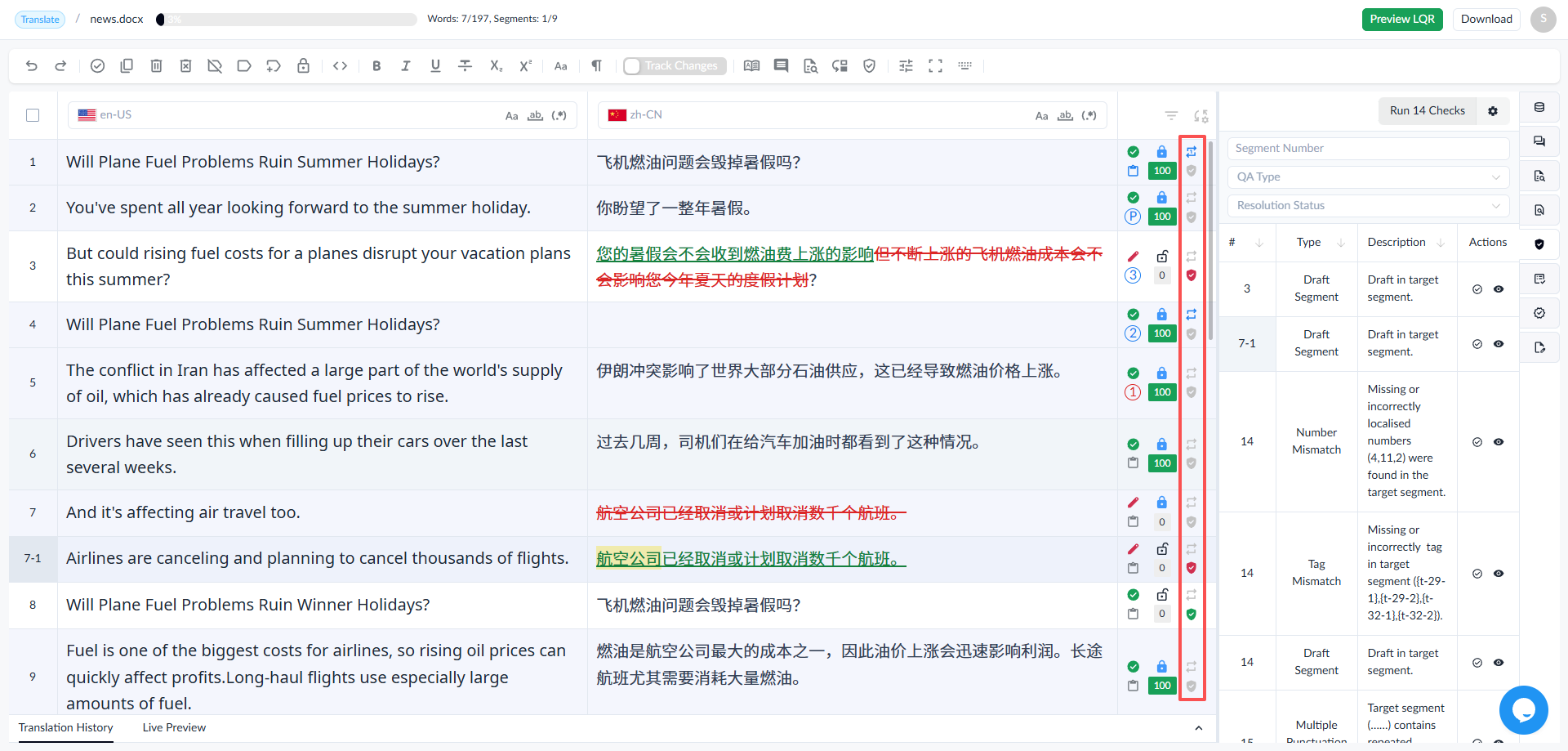
1.4.7 Repetition Icon
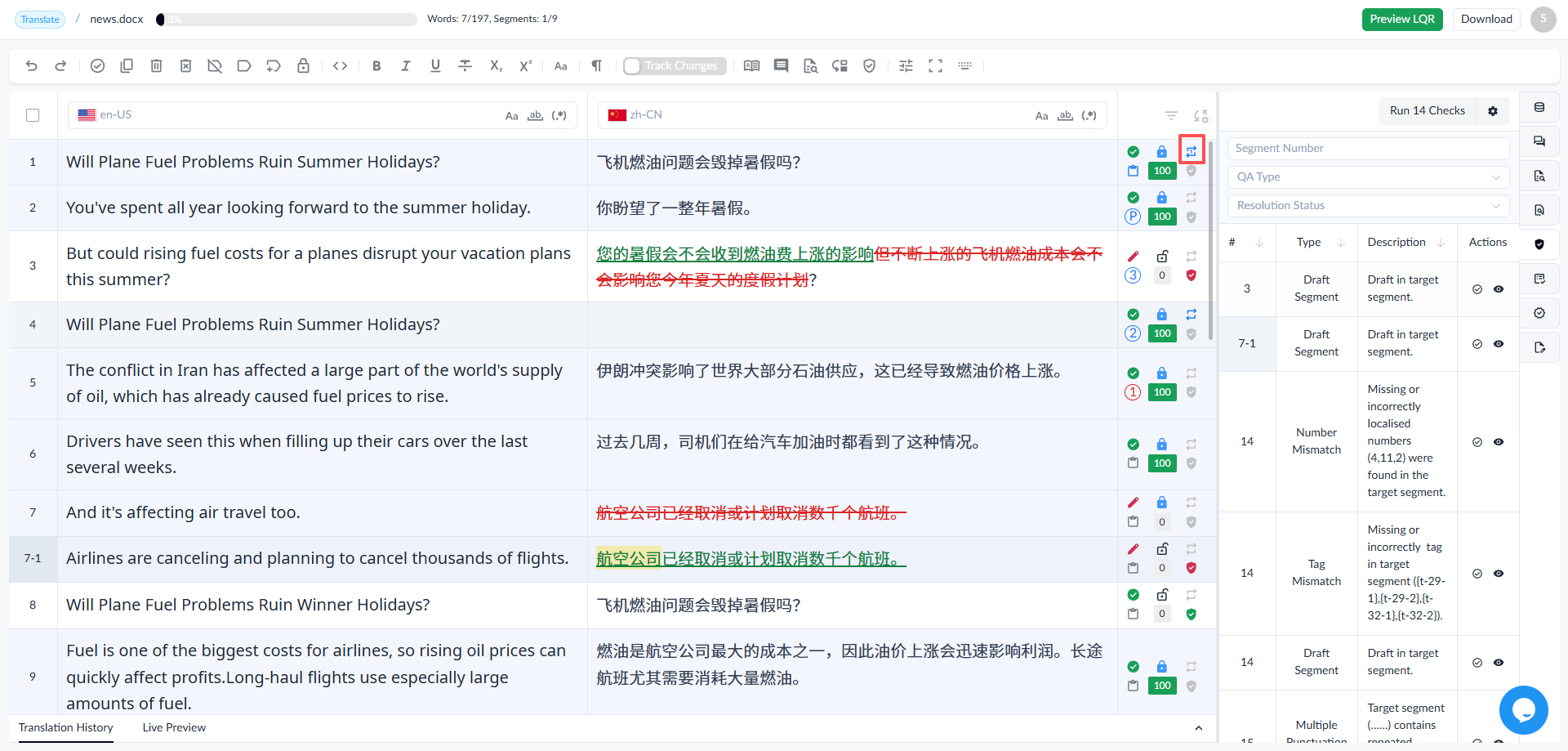
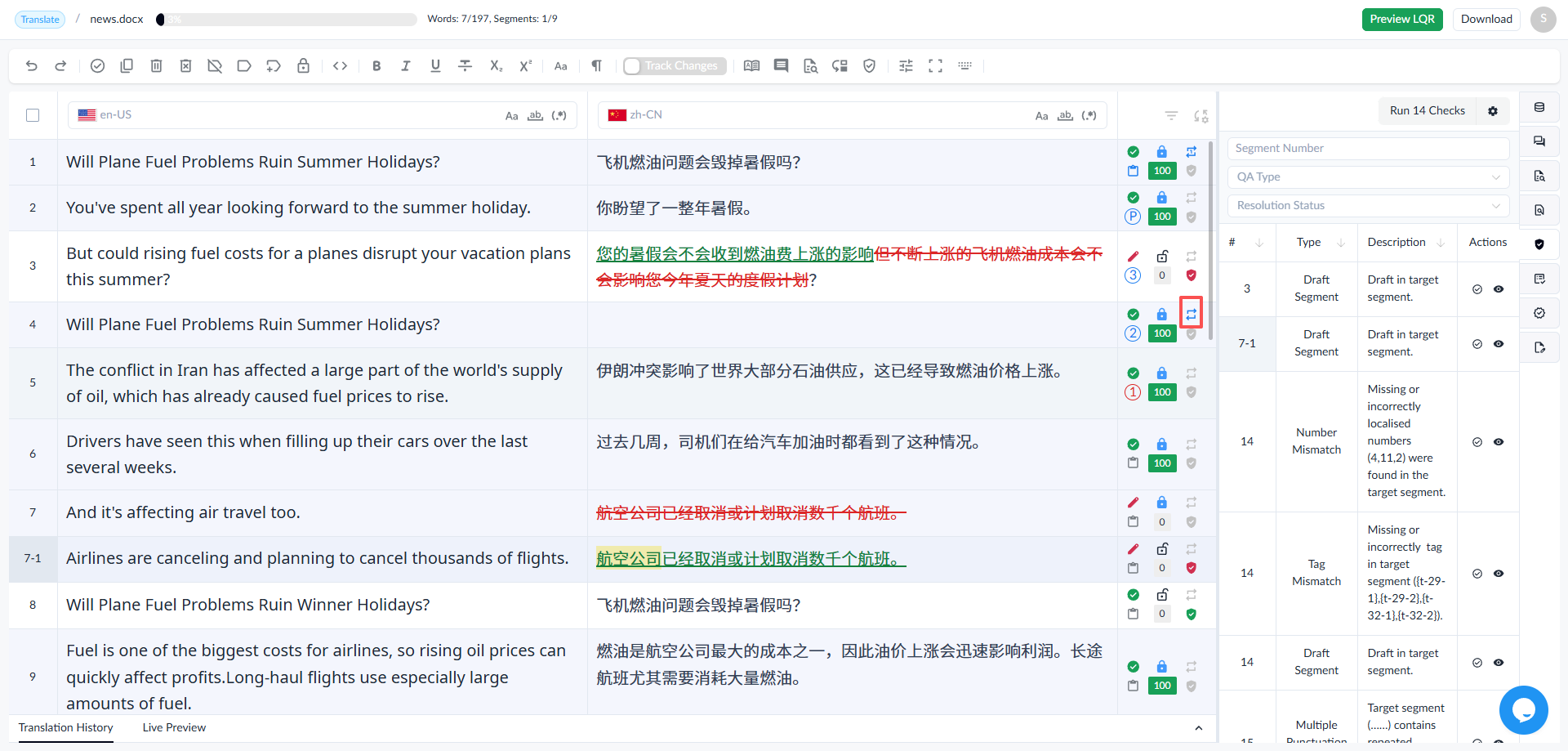
When a segment is a repetition segment, a repetition icon is displayed. The repetitions are divided into first-occurrence repetitions and non-first-occurrence repetitions.
First occurrences
Non-first occurrences
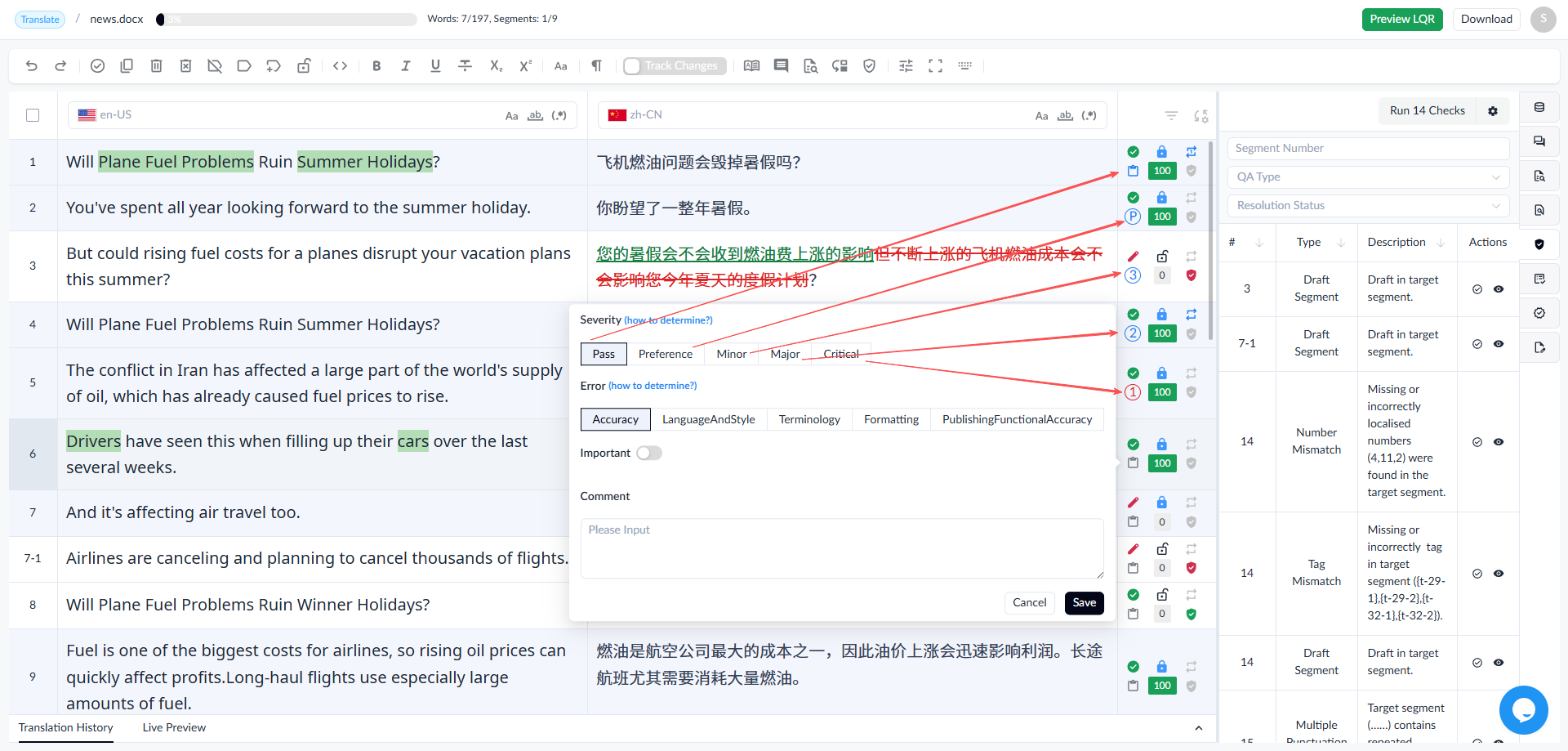
1.4.8 Quality Evaluation
1.4.8.1 Quality Evaluation Rating
• Linguists can rate segments on a scale of 5 levels. Segments with different ratings will be displayed differently.
◦ Pass
◦ Preference
◦ Minor
◦ Major
◦ Critical
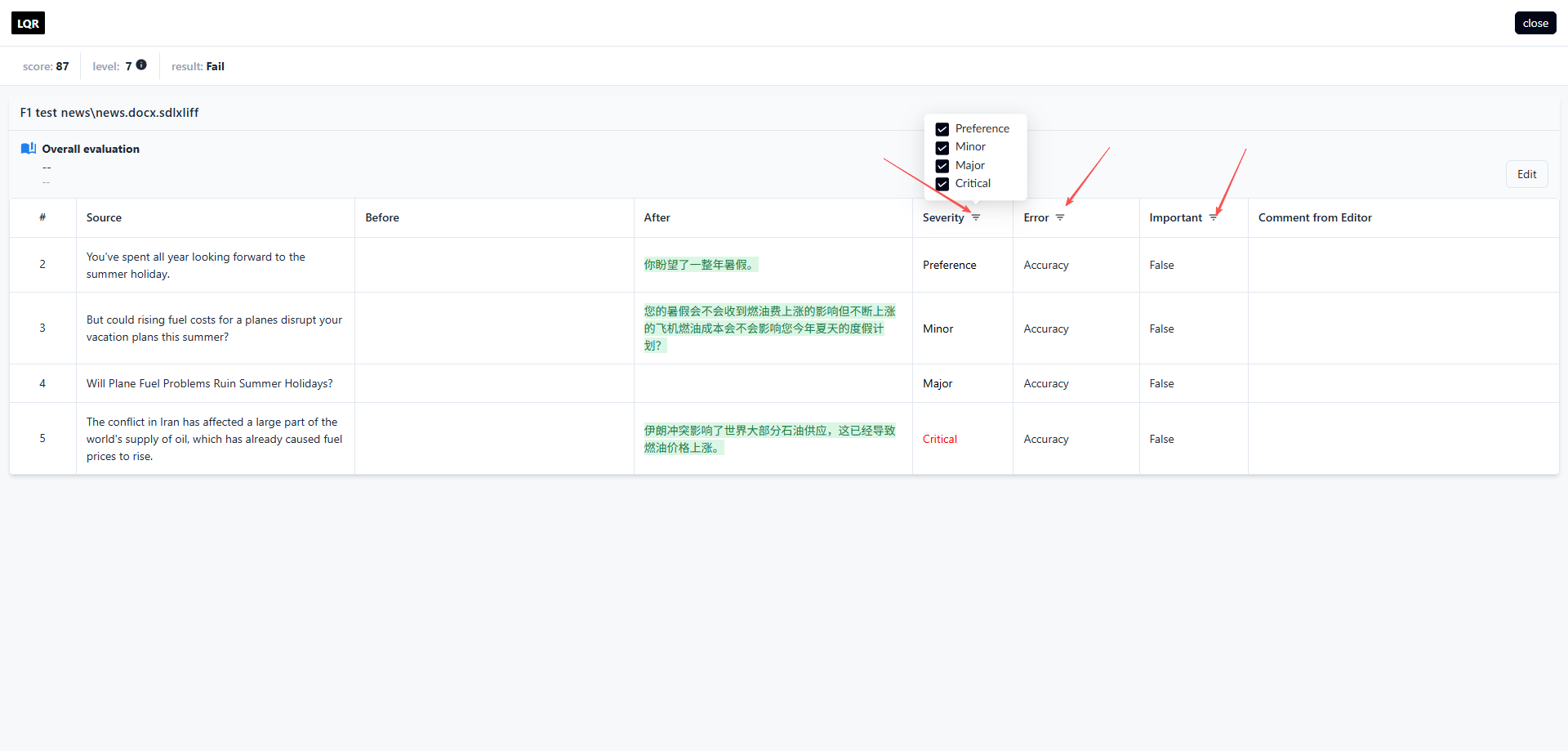
1.4.8.2 Viewing the LQR Report
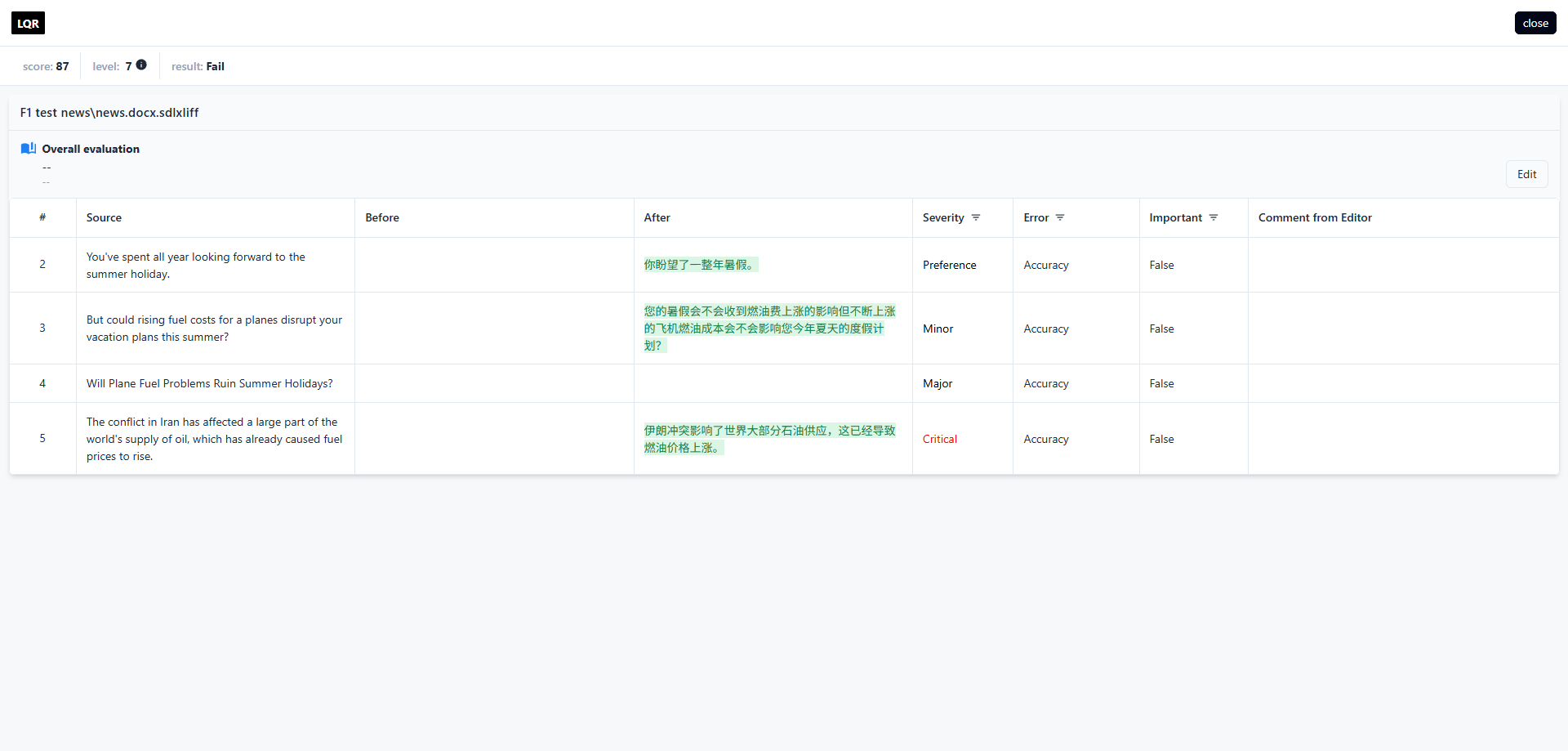
Click the [Preview LQR] button to open the LQR page.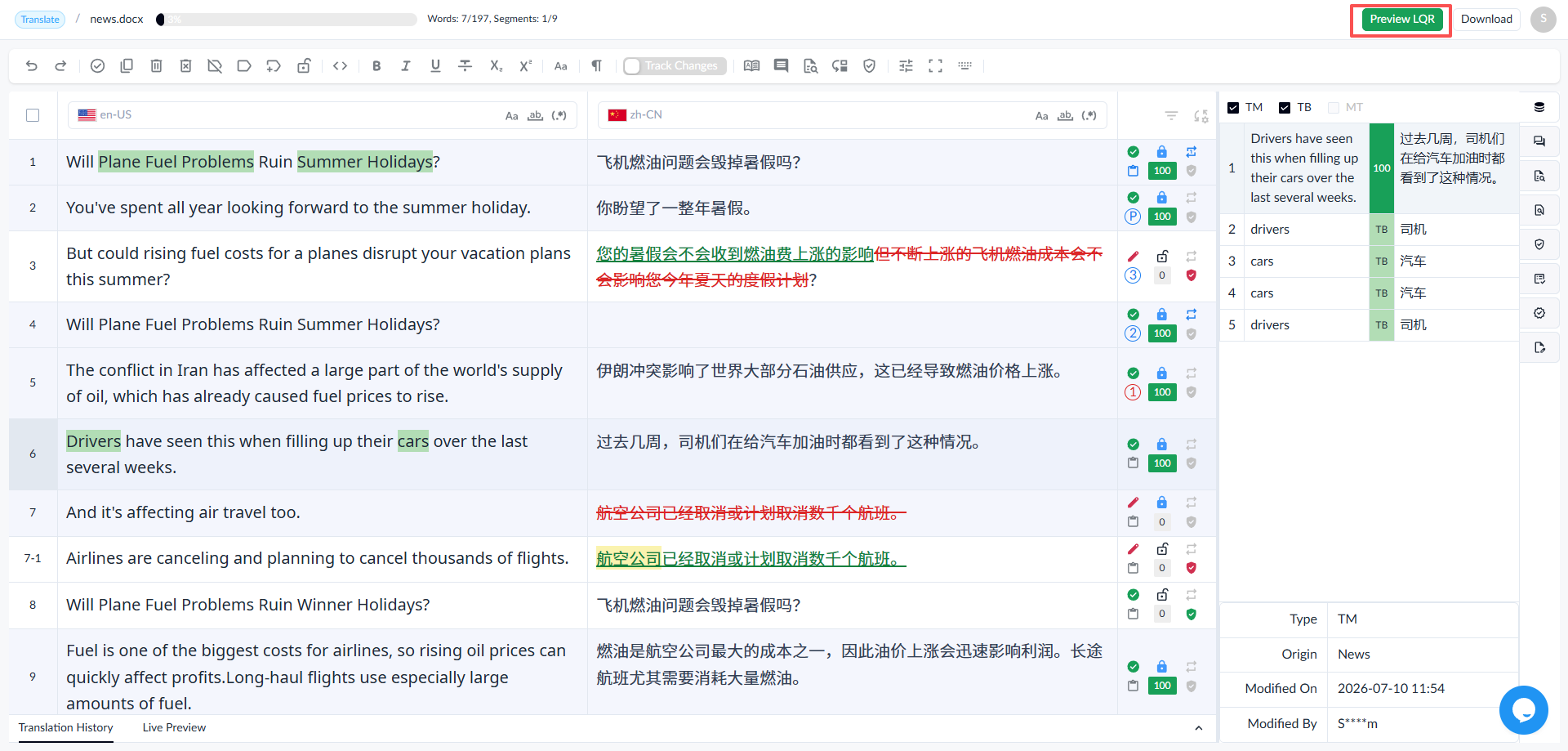
◦ Includes: Score, Level, Result.
◦ Displays: Source, Before, After, Severity, Error, Comment from Editor.
◦ Green marks newly added content, and red marks deleted content.
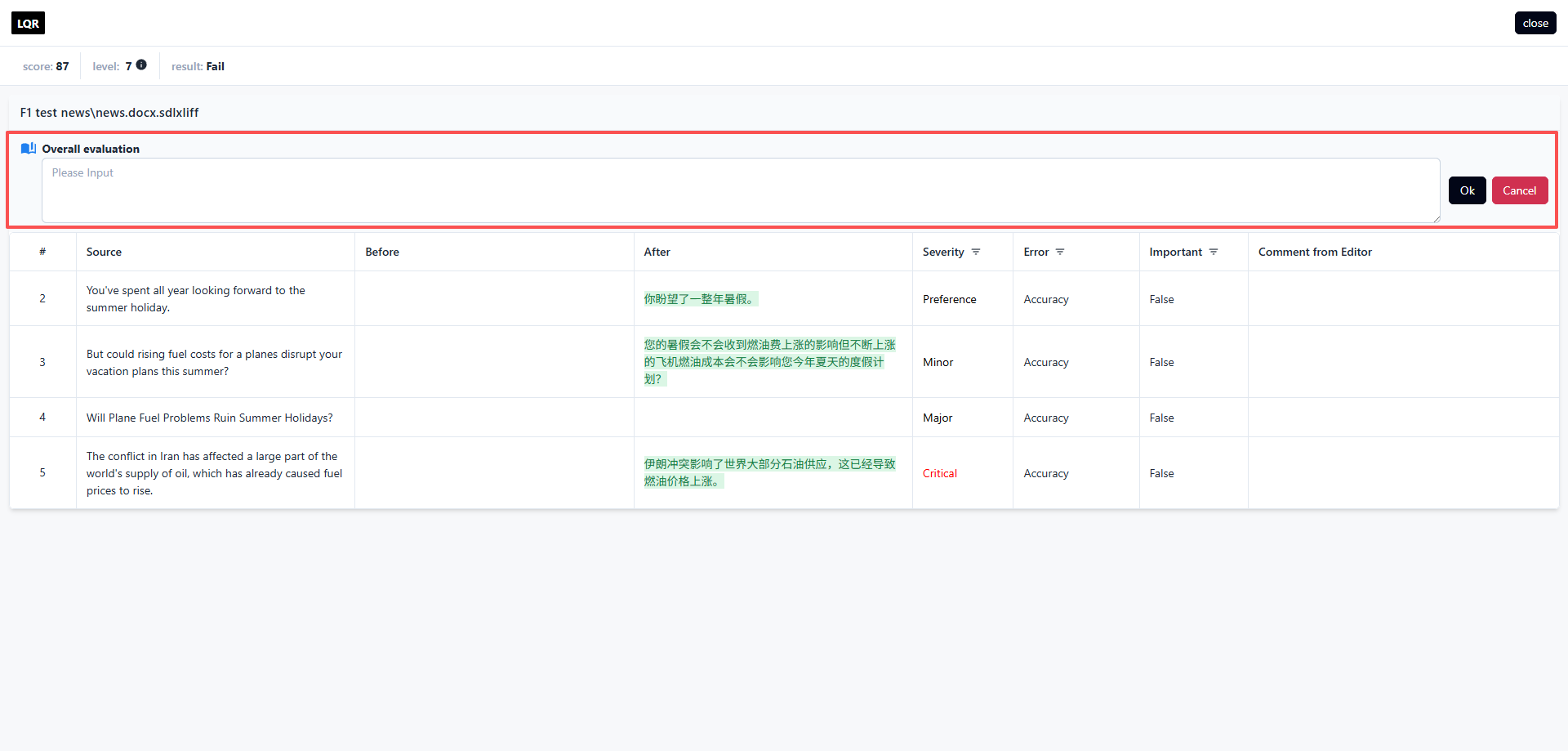
1.4.8.2.1 File Evaluation
Click the Edit button to provide an overall evaluation of the file.
1.4.8.2.2 Filtering
You can filter the display by severity, error type, and importance.
1.5 CAT
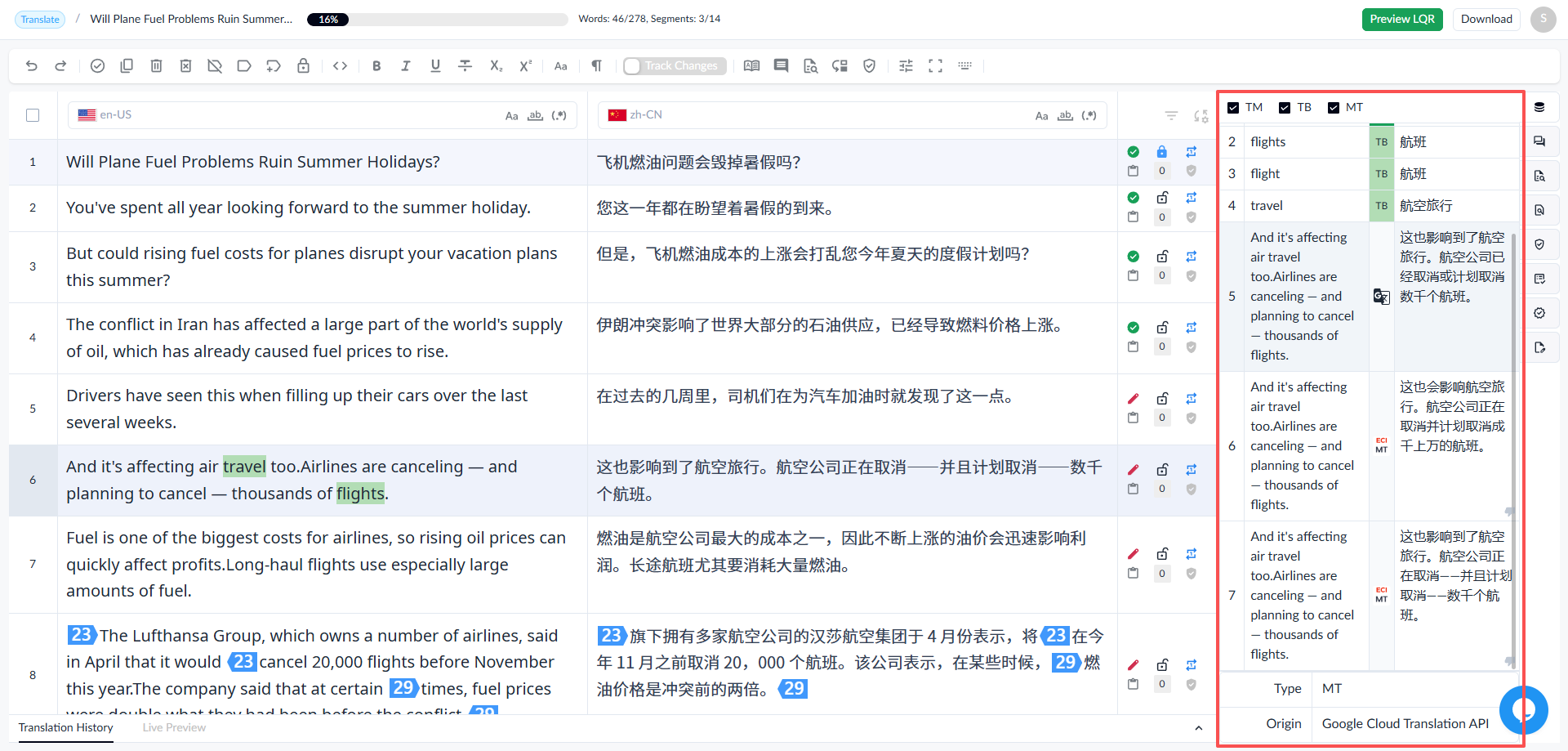
CAT displays matching MT, TM, and TB results based on the selected segment.
1.5.1 MT
1.5.1.1 Viewing MT Results
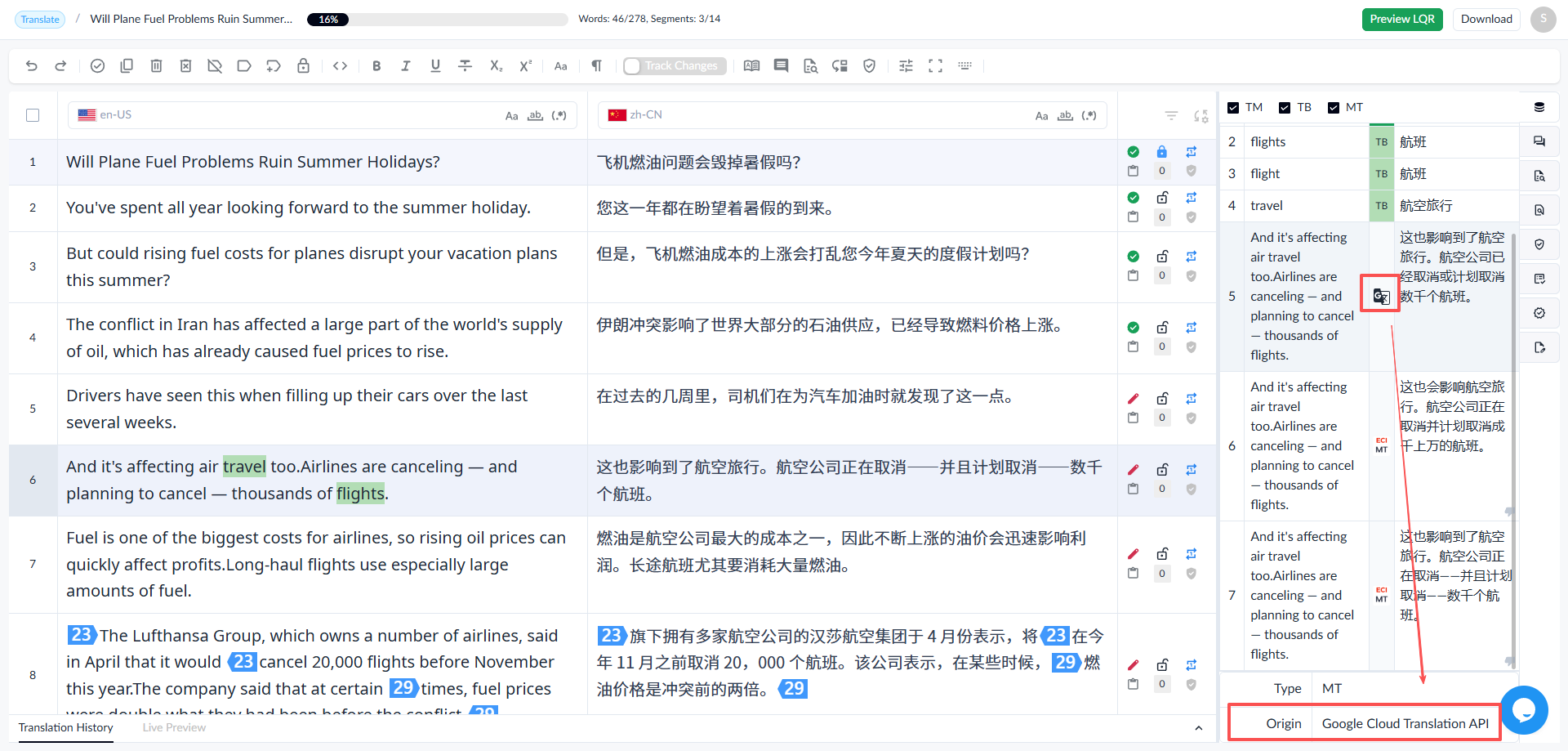
• MT supports Google, Bing, DeepL, etc.
• When a segment is selected, the MT result shows both the source and the translation.
1.5.1.2 Applying MT Results
• Double-click the MT result to apply it to the target.
1.5.2 TM
1.5.2.1 Viewing TM Results
• Select a segment, and the TM match result will display the source text, target text, and match rate.
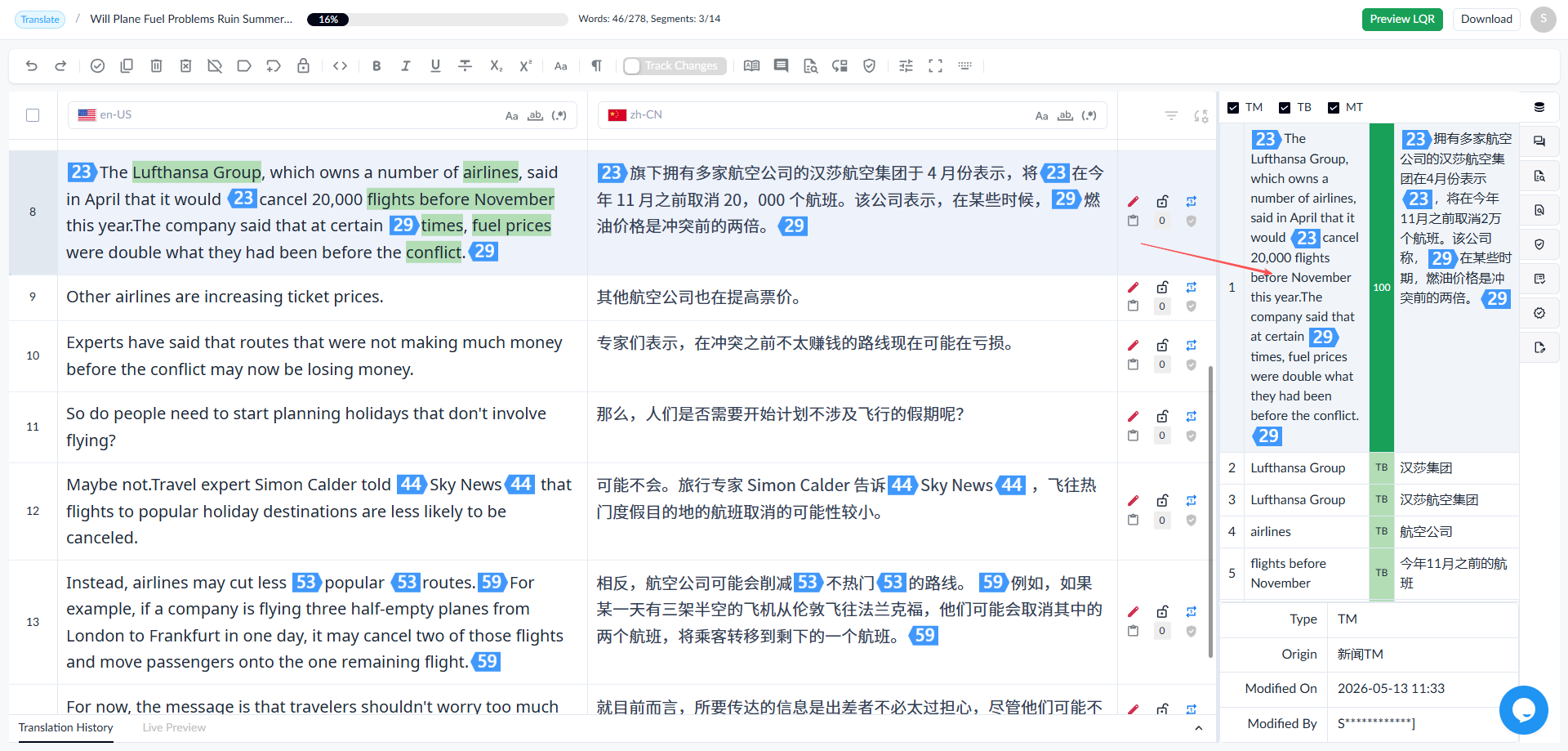
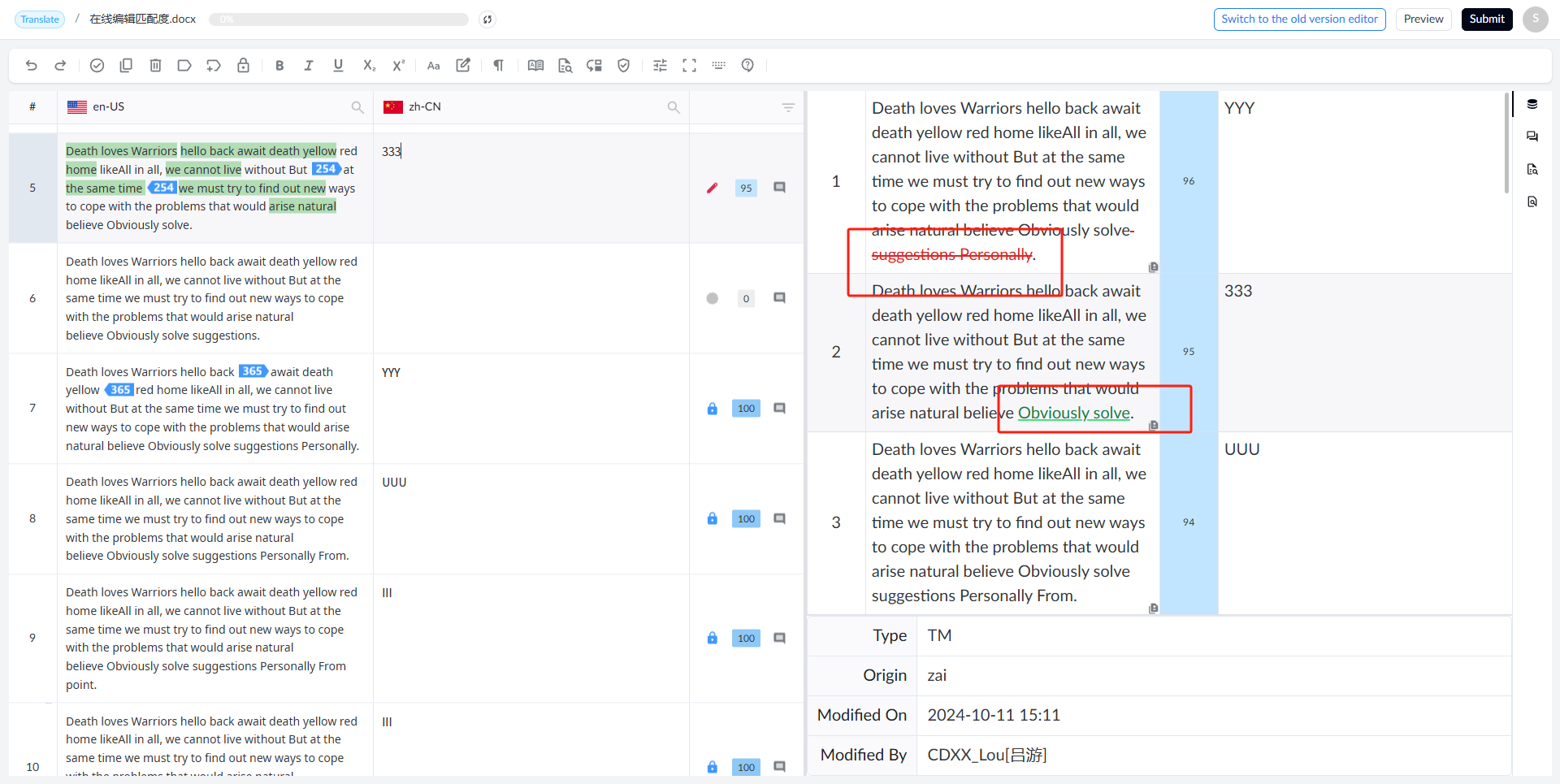
• Select a TM match result to show the differences between it and the source.
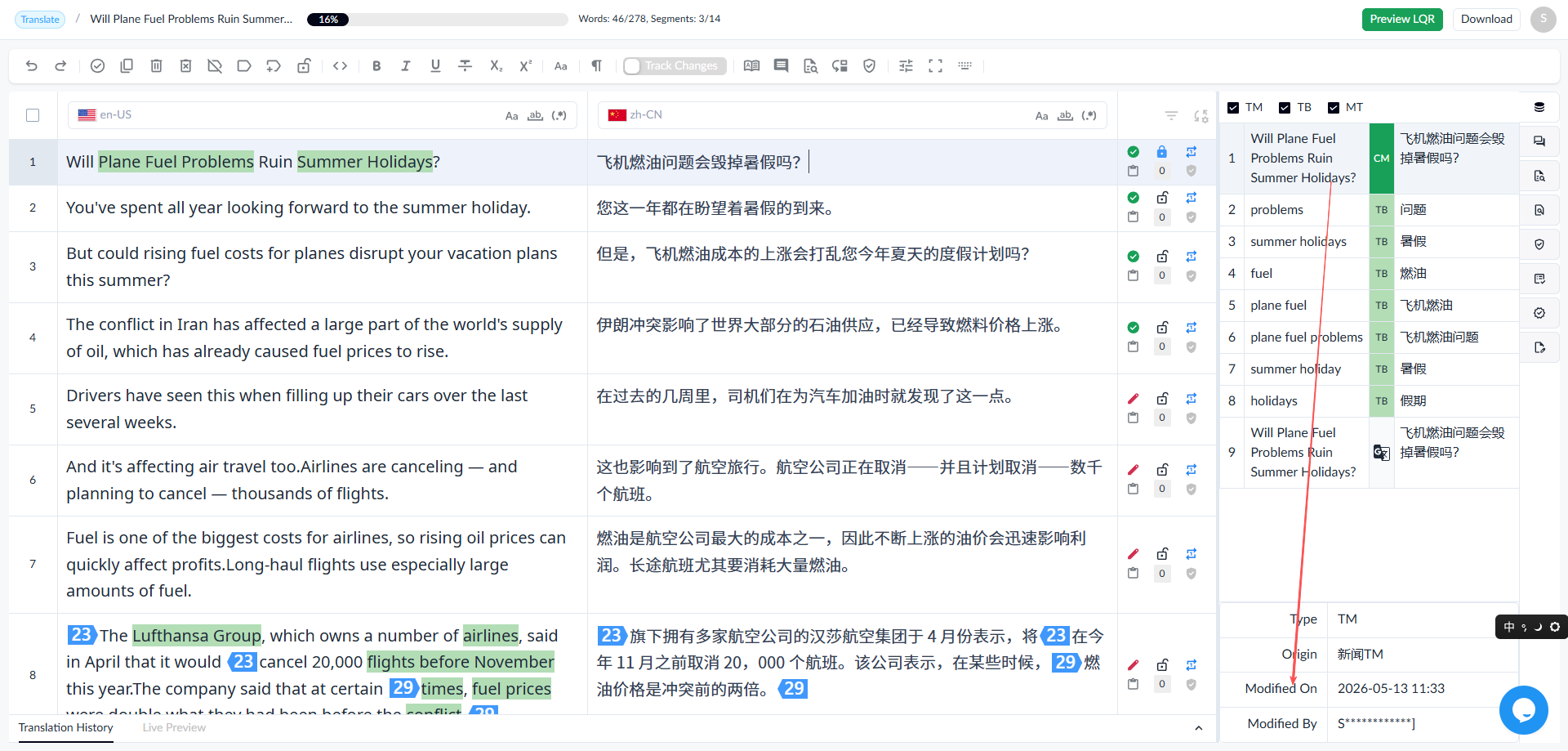
• Select a TM match result to display the TM name, the modifier, and the last modified time.
1.5.2.2 Applying TM Results
◦ Double-click the TM match result to apply it to the target.
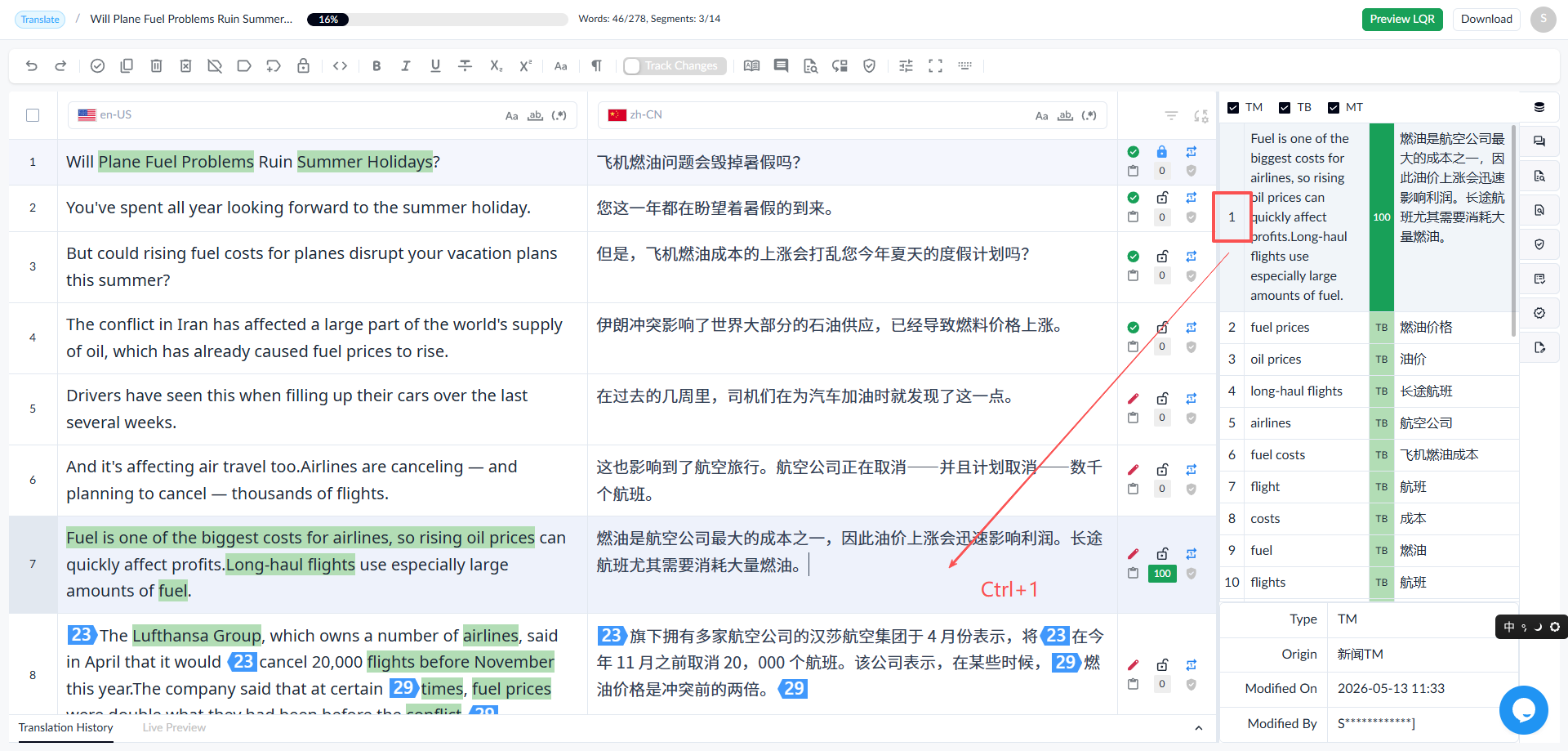
◦ Shortcut: Ctrl + TM result number. Press the shortcut keys to apply the TM content to the target.
1.5.3 TB
1.5.3.1 Viewing TB Results
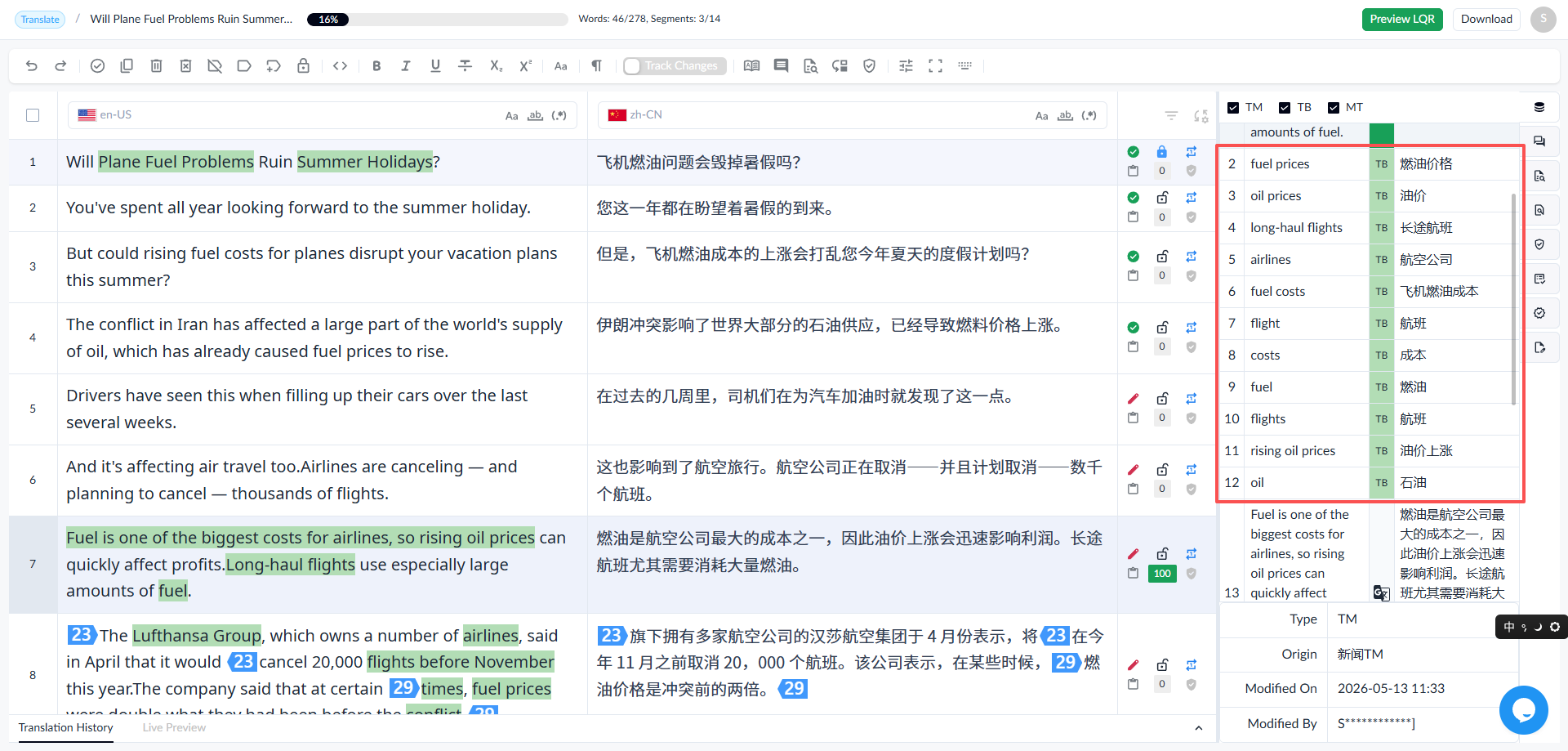
• Select a segment, and the TB match result will display the source and translation.
• Select the TB matching result to display the source and target, the modifier, and the last modified time.
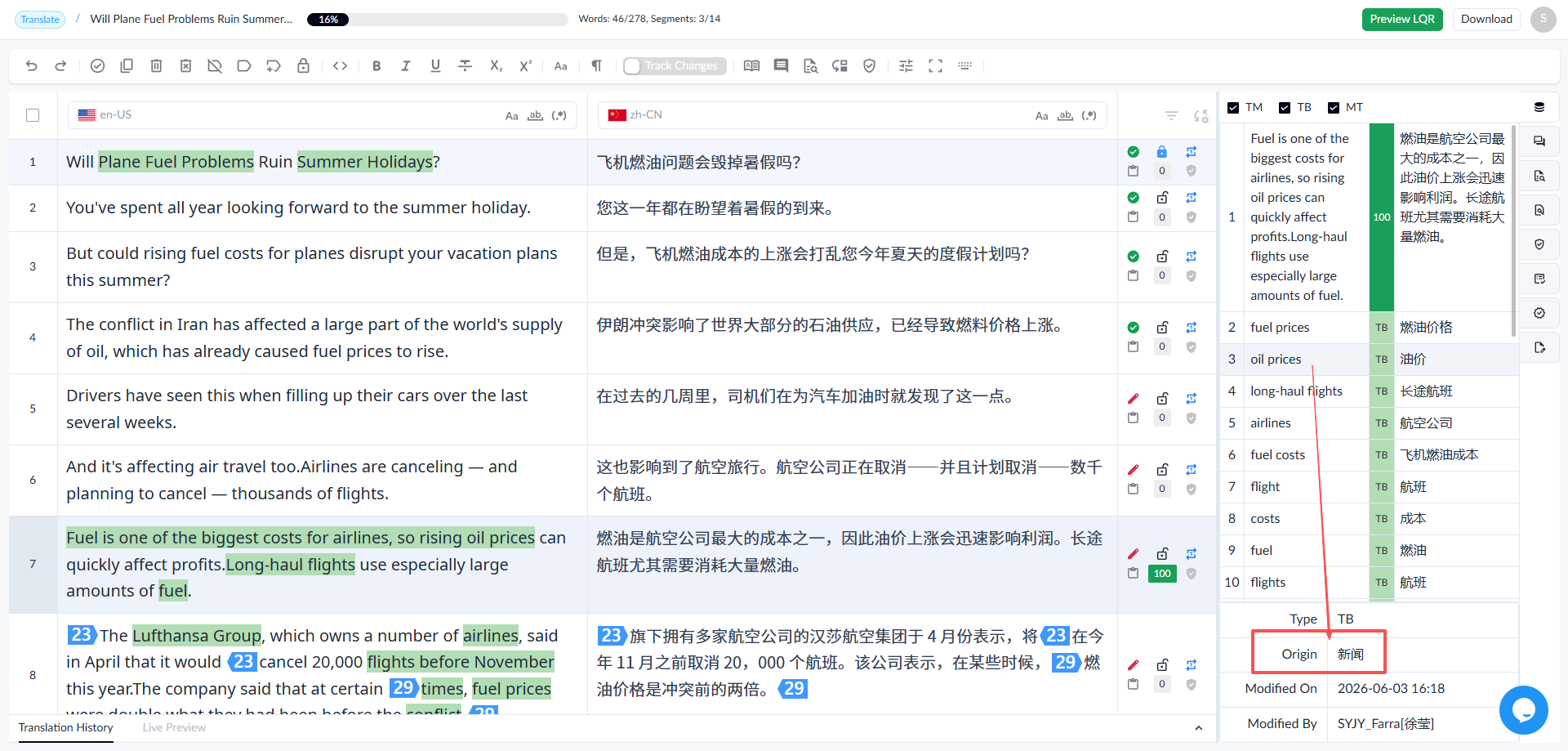
1.5.3.2 Applying TB Results
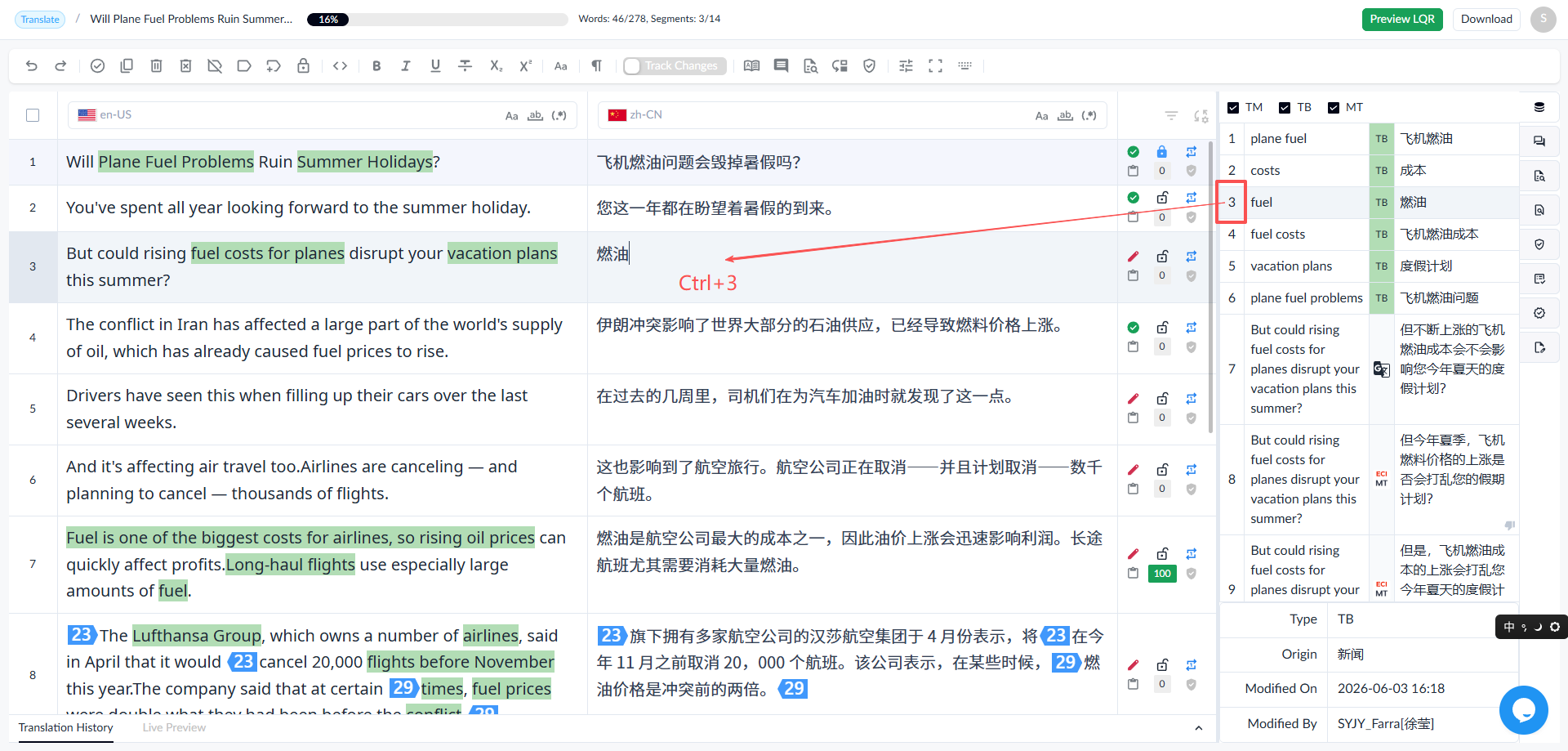
◦ Double-click the TB match result to apply the TM content to the target.
◦ Shortcut: Ctrl+TB result number. Press the shortcut keys to apply the TM content to the target.
1.6 Concordance Search
This feature supports searching source and target content.
1.6.1 Search Source Text
Select [Search Source] from the dropdown, enter content in the input box, and click Search to search the source.
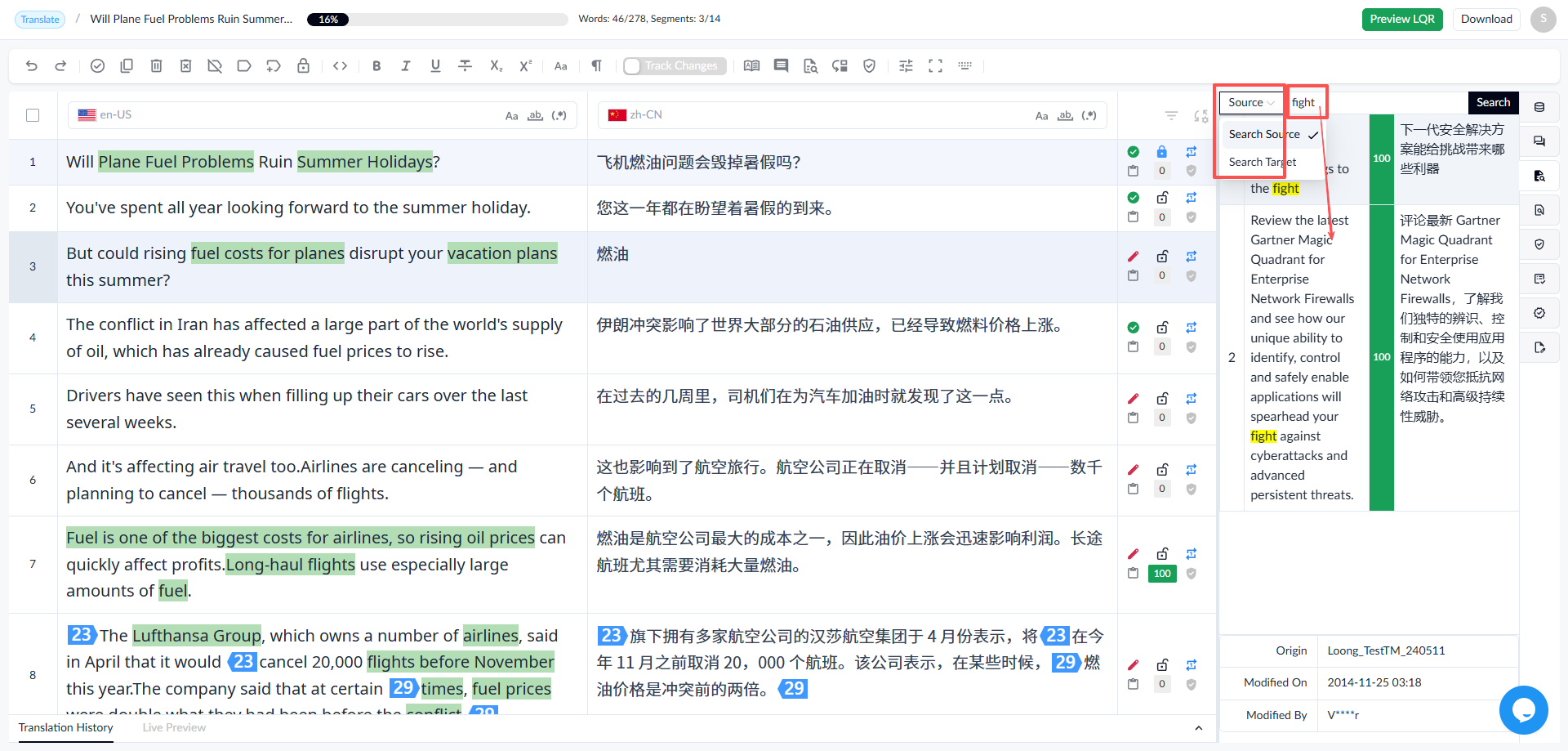
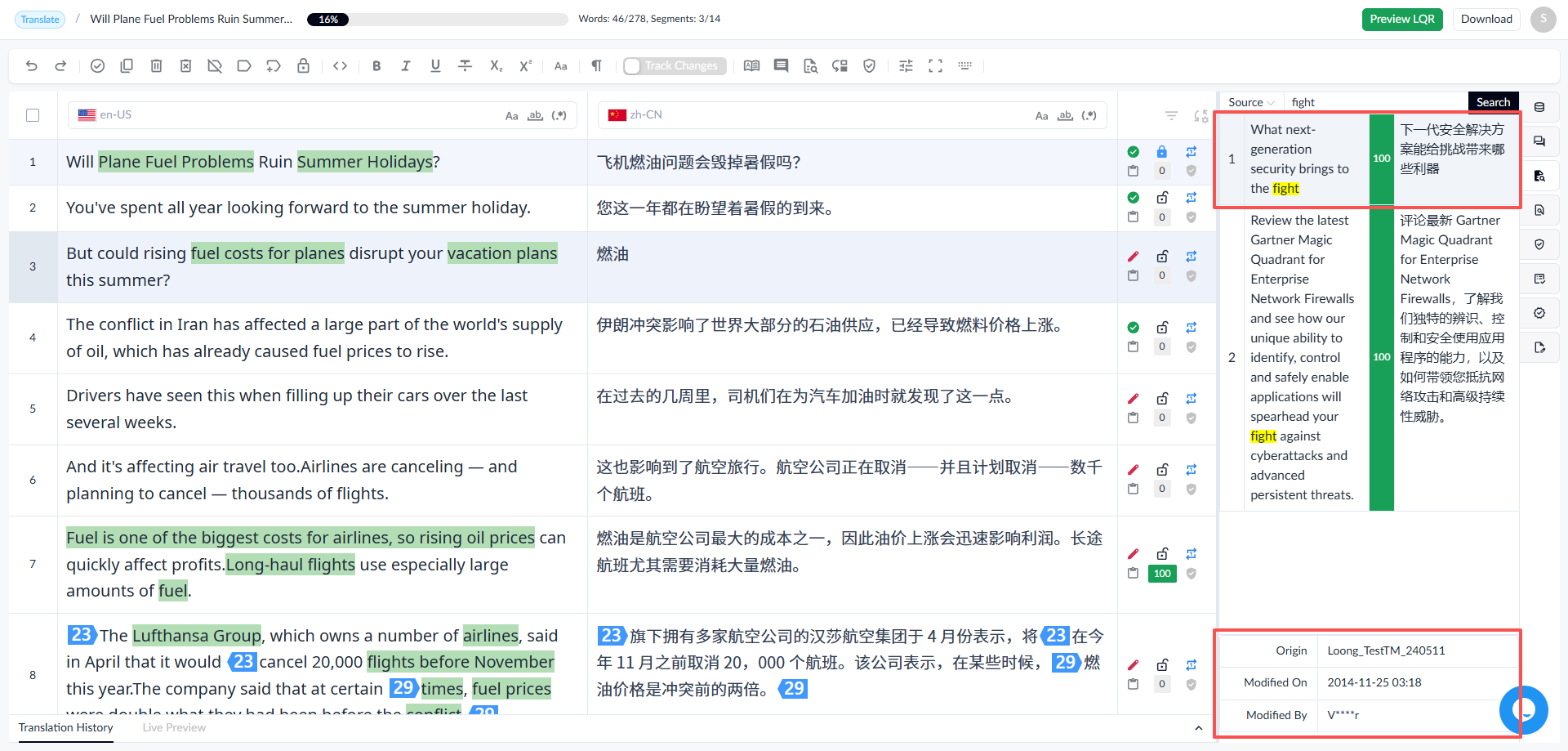
Select a TM from the search results to display the TM name, last modified time, and modifier at the bottom.
1.6.2 Search Target
Select [Search Target] from the dropdown, enter content in the input box, and click Search to search the target.
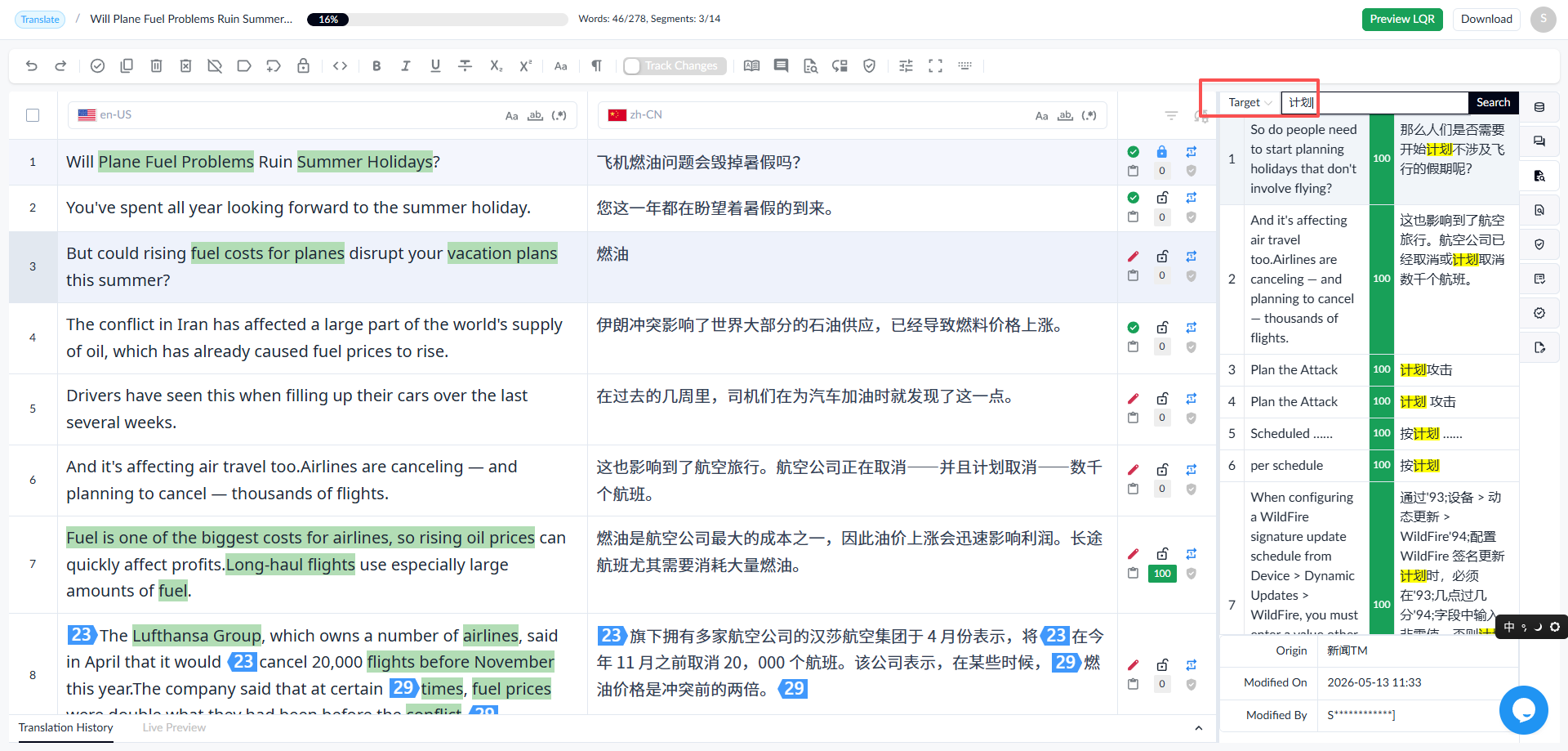
Similar to source search, you can view the origin of the searched TM.
1.7 Find & Replace
Search for content in the source and target texts, and perform replacements.
1.7.1 Find
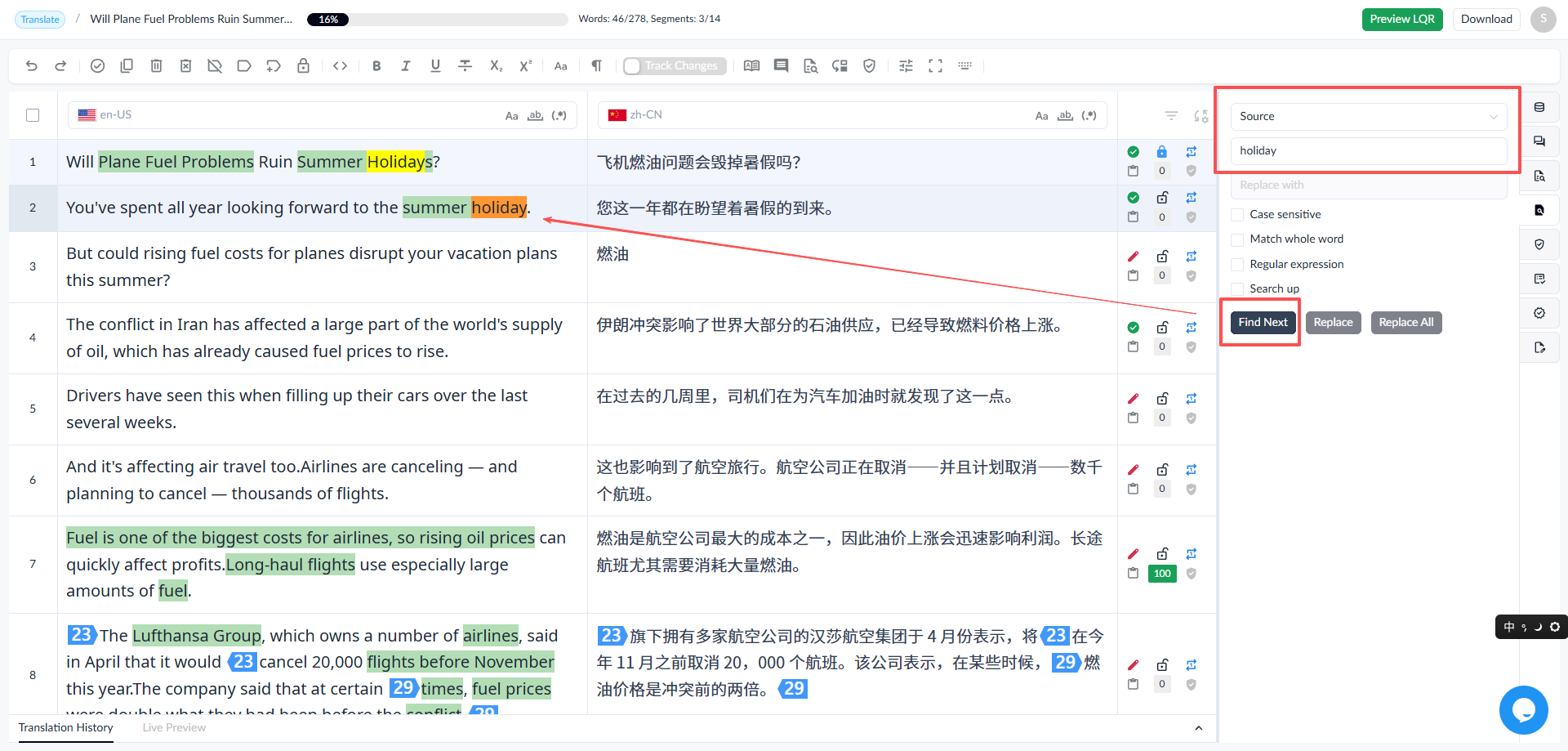
1.7.1.2 Find in Source
◦ Select the source, enter content, and click the [Find Next] button.
◦ The search results are highlighted in yellow, and the currently selected result is highlighted in orange.
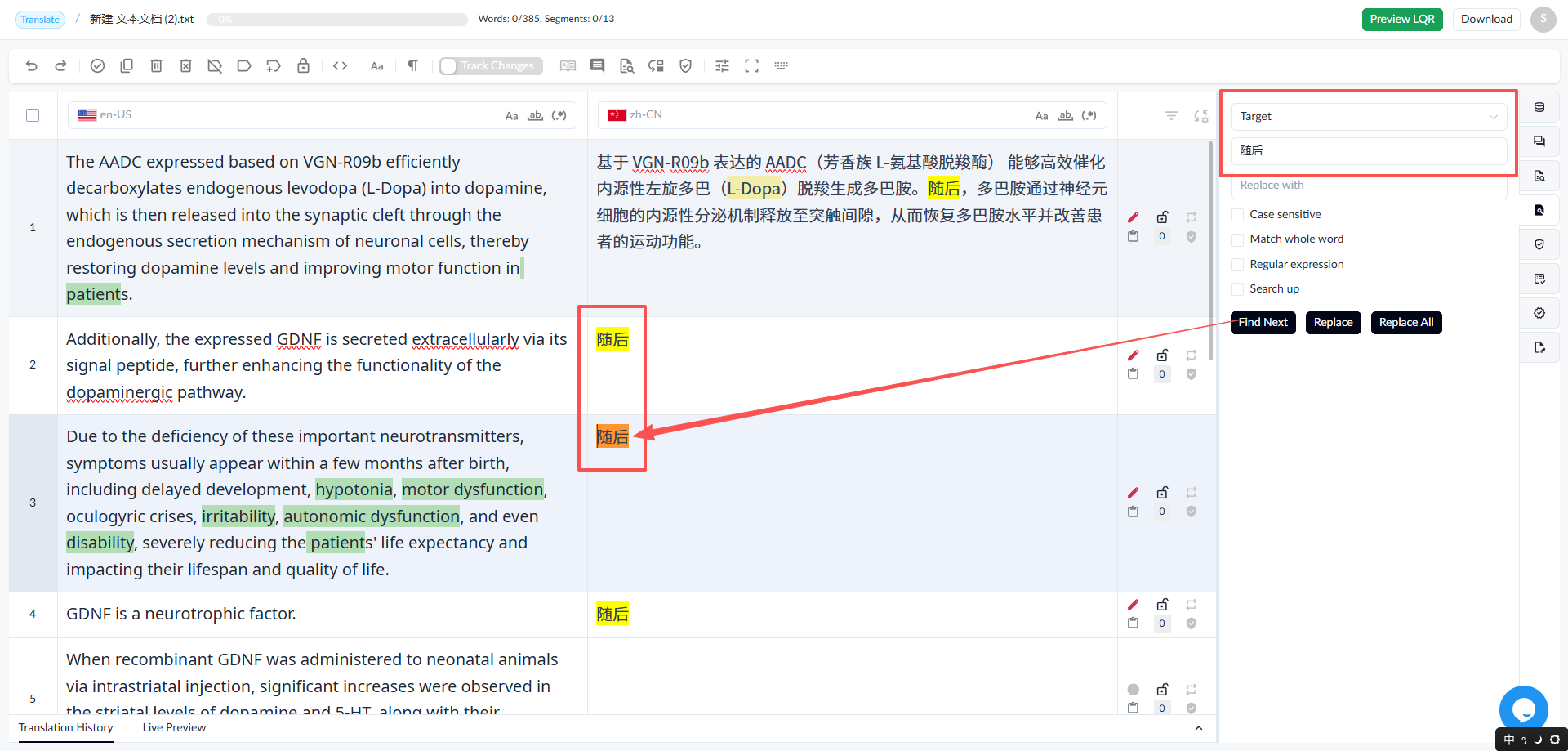
1.7.1.3 Find in Translation
◦ Select the target, enter the content, and click the [Find Next] button.
◦ The search results are highlighted in yellow, and the currently selected result is highlighted in orange.
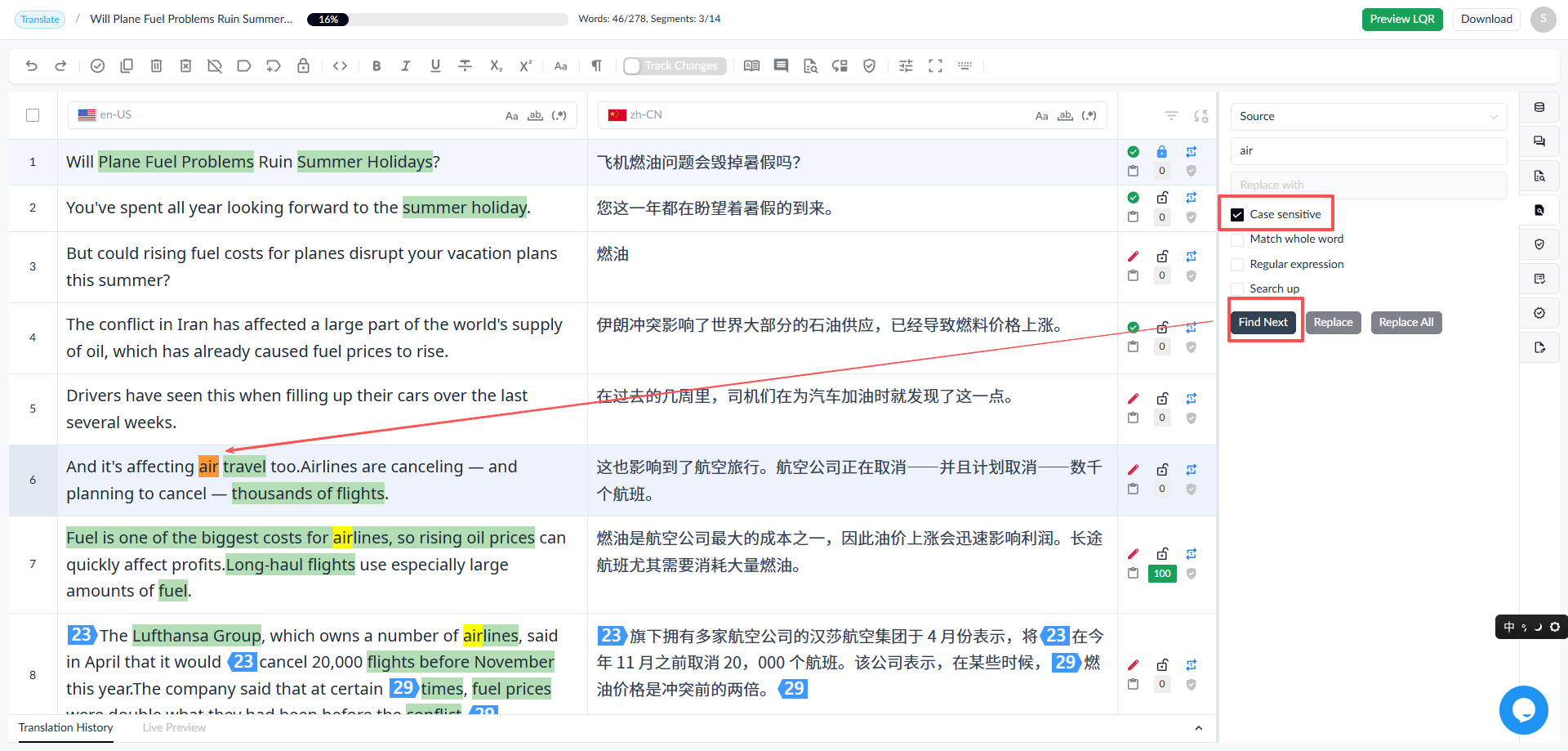
1.7.1.4 Case-sensitive
◦ When checked, search results are case-sensitive
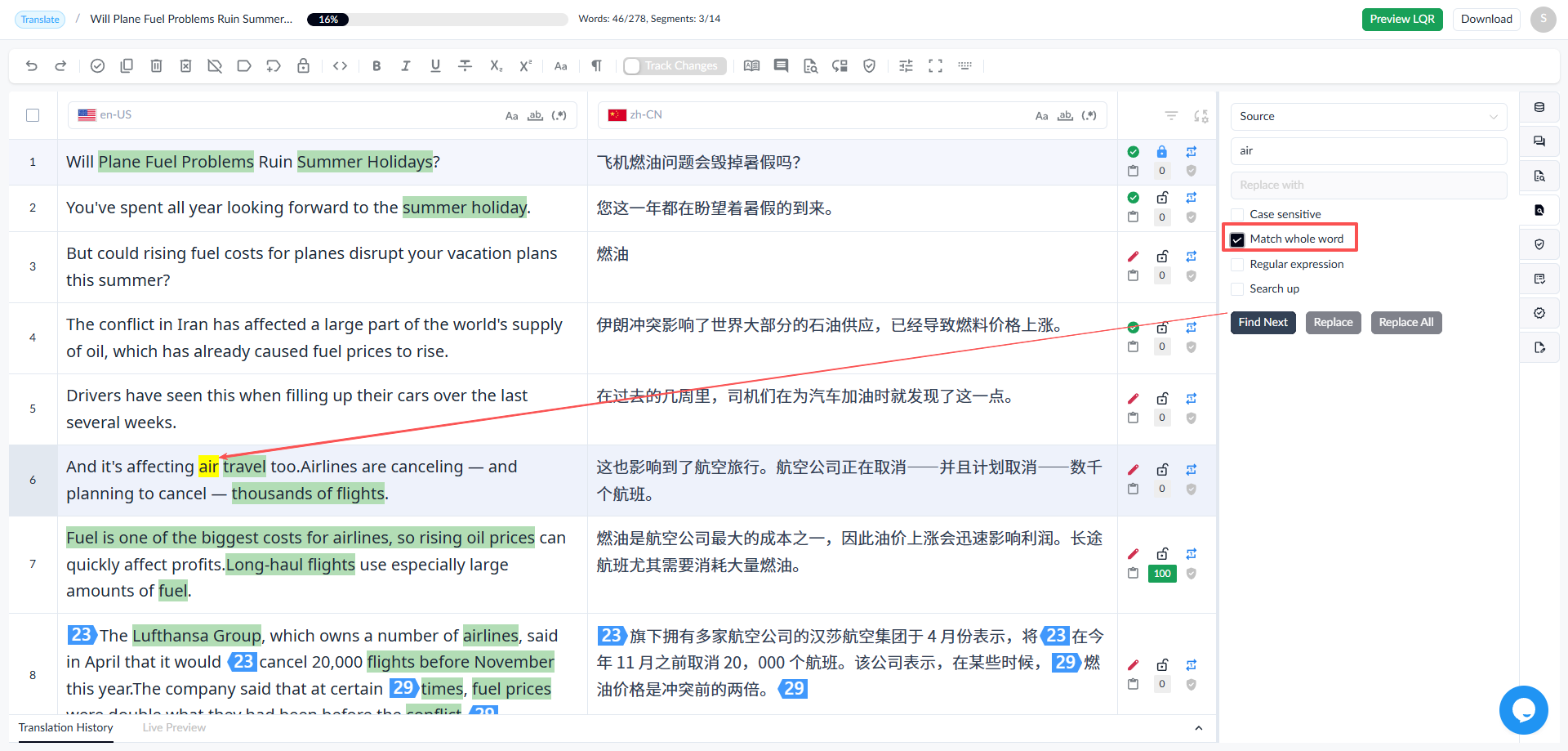
1.7.1.5 Match whole word
◦ When checked, the search is performed based on whole word matching.
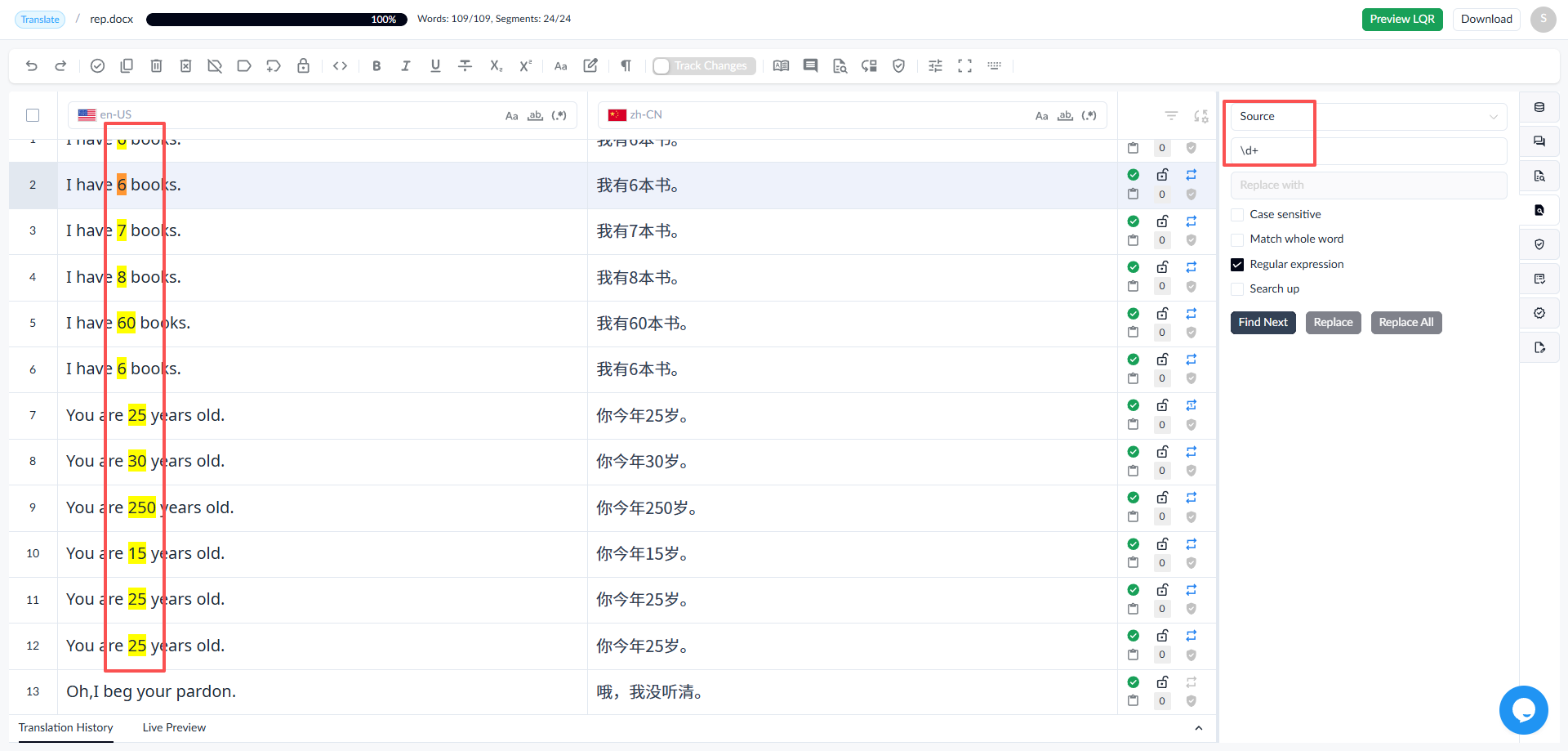
1.7.1.6 Regular Expressions
◦ When checked, regular expressions can be used for searching.
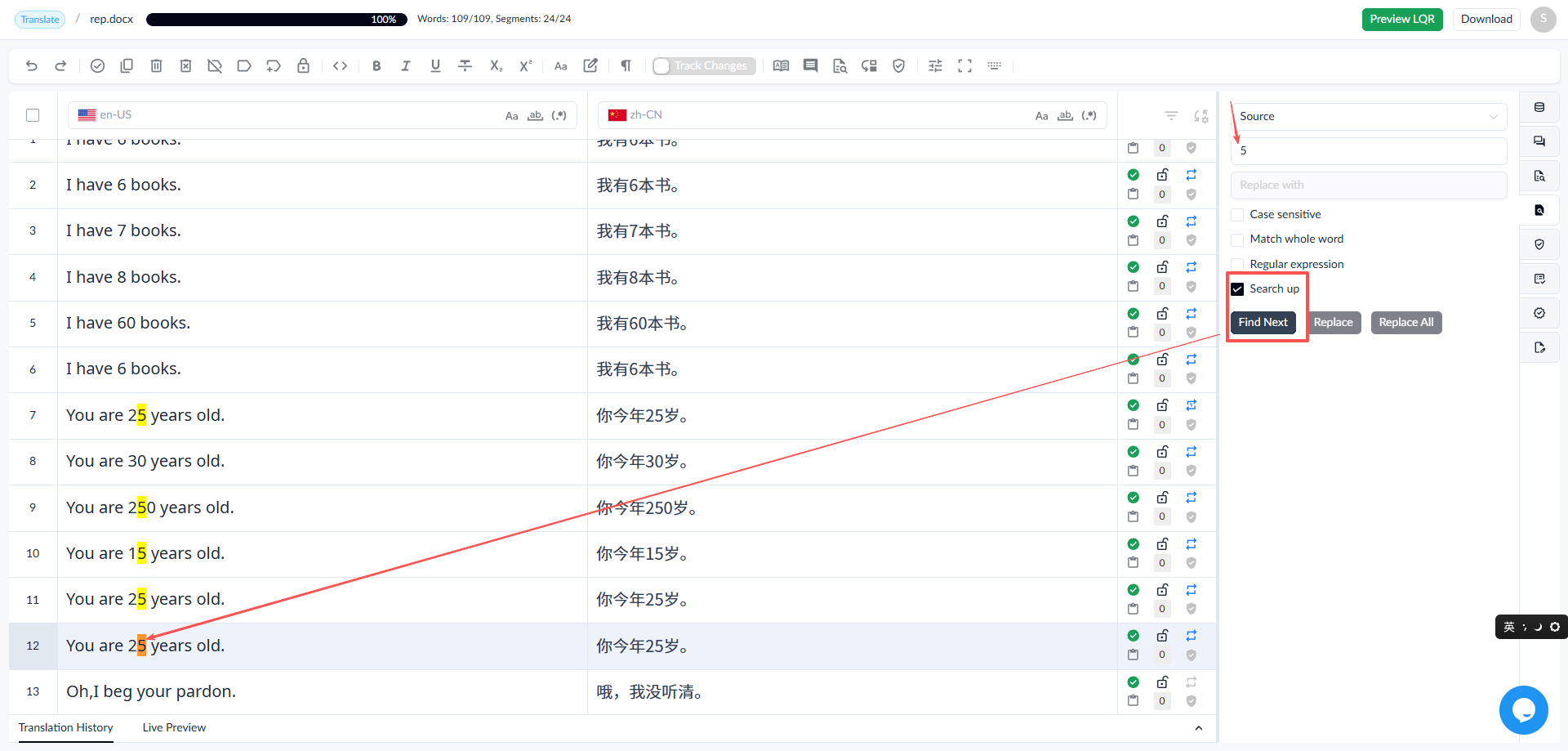
1.7.1.7 Search Up
◦ By default, search goes forward. When checked, search goes backward.
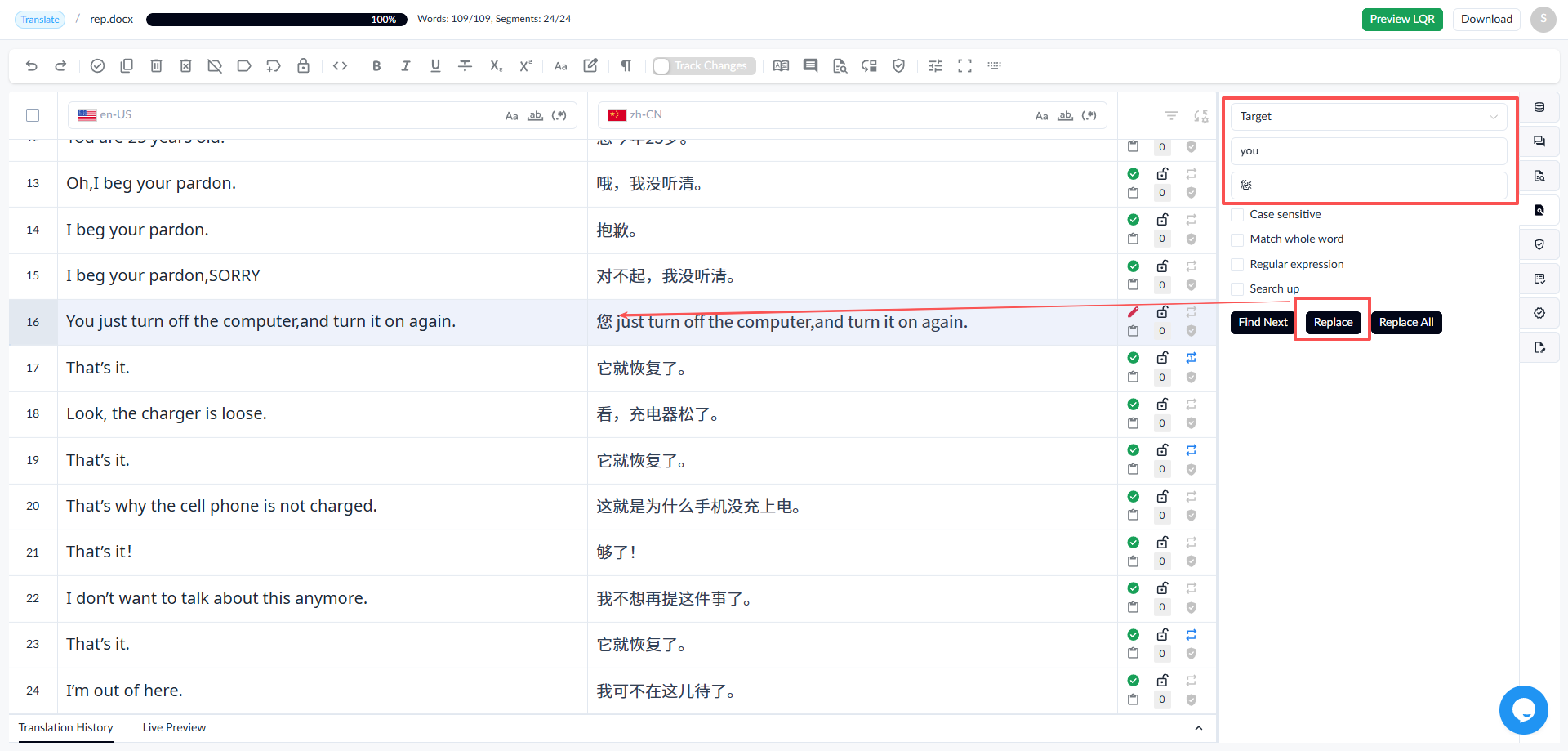
1.7.2 Replace
Replacement is only supported for target. The [Replace] button is available when blue and unavailable when gray.
Enter the search content
Select target
Click the [Find Next] button
Search results: the currently selected content is highlighted in orange.
Click the [Replace] or [Replace All] button.
The selected content is successfully replaced as shown.
1.8 Quality Check Panel
1.8.1 Quality Check Items
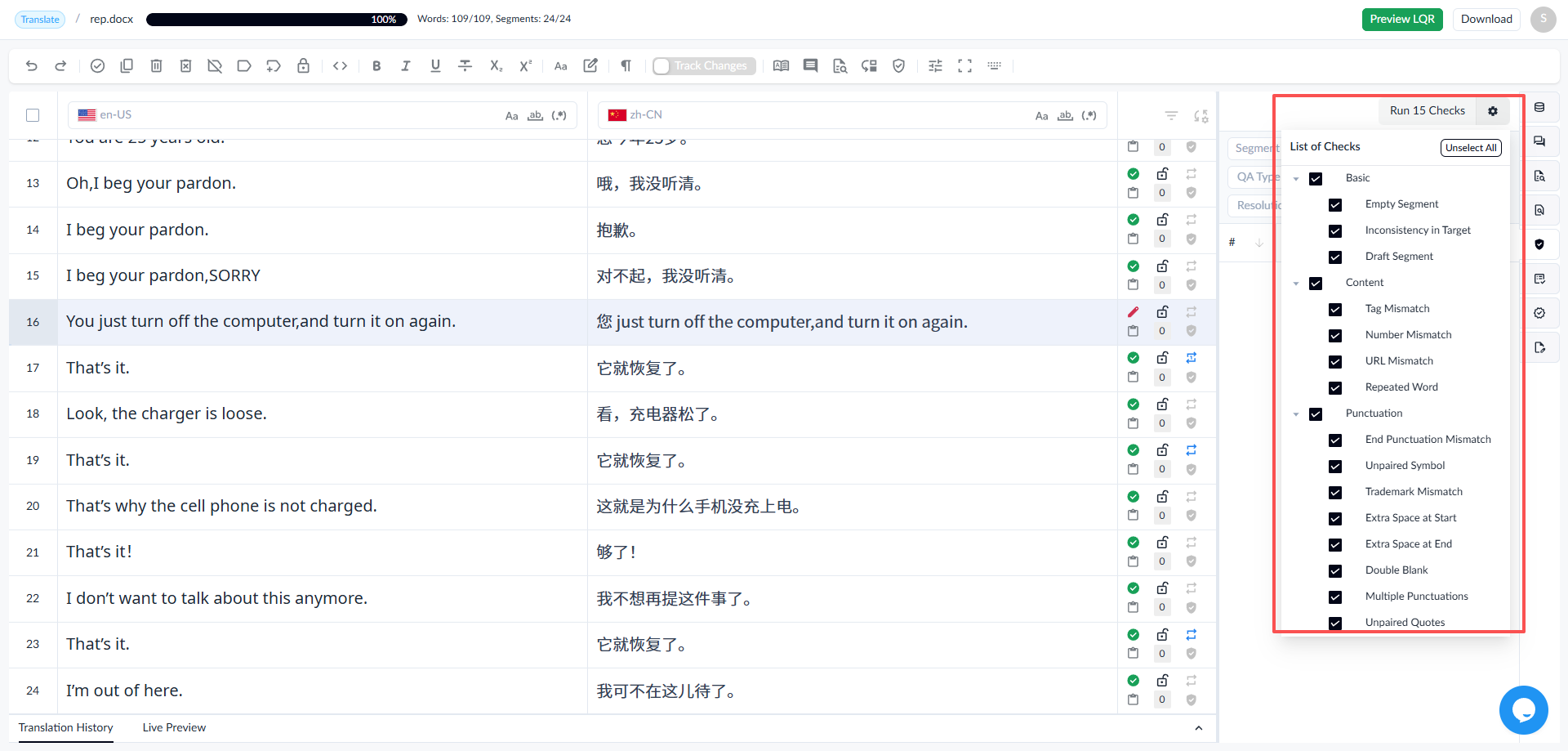
- The check items are described as follows:
| No. | Quality Check Type | Description |
|---|---|---|
| 1 | Empty Segment | Checks whether the current segment is empty. |
| 2 | Inconsistency in Target | Check if the source is identical while the target is different. |
| 3 | Draft Segment | Checks whether the current segment is draft. |
| 4 | Tag Mismatch | Checks for tag inconsistencies, including missing tags, extra tags, inconsistent tag content, and incorrect tag order. |
| 5 | Number Mismatch | Checks for number inconsistencies between source and target. Checks if any number in the source is missing in the target, or if any number not in the source appears in the target. |
| 6 | URL Mismatch | Checks for inconsistencies in URLs between source and target. |
| 7 | Repeated Word | Checks for repeated words or phrases in the text. |
| 8 | End Punctuation Mismatch | Checks if the ending punctuation is consistent between source and target. |
| 9 | Unpaired Symbol | For example, checks if parentheses appear in the source but are missing in the target. Note that symbols may vary between languages. |
| 10 | Trademark Mismatch | Checks for inconsistencies in trademarks between source and target. Checks if any trademark from the source is missing in the target, or any trademark not present in the source appears in the target. This is a bidirectional check for inconsistencies in trademark counts and content. |
| 11 | Extra Space at Start | Reports an error if there is extra space at the start of the target text. |
| 12 | Extra Space at End | Reports an error if there is extra space at the end of the target text. |
| 13 | Double Blank | Checks if more than one consecutive spaces appear between two characters. |
| 14 | Multiple Punctuations | Check if multiple consecutive punctuation marks appear in the target. |
| 15 | Unpaired Quotes | Checks if there is any unpaired quotation mark in the target. |
1.8.2 Batch Check
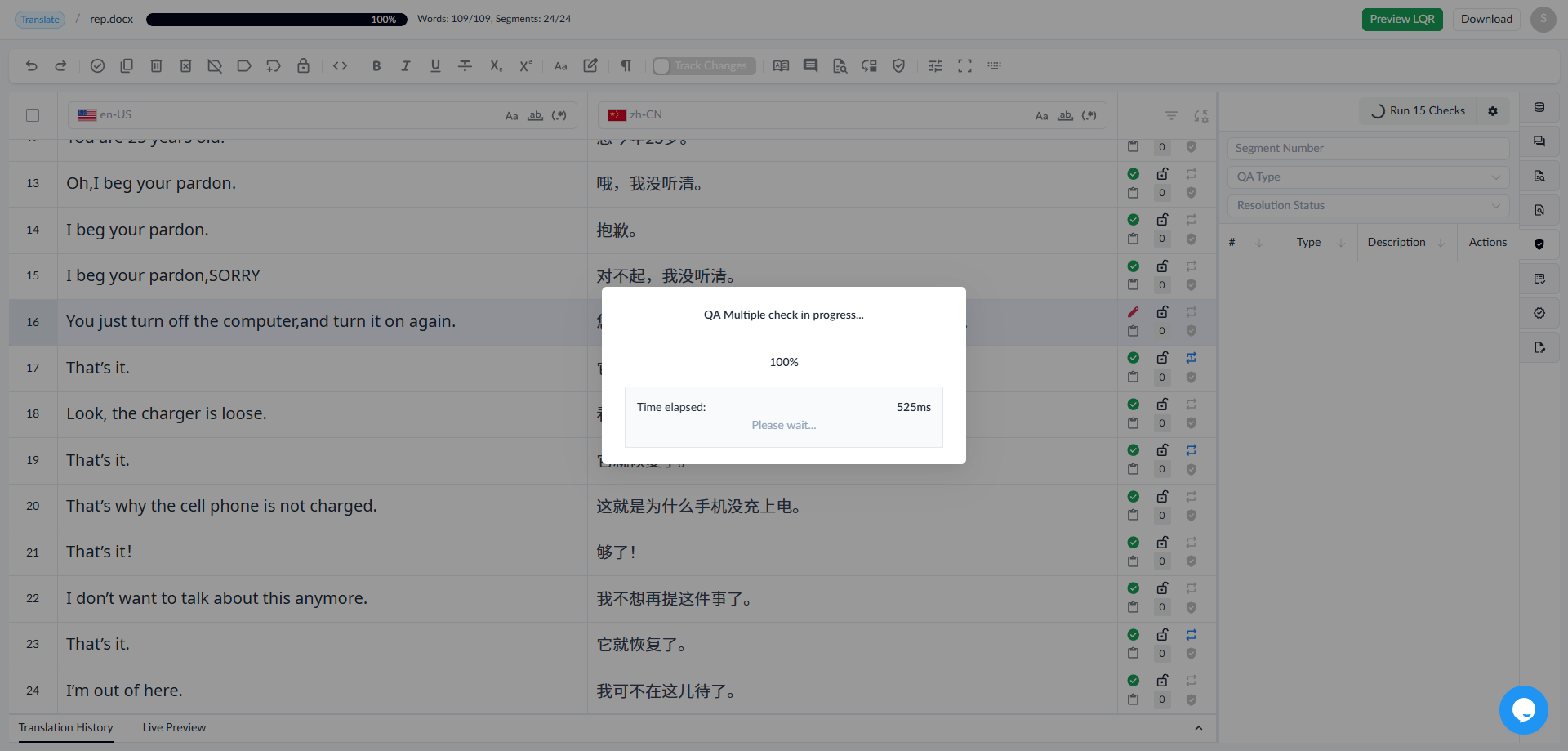
Click on the quality check panel to perform an individual check item or multiple check items. Click the Run Checks button for the system to perform the check. After the check is completed, error information will be displayed in the panel.
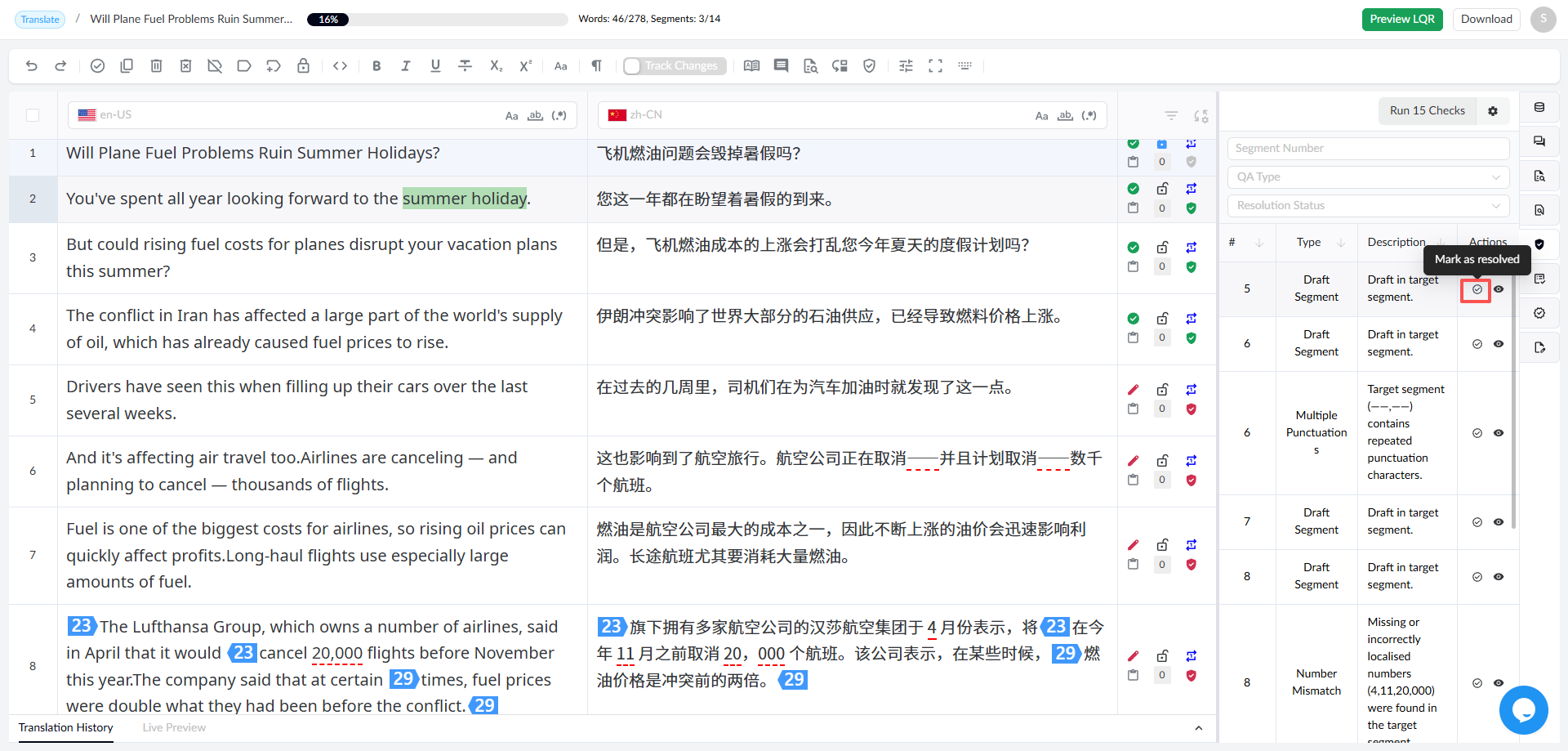
1.8.3 Quality Panel
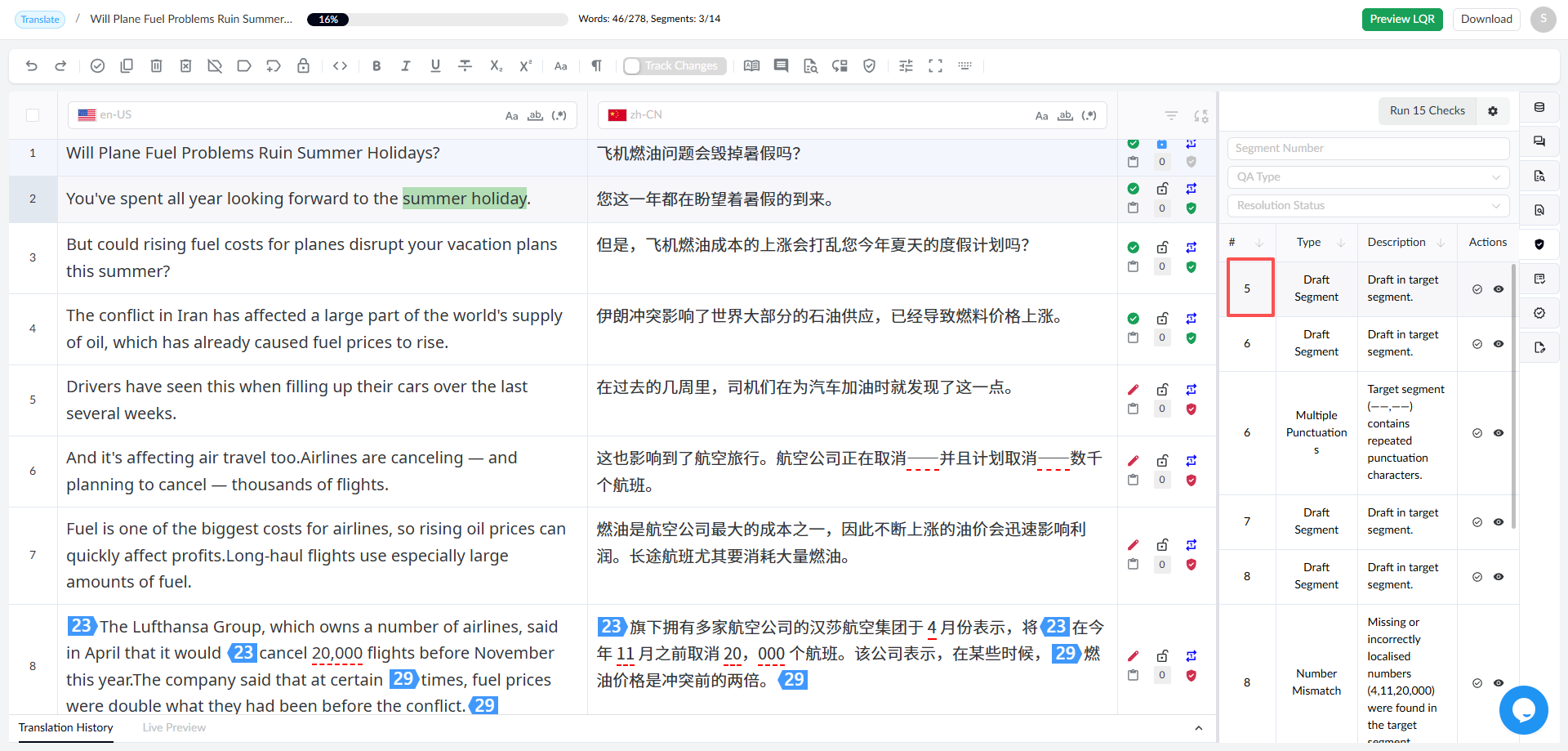
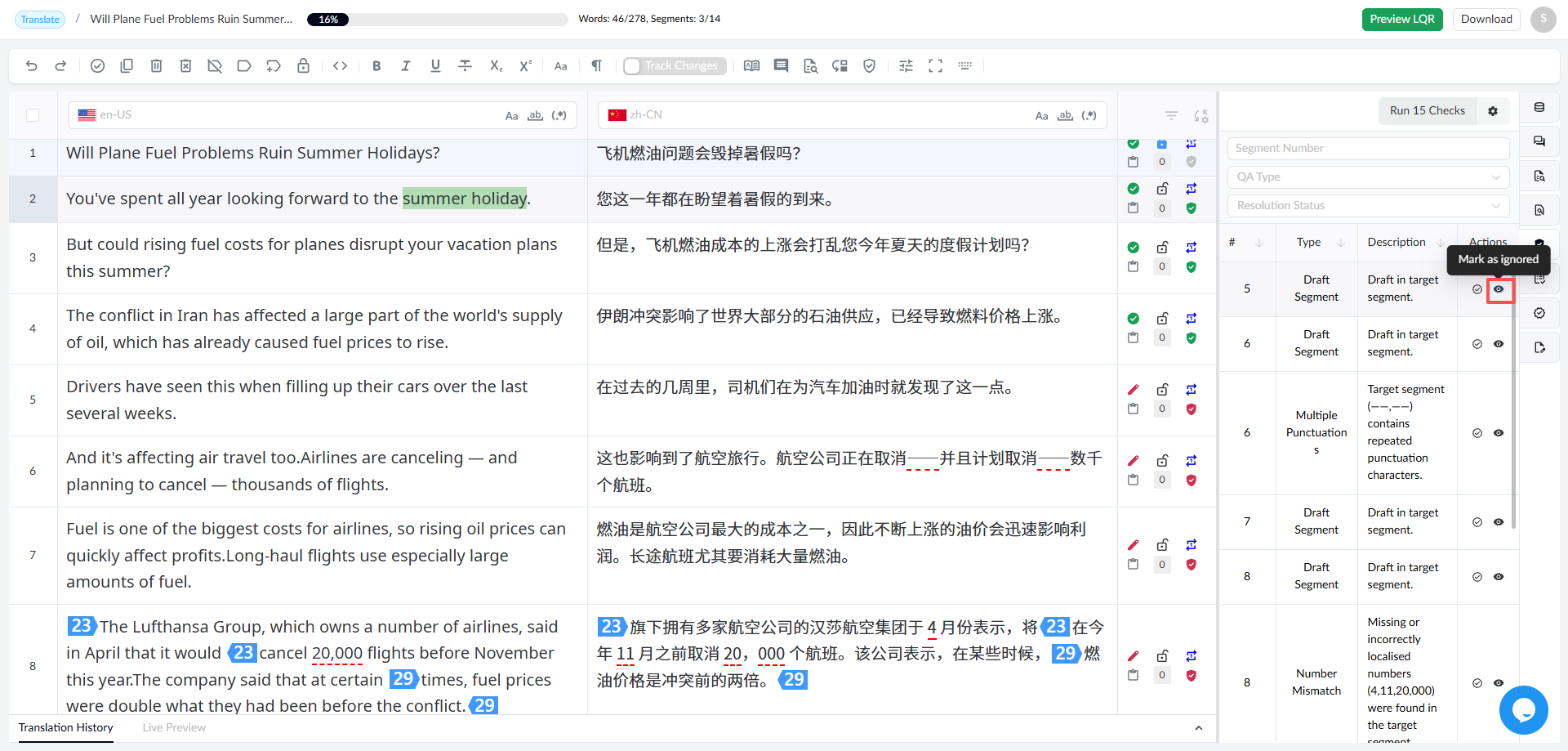
The quality panel displays information such as segment number, check item type, description, and actions, while also supporting operations.
- Go to Segment: Click the segment number column of an error item in the panel to go to that segment.
- Mark as Ignored: If you believe the check has reported a false positive, you can ignore it by clicking the icon on the right.
- Mark as Resolved: If the error in the task has been resolved, you can mark it as resolved by clicking the icon on the right.
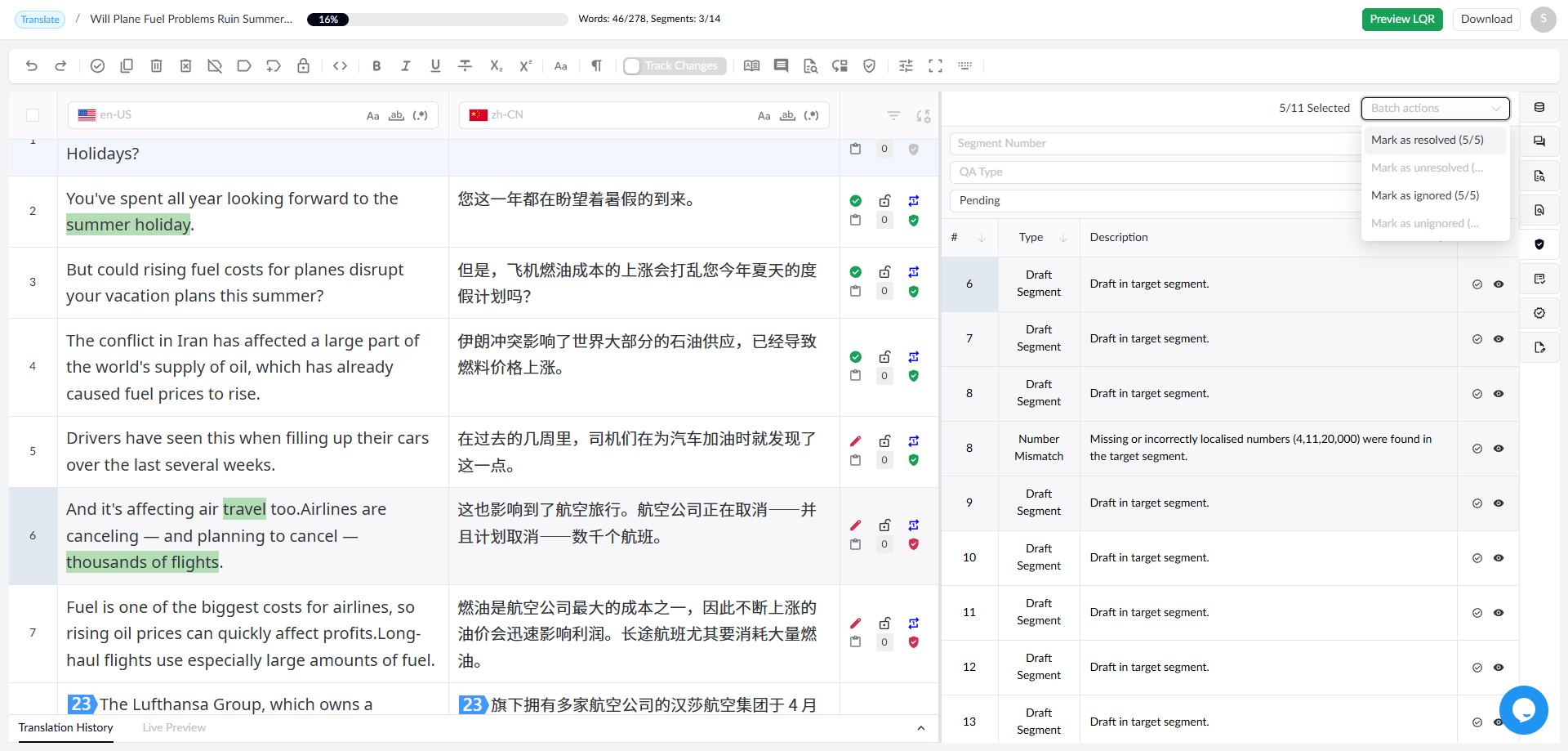
Batch actions: You can select multiple segments by holding down the Shift key and clicking segments in the right panel to perform batch actions.
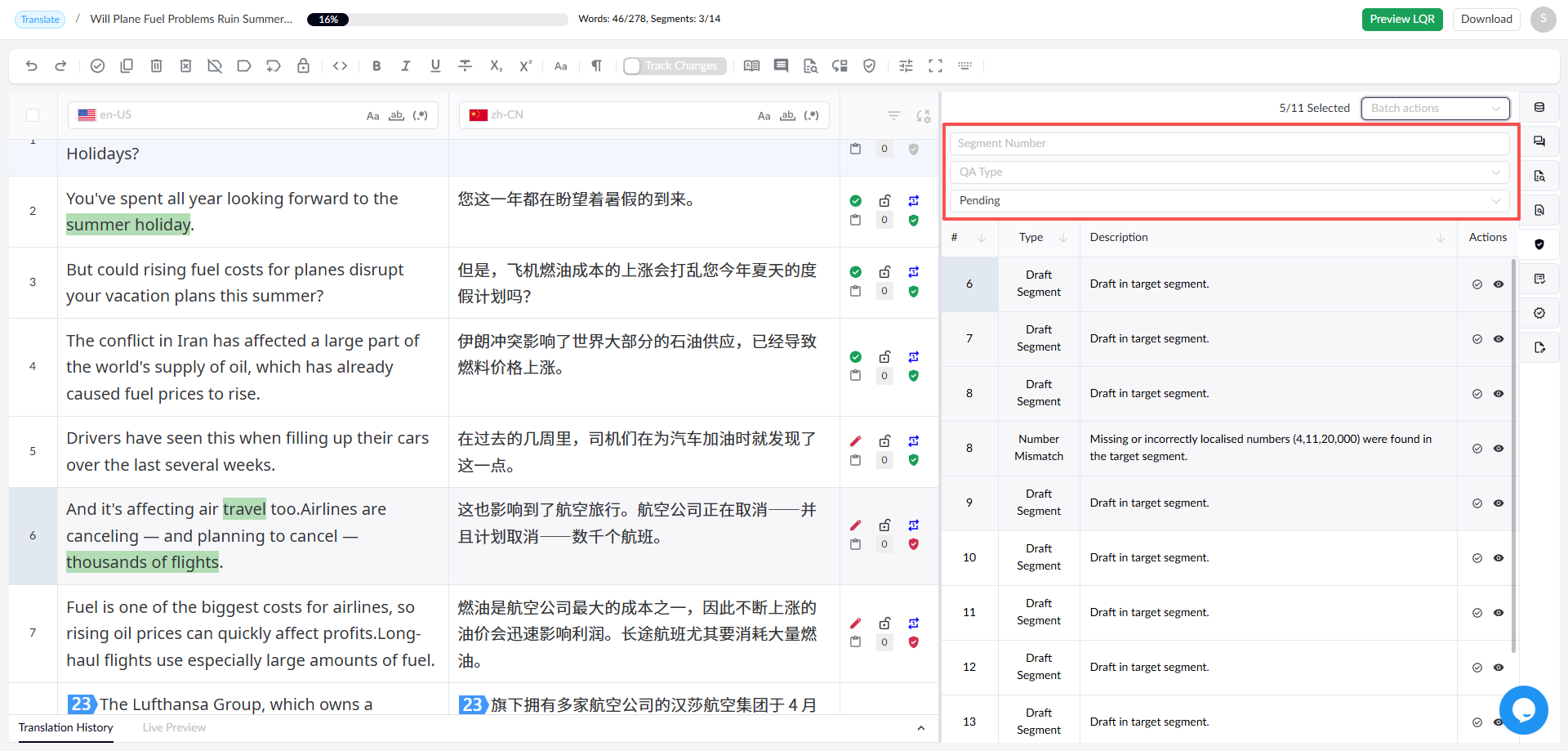
Filter Errors: The system supports filtering errors by segment, error type, and processing status.
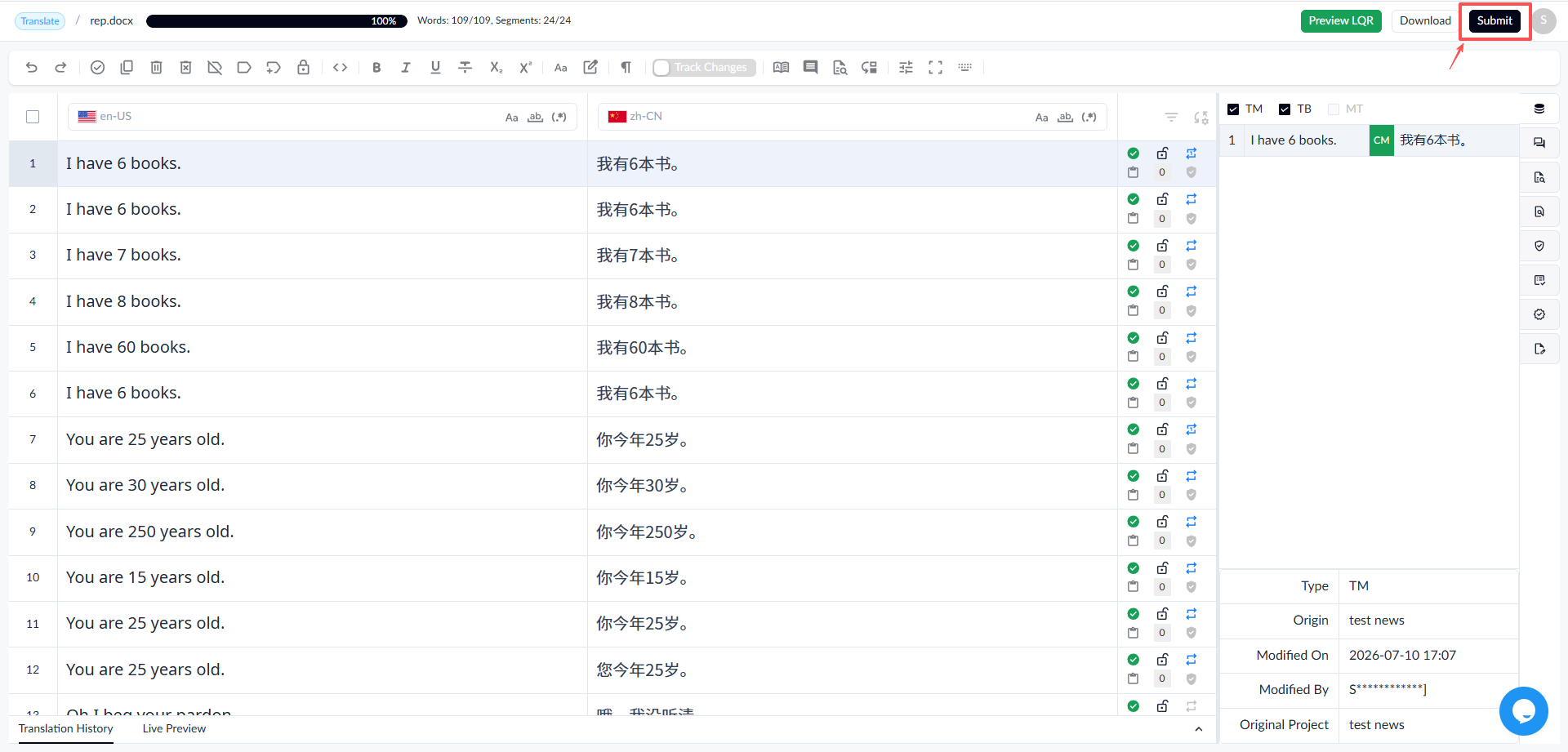
1.9 Submitting Files
• After completing the translation task, click the [Submit] button to submit the file.
A pop-up window prompts whether to submit directly or perform a quality check.
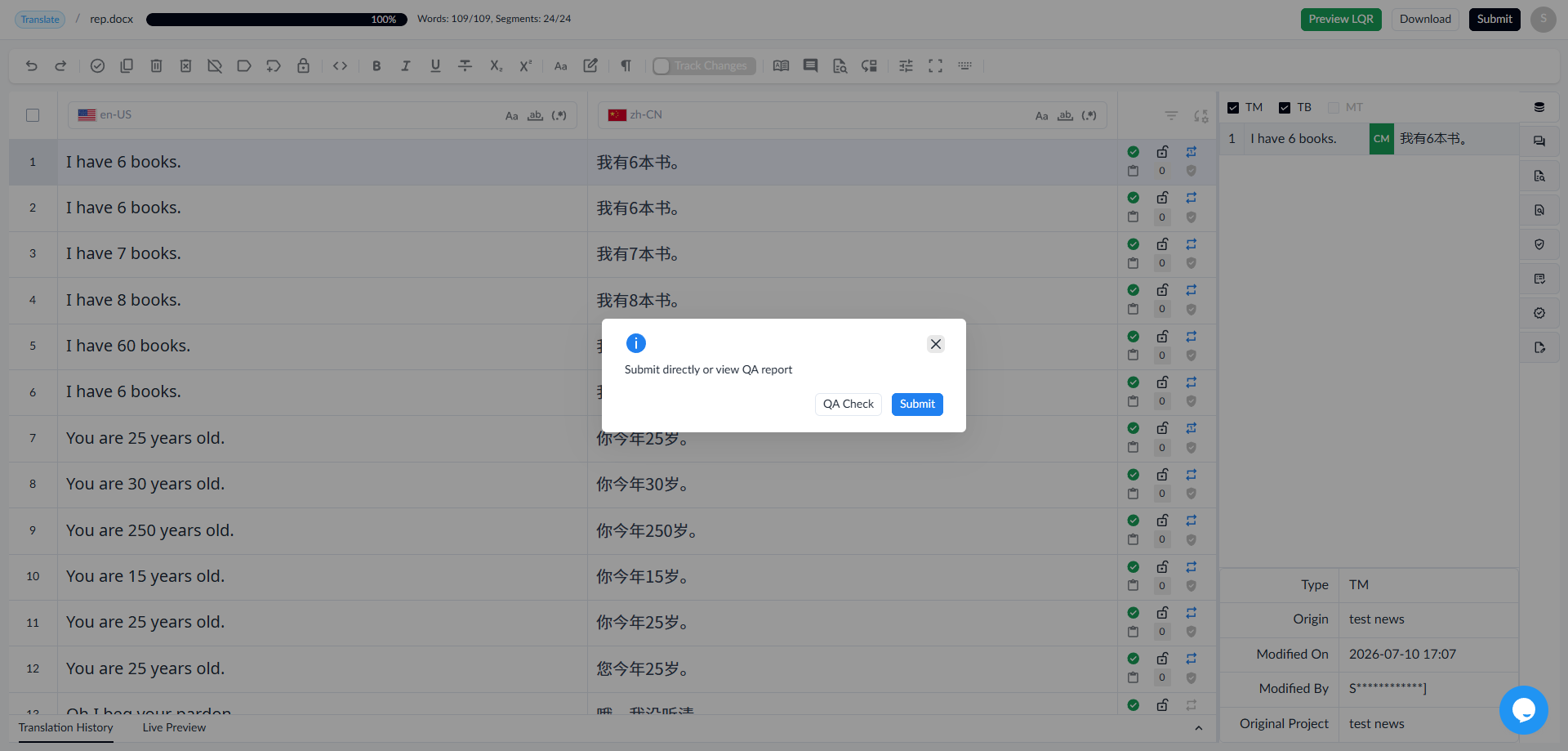
• After successful submission, the workspace is highlighted in blue and becomes read-only, preventing further modifications to the translation. The translation progress changes to 100%, and the text in the [Submit] button changes to “Submitted”.