1. My Tasks
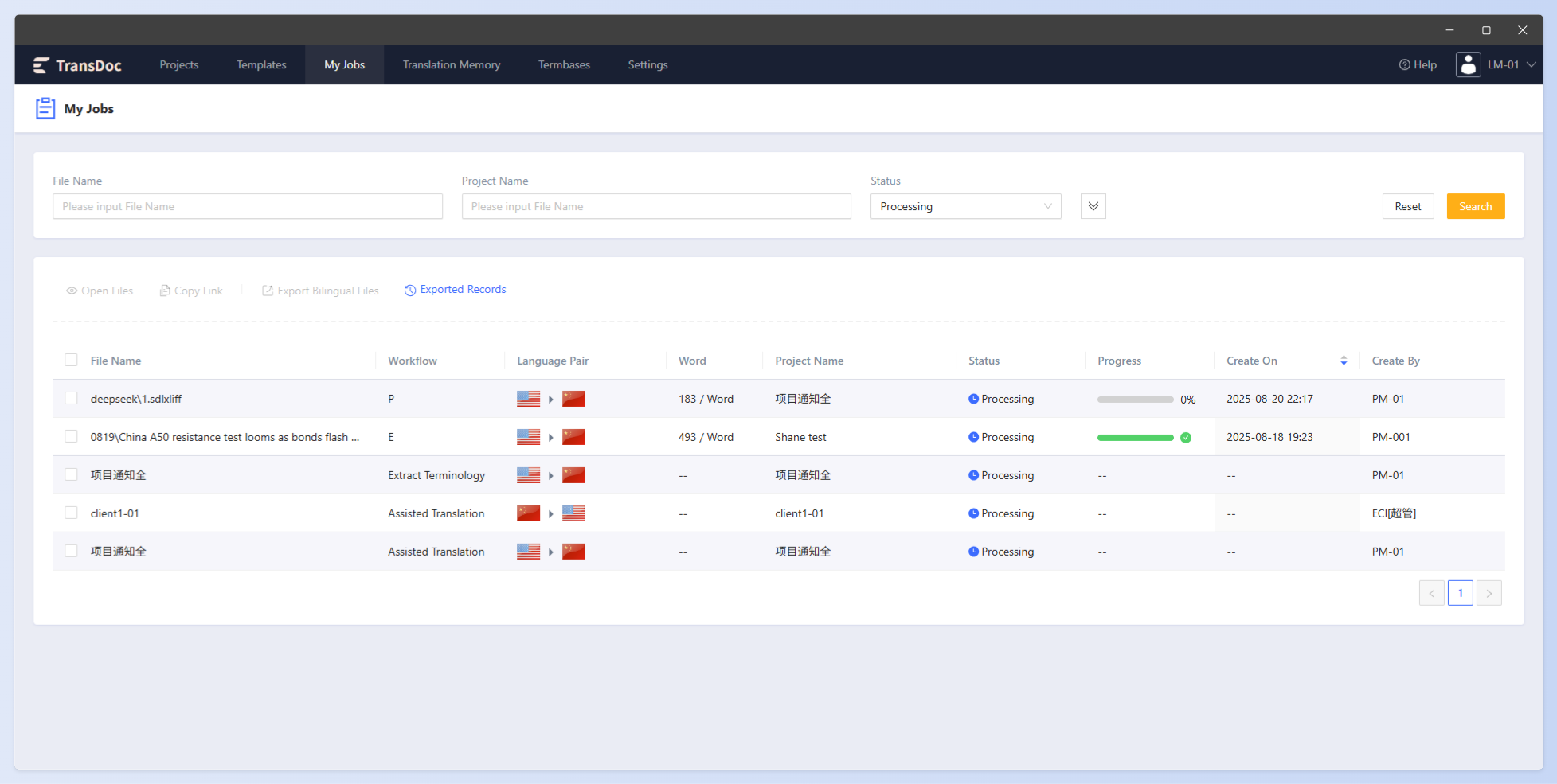
When you receive a translation task, you can click My Jobs in the menu bar to view related tasks and perform online file translation.
1.1 Online Translation
Single file edit page: Click the file name link to open the file's online editing page (as shown below)

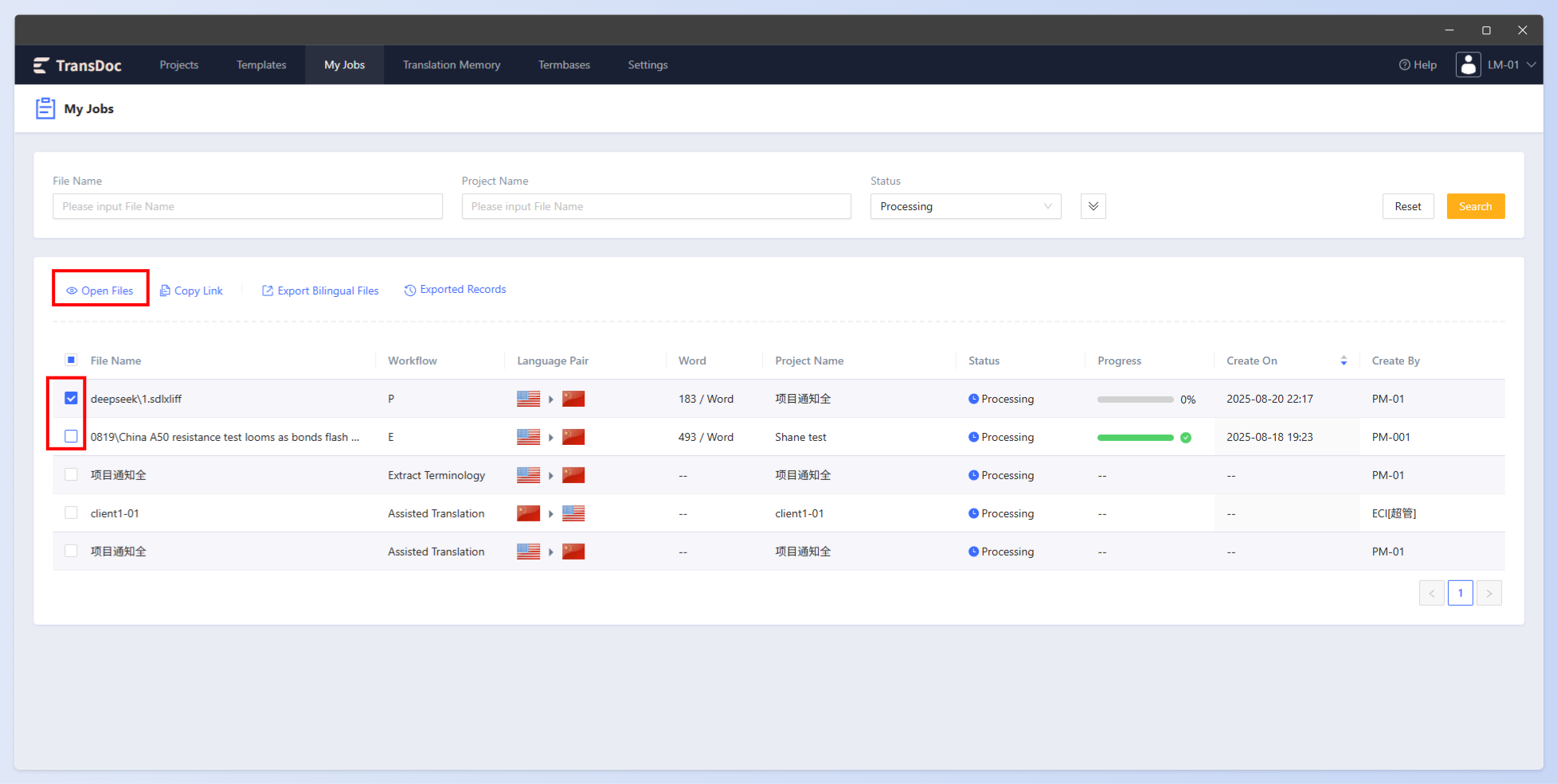
Multiple files edit page: Select multiple file by checking corresponding checkboxes, and click the Open Files button to open the online editing pages for multiple files (as shown below). Multiple files from different projects, workflows, or language pairs can not be opened simultaneously.
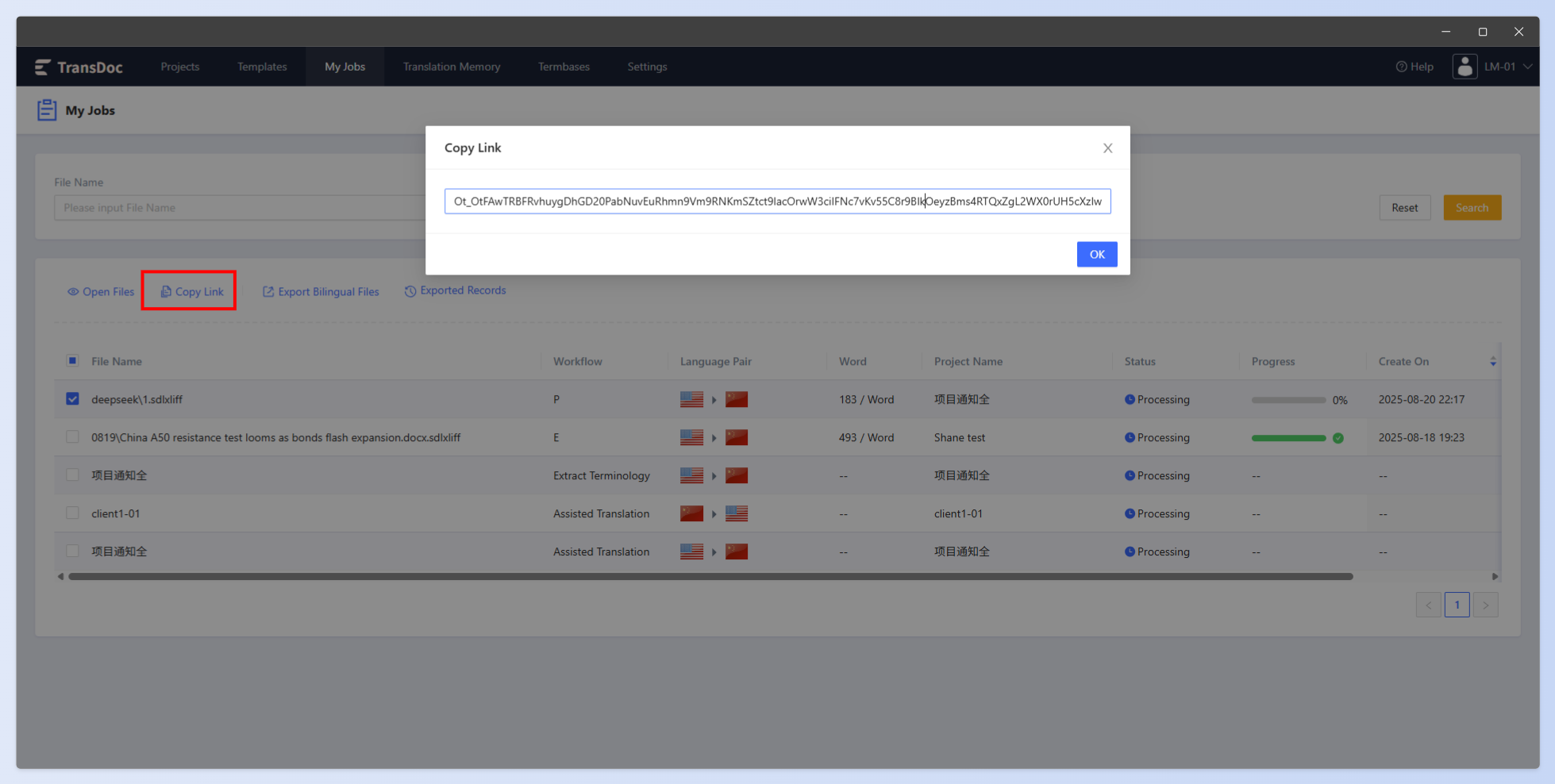
Copy Link: Select a file and click the Copy Link button to pop up the share link window (as shown below).
1.2 Export Bilingual Files
When the PM enables the permission for linguists to export bilingual files, linguists can export the online files as bilingual files.
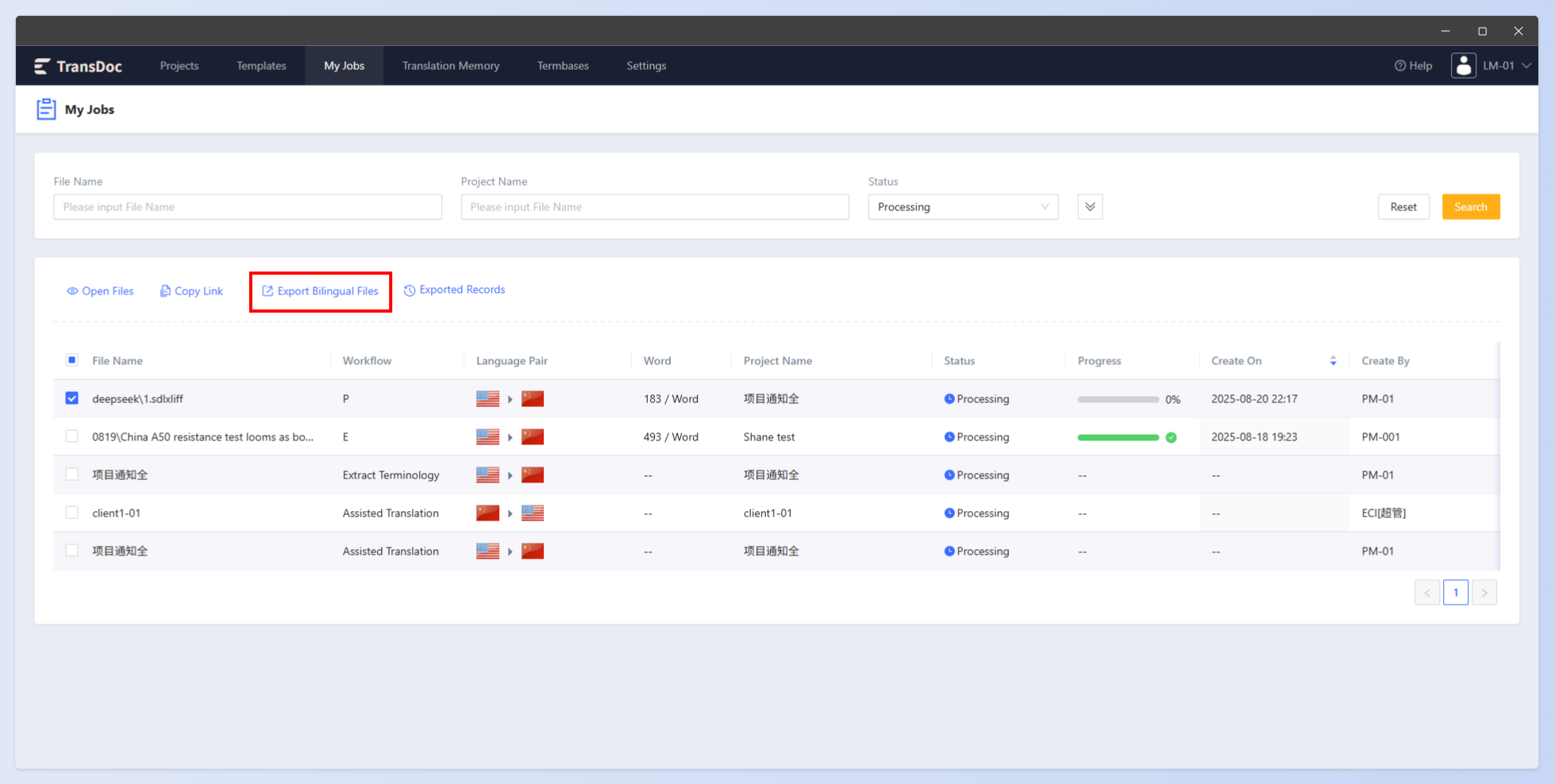
Select the files to export and click the Export Bilingual Files button to export bilingual files (as shown below).
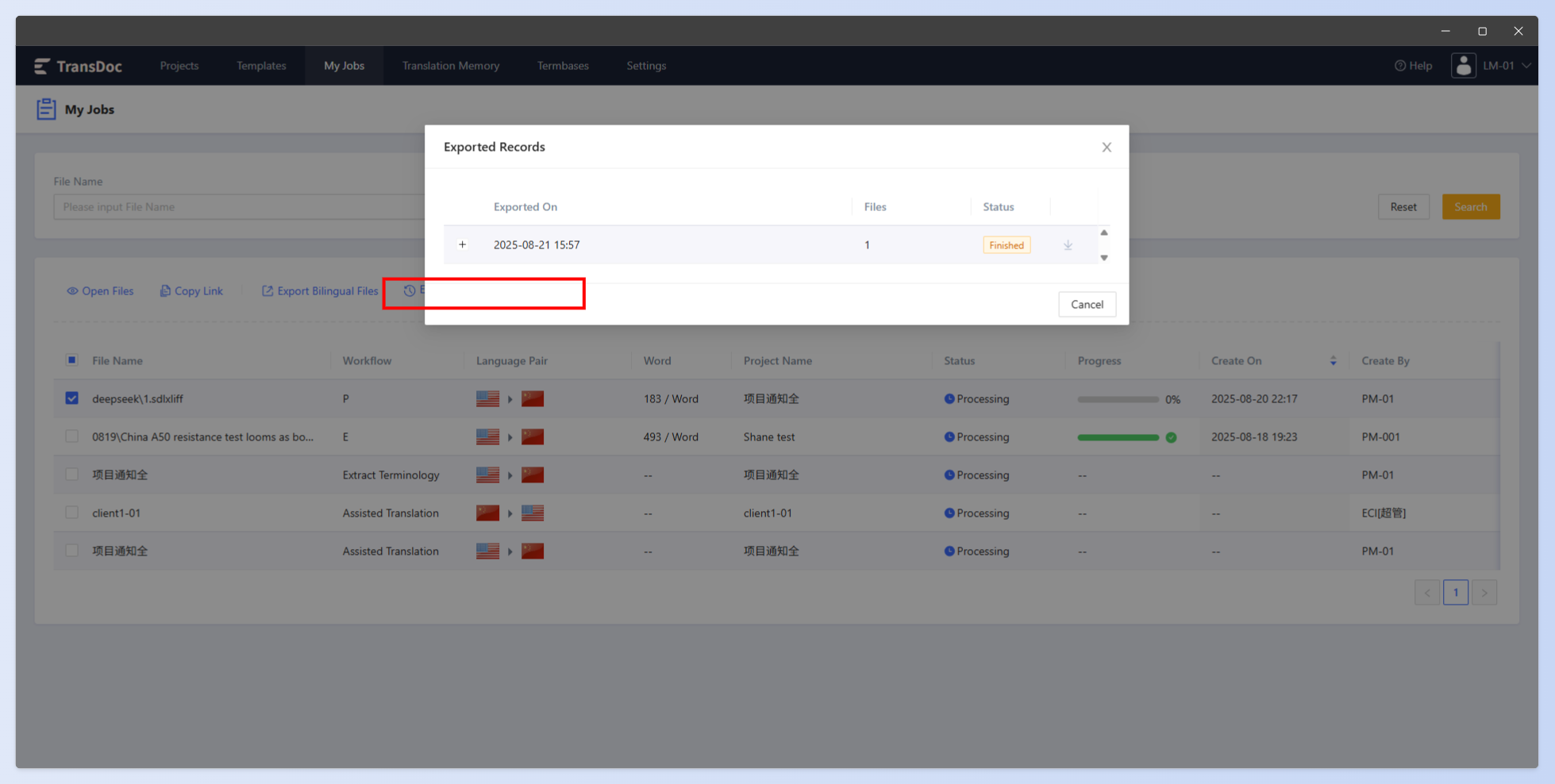
Click the Exported Records button, the system will pop up the Export Records window (as shown below). Click the download icon on the right to download the bilingual file.
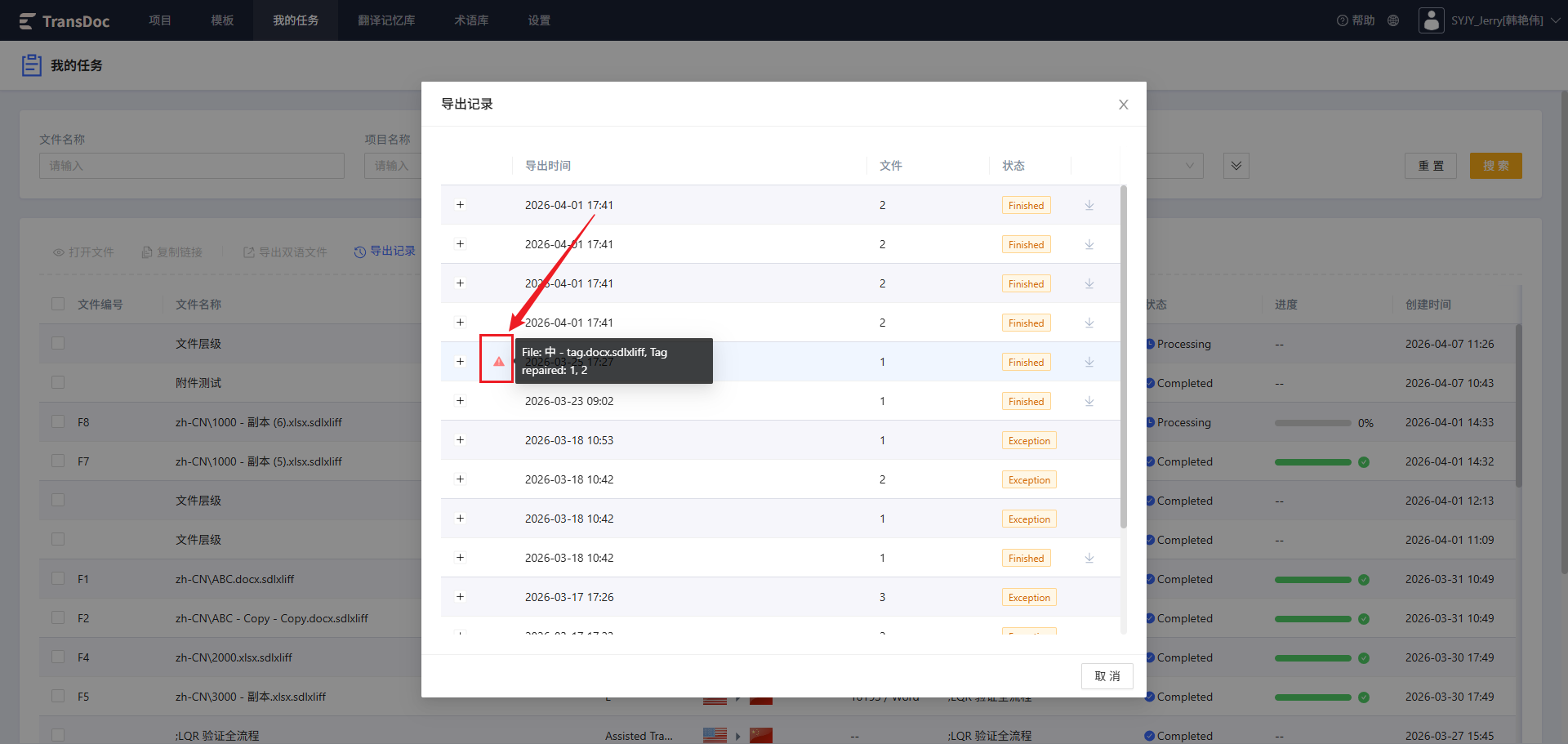
When exporting files, if the translation contains unreasonable tags, the system will automatically fix them to ensure the file can be exported, and will display the fixed segments in the interface.
1.3 Reassign
Users with the Vendor role can assign tasks that the PM sent to them to their own sub-users.
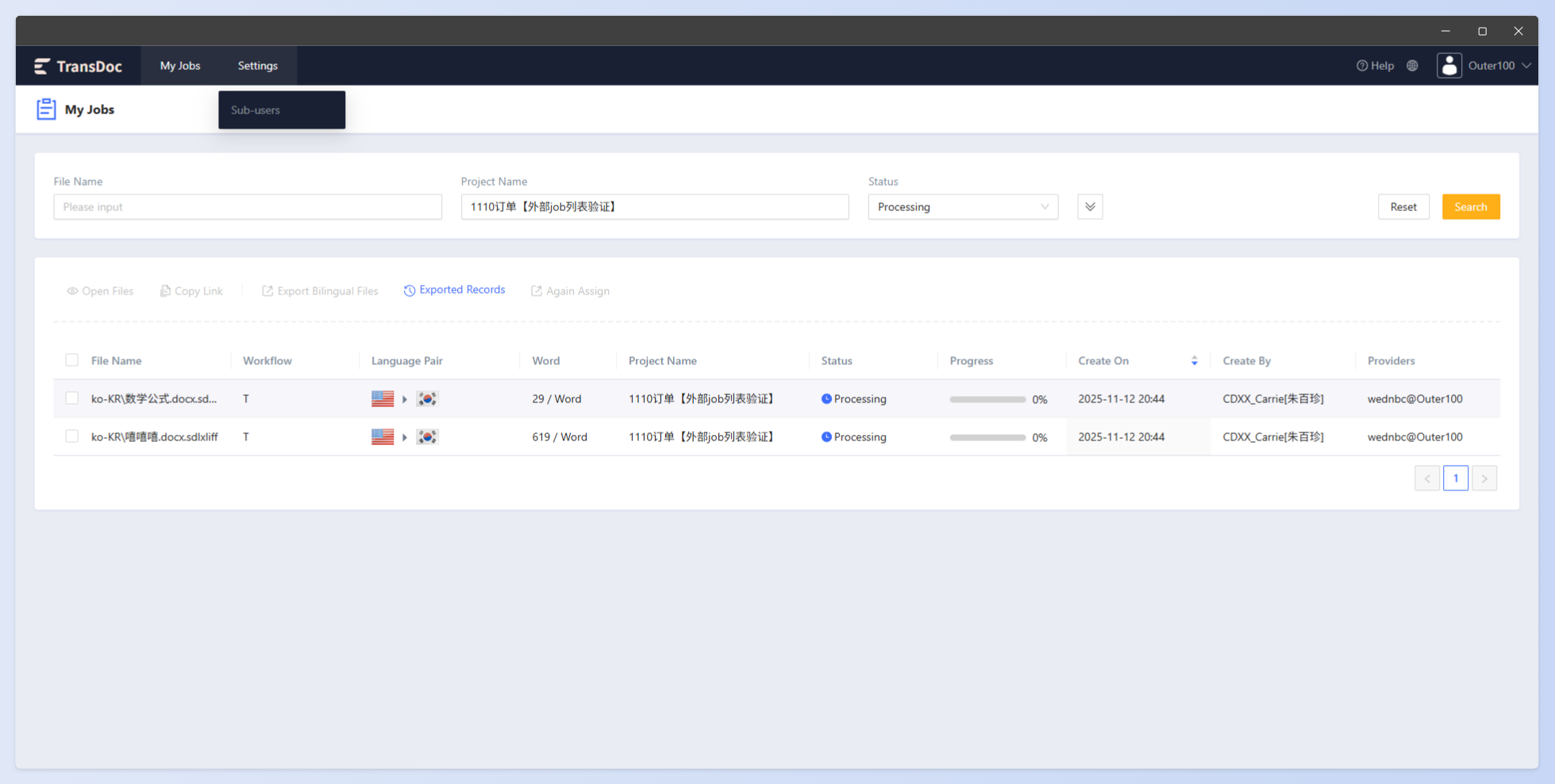
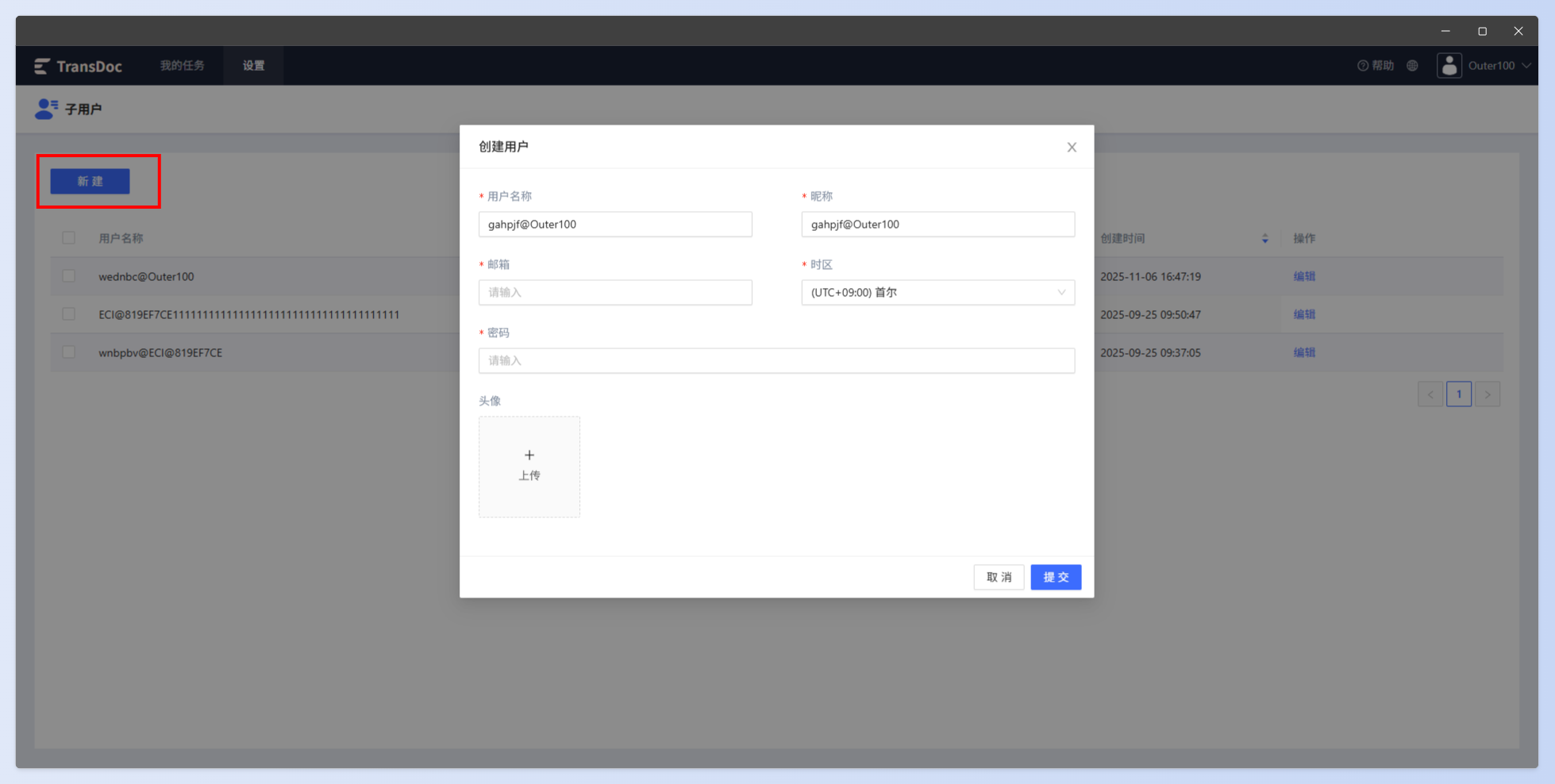
Create a sub-user: click the Settings button to open the Sub-User page, click the Create button to pop up the create user page, fill in the user information according to the requirements, and click Submit when finished.
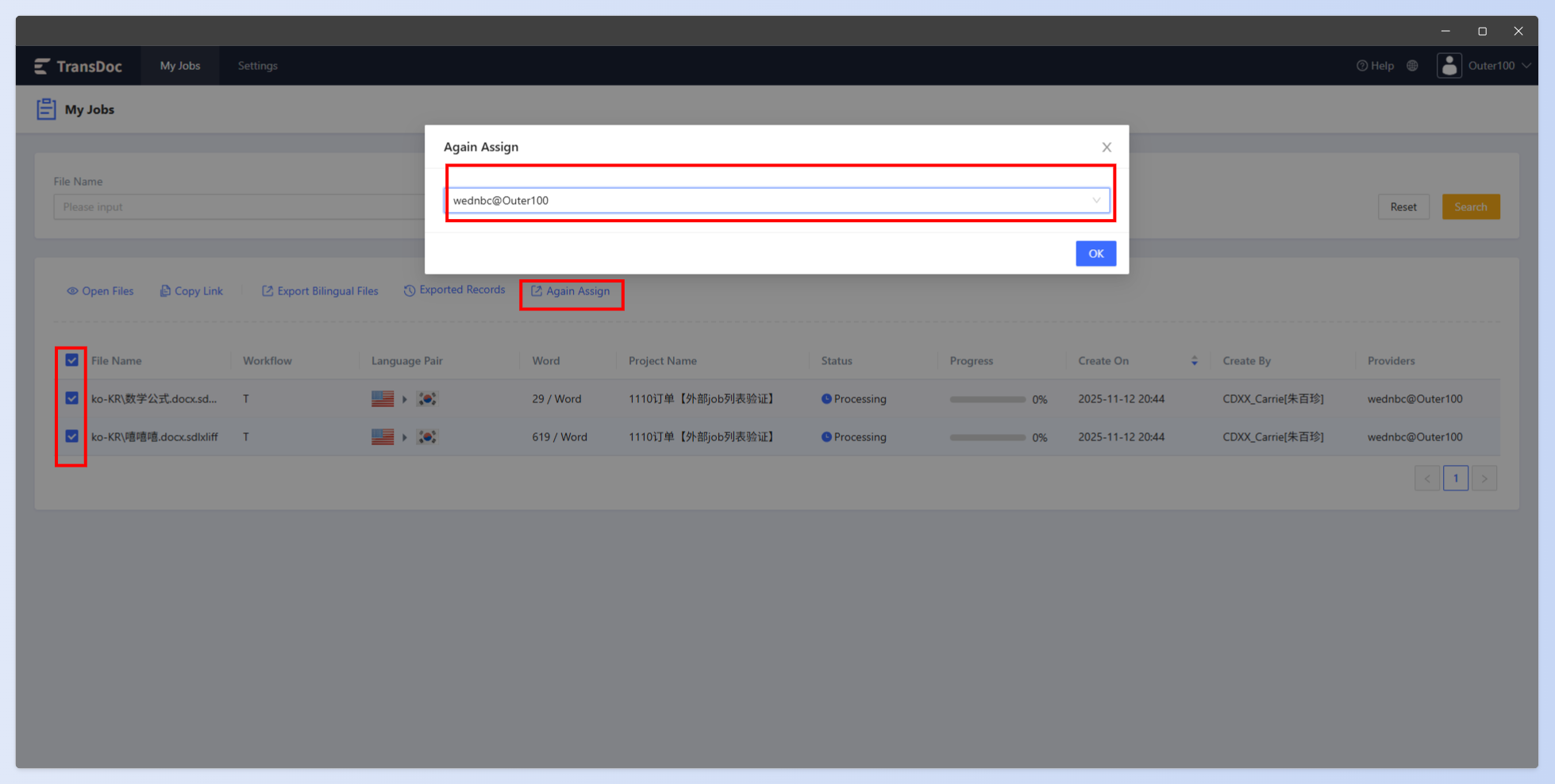
To reassign a task, select the files you want to assign to the sub-user, click the Again Assign button. After reassignment, you can send the link https://transdoc.eciol.com/ to the sub-user, who can then logs to process the task.