1 Settings
更新: 2026/8/21 字数: 0 字 时长: 0 分钟
1.1 Pre-Translate
Parameters are set when uploading online file for conversion. Each time an online file is uploaded, the system will perform bilingual file conversion, pre-translation, MT operations, etc. based on the settings.
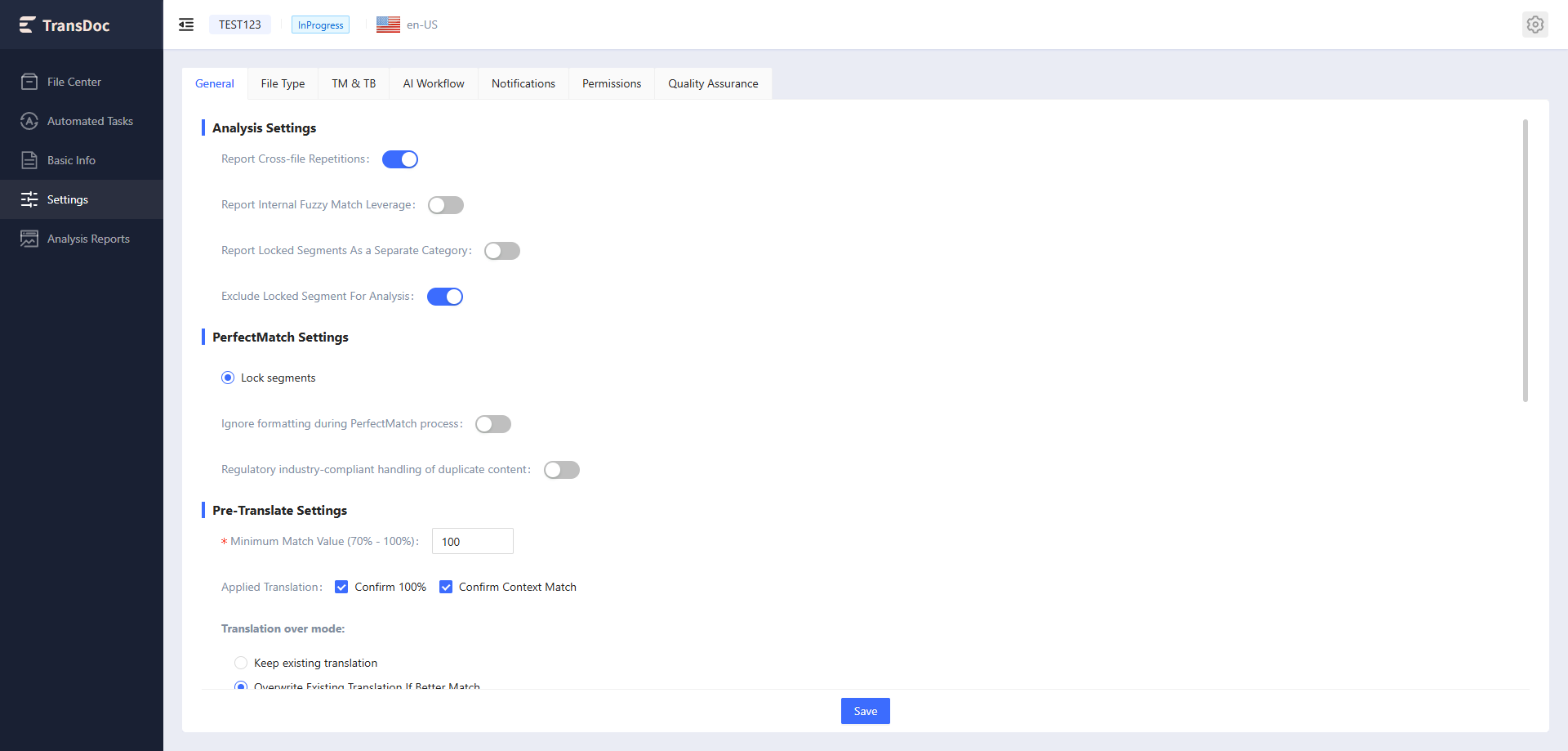
1.1.1 Analysis Settings
- Report repetitions across files: Allow cross-file repetitions
- Clear fuzzy matches within reports: Allow high fuzzy matches within files
- Report locked segments as a separate category: Exclude locked segments during parsing
- Exclude locked segments during analysis: Exclude locked segments from analysis
1.1.2 Perfect Match Settings
- Lock segments:Enabled by default and cannot be changed.
- Ignore formatting during Perfect Match process: When enabled, formatting differences between source and target will be ignored during calculation or application of Perfect Match.
- Compliant processing method of repetition content: The repetition segments should be processed in compliance with regulatory requirements, ensuring content consistency, traceability, audit records, and risk control.
1.1.3 Pre-translation Settings
- Minimum match rate: 70-100%
- Apply translation:
- Confirm 100%: Change the status of 100% match segments to confirmed
- Confirm context match: Change the status of context match segments to confirmed
- Translation overwrite mode:
- Keep existing translation
- Overwrite existing translation when a better match is found: Overwrite if a better translation is available
- Overwrite existing translation when a better match is found: Overwrite existing translation if a better translation is available
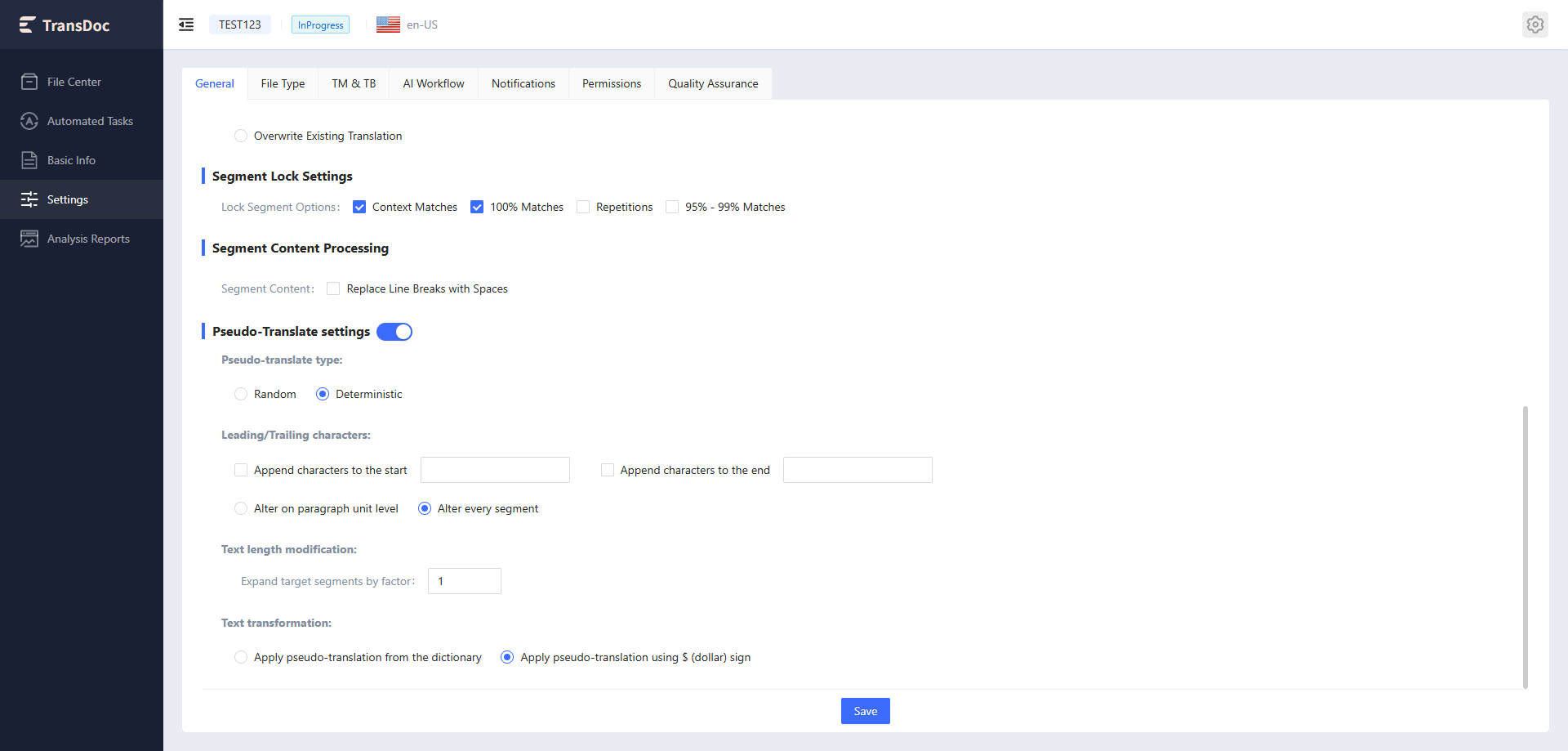
1.1.4 Segment Lock Settings
Lock segment options:
- Context match: Check this option to lock segments in this range
- 100% match: Check this option to lock segments in this range
- Repetitions: Check this option to lock segments in this range
- 95%-99% match: Check this option to lock segments in this range
1.1.5 Segment Content Processing
- Replace line breaks with spaces: Replace line breaks in the source text with spaces
1.1.6 Pseudo-translation Settings
- Pseudo-translation type: Choose between random or deterministic;
- Leading and trailing characters: Set characters to add at the beginning or end. You can choose whether to add them at the paragraph level or the segment level.
- Text length modification: Supports adjusting text length. Input a number, e.g., 1.3 means increasing length by 30%.
- Text transformation: Supports pseudo-translation using an application dictionary or dollar signs
1.2 FileType
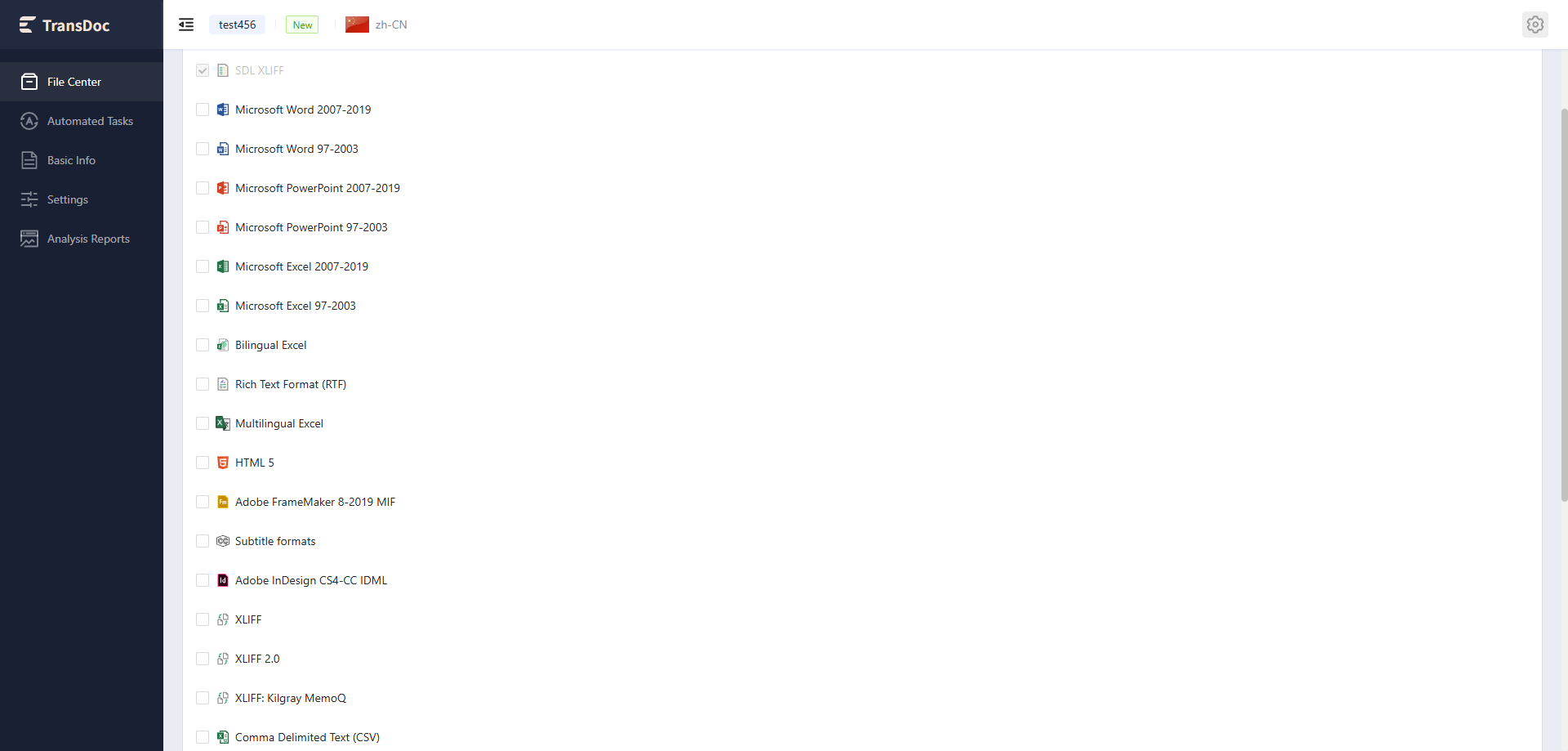
File parser settings. Uploaded files need to be configured with file content extraction rules through the file parser. Currently fffffffvisual configuration is supported for some file formats.
The original file formats currently supported by the system
SDL XLIFF Microsoft Word 2007-2019 Microsoft Word 97-2003 Microsoft PowerPoint 2007-2019 Microsoft PowerPoint 97-2003 Microsoft Excel 2007-2019 Microsoft Excel 97-2003 Bilingual Excel Rich Text Format (RTF) Multilingual Excel HTML 5 Adobe FrameMaker 8-2019 MIF Subtitle formats Adobe InDesign CS4-CC IDML XLIFF XLIFF 2.0 Comma Delimited Text (CSV) Text XLIFF: Kilgray MemoQ Portable Object Markdown JSON XML 2: Any XML PDF Adobe FrameMaker 8-2020 MIF V2 XML 2: OASIS DITA 1.3 Compliant Microsoft Visio
1.3 TM&TB
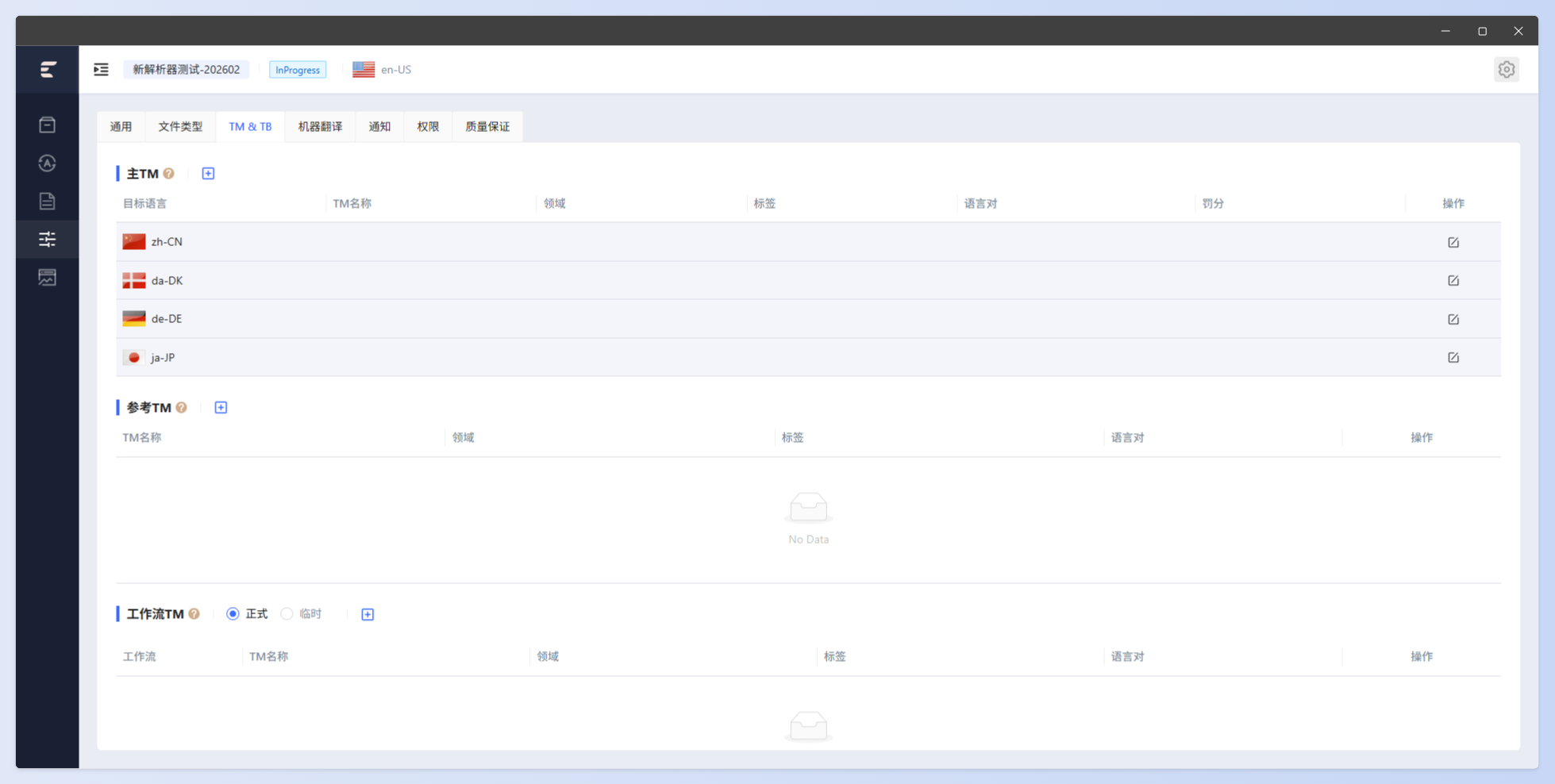
This page allows you to adjust the TM and TB settings for the project.
The interface is as follows:
1.3.1 Master TM
Master TM refers to the main TM, used for analysis and calculation during file conversion, as well as automatic translation. During the online translation process, the Master TM serves as a read-only TM and can be queried on the online page. Therefore, the Master TM is a mandatory TM.
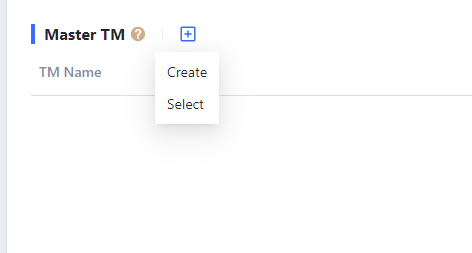
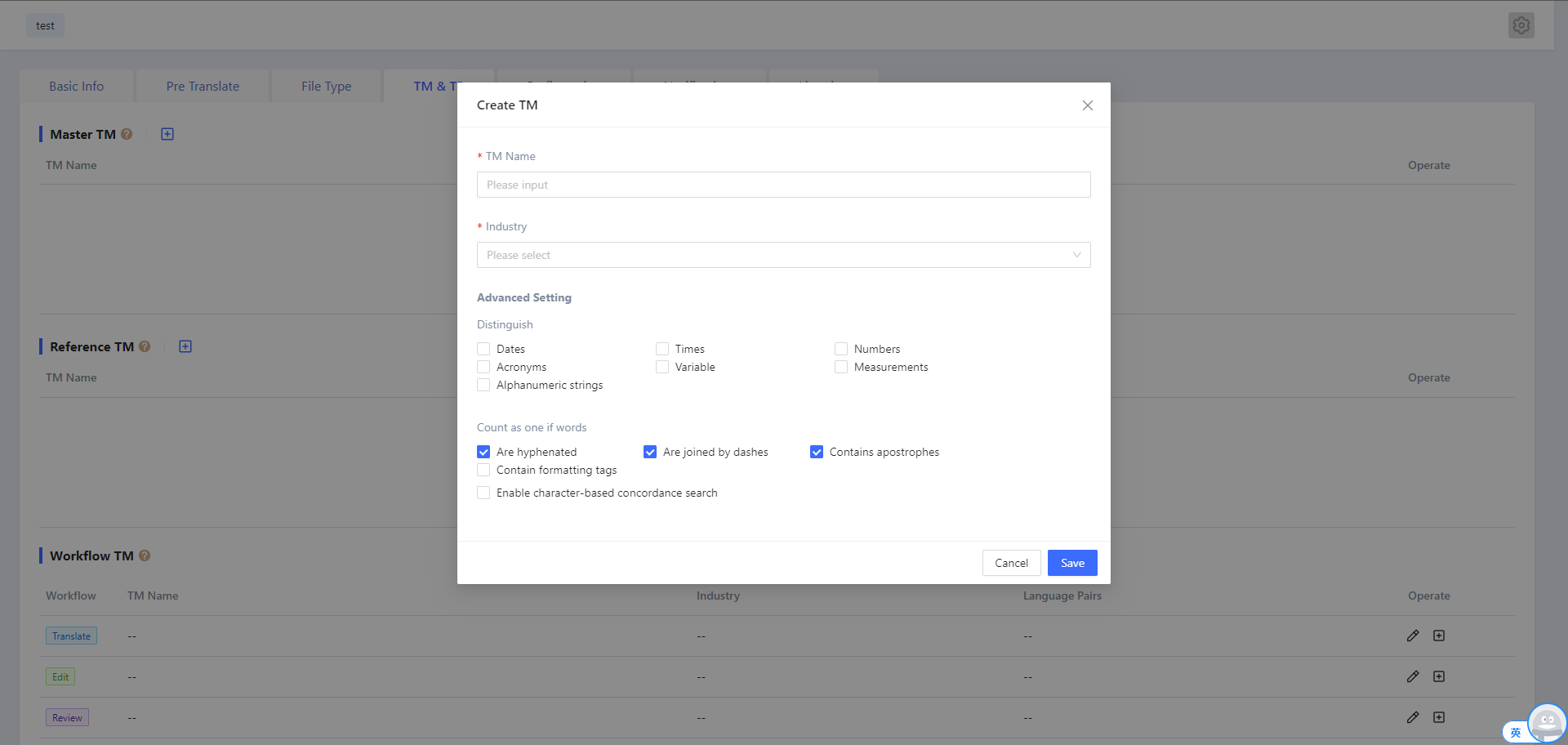
After clicking the "Create" option, a new TM pops up. You need to enter the TM name, domain, TM settings, and other information. After entering, click "Save" to complete the creation. When creating a new TM, the default language is based on the project language.
Click the Select button to choose an existing TM from the popup. By default, the list is filtered to show TMs created by the current user, with an option to view all TMs.
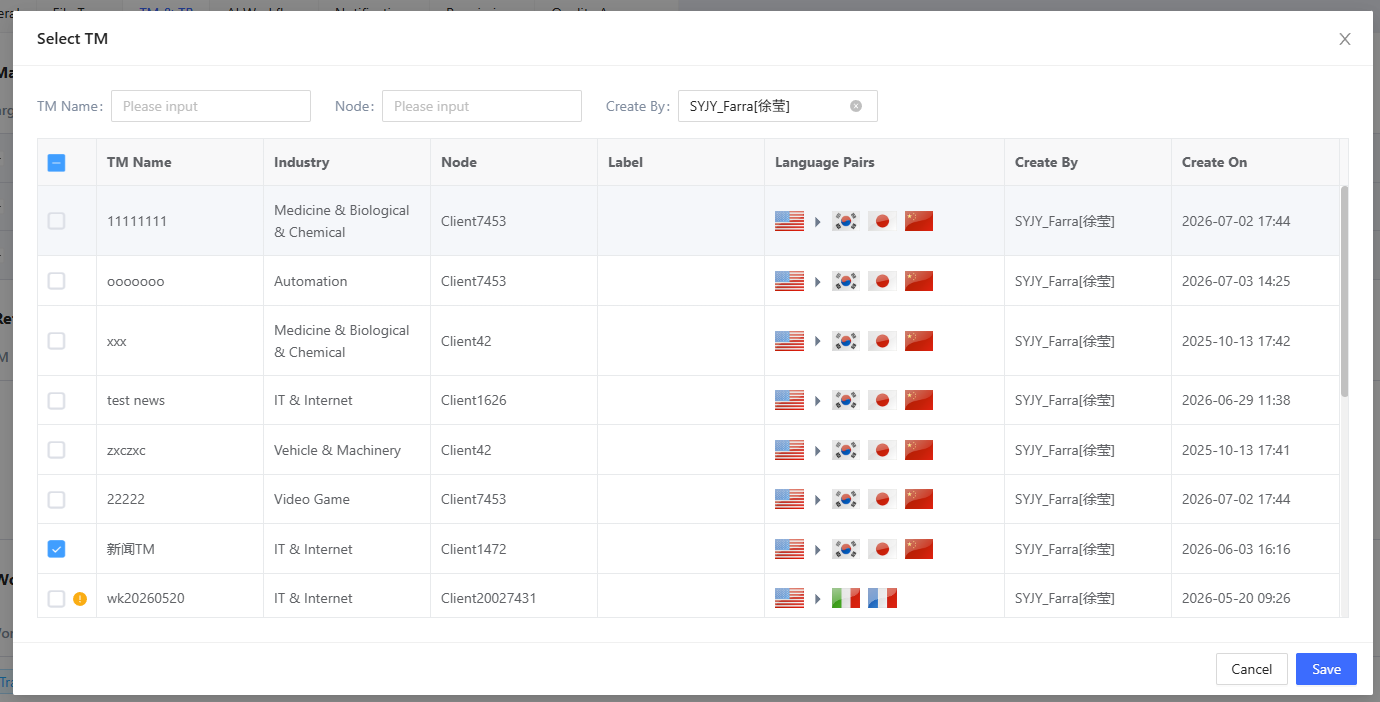
The system currently supports selecting TMs with the same source language as the project. If a TM with a different target language is selected, the target language can be automatically added after the TM selection is confirmed.
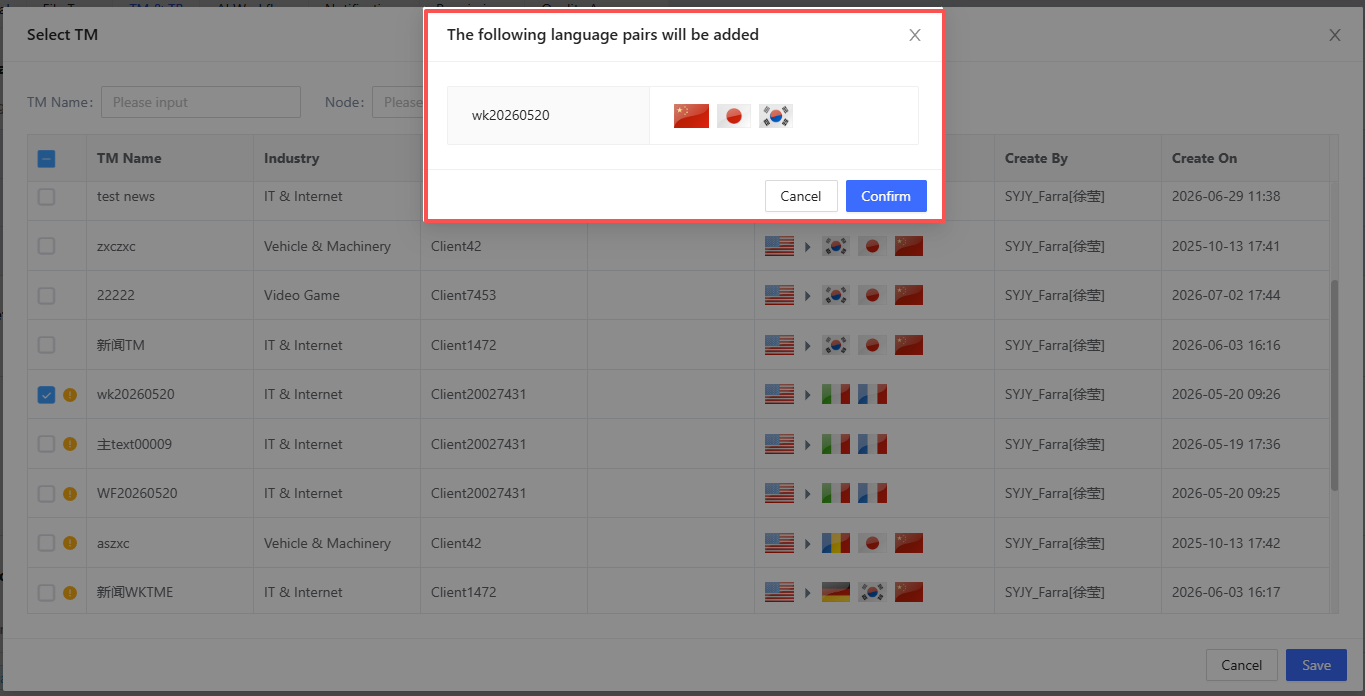
Note: Language assets can be shared among different clients within the same organization, and the list page displays the field indicating the client to which they belong.
After saving the selected TM, you can delete it from the list or adjust the order of multiple TMs using the pinning function. The order of the Master TM determines the priority when the match rate is the same.

When there are multiple Master TMs, a penalty strategy can be set.

After clicking the value under the Penalty column, you can configure settings for the current TM.
Language TM selection: For languages that need a separate TM, you can select the TM for an individual language by clicking the button beside the language pair.

1.3.2 Reference TM
Reference TM refers to the reference translation memory, with no language pair restrictions. All TMs owned by the user can be set as Reference TMs, providing query functionality as read-only TMs during online editing. Reference TMs can be added in the same way as the Master TM.
1.3.3 Workflow TM
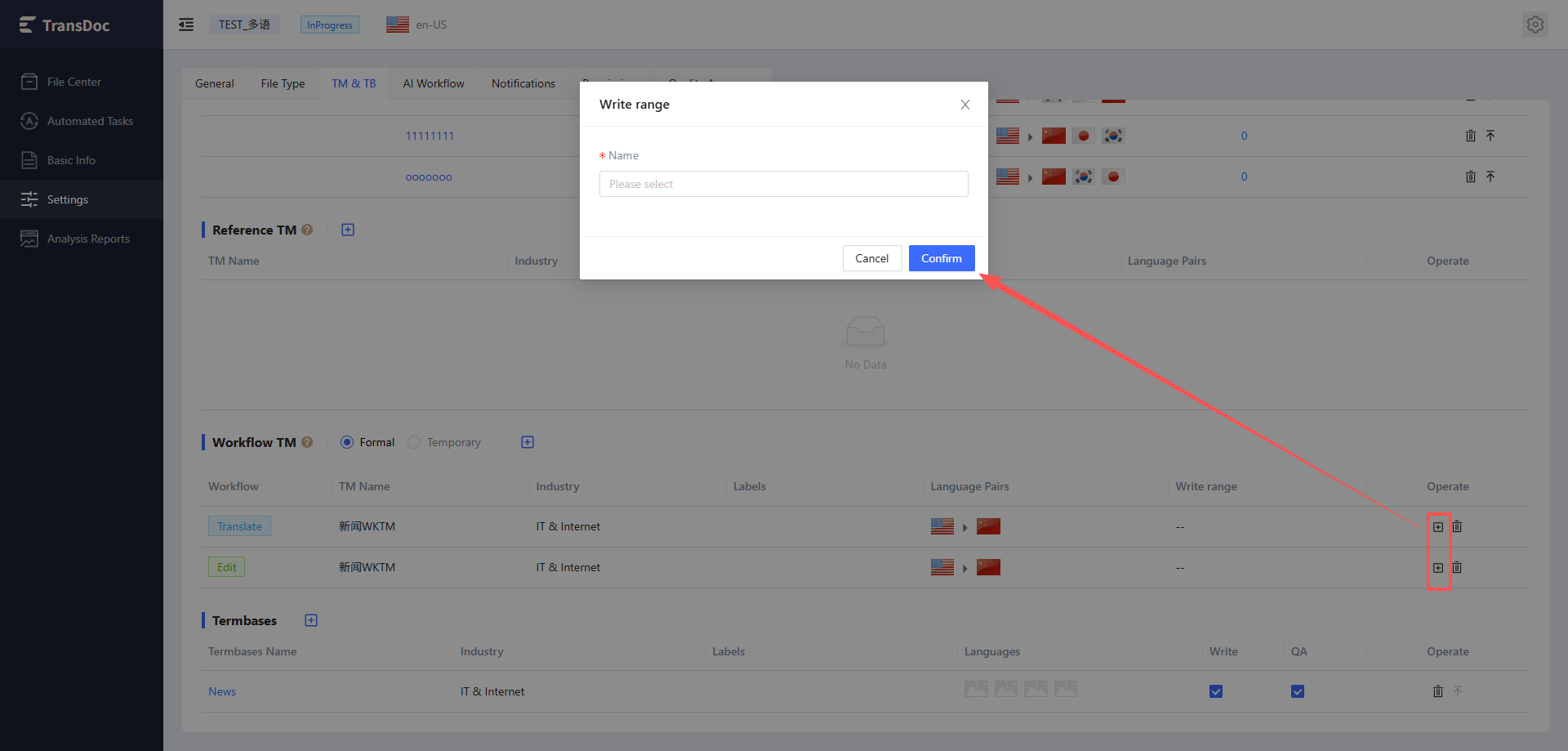
Workflow TM refers to the workflow TM, and can be set separately for Translate/Edit/Proof steps. Language pair restrictions apply when selecting, consistent with the rules for Master TM. Workflow TMs provide query and write functionality as read-write TMs for linguists during online editing. The corpus data generated during the linguist's work will be written into the Workflow TM.
- There are two methods for adding a Workflow TM:

▲ Formal
In this mode, the Workflow TM is added in the same way as the Master TM. You can associate it by creating a new TM or selecting an existing one.
▲ Temporary
This is an option for creating a temporary TM. When checked, all workflow nodes will generate a temporary TM. The temporary TM will not appear on other TM list pages, and it will be closed when the project is closed.
- New Linguist TM
Set up a dedicated Workflow TM for new linguists. During the translation process, all content translated by the new linguist will be written only to this dedicated TM. The new linguist does not have permission to write to other Workflow TMs, but can still access and read other Workflow TMs.
TM write priority for linguist s: Dedicated TM > General TM.
If a dedicated TM is configured for a linguist, translation data will only be written to the dedicated TM and will not be written to the general TM.

1.3.4 Termbases
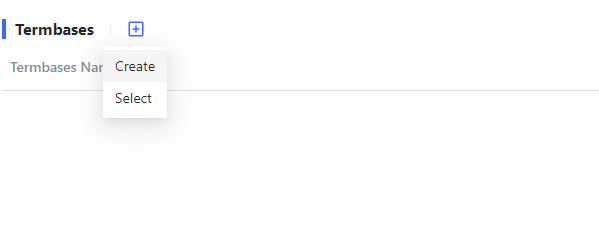
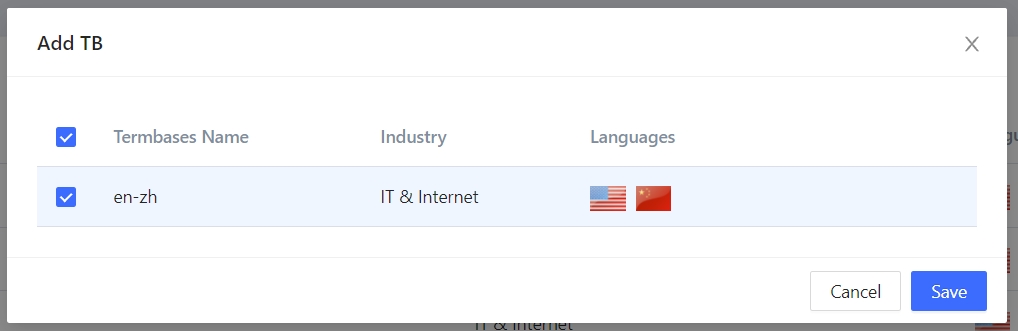
A Termbase is a term database that provides term lookup functionality during online editing. Language pair restrictions apply when selecting, with the same restriction rules as Master TM. It also supports creating an empty termbase for association. After association, write permissions and QA permissions can be set.

1.4 Machine Translation
Machine translation refers to the machine translation of files performed during the pre-translation phase. Different settings can be configured based on the actual project situation, and settings can be made according to language pairs.
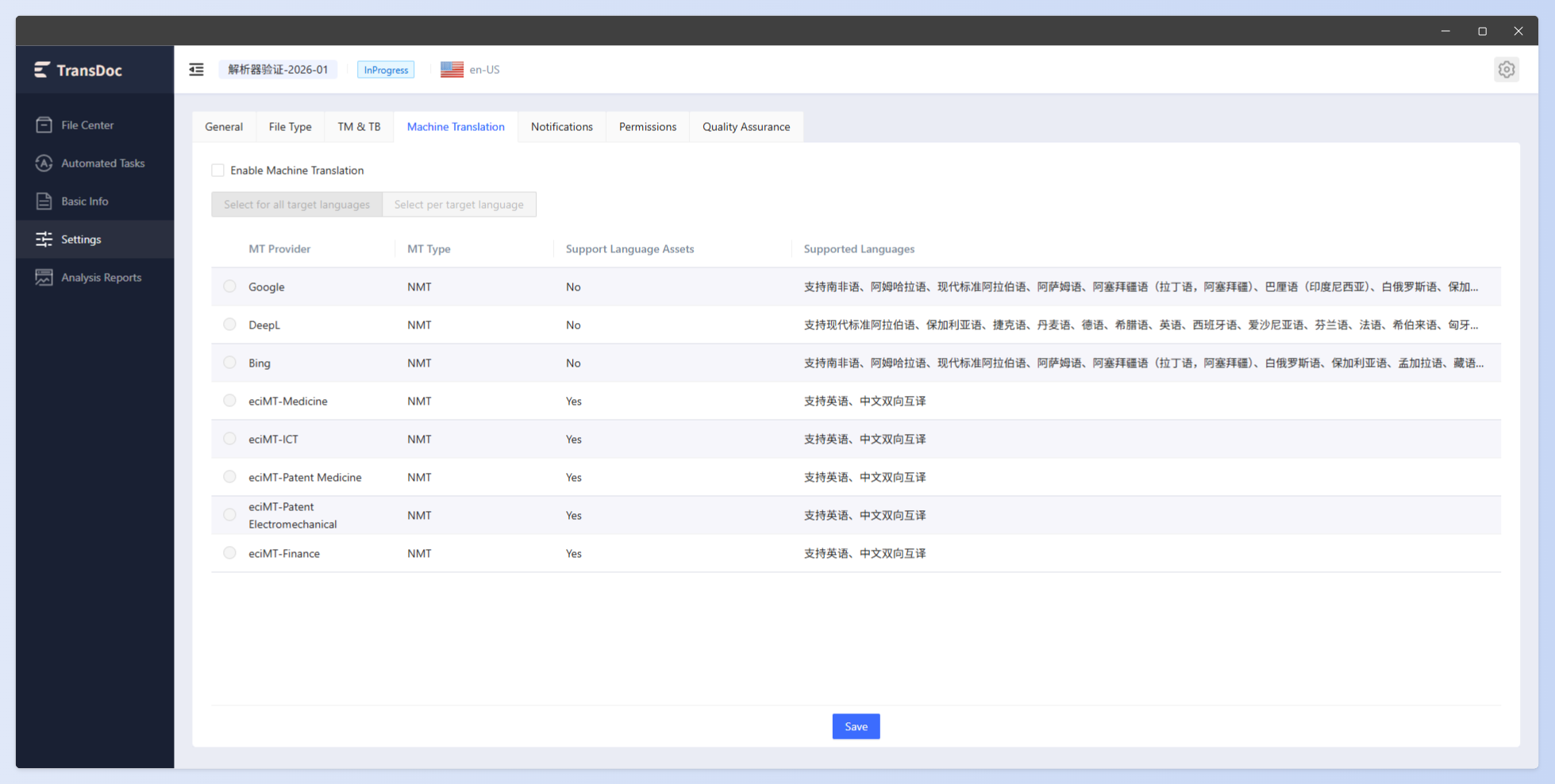
To use machine translation, it is recommended to set the Translation Memory (TM) match rate threshold to 75%.Example:1. When the TM match rate threshold is set to 75%:Text segments with a match rate below 75% will be processed by machine translation (MT).Text segments with a match rate of 75% or above will use TM matches.2. When the TM match rate threshold is set to 100%:Text segments with a match rate below 100% will be processed by machine translation (MT).Text segments with a match rate of 101% or above will use TM matches.
Google: Currently supports most languages DeepL: The DeepL API supports approximately 55 possible glossary language pairs Bing: Currently supports most languages ECI Medical: ECI's self-developed MT engine for the medical field ECI Finance: ECI's self-developed MT engine for the financial field ECI Smart Manufacturing: ECI's self-developed MT engine for the smart manufacturing field ECI Patent - Electromechanical: ECI's self-developed MT engine for the patent electromechanical field ECI Patent - Medical: ECI's self-developed MT engine for the patent medical field
Currently, the machine translation tools Google, DeepL, and Bing are called via API, with costs covered by the group; only one MT tool can be selected to perform translation application.
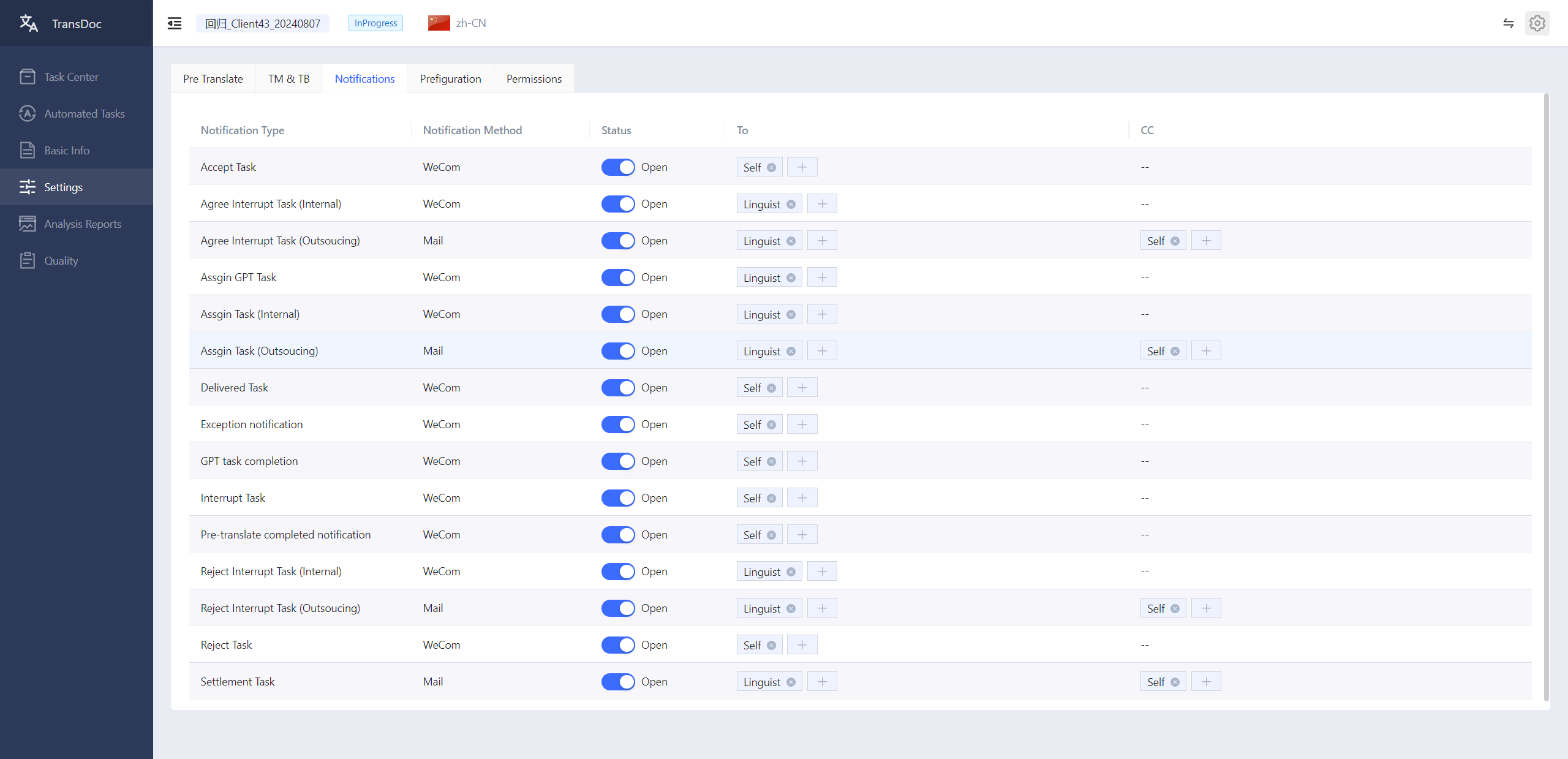
1.5 Notifications
Message notification settings refer to the system prompting relevant personnel to perform the next steps based on certain operations. Currently, notifications are sent through WeCom and email. By default, WeCom is used fro internal employees, and email is used for external resources. In the message recipient and CC fields, you can select yourself, linguists, and other PMs.
1.6 Permissions
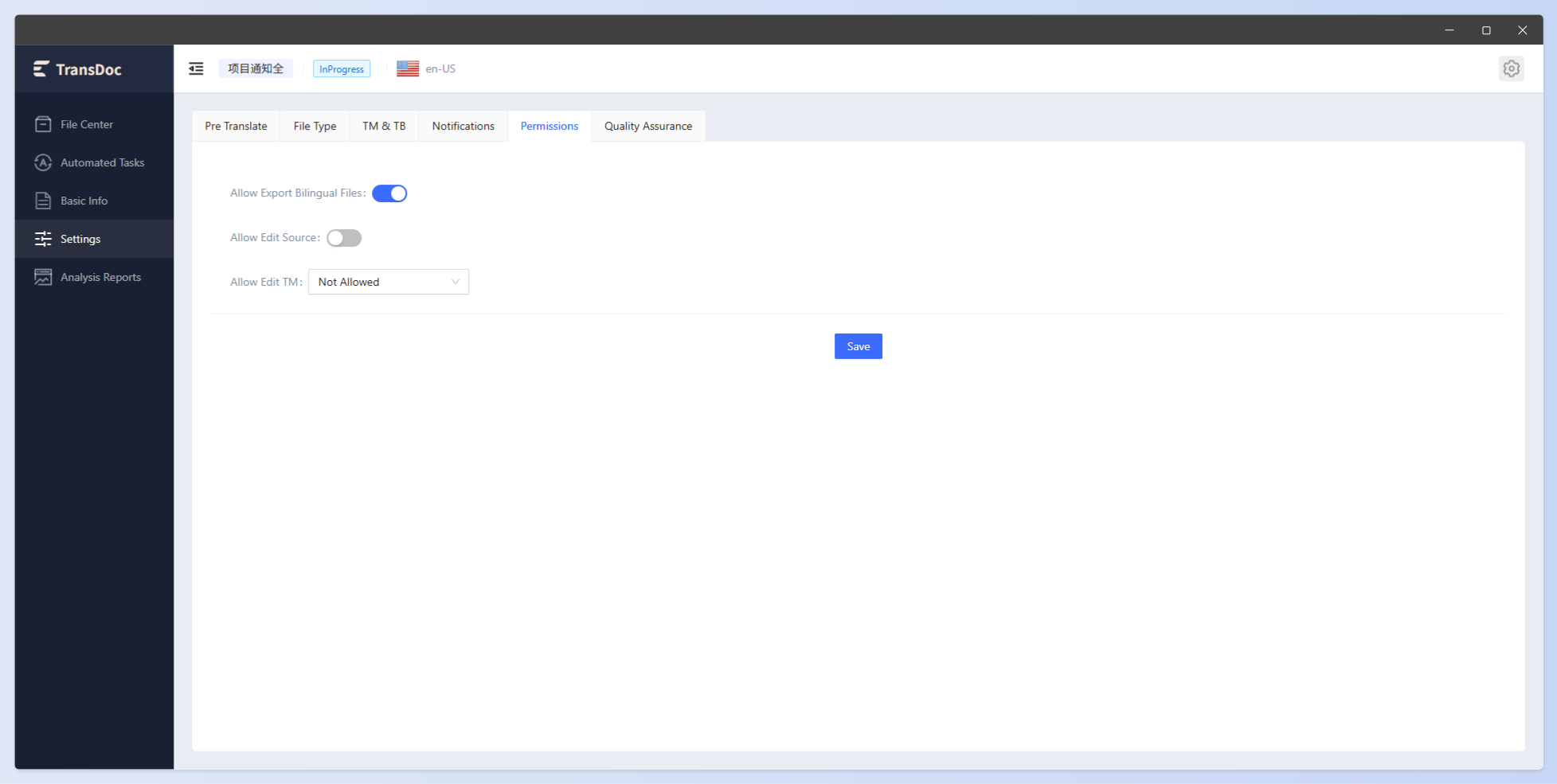
Allow Export Bilingual Files
Allow linguists to download bilingual files
Allow Edit Source
Allow linguists to edit the source text
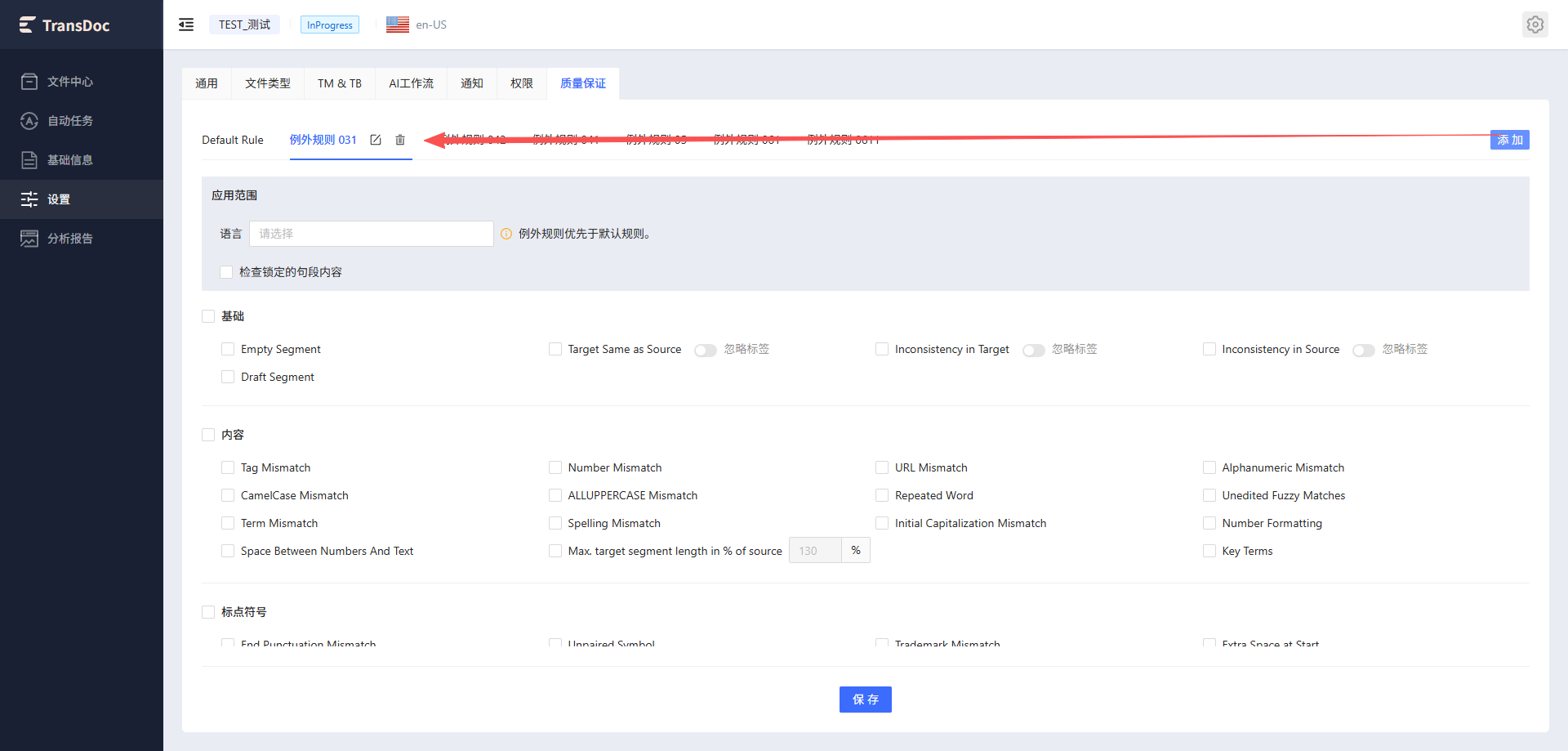
1.7 Quality Assurance
QA check item settings, which can be configured based on project or client requirements
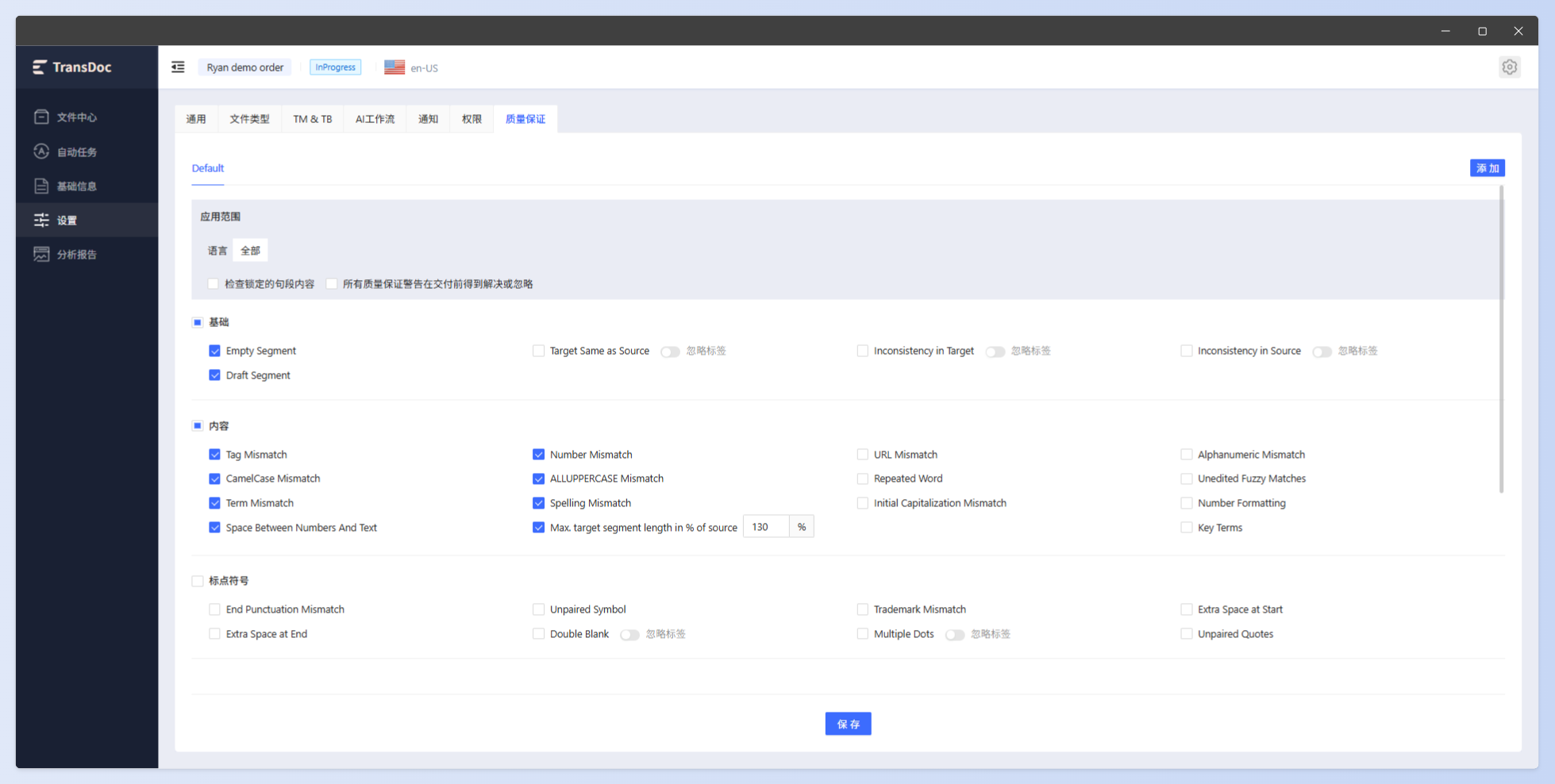
- Check locked segments: When checked, QA checks will include locked segments.
- All quality assurance warnings must be resolved or ignored before delivery: When checked, linguists must correct or ignore all errors detected by QA before delivering files, otherwise the files cannot be submitted.
- The meanings of the check items are as follows:
| No. | Quality Check Type | Description |
|---|---|---|
| 1 | Empty Segment | Checks whether the current segment has an empty translation. |
| 2 | Target Same as Source | Checks whether the source and target content are identical. |
| 3 | Inconsistency in Target | Same source but different target. |
| 4 | Inconsistency in Source | Different source but same target. |
| 5 | Tag Mismatch | Checks for tag inconsistencies, including missing tags, extra tags, inconsistent tag content, and inconsistent tag order. |
| 6 | Number Mismatch | Checks for number consistency between source and target. Numbers present in the source but missing in the target, or numbers absent in the source but appearing in the target. Checks bidirectionally, including the content and count of numbers. |
| 7 | URL Mismatch | Checks for inconsistencies in URLs between source and target. |
| 8 | Alphanumeric Mismatch | Checks whether alphanumeric words (combinations of letters and numbers) in the source and target match. Checks bidirectionally, including the count and content of such words. |
| 9 | CamelCase Mismatch | Checks whether CamelCase words (words containing two or more uppercase letters and at least one lowercase letter) in the source and target match. If a CamelCase word from the source is missing in the target, or a CamelCase word not in the source appears in the target. Checks bidirectionally, including the count and content of CamelCase words. |
| 10 | All UPPERCASE Mismatch | Checks consistency of all-uppercase words between source and target. If an all-uppercase word from the source is missing in the target, or an all-uppercase word not in the source appears in the target. Checks bidirectionally, including the count and content of all-uppercase words. |
| 11 | Repeated Word | Checks for repeated words or phrases in the text. Example: which the data uploaded uploaded |
| 12 | Unedited Fuzzy Matches | Checks for unedited fuzzy matches. |
| 13 | Term Mismatch | Checks term consistency. If a word in the source appears in the termbase but the corresponding term in the target language is missing, an error is reported. |
| 14 | Spelling Mismatch | Checks for spelling errors in the target. |
| 15 | Initial Capitalization Mismatch | Checks for inconsistencies in initial capitalization between source and target. |
| 16 | Number Formatting | Checks whether the number formatting in the source and target is consistent. |
| 17 | Space Between Numbers And Text | Checks consistency of spaces between numbers and text in source and target. If a space from the source is missing in the target, or a space not in the source appears in the target. Checks bidirectionally. |
| 18 | End Punctuation Mismatch | Checks whether the end punctuation in the source and target is consistent. |
| 19 | Unpaired Symbol | For example, if parentheses appear in the source but are missing in the target. Note that different symbols may vary across languages. |
| 20 | Trademark Mismatch | Consistency check of trademarks between the source text and the translation. If a trademark in the source text does not appear in the translation, or a trademark not present in the source text appears in the translation. This is a bidirectional check, including the number and content of trademarks. |
| 21 | Extra Space at Start | Error if there is an extra space before the translation starts. |
| 22 | Extra Space at End | Error if there is an extra space after the translation ends. |
| 23 | Double Blank | When there are more than one consecutive spaces between two characters. |
| 24 | Multiple dots | When there are two or more consecutive duplicate punctuation marks. |
| 25 | Unpaired quotes | Check if there are unpaired quotation marks in the translation, e.g., if the source text contains '' but the translation does not. |
| 26 | Max. target segment length in % of source | Check if the translation length is greater or less than the source percentage. |
| 27 | Multiple Punctuations | Check if multiple punctuation marks appear consecutively in the translation. |
| 28 | Key Terms | Check key terms by comparing a sentence as a term with a segment of text from another sentence in the translation for consistency. |
| 29 | AI Check | New AI check item, which needs to be configured on the AI Workflow platform. AI quality check is triggered when submitting a task, each file is checked only once. The check result requires the translator to manually mark it as "Resolved" before submission. It consumes a certain amount of tokens, please use it reasonably based on project requirements. |
Additionally, different check items can be set for different languages.
- Click the Add button to add exception rule tags. The names can be edited.
- Then select the language(s) to be set in the page (multiple selections allowed), and set the rules individually.