1. Common Specifications Explanation
更新: 2026/8/21 字数: 0 字 时长: 0 分钟
1.1 Work Node Terminology Definitions
Translate node
Edit node
Consistency Check node
Proof node
Consistency Check 2 node
ICR (Client Review) node
ICRV (Client Review Verification) node
The system combines nodes into a series of workflows. The current system workflows include:
- Translate (Only T) workflow: Suitable for projects that only require online translation
- Translate->Edit workflow: Suitable for projects that require online translation plus editing
- Translate->Edit->Review workflow: Suitable for projects that require online translation, editing, and proofreading
- Edit workflow: Suitable for projects that only require editing
- Edit->Review workflow: Suitable for projects that require online editing and proofreading
- Review workflow: Suitable for projects that only require proofreading
◆ In addition to the above common workflows, other workflows can be customized

2. Projects
更新: 2026/8/21 字数: 0 字 时长: 0 分钟
2.1 Project List
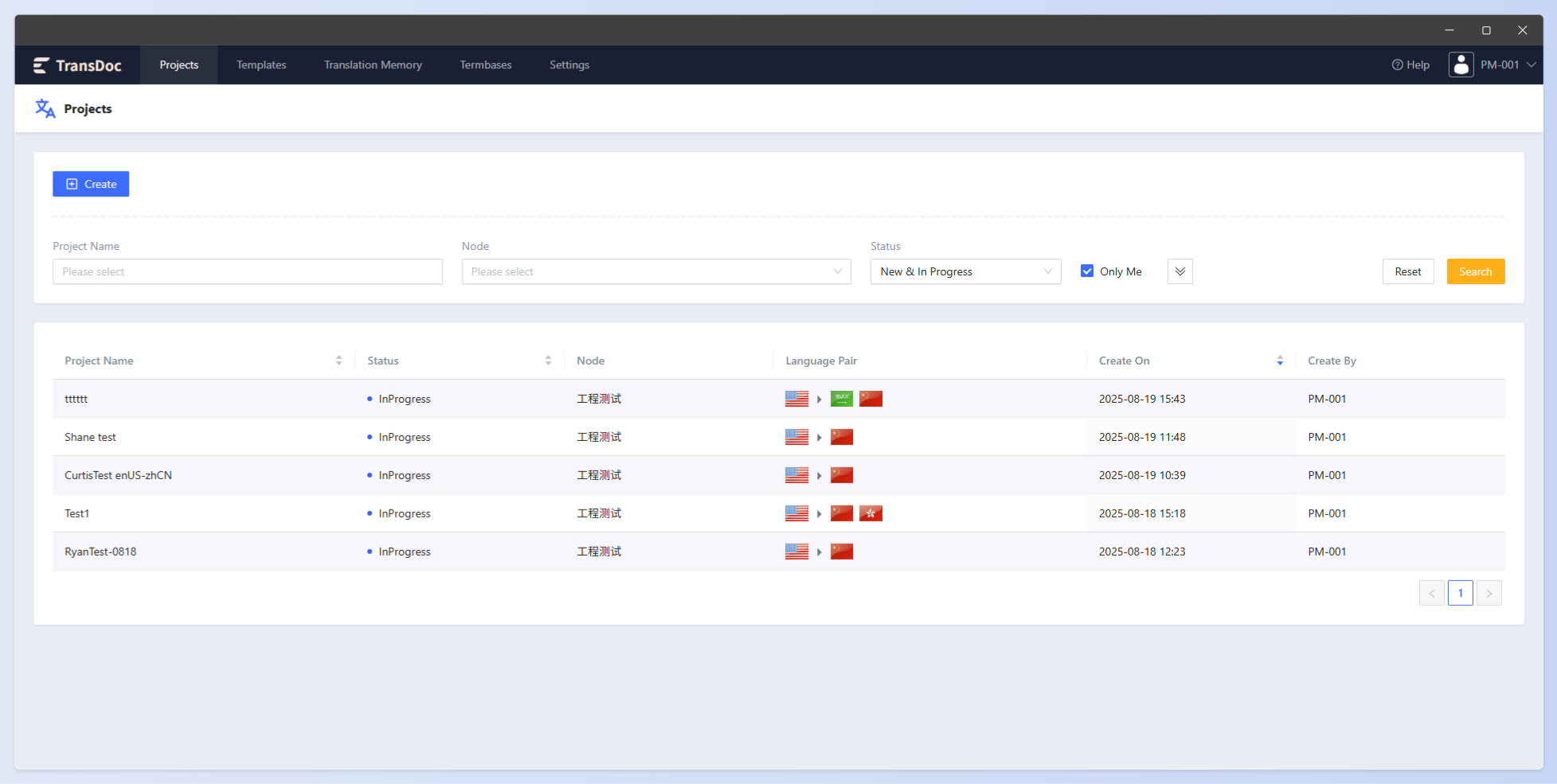
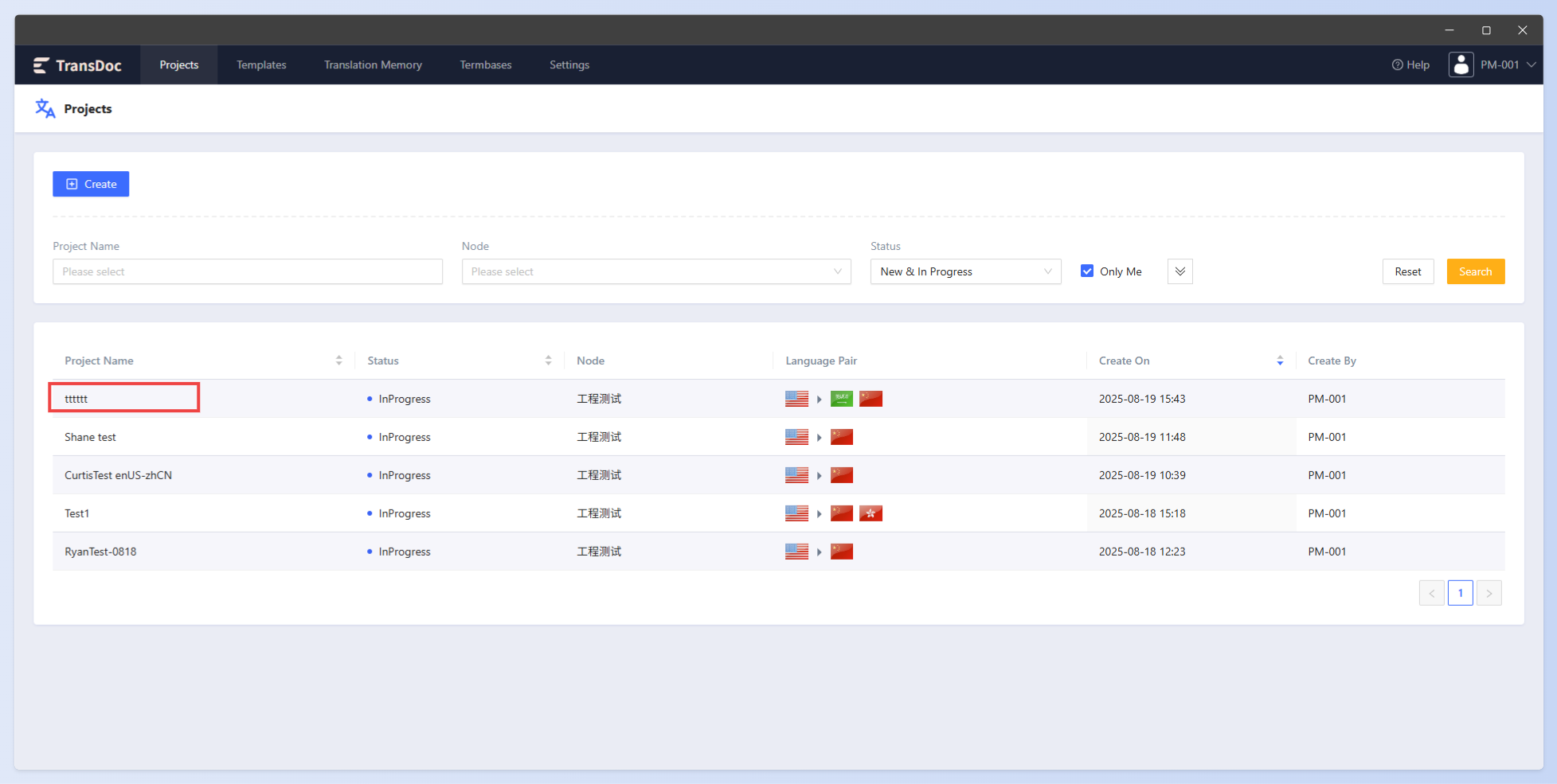
Click Project in the menu bar to enter the project list. The project list displays information such as project name, status, node, language pair, creator, and creation time. It also supports filtering by options such as name, node, status, and whether to only view self-created projects.
2.2 Create Project
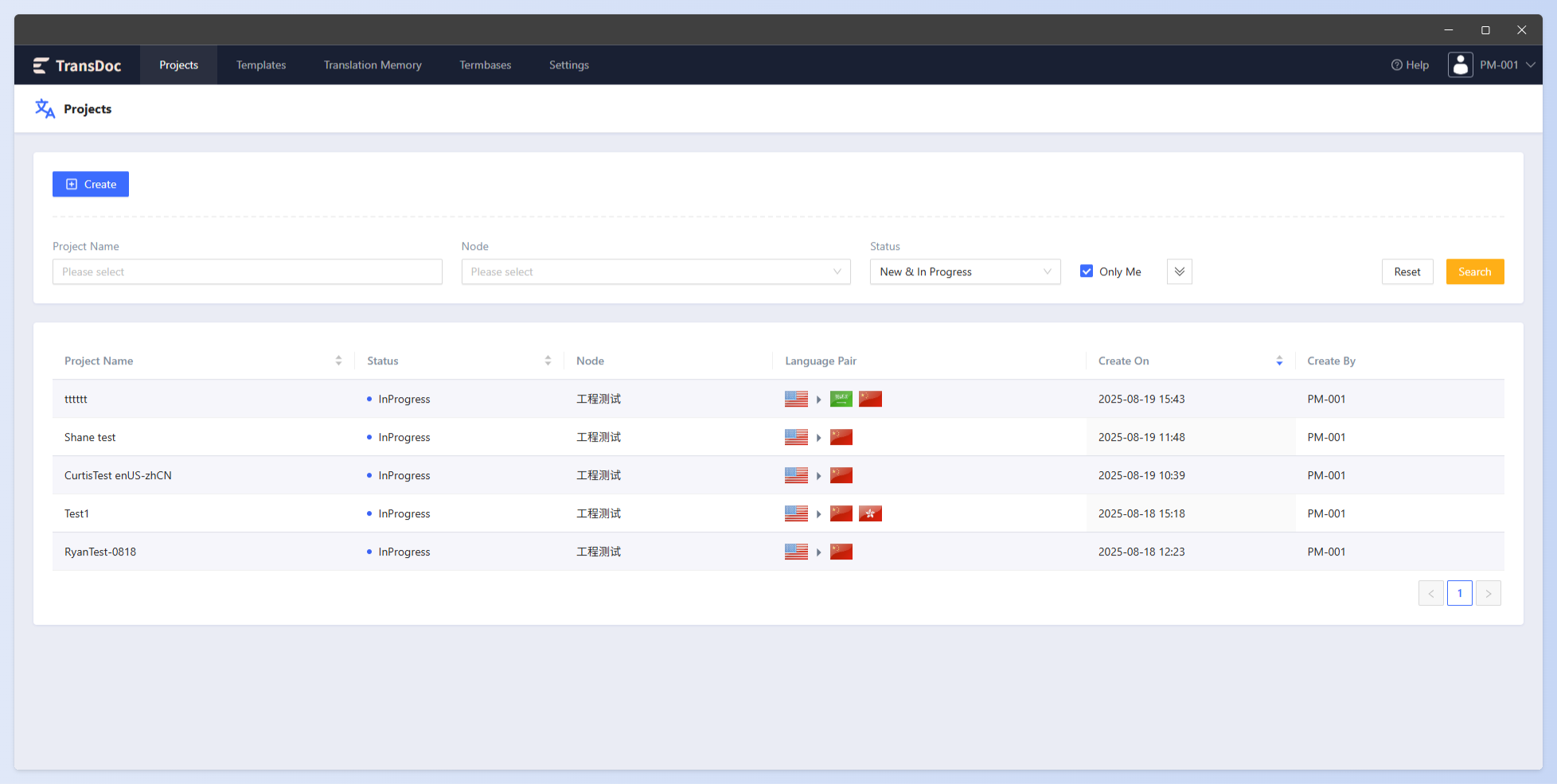
Click the Create button to pop up the Creation page. Enter information such as node name, whether to use a template, project name, source language, target language, project delivery time, workflow, etc. Click the Save button to save.
Note:
When creating a project using a template, the language pair is created according to the settings in the template, and the language pair cannot be modified.
Template and workflow are mutually exclusive; using a template does not require selecting a workflow.
2.3 Project Details
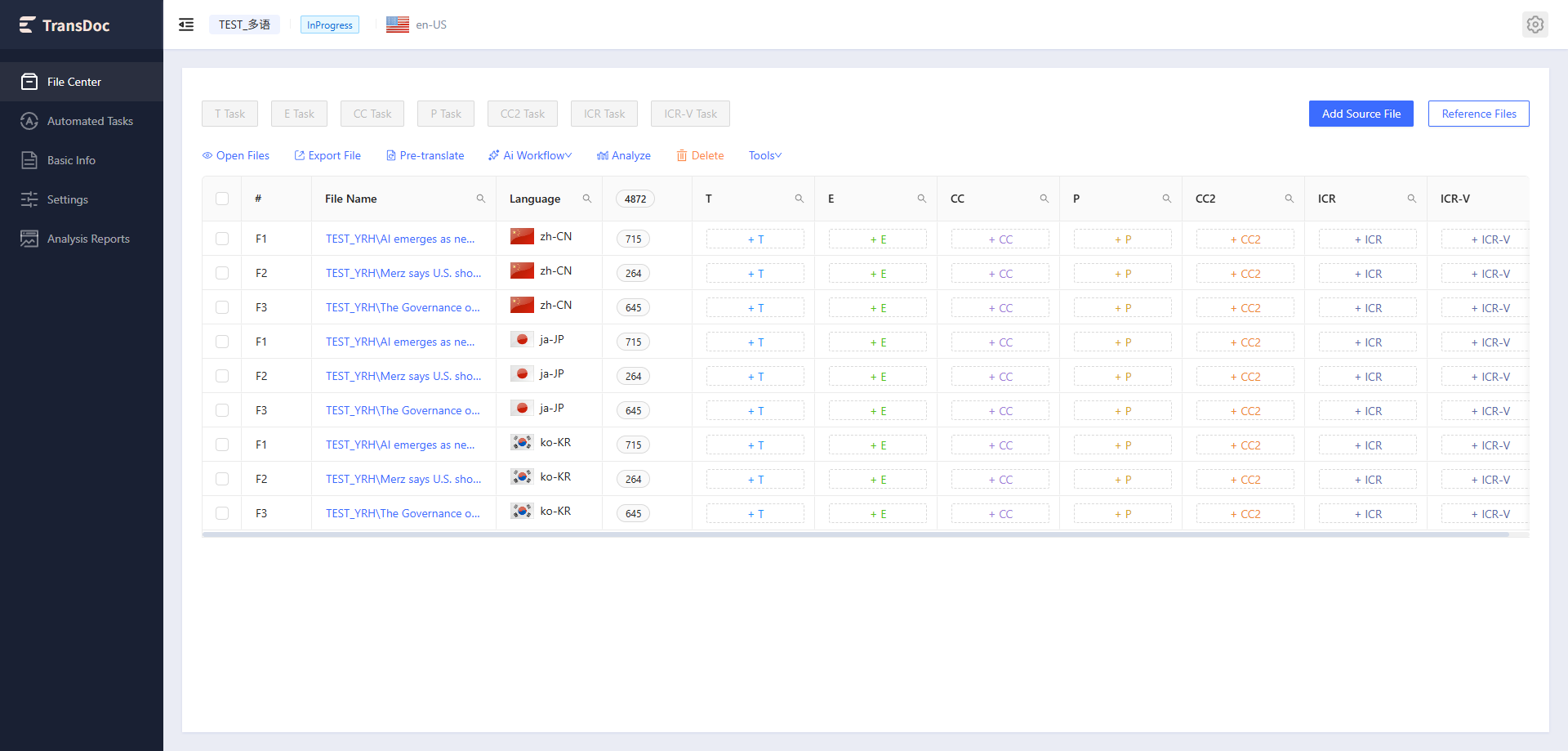
Click the project name in the list to enter the project details. The project details display project file information, automatic task information, basic information, project settings, analysis reports, etc.
2.4 Save As Template
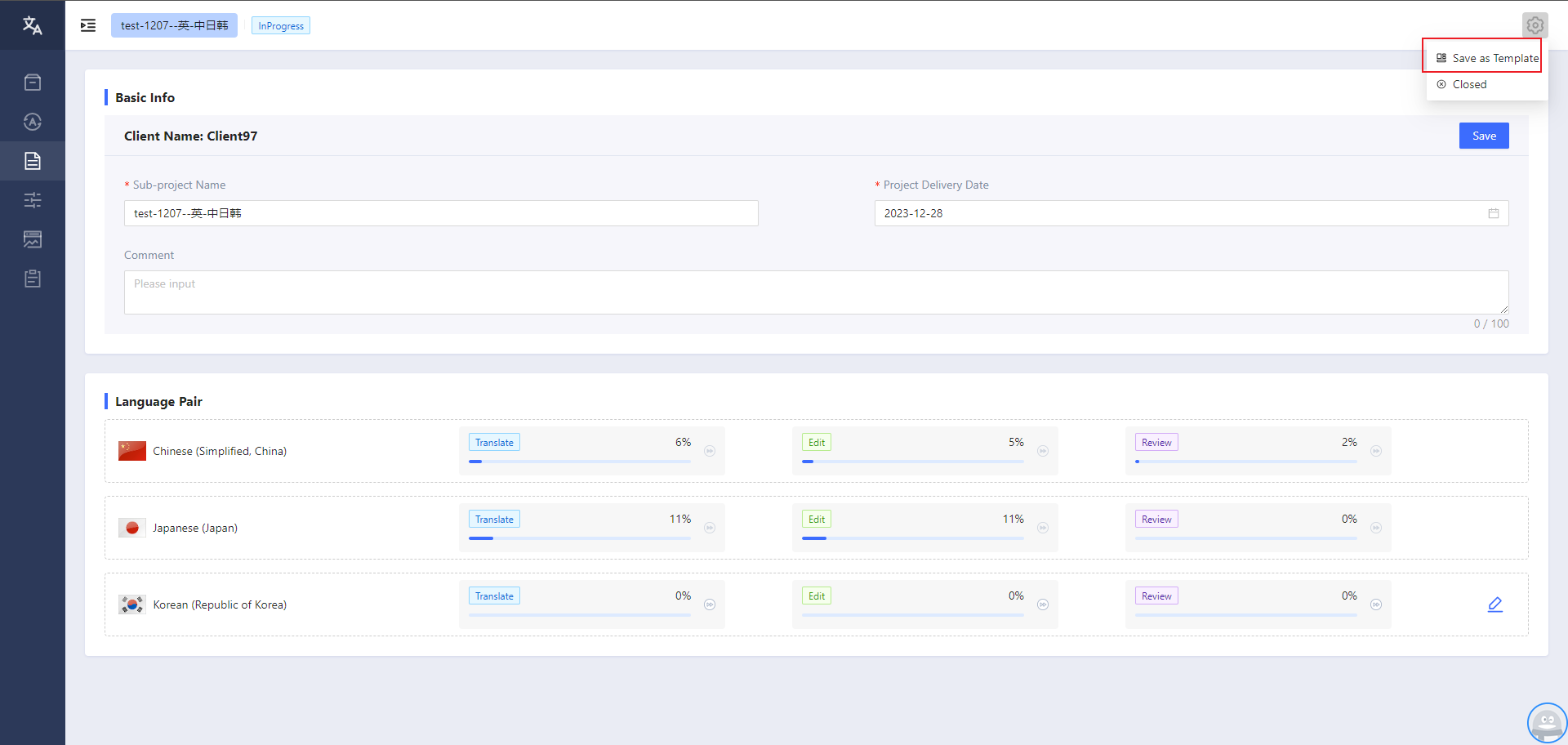
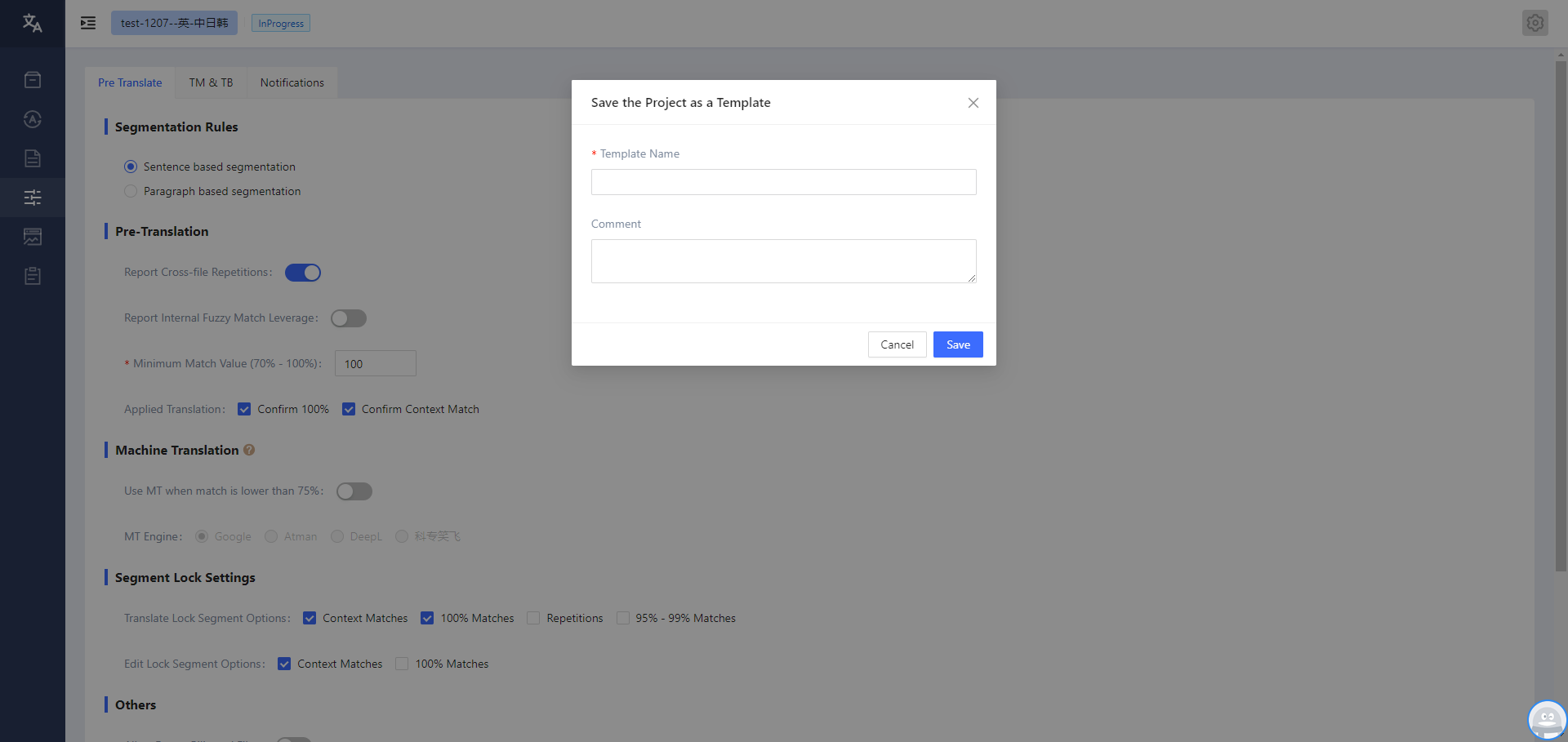
The system provides the function to save the project information (language pair, workflow, translator, pre-translation settings, TM&TB, message notifications, file parsers, etc.) as a template, so that the PM can use this template in subsequent projects. Click Save As Template in the upper right corner of the project to pop up the window.
After entering the template name and comments, click the Save button to save. After successfully saved, this template can be viewed in the Template list.
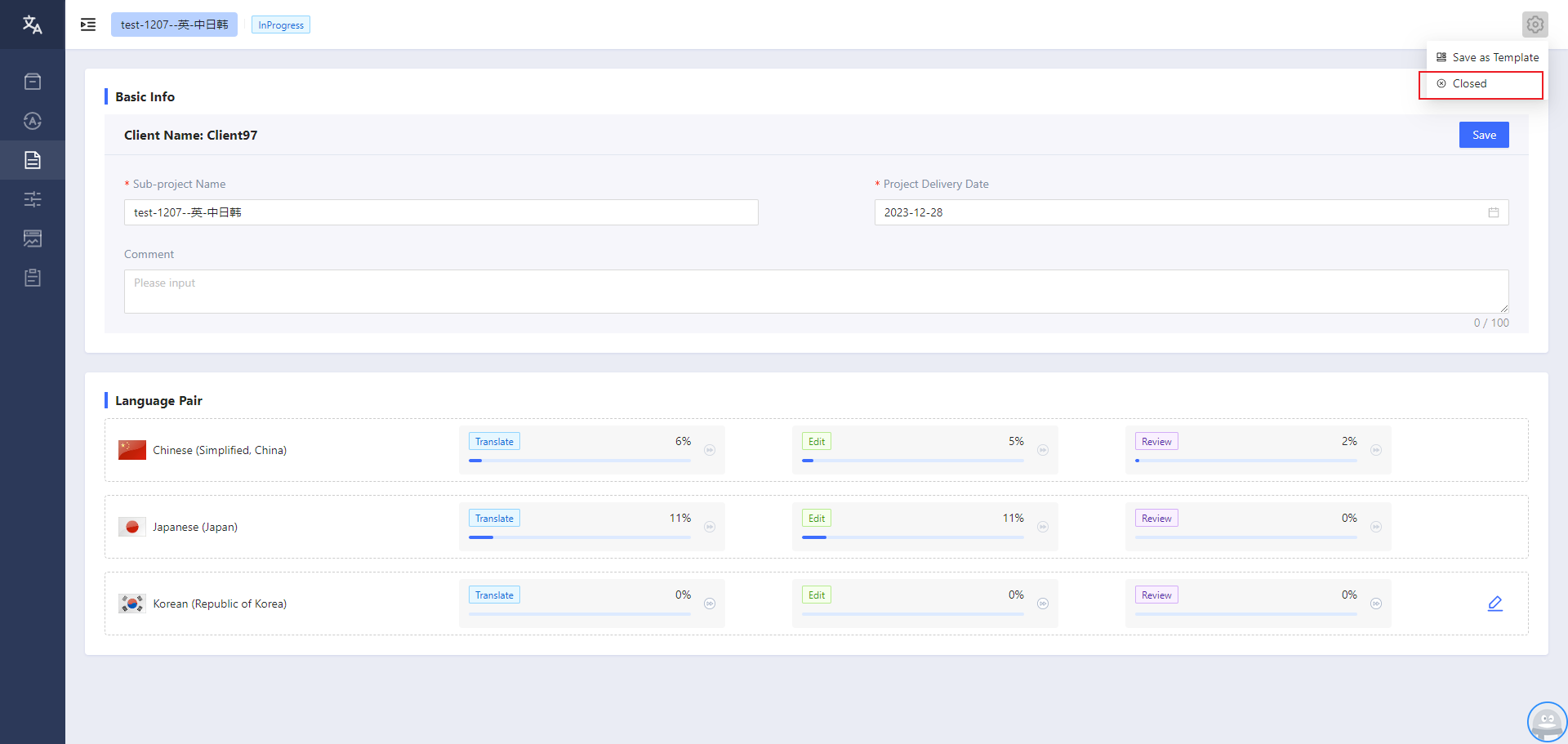
2.5 Close Project
When all tasks in the project are completed, the PM can choose to close the project.
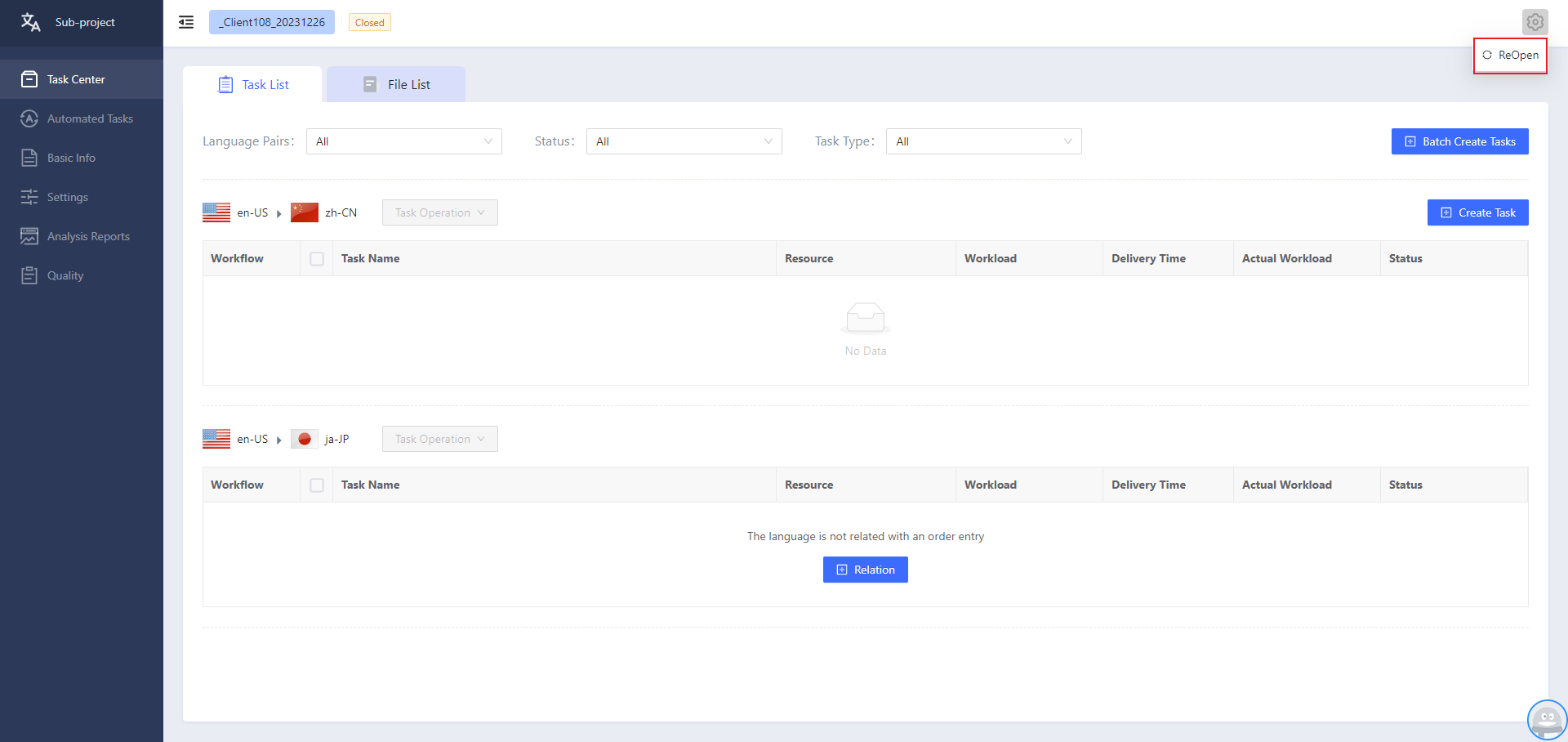
2.6 Reopen Project
After a project is closed, it can be reopened.