3. Template
更新: 2026/8/21 字数: 0 字 时长: 0 分钟
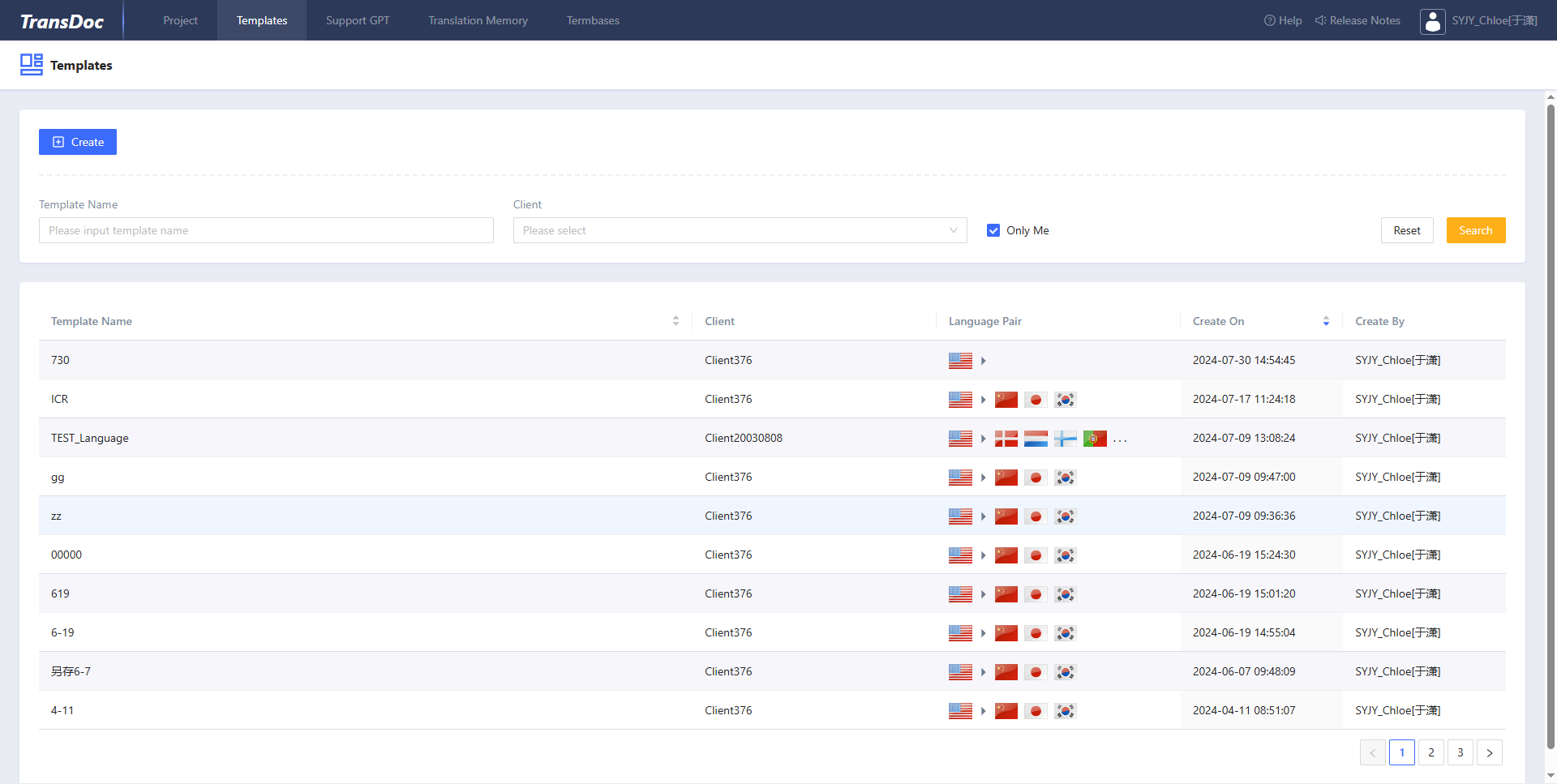
3.1 Create a Template
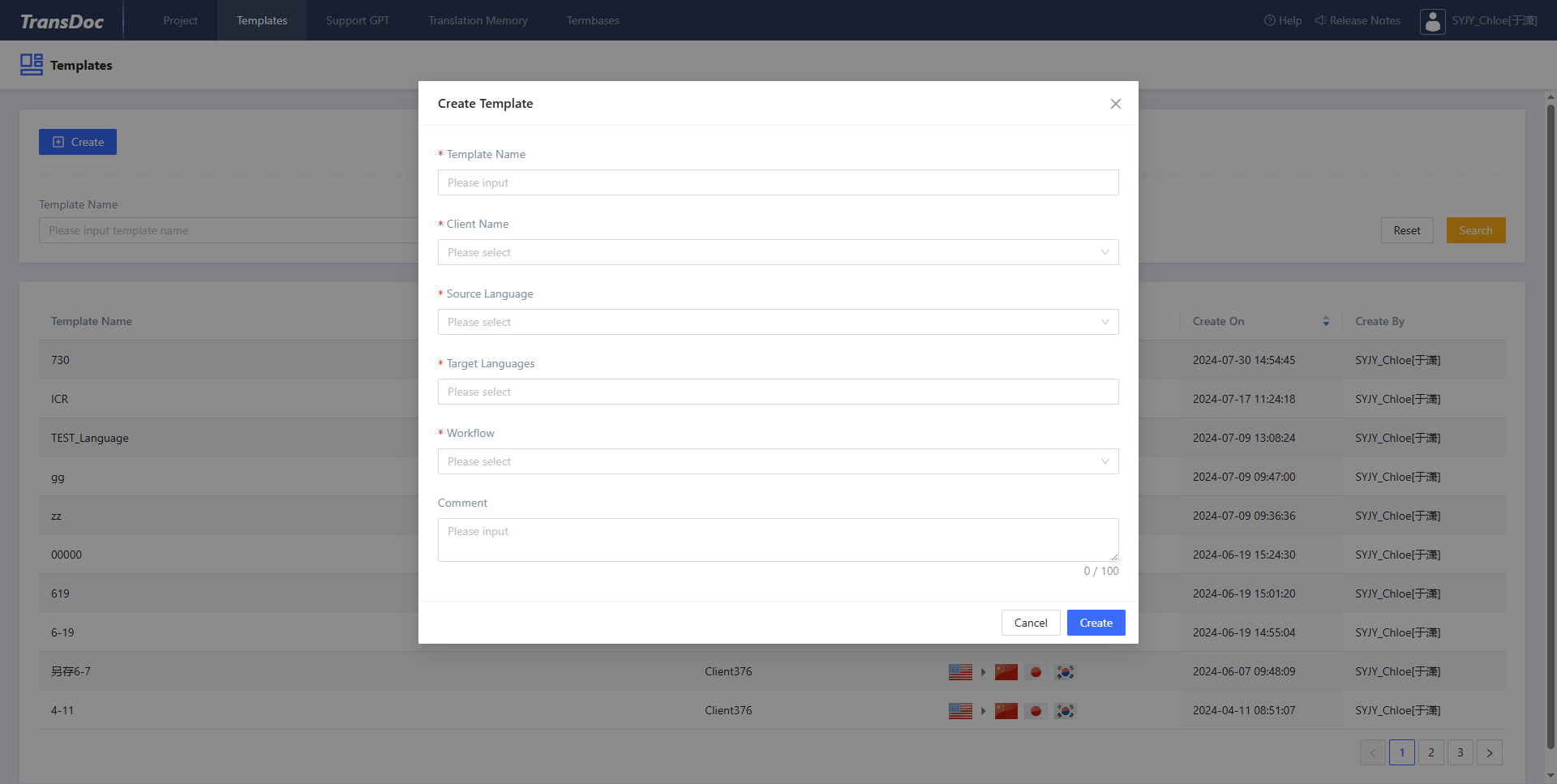
Click the Create button to open the template creation interface, enter the template name, select the client, source language, target language, workflow, and other information, then click the Create button to create the template. After the template is successfully created, click the template name to enter the template details page.
3.2 Basic Info
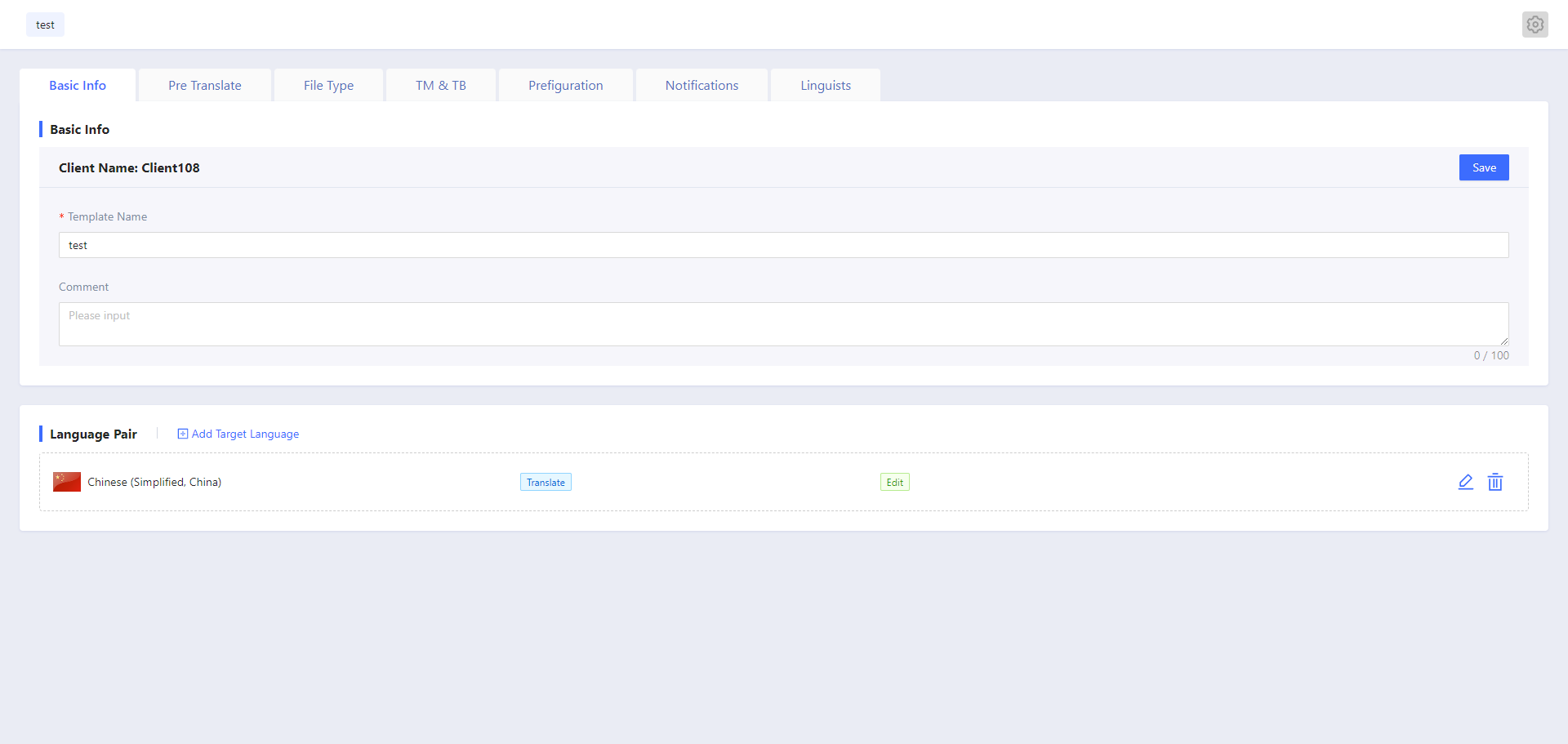
Basic Info includes template name, notes, language pair, and other information.
3.2.1 Add a Target Language
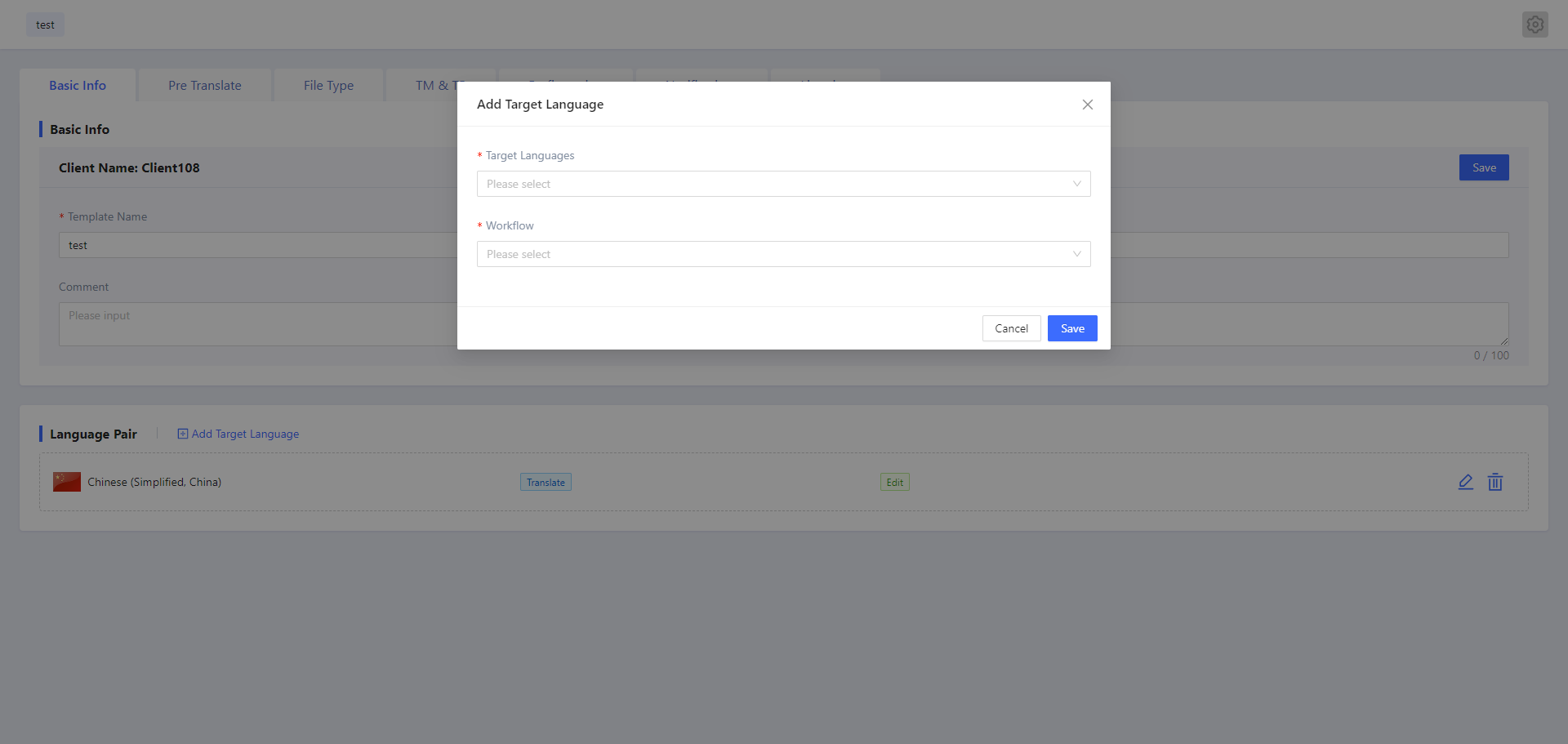
Click the Add Target Language button to open the add language pair interface, enter the target language and workflow to be added, and click the Save button to save.
3.2.2 Modify Target Language Workflow
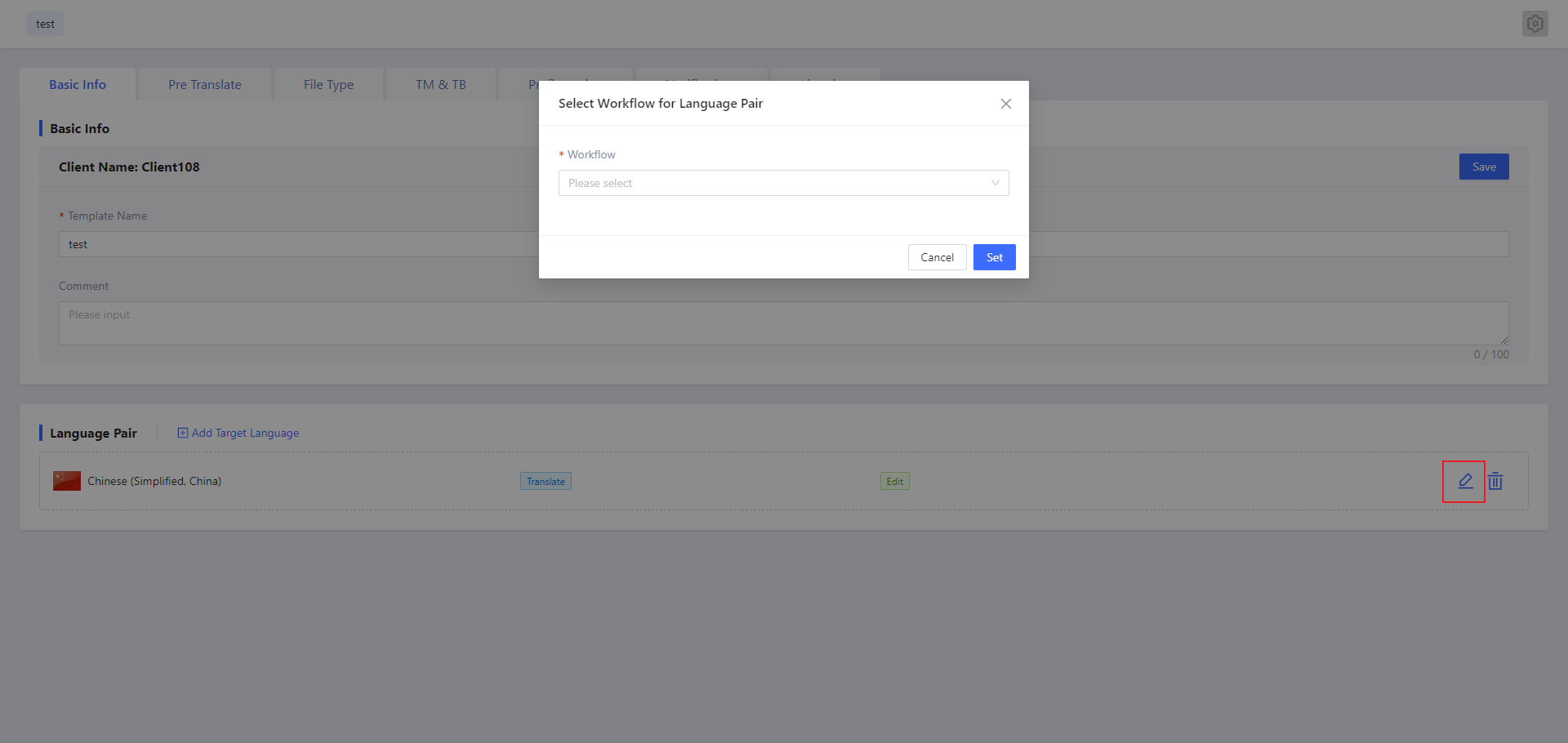
Click the Modify icon to open the modify target language workflow interface, select a predefined workflow, and click the Set button to save.
3.2.3 Delete the Target Language
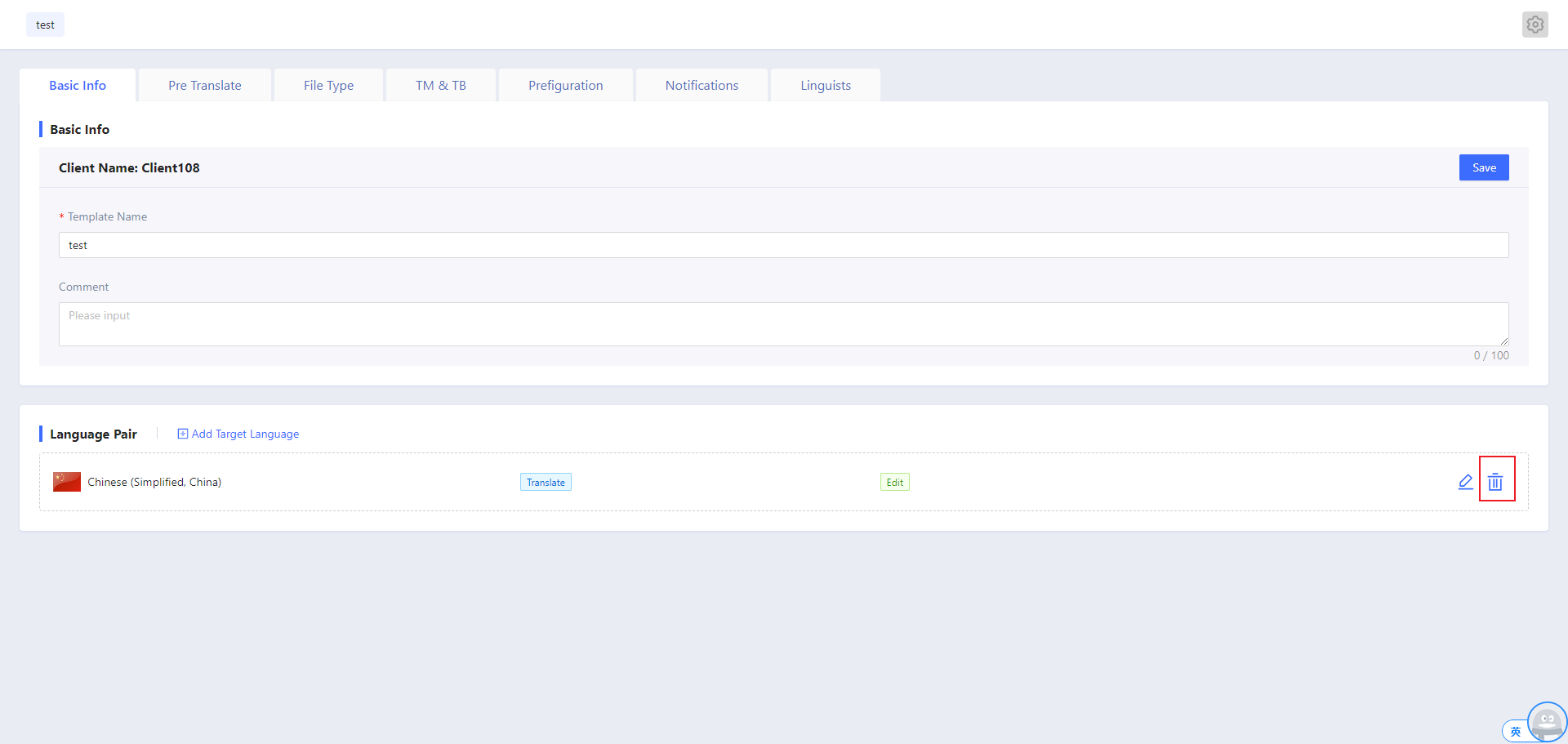
Click the Delete icon to remove the current target language.
3.3 Pre-Translate Settings
3.3.1 Pre-Translation
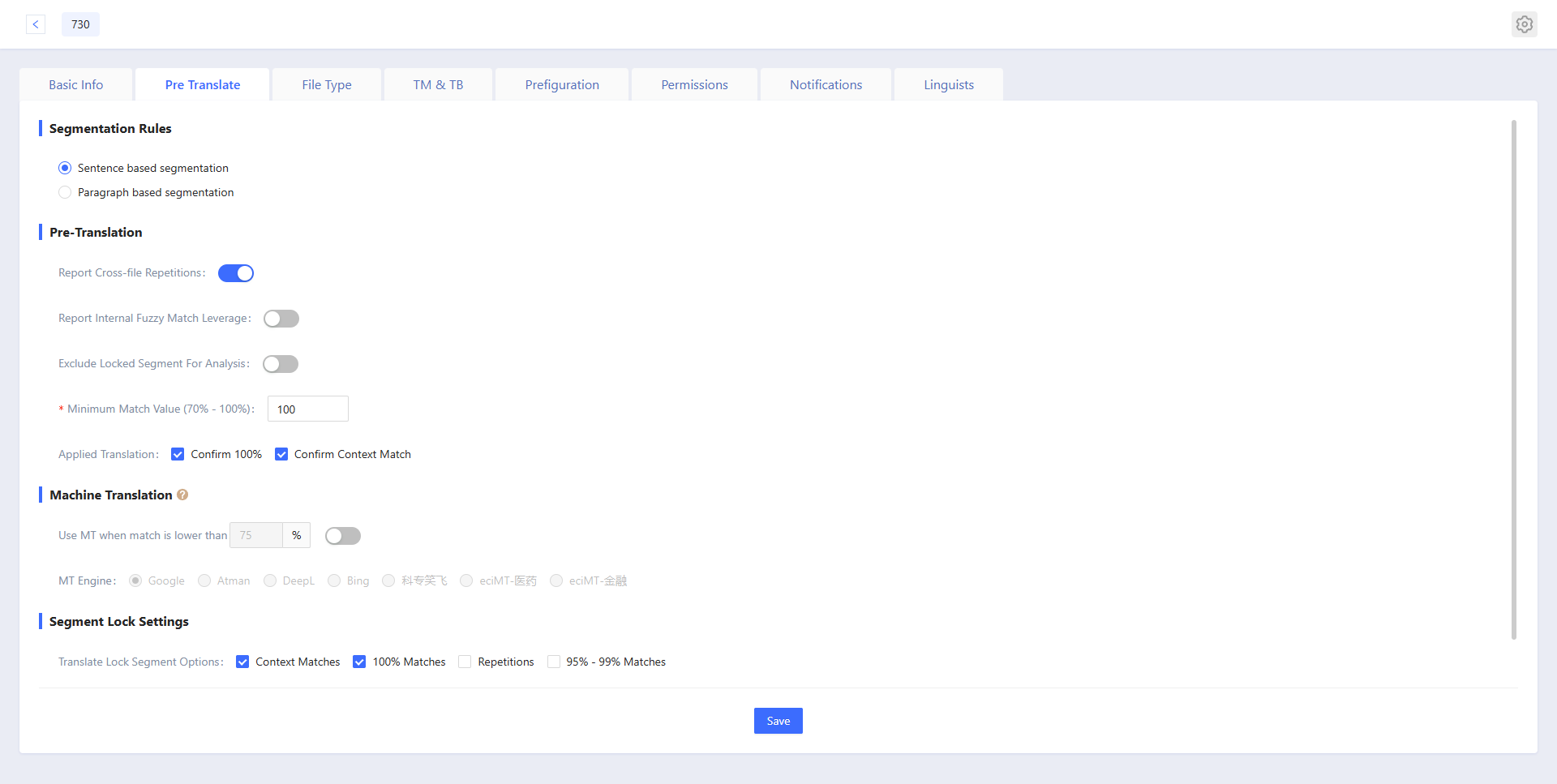
Report Cross-file Repetitions
Allow cross-file repetitions
Report Internal Fuzzy Match Leverage
Allow internal high fuzzy matches
Exclude Locked Segment for Analysis
Exclude locked segments from analysis
Minimum Match Value (70% - 100%)
Minimum match value for applying translations (70% - 100%)
Apply Translation: Confirm 100% and Confirm Context Match
3.3.2 Segment Lock Settings
Lock Segment Options: Context Matches, 100% Matches, Repetitions, 95% - 99% Matches
Apply segment lock settings: Context Matches, 100% Matches, Repetitions, 95% - 99% Matches
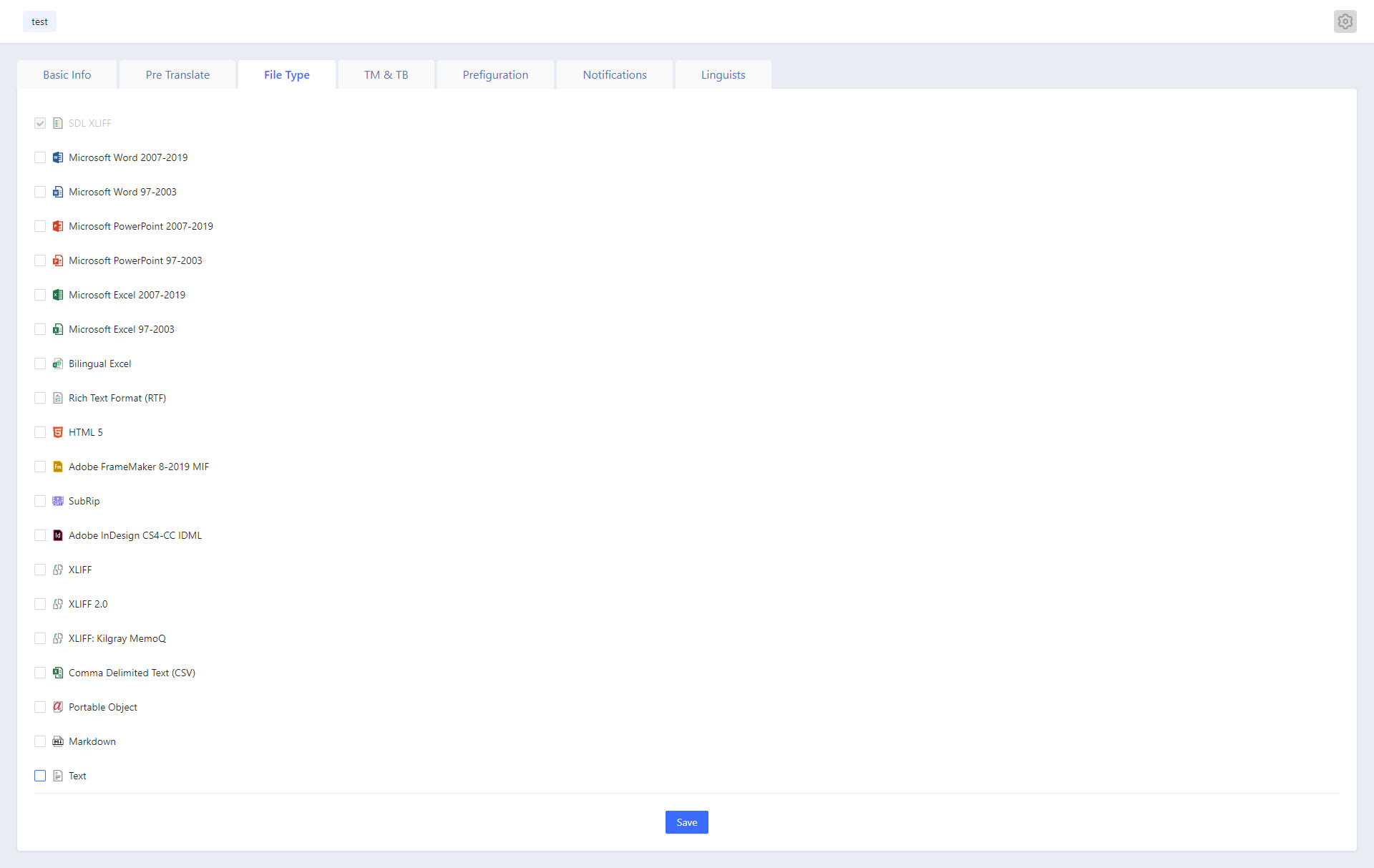
3.4 File Type
File Type is the parser used during file conversion. Parsers frequently used by clients can be uploaded to the template for convenient use in projects.
The interface is as follows:
3.5 TM & TB
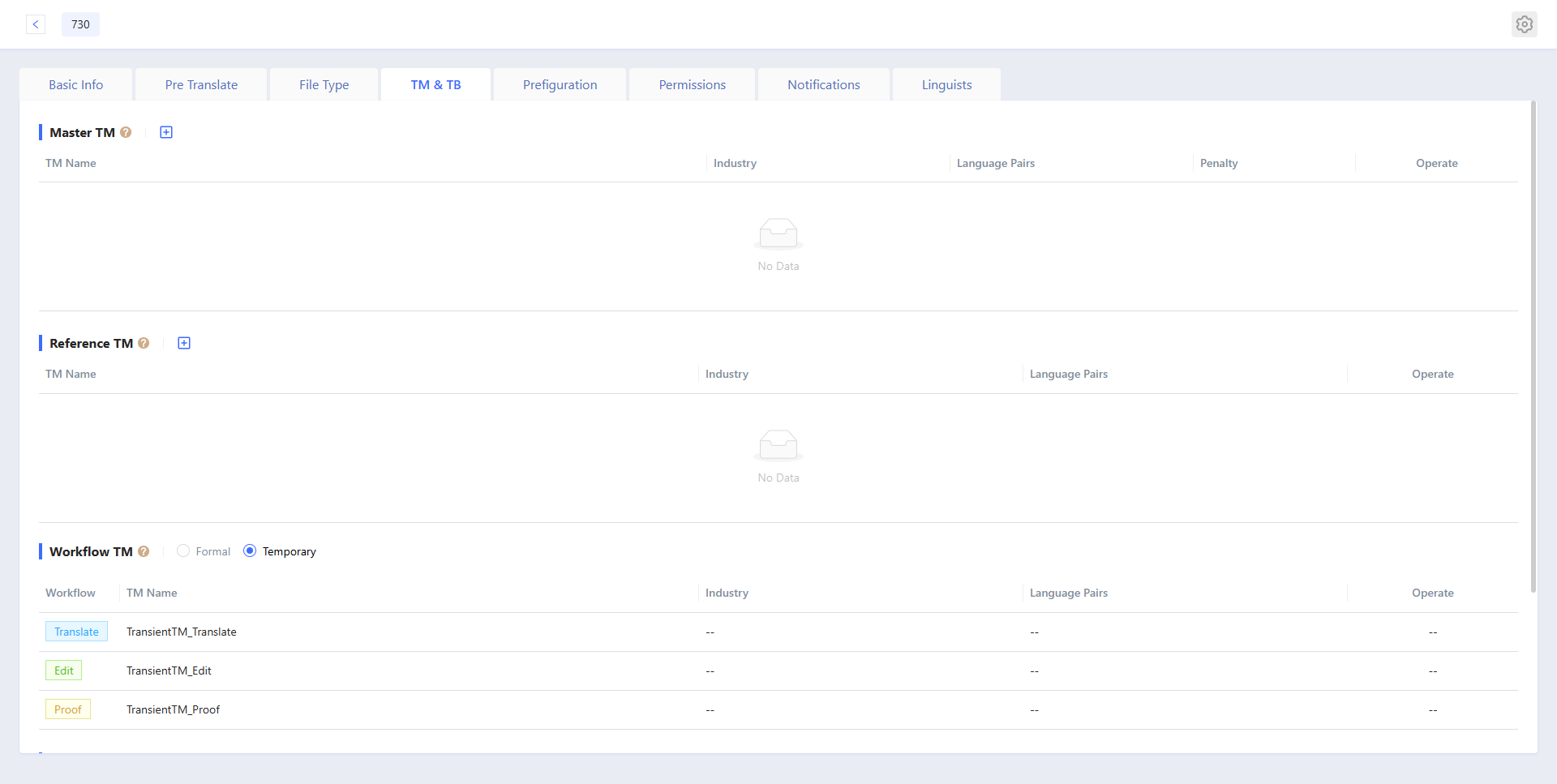
This page allows you to adjust the TM and TB settings of the template.
The interface is as follows:
3.5.1 Master TM
Master TM refers to the main TM, used for analysis and calculation during file conversion, as well as automatic translation. During online translation, Master TM serves as a read-only TM and can be queried on the online page. Therefore, Master TM is a mandatory TM. The language pair range of Master TM must be equal to or greater than that of the template.
Additionally, only Master TM can be updated using the Update TM function in File Center.
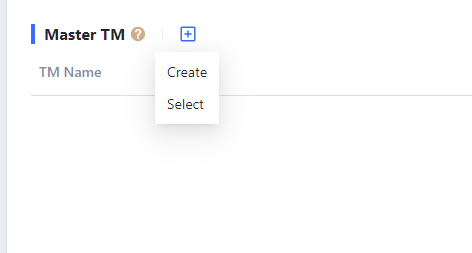
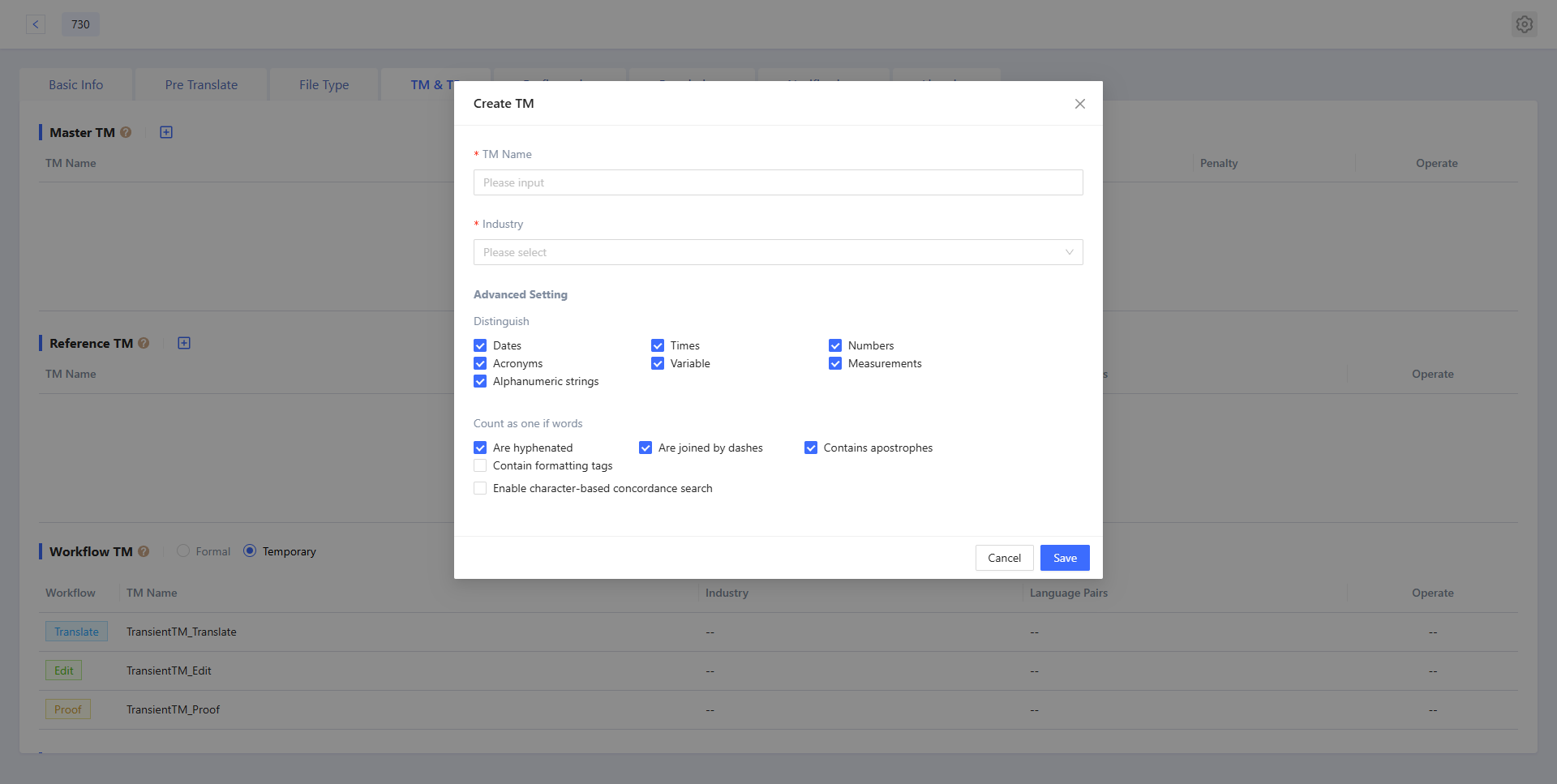
Click Create to pop up the Create TM window. You need to enter the TM name and industry, and adjust the settings. After finished, click Save to complete the creation. When creating a new TM, the default language is based on the template language.
After clicking Select option, in the list, select the TM to be used. TMs that do not meet the language pair conditions will not appear in this list.
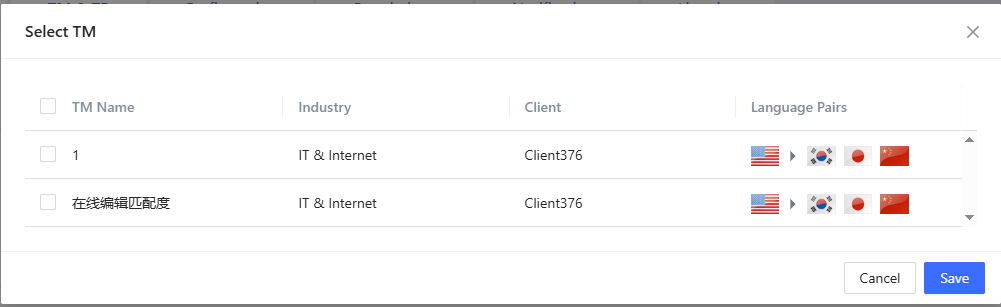
After saving the selected TM, you can delete it from the list or adjust the order of multiple TMs using the pin function. The order of the Master TM determines the priority when the match rate is the same.

3.5.2 Reference TM
Reference TM refers to a reference translation memory, with no language pair restrictions. All TMs owned by the user can be set as reference TMs, providing query functionality as read-only TMs during online editing. Reference TMs can be added in the same way as the Master TM.
3.5.3 Workflow TM
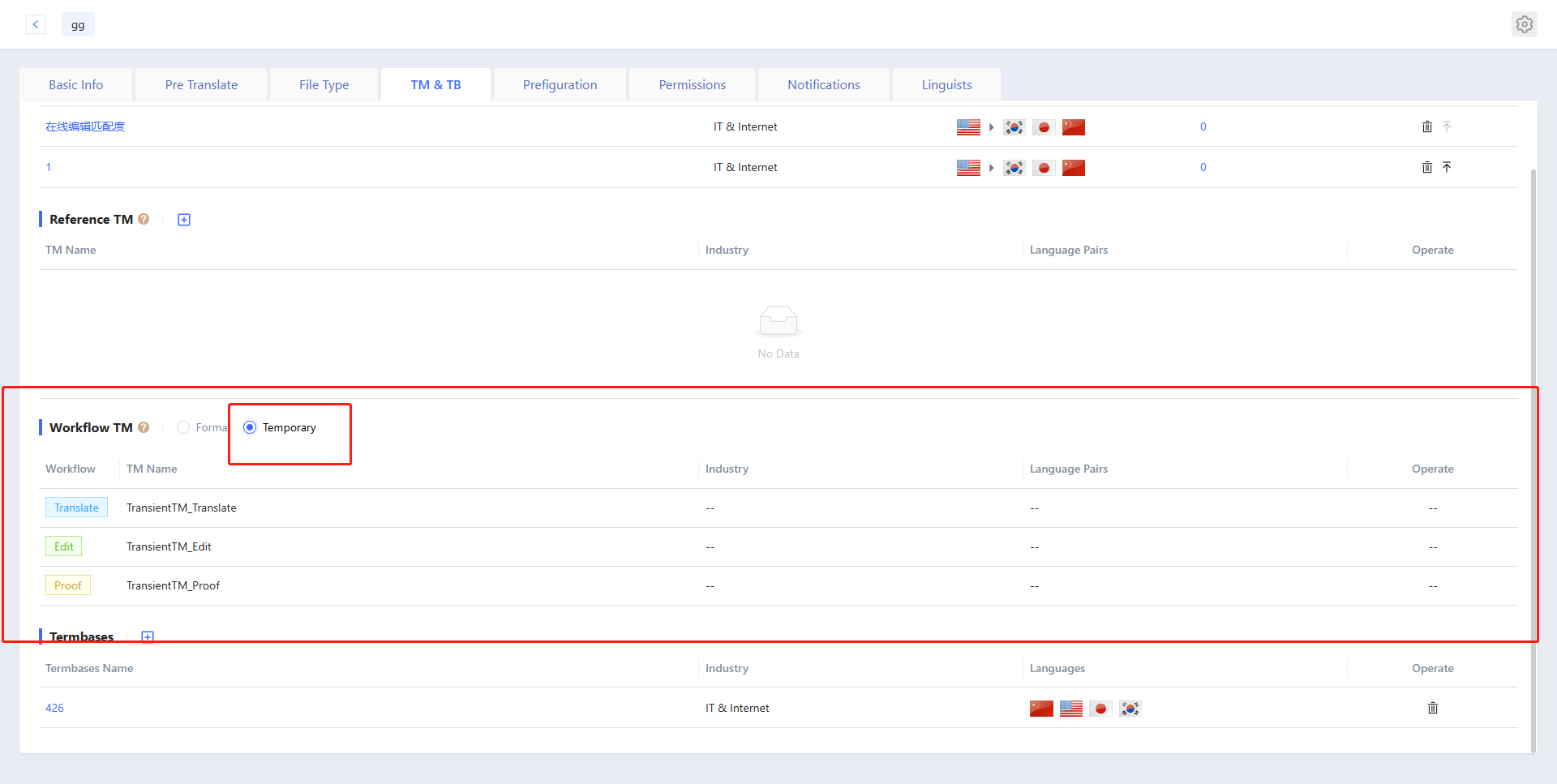
Workflow TM refers to the workflow TM, and can be set separately for Translate/Edit/Proof steps. Language pair restrictions apply when selecting, consistent with the rules for Master TM. Workflow TMs provide query and write functionality as read-write TMs for linguists during online editing. The corpus data generated during the linguist's work will be written into the Workflow TM.
3.5.4 Termbases
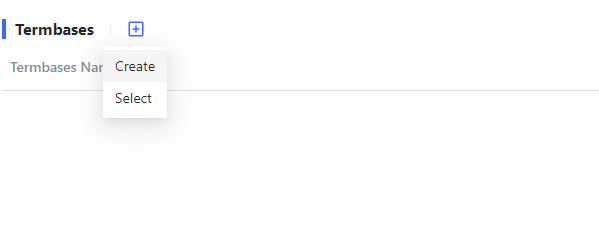
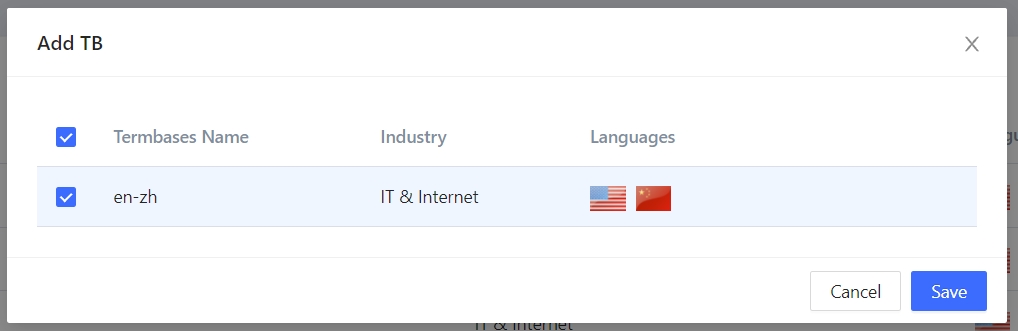
Termbase refers to a terminology database, providing term query functionality during online editing. There are language pair restrictions when selecting, and the restriction rules are the same as for Master TM. It also supports creating an empty termbase for association.
3.5.5 Temporary TM Toggle for Workflow TM
Formal: Temporary TMs are disabled in this state.
Temporary: Temporary TMs are enabled in this state. The Translate step will add a temporary TM named TransientTM_Translate. The Edit step will add a temporary TM named TransientTM_Edit. The Proof step will add a temporary TM named TransientTM_Proof. When enabled, temporary TMs cannot be associated with other TMs.
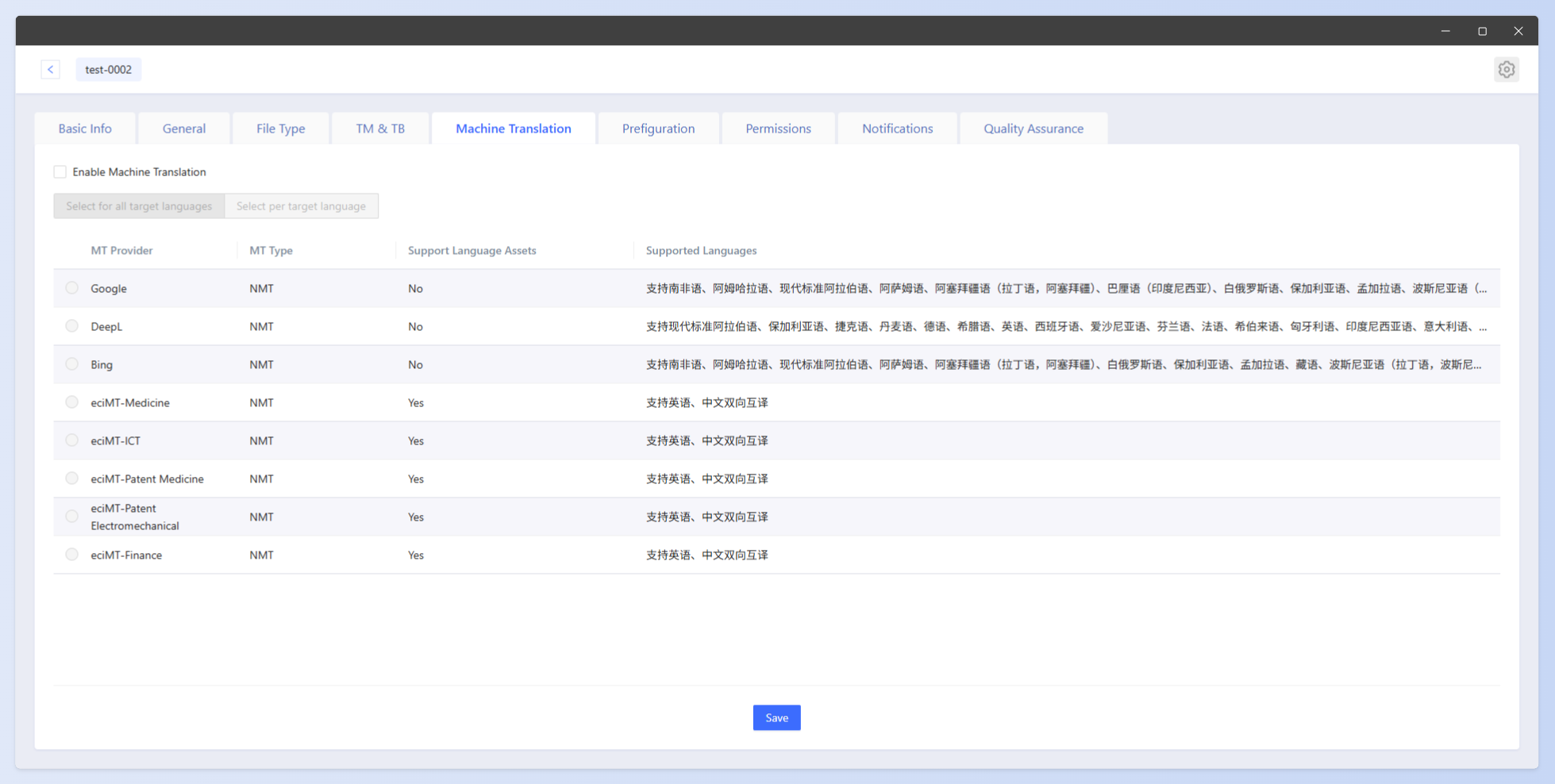
3.6 Machine Translation Settings
You can configure the machine translation engine in the template, and set different engines for different languages.
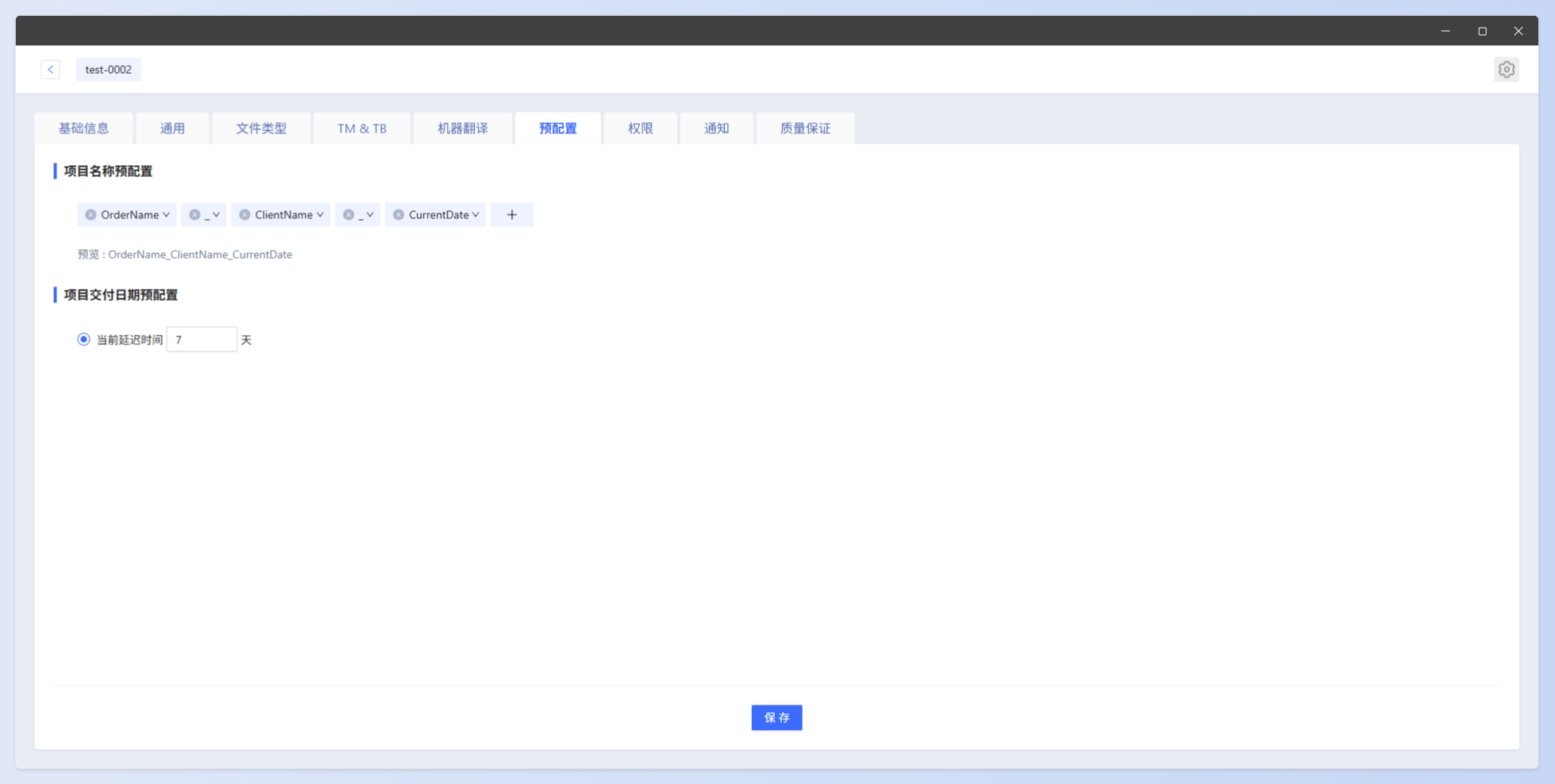
3.7 Pre-configuration Items
Project name pre-configuration, project delivery time pre-configuration, and delivery time default value: When a project is created through a template, the system will automatically apply these pre-configuration items set in the template.
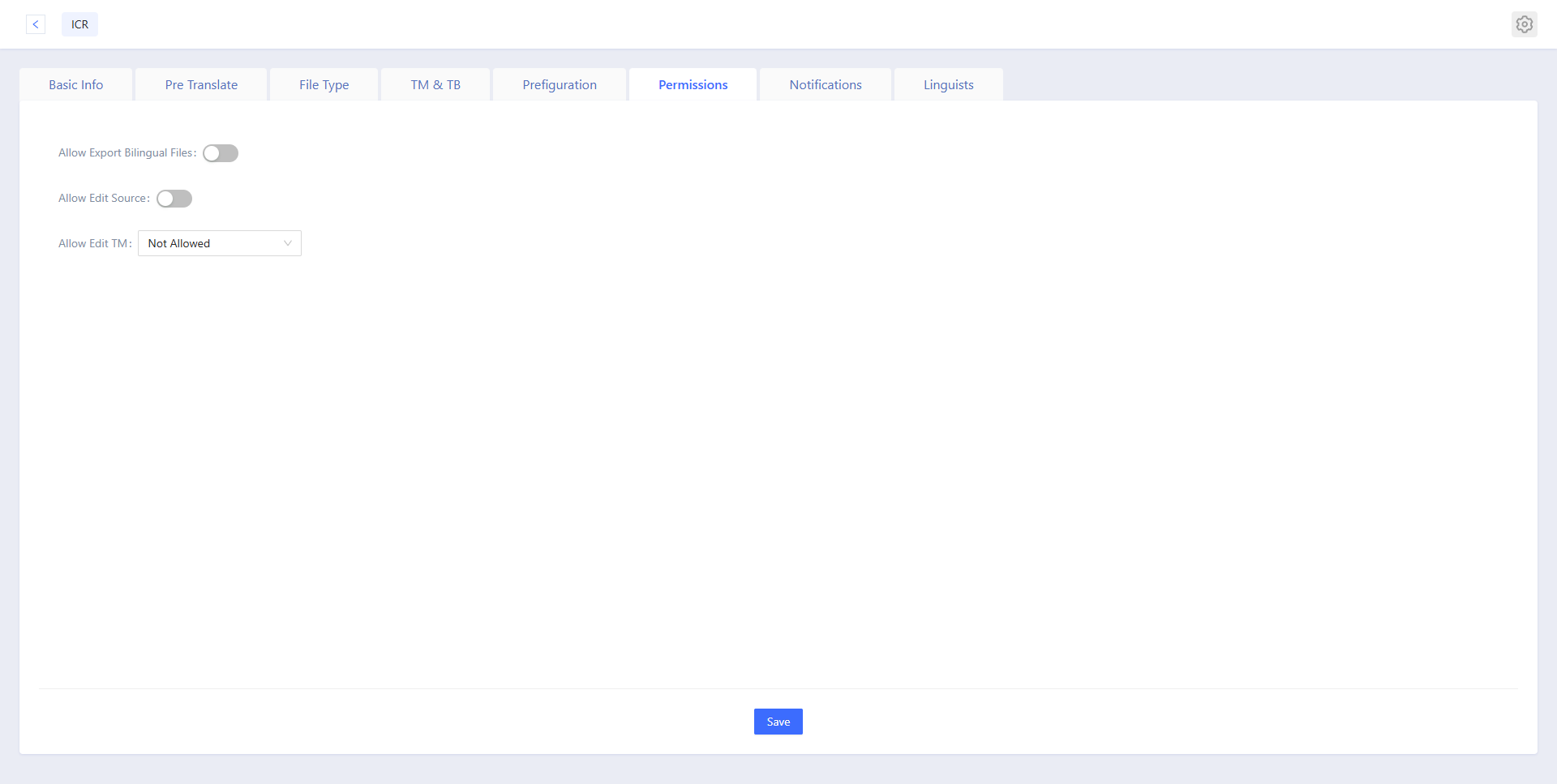
3.8 Permissions
Allow Export Bilingual Files
Allow linguists to download bilingual files
Allow Edit Source
Allow linguists to edit the source text
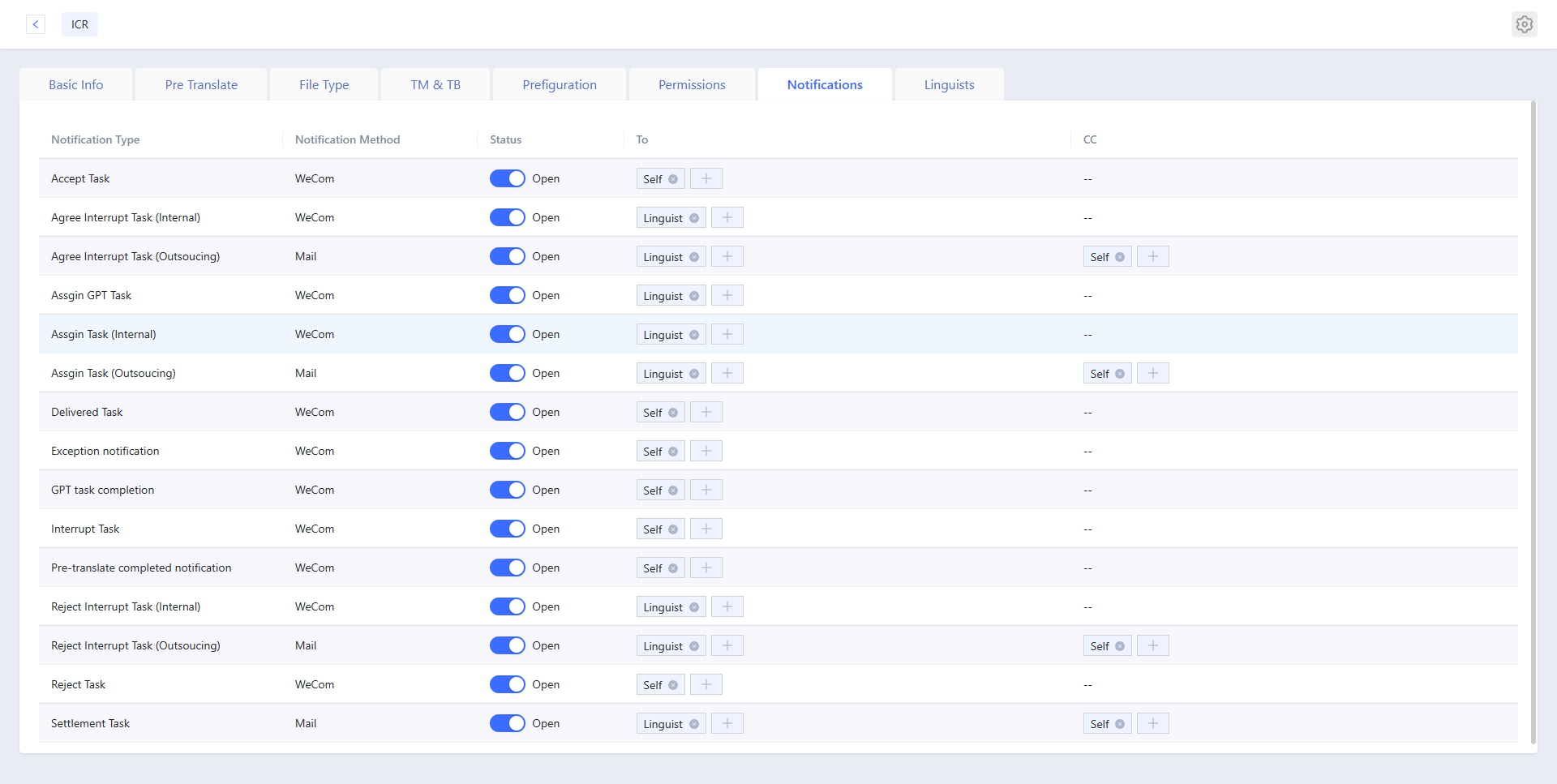
3.9 Notifications
Message notification settings refer to the system prompting relevant personnel to perform the next steps based on certain operations. Currently, notifications are sent through WeCom and email. By default, WeCom is used fro internal employees, and email is used for external resources. In the message recipient and CC fields, you can select yourself, linguists, and other PMs.
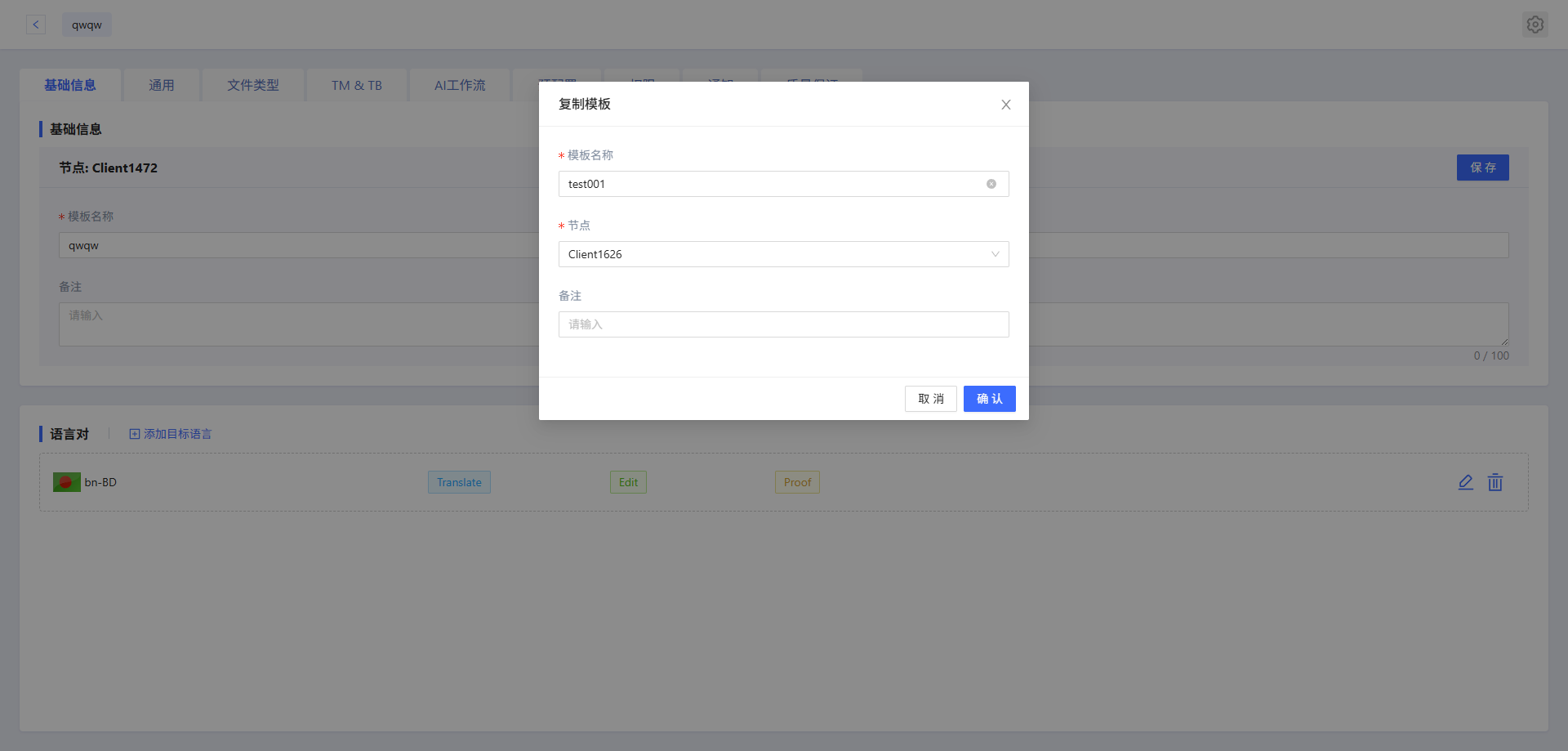
4.0 Duplicate Template
- Open the existing template, and click the button in the upper right corner to duplicate a copy of the template with the same settings.
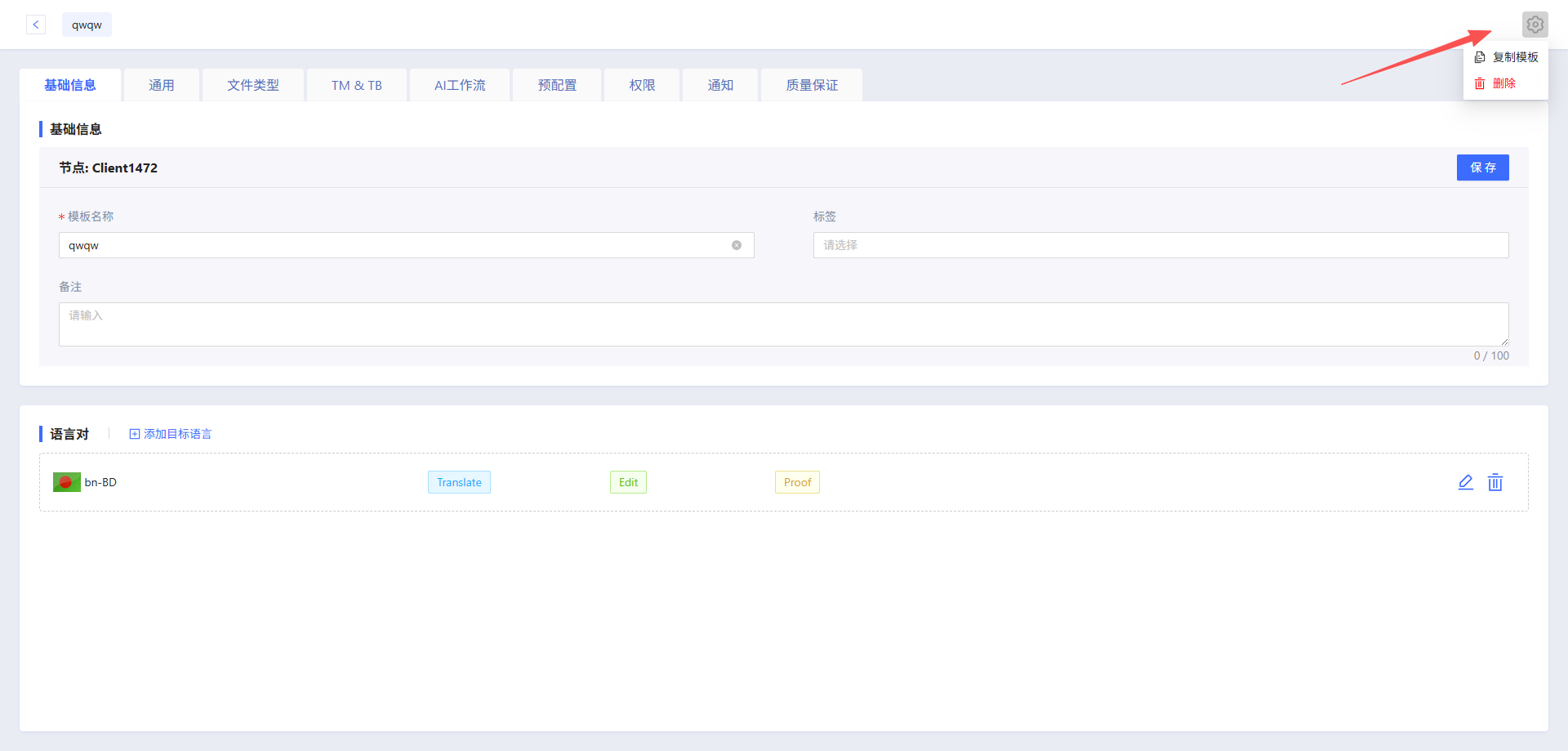
- Fill in the template name and select a node, then click Confirm to complete the creation.